
Need Higher Conversion? Add Testimonial to Framer

Many Framer projects fail to establish immediate trust with users, leading to lower engagement and conversions.
Without trust, even the most visually stunning designs may fail to resonate with users. This lack of trust can drive potential collaborators or clients to competitors.
By integrating testimonials, you can establish credibility, enhance your portfolio’s impact, and build trust—ultimately boosting user engagement and driving conversions.
Why Add Testimonials to Framer?
Testimonials in Framer aren’t just decorative; they serve as pivotal trust builders for your designs and interactive prototypes. Here’s why:
Showcase User Impact: Framer is known for delivering immersive, interactive designs. By adding testimonials, you highlight real-world success and user impact.
Humanize Your Portfolio: Testimonials lend authenticity to your work, transforming your designs from static visuals to proven solutions.
Enhance Conversion: User-generated testimonials boost trust, which is proven to increase conversions by up to 34%.
Competitive Edge: Stand out by showcasing endorsements from high-profile clients or collaborators.
Build trust & FOMO
Highlight real-time activities like reviews, sales & sign-ups.


How to Add Testimonials to Framer
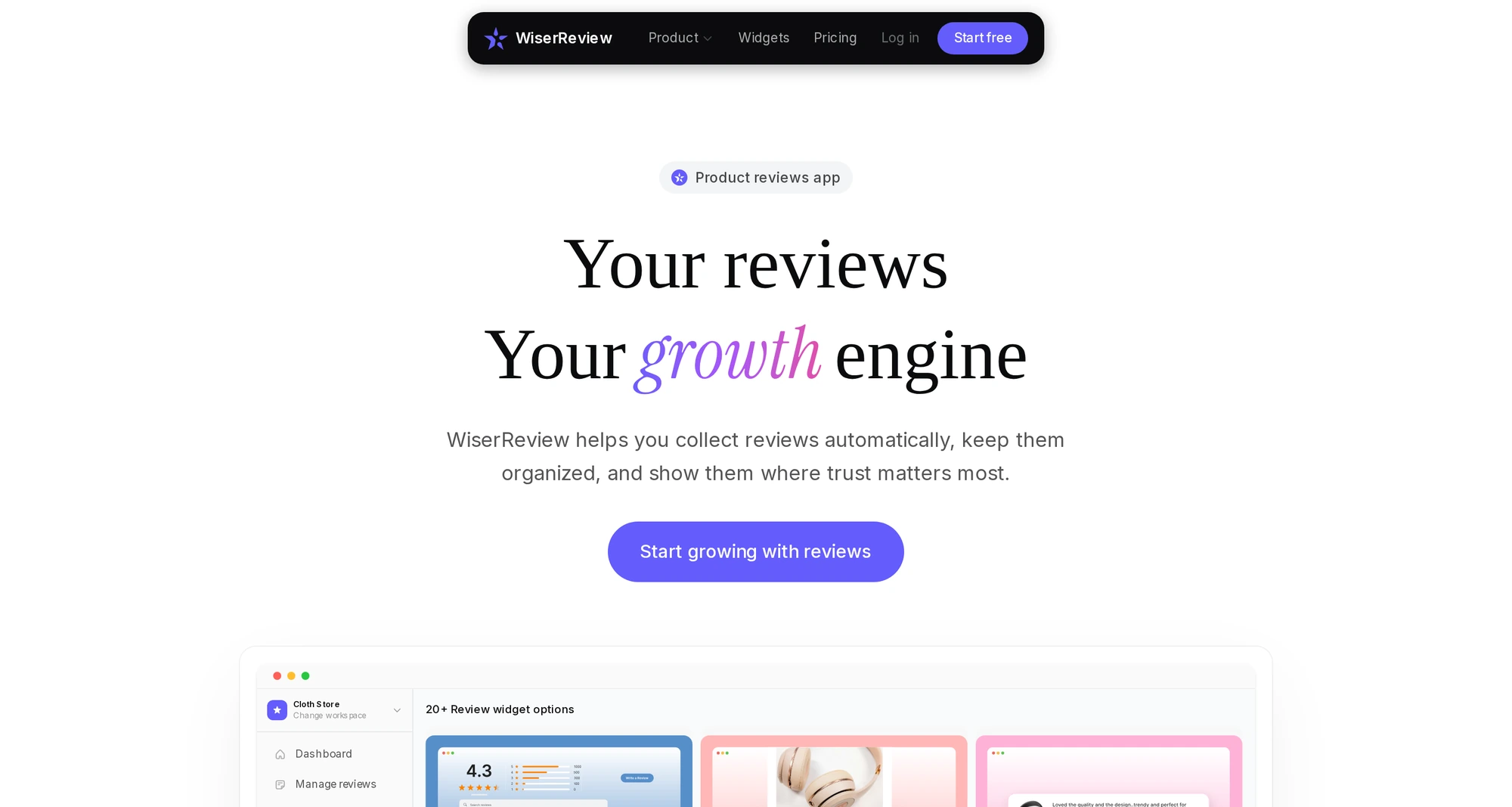




Embed Testimonials on Framer
1. Start with a Widget Integration
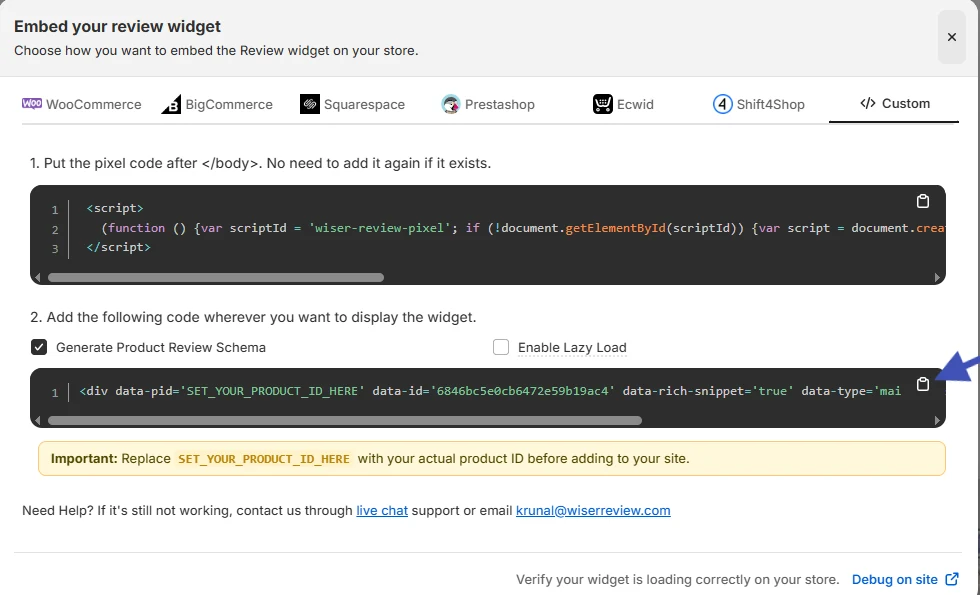
- Use Framer’s embed tool to integrate third-party testimonial widgets like WiserNotify.
- Copy the widget’s script (provided by WiserNotify) and paste it into your Framer project under the “Embed Code” section.
2. Design Your Own Testimonial Section
- Use Framer’s drag-and-drop components to create a visually engaging testimonial section.
- Include design elements like sliders for rotating testimonials or static sections for high-impact quotes.
3. Ensure Responsiveness
- Framer projects are optimized for interactivity; ensure that testimonial layouts are responsive across desktop, tablet, and mobile.
3 Testimonial Optimization Tips for Framer
Highlight Key Metrics: Showcase quantifiable success stories like “Increased user engagement by 72%.”
Use Visual Cues: Incorporate profile pictures or logos of endorsers to add authenticity.
Leverage Interactivity: Add hover states or animations to testimonials for dynamic user engagement.
Best Places to Show Testimonials on Framer
Landing Pages
- Display testimonials prominently above the fold to make an immediate impact.
Project Showcases
- Integrate testimonials within case studies to emphasize the user benefits of your designs.
Call-to-Action (CTA) Sections
- Place testimonials near CTAs to reduce user hesitancy and boost conversions.
Other Ways to Add Testimonials to Framer
Video Testimonials
- Embed video files or YouTube links for a more engaging presentation.
Rotating Carousels
- Use Framer’s interactive capabilities to create scrolling testimonial sections.
Animated Quotes
- Bring testimonials to life with subtle animations, showcasing Framer’s design power.
3 Testimonial Mistakes on Framer
Overcrowding Testimonials
- Avoid cluttering your design; focus on quality over quantity.
Neglecting Context
- Always provide enough context about the testimonial source to build credibility.
Ignoring Visual Harmony
- Ensure testimonial designs align with the overall aesthetic of your project.
Wrap-Up
Incorporating testimonials into your Framer projects isn’t just about filling space—it’s about creating a seamless trust-building experience. With strategic placements and thoughtful design integration, testimonials can transform your Framer prototypes into tools of persuasion.
Related Posts:
Frequently Asked Questions
Why should I add testimonials to my Framer website?
Adding testimonials helps build trust with your visitors by showcasing real feedback from satisfied customers. This can increase credibility and improve conversion rates.
How can I easily add testimonials to my Framer site?
Framer allows you to add testimonials using pre-designed components or by customizing your own testimonial section. You can also integrate third-party tools for dynamic testimonial displays.
What types of testimonials work best on a Framer website?
Video testimonials, customer reviews with photos, and specific quotes about your product or service work best. Authentic, relatable testimonials resonate most with potential customers.
Can I showcase dynamic testimonials on Framer?
Yes, you can use integrations like WiserNotify or other tools to display dynamic, real-time testimonials, such as recent reviews or customer feedback updates.
How can testimonials improve my website’s performance on Framer?
Testimonials create social proof, encouraging visitors to take action, whether it’s signing up, making a purchase, or contacting you. They enhance user trust, which can lead to higher engagement and conversions.

Krunal Vaghasiya is a marketing tech expert who boosts e-commerce conversion rates with automated social proof and FOMO strategies. He loves to keep posting insightful posts on online marketing software, marketing automations, and improving conversion rates.




 Capterra