
Simple Way to Add Star Ratings and Reviews to Weebly
 Krunal Vaghasiya|May 19, 2025
Weebly makes it easy to build websites with drag-and-drop tools, but it lacks robust, customizable options for displaying customer reviews. Static review sections and limited layout flexibility can weaken your ability to build trust with visitors.
WiserReviews helps Weebly users embed dynamic review widgets like sliders, floating badges, and popups directly onto their site. These widgets are optimized for speed, fully responsive, and support automatic review collection and filtering.
This blog shows how to add WiserReviews to your Weebly site, where to position reviews for best effect, and how to avoid the most common mistakes.
Why Add Reviews on Weebly?
Turn Visitors into Buyers with Trust Cues: Reviews boost credibility and support purchasing decisions. WiserReviews allows you to position them in key locations across your Weebly pages.
Use Schema Markup to Enhance SEO: WiserReviews includes review schema so that your Weebly site can display star ratings in search engine listings, improving visibility and CTR.
Tailor Review Displays by Page or Category: Use tagging to customize review widgets for different product categories or services. This lets visitors see the most relevant feedback.

All your reviews in one place
Collect reviews, manage every response, and display them where they matter most.
What Makes WiserReviews’ Reviews Special?
WiserReviews works seamlessly with Weebly via embed codes and supports multiple widget formats like sliders, badges, or testimonial carousels.
It enables real-time automation, tagging, and full visual customization.
It also allows responsive displays that maintain fast load speeds, ensuring your reviews look great on all devices and align with your Weebly theme’s aesthetics.
How to Add Reviews on Weebly


How to Embed Reviews on Weebly
1. In your Weebly dashboard, select the page to add reviews.
2. Drag the “Embed Code” element to the desired area.
3. Click inside the block and paste your WiserReviews code.
4. Publish your site and preview your changes.
Related Post: How to Add Reviews to Your Website in Minutes
Best Practices for Showcasing Reviews on Weebly
Learn where and how to place reviews so they support your product.
A small change in placement can make a big difference.
1. Position Reviews Close to Conversion Points
Always place reviews near elements where users make buying or signup decisions like CTAs, pricing tables, or forms.
Strategic placement amplifies the testimonial impact, helping reinforce the user’s intent to act.
2. Customize by Category or Page Type
Avoid a one-size-fits-all testimonial display.
Use WiserReviews’ tag-based filtering to ensure each Weebly page presents feedback tailored to the product or service it promotes. This keeps reviews relevant and boosts user trust.
3. Design for Mobile Responsiveness
Over half of site traffic is mobile.
Ensure that the review widgets render cleanly on smartphones and tablets. WiserReviews provides mobile-friendly formats just test across screen sizes in preview mode to fine-tune placement and readability.
Different Types of Review Examples


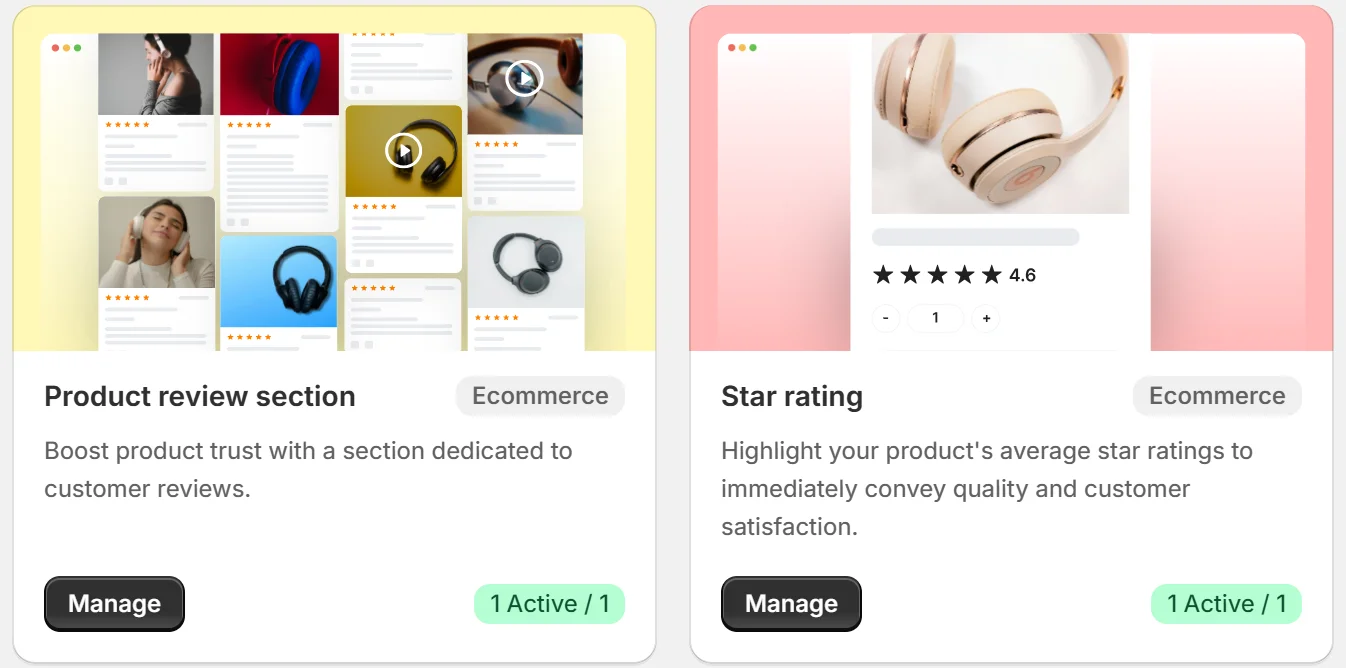


All your reviews in one place
Collect reviews, manage every response, and display them where they matter most.
Common Mistakes to Avoid When Adding Reviews to Weebly
Here are the top mistakes people make with reviews on Weebly.
Avoid these to keep your site looking clean and trustworthy.
1. Using the Same Review Widget Across All Pages
Showing identical testimonials sitewide may feel disingenuous.
Instead, create multiple widgets using WiserReviews tags to display page-specific feedback aligned with each product or service.
2. Placing Reviews Too Low on the Page
If testimonials appear only at the bottom, many users won’t see them.
Aim to place one review near the top or just before CTAs to boost exposure and reinforce credibility where decisions are made.
3. Not Styling Reviews to Match Site Design
Default widget styles may not align with your Weebly theme.
Mismatched colors, fonts, or spacing can disrupt the user experience. Customize WiserReviews to integrate seamlessly into your site’s branding for a polished look.
Types of Reviews You Can Add on Weebly
How to Add Google Reviews to Weebly
How to Add Testimonials to Weebly
How to Add Facebook Reviews to Weebly
How to Add Capterra Reviews to Weebly
How to Add Amazon Reviews to Weebly
Wrap-Up
WiserReviews gives Weebly users the ability to build trust, improve conversions, and enhance site aesthetics with smart, automated testimonials.
Add reviews where they matter most and let real customer voices work for your business.
Use WiserReviews on Weebly to create a site that sells through trust.
Krunal Vaghasiya is a marketing tech expert who boosts e-commerce conversion rates with automated social proof and FOMO strategies. He loves to keep posting insightful posts on online marketing software, marketing automations, and improving conversion rates.




 Capterra