
All-in-One CTA Widget: What It Is and How to Set It Up (2026)
An all-in-one CTA widget is a single floating button that opens a list of actions, such as WhatsApp, email, call, Messenger and social links. In WiserNotify you build one from the Widgets list and switch on the CTAs you want.
You then publish it on the pages you choose. Instead of five buttons fighting for space, visitors get one spot to tap.
Below is what the widget holds, ways to use it, the 12 setup steps with screenshots, and what to check when it does not show.
What Is an All-in-One CTA Widget?

It is one button, usually in a corner of the page. A tap opens a small menu, and each icon in the menu is a separate call to action with its own link.
- Ready-made CTAs: the list includes options such as Email, WhatsApp, Facebook, Twitter, Instagram, LinkedIn, YouTube, Line and Google Map.
- Your own CTAs: an Add new button lets you create one with your own title and link, for example a call, an address or a booking page.
- Your order: drag the CTAs into the sequence you want, and switch any of them off without deleting it.
- Your look: set the position, animation, icon and background color, and preview it on mobile and desktop.
It works without code. You add the WiserNotify pixel to your site once, and the widget is built and managed in the dashboard. The all-in-one widget guide lists every option in the editor.
Ways to Use an All-in-One CTA Widget

One widget can serve several goals. Pick the CTAs that match yours, and keep the list short.
1. Send Visitors to Your Best Offer
Link a CTA to a sale, a discount page or a new product. A short title such as Shop the sale tells people where the tap leads.
2. Keep Readers on Your Content
On a blog, point a CTA to related guides or your newsletter page, so a reader who finishes one post has a next step.
3. Capture Leads
Service businesses can link to a quote form, a booking page or a free download, so interested visitors do not have to hunt for it.
4. Offer Quick Support
Add WhatsApp, email and call CTAs together, so visitors choose the channel that suits them. This is the most common use of the widget.
5. Promote Events and Webinars
Link to your registration page on the pages where the event fits, and switch the CTA off after the date with an expiry date.
6. Collect Feedback and Reviews
Send happy customers to your review page or a short survey, such as after a purchase or a finished booking.
7. Grow Your Social Following
Add Instagram, YouTube, LinkedIn or Facebook, so visitors can follow you without leaving through the footer.
Build trust & FOMO
Highlight real-time activities like reviews, sales & sign-ups.


How to Set Up an All-in-One CTA Widget
The setup has two parts. The pixel connects your site to WiserNotify, and the widget editor builds the button and its CTAs.

The video builds the widget from start to finish and matches steps 3 to 12. Steps 1 and 2 cover the pixel.
Step 1: Copy Your WiserNotify Pixel

- Sign up for WiserNotify and start the 7-day free trial, or log in if you already have an account.
- Add your website and open the Install Pixel page.
- Click Copy code.
Step 2: Install and Verify the Pixel

- Paste the pixel into the head of your website, using your platform’s installation guide.
- Open your site once so the pixel can load.
- Back in WiserNotify, click Verify pixel installation.
- Look for the green line that says the pixel code was detected.
Step 3: Open the Notifications List
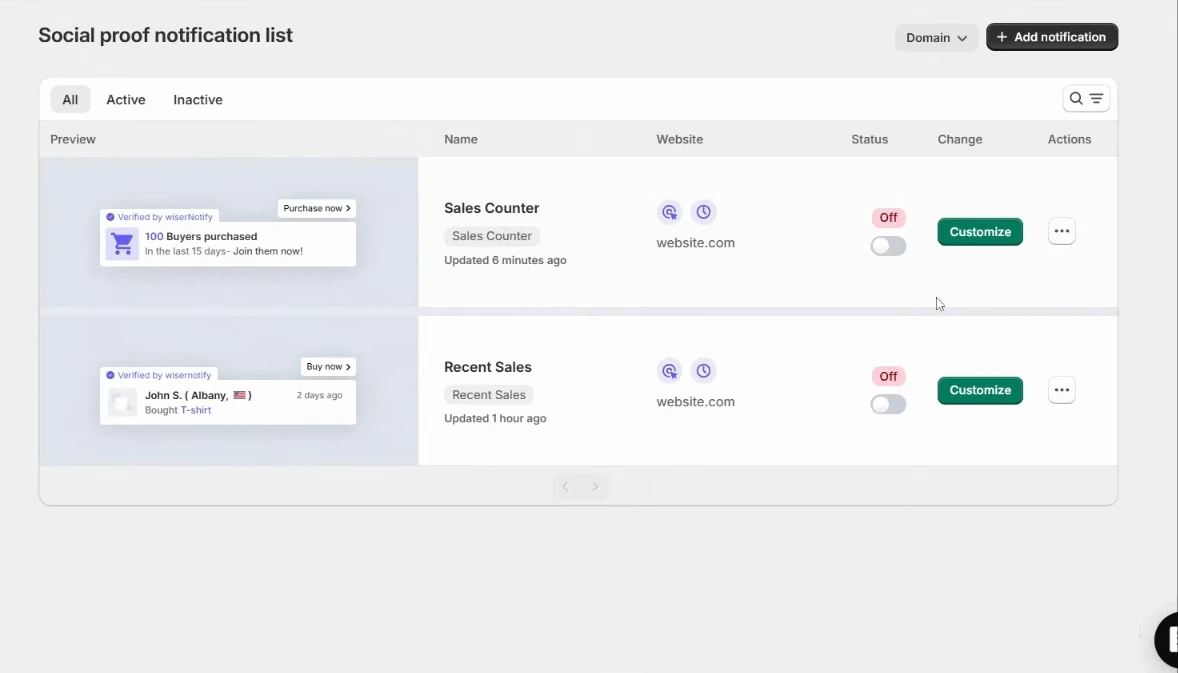
- In WiserNotify, open Notifications and go to Social proof.
- Click Add notification at the top right.
Step 4: Find the All in One Widget
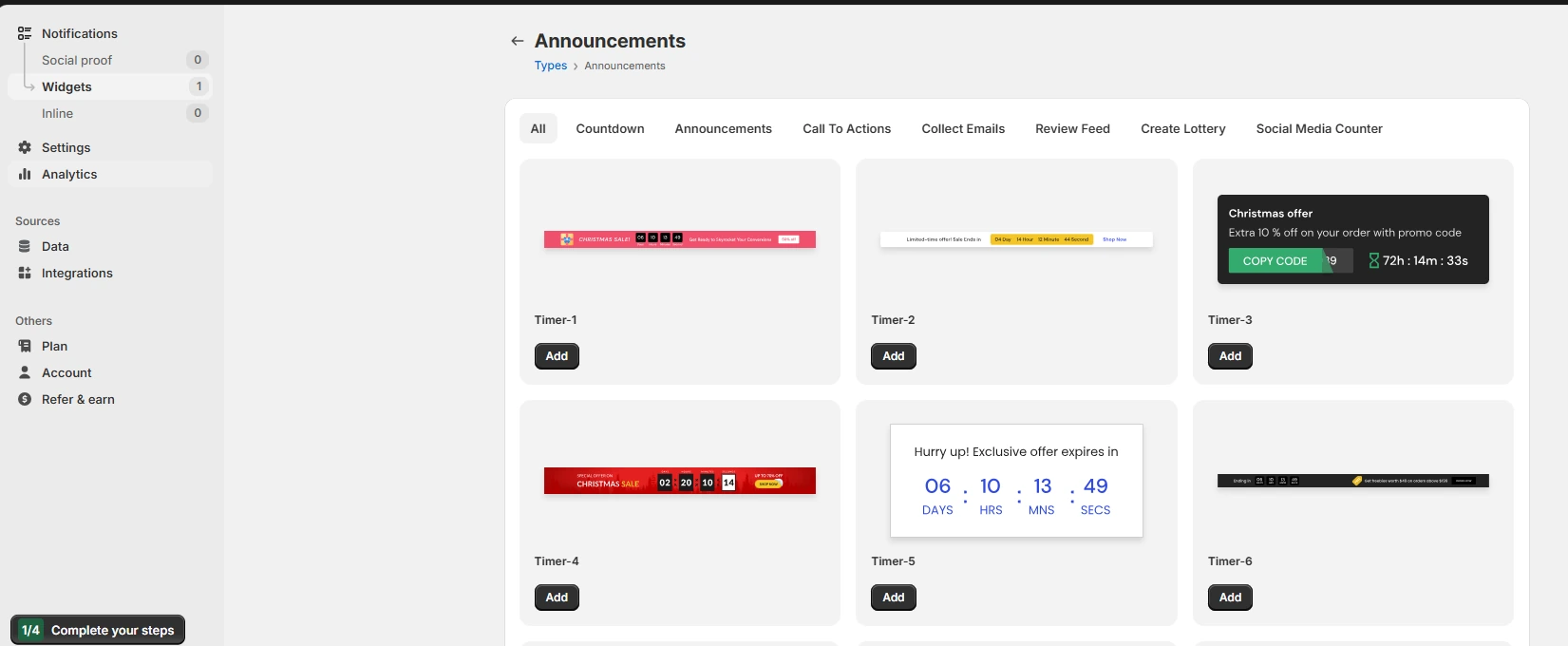
- Choose Widgets from the notification types, or from the left menu.
- Open the Call To Actions tab.
- Scroll down to All in one.
Step 5: Name It and Add Your Site
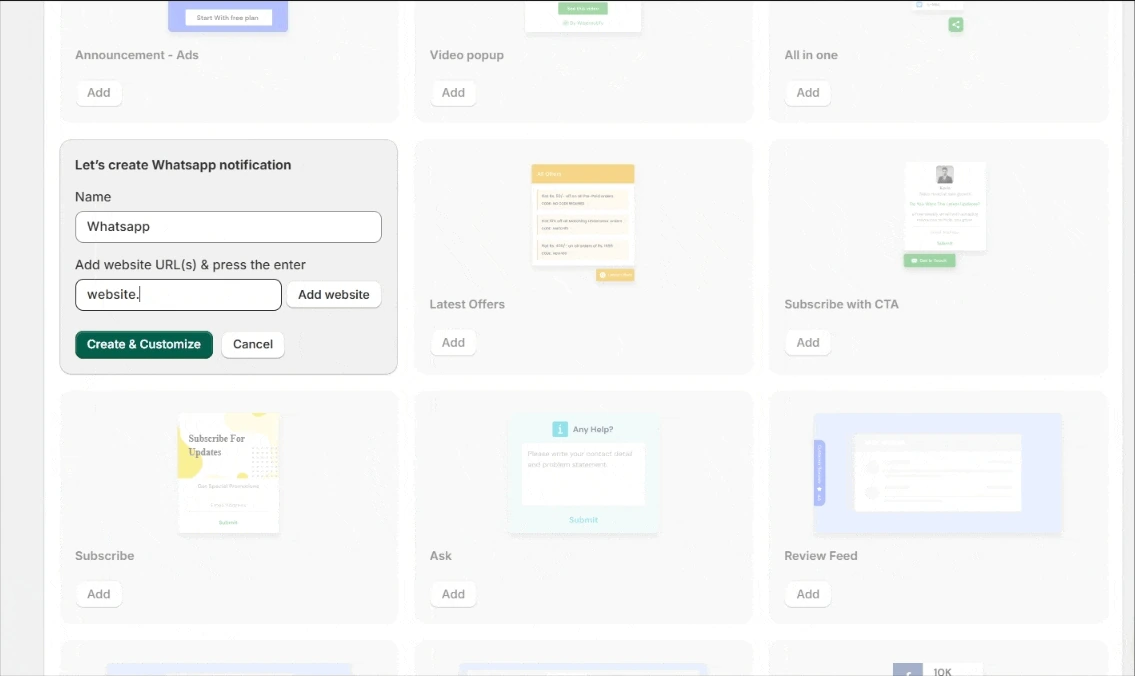
- Type a name you will recognize later.
- Enter the URL of the site where the widget should appear. You can add more than one site.
- Click Create and Customize.
The screenshot uses a WhatsApp widget as the example. The window is the same for the all-in-one widget.
Step 6: Open the Design Editor
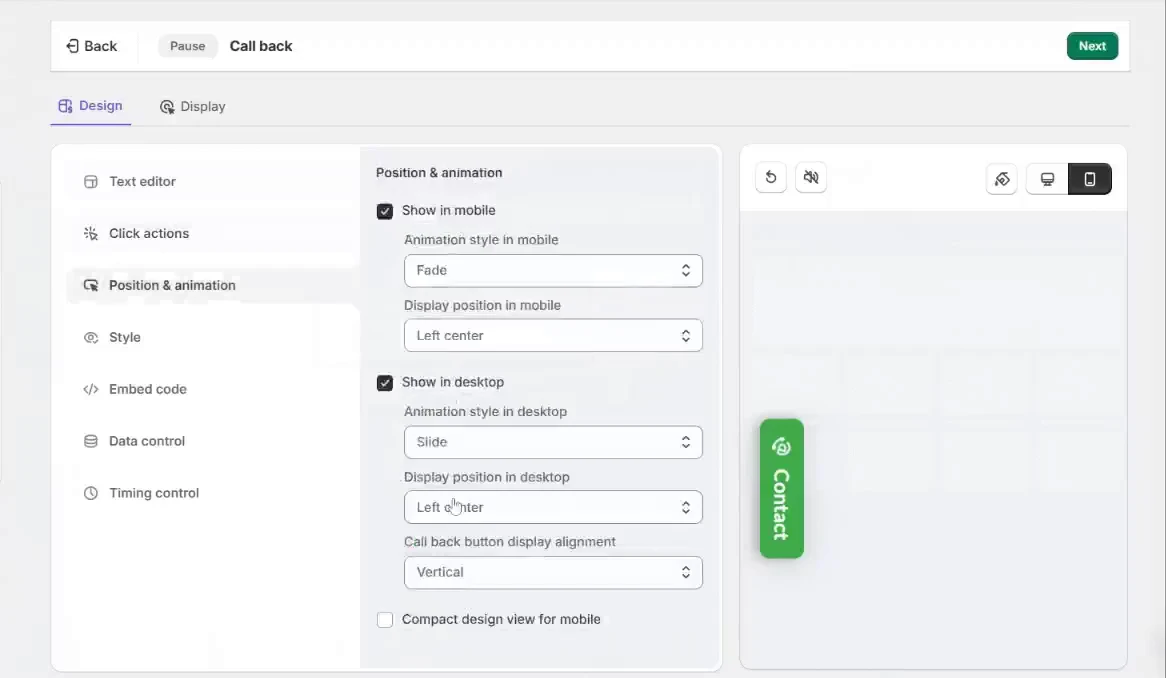
- You land on the editor, which has a Design tab and a Display tab.
- Use the live preview to see the widget on a mobile or a desktop screen.
- In Position and animation, pick the corner and the animation for mobile and for desktop.
- Set the icon and background color, then click the icon at the bottom of the preview to open the CTA list.
The screenshot is from another Call To Action widget. The editor panels work the same way.
Step 7: Turn Your CTAs On

- Switch on the toggle next to each CTA you want, and switch off the rest.
- Check the preview. It shows only the CTAs that are on.
- Drag the CTAs into the order you prefer.
Step 8: Add Links and Icons

- Click the arrow beside a CTA that is switched on.
- Paste its link in the URL box. For Messenger, use your Facebook page link.
- Choose whether it opens in the same tab.
- Set the icon, the title and its font, and the background color.
Step 9: Add Your Own CTA

- Click Add new at the bottom of the list.
- Enter a title and the details, for example an email address, a phone number, an address or any link.
- Set the icon and colors, then drag it into place.
Step 10: Set Data and Timing
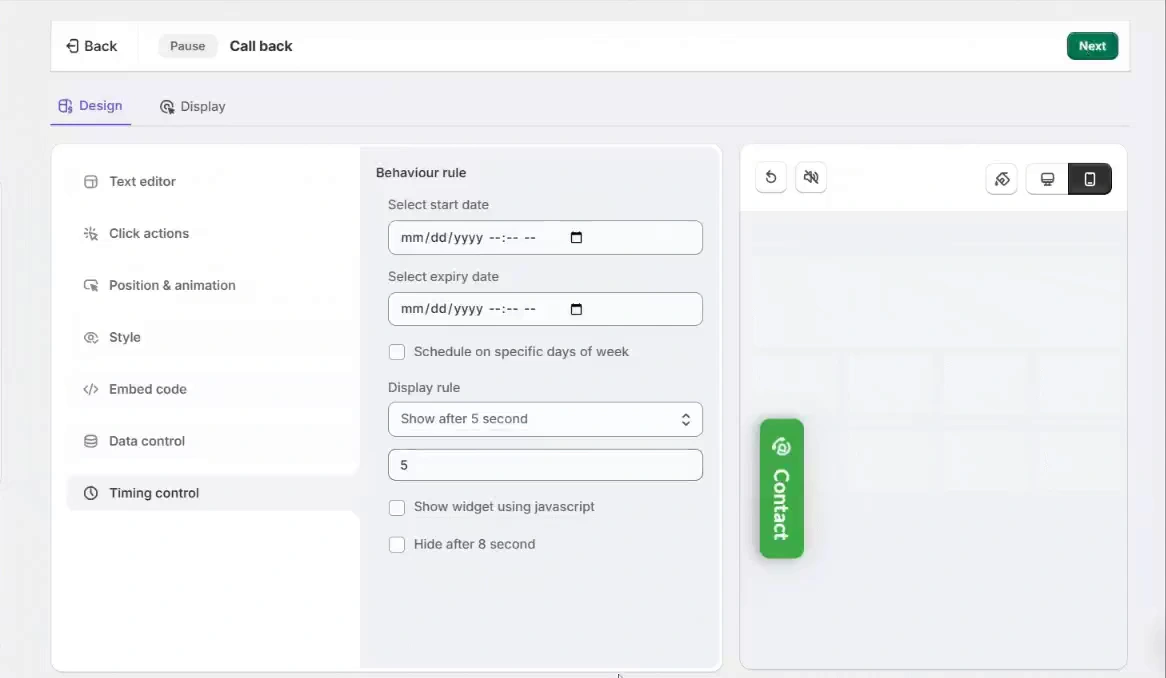
- In Data control, keep Skip seen on, so visitors do not see the same widget again and again.
- In Timing control, set a start and an expiry date under the behavioral rule. Leave them empty to show the widget all the time.
- Pick a display rule if you want a trigger, such as exit intent, time on page or scroll depth.
- Use the hide rule to remove the widget after a set time, then click Next.
Step 11: Choose Pages and Audience
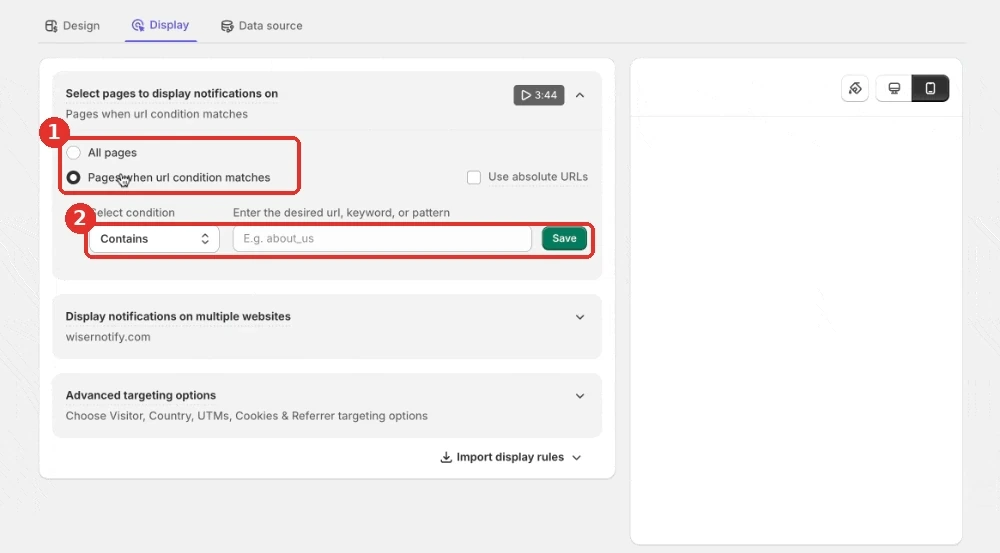
- In the Display tab, keep all pages, or choose Pages when URL condition matches and add your rule.
- Add more website URLs to run the same widget on other sites.
- Open Advanced targeting to filter by visitor type, UTM source, cookie name or referrer.
Step 12: Publish and Test
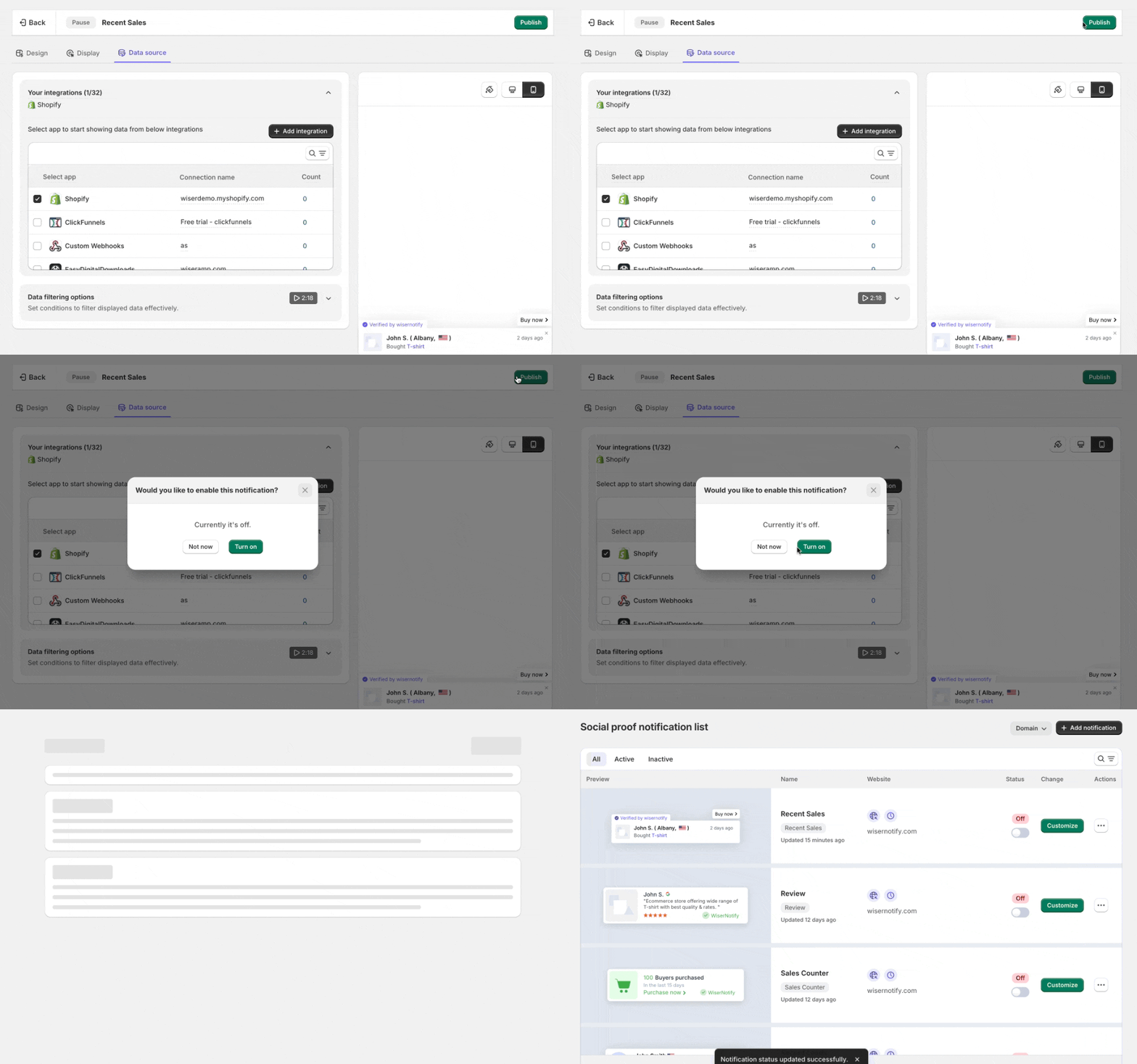
- Click Publish to turn the widget on.
- Open your site in a private window and look for the button.
- Tap it, then tap each icon to confirm it opens the right link.

Boost Conversion Instantly
Add Social Proof & Urgency to your website
Where to Place the Widget

- Homepage: gives new visitors a clear way to reach you or follow you.
- Product and service pages: support CTAs help while a visitor is deciding.
- Blog posts: a newsletter or related-guide CTA turns readers into subscribers.
- Pricing and contact pages: a WhatsApp or call CTA saves people from filling in a form.
- Landing pages: keep the list to one or two CTAs that match the page goal.
Use the Display tab from Step 11 to match each page with the right widget. For more on this style of button, see this guide to WordPress floating buttons.
All-in-One CTA Widget Not Showing?
- Pixel not verified: open your live site, then run Verify pixel installation again.
- Widget still off: click Publish, or switch it on in the notifications list.
- No CTAs switched on: the widget has nothing to show when every toggle is off.
- Empty links: a CTA without a URL has nowhere to go, so add the link in its settings.
- Behavioral rule dates: a start date that has not arrived, or an expiry date that has passed, hides the widget.
- Trigger still waiting: exit intent, time and scroll triggers need the visitor to leave, wait or scroll first.
- Skip seen on: anyone who has already seen the widget, including you, will not see it again. Test in a private window.
- Page rule too narrow: switch to all pages while you test, in case a display condition excludes the page.
- Cached page: check your site in a private window after every change.
Still stuck? Use the troubleshoot option in the notifications list, or ask live chat to look at your setup.
Common Mistakes to Avoid
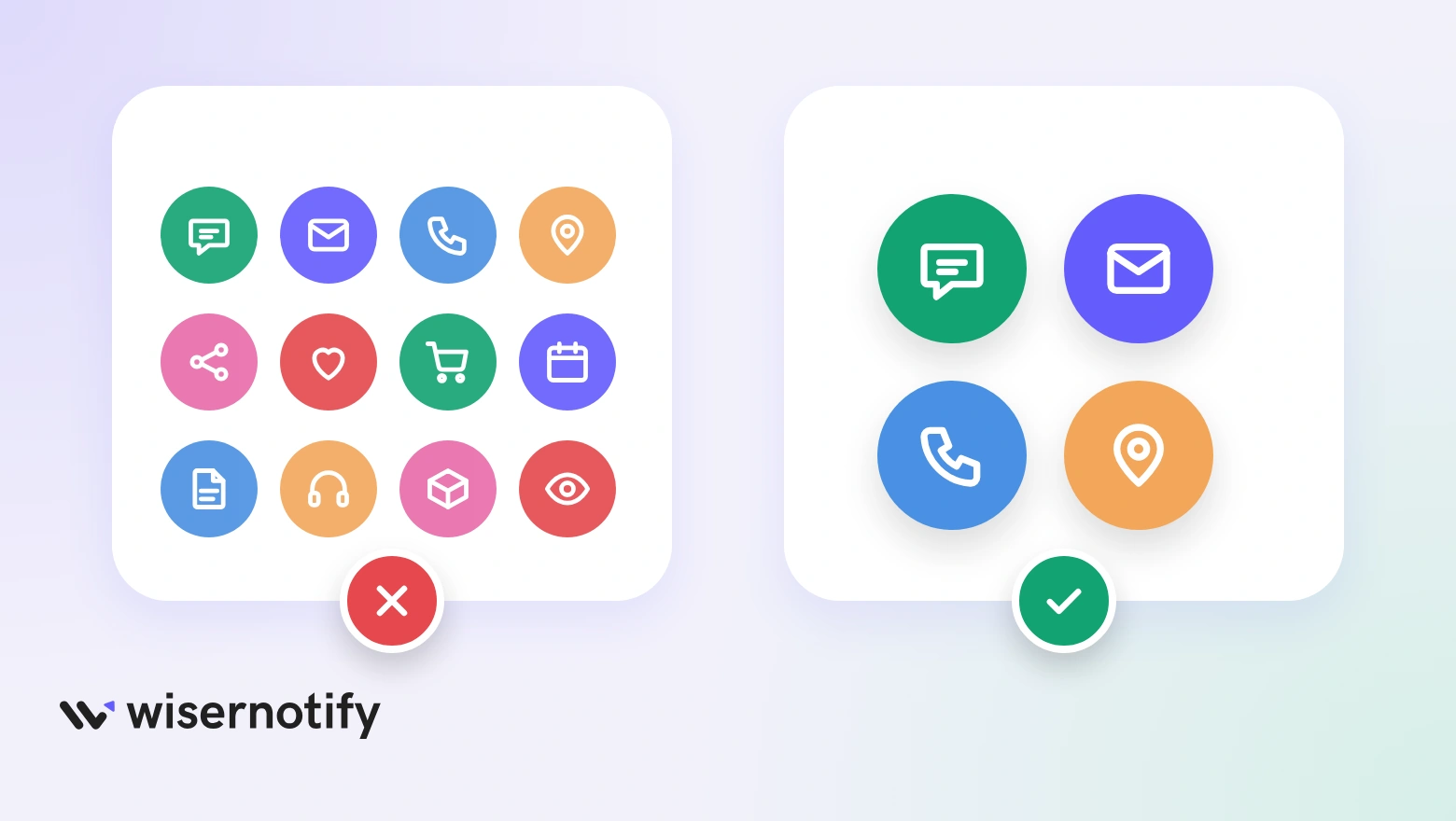
- Too many CTAs: a long menu puts people off. Start with three to five.
- Vague titles: “Click here” says nothing. Name the action, such as Chat on WhatsApp.
- Clashing colors: pick icon and background colors that match your site.
- Stacking widgets: a second chat bubble or popup in the same corner makes the page feel crowded.
- Skipping the test: tap every icon on a phone and a laptop before you leave it live.
How to Measure the Widget

- Check the widget’s views and clicks in your WiserNotify dashboard. Together they show how many visitors notice it and tap it.
- Look at which CTAs get used, then keep those and remove the ones nobody taps.
- Compare conversions on pages with the widget against similar pages without it, across a couple of weeks.
- Change one thing at a time, such as the title, the order or the position.
Build trust & FOMO
Highlight real-time activities like reviews, sales & sign-ups.

Wrap Up
An all-in-one CTA widget puts every way to reach or follow you behind one button. Add the pixel, switch on the CTAs you need, and publish.
Start with support and your best offer, then adjust once you see which icons get tapped.
Related Posts
Frequently Asked Questions
What is an all-in-one CTA widget?
A floating button that opens a list of actions such as email, WhatsApp, call and social links, so visitors pick how to reach you.
How many CTAs can I add to the widget?
Switch on as many of the ready-made options as you need, add your own with Add new, and drag them into order.
Do I need to code to add it?
No. You install the pixel once, then build the widget and pick its CTAs from the WiserNotify dashboard.
Can I show it only on certain pages?
Yes. The Display tab limits it to pages that match a rule, and it can target new or returning visitors.

Krunal Vaghasiya is a marketing tech expert who boosts e-commerce conversion rates with automated social proof and FOMO strategies. He loves to keep posting insightful posts on online marketing software, marketing automations, and improving conversion rates.




 Capterra