Table of Contents

Get Summary On :

Testimonial to thinkific 

Need Higher Conversion? Add Testimonial to Thinkific

Thinkific, a leading online course platform, empowers educators and businesses to create and sell courses with ease.

However, in the competitive world of e-learning, standing out requires more than just high-quality content—it requires trust. Testimonials provide the social proof you need to convert potential students into enrolled learners.

In this guide, we’ll explore why testimonials are essential for Thinkific, how to seamlessly add them, and best practices to maximize their impact.

Why Add Testimonials to Thinkific?

Build Trust Through Social Proof: Research indicates that 88% of people trust testimonials as much as personal recommendations​. For Thinkific course creators, testimonials reassure potential students about the quality of your courses and teaching.

Increase Course Enrollment: Testimonials can increase conversion rates by up to 34% on landing pages​. By addressing common hesitations, they encourage more users to take action and enroll.

Showcase Expertise: Customer and student testimonials validate your expertise and highlight your ability to deliver value, setting you apart from competitors.

Improve SEO Rankings: Testimonials containing natural language keywords can enhance SEO performance. Adding schema markup to testimonials further boosts visibility in search engines.

Address Objections: Testimonials provide answers to common objections, such as course relevance, instructor expertise, and return on investment (ROI).

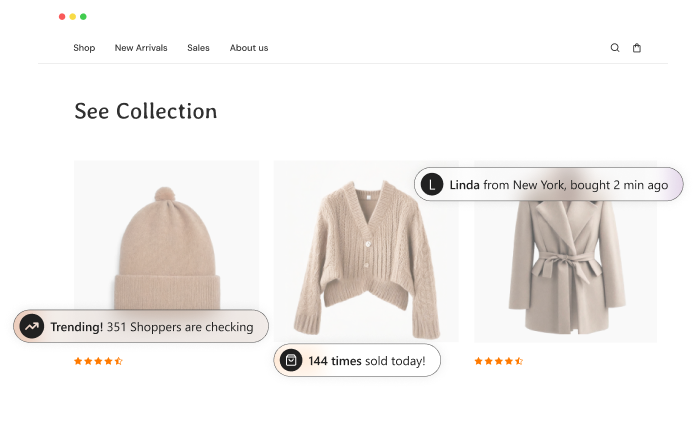
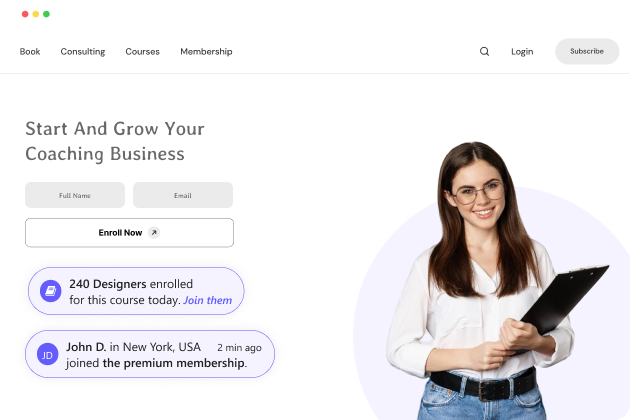
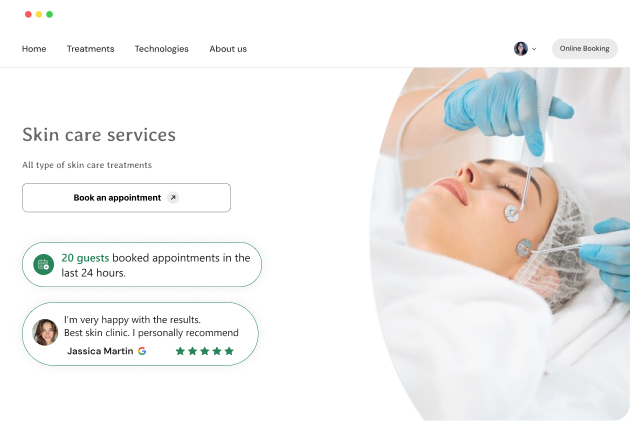
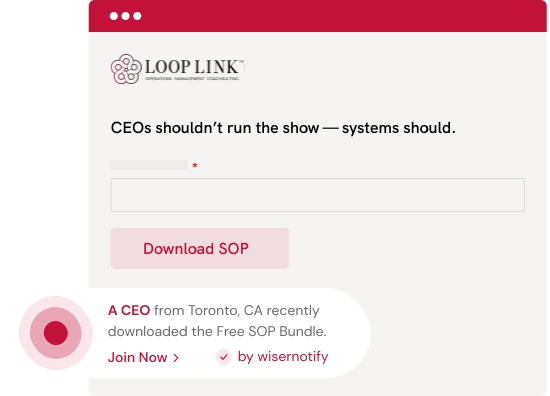
Build trust & FOMO

Highlight real-time activities like reviews, sales & sign-ups.

First Image Second Image Add to My Website Now

Try for free (No card required)

How to Add Testimonials to Thinkific

Now let’s get into how to embed a testimonial on your site or store, whether it’s text, photo, or video.

First, sign up for WiserReview. There is a free plan if you are just starting, but there are also upgrades available for SMBs and enterprise businesses.

Once you sign up for your account, you can see the WiserReview dashboard.

This dashboard is your control center, where you can manage all aspects of your testimonial management. It provides a clear overview of your testimonial collection, moderation, and display processes.

Don’t be overwhelmed. WiserReview is a comprehensive testimonial management software that not only helps you add testimonials but also collects and moderates them.

And the best part? It’s designed to be user-friendly, so you’ll find it easy to navigate and use.

From the dashboard:

Go to → Manage reviews section and click on the “Import” button.

From there, you have many options to import testimonials from; select any of them.

Once done, you have a testimonial showing in the manage reviews section.

Now let’s go to the “Widget” section.

Here, you have a wide range of widgets to choose from. Simply click on “configure” for any widget you need.

Each one is designed to build trust, credibility, and drive more conversions and sales through immediate consumer decision-making.

For example, we chose the “Review wall” widget for our second product.

This widget displays a dynamic wall of your testimonials, creating a visually appealing and trustworthy display for your potential customers. And yes, we use Wiserreview’s testimonial widget for this purpose.

Once you click on configure, you can see the widget customization dashboard. In it, click on “Filter”.

In it, select the Review source.

Now your testimonial appears on the widget, and you can easily customize the widget to match your brand’s style.

It’s a straightforward process, and we’re confident you’ll find it intuitive and user-friendly.

Now, once it’s done, click on “Install” and choose from any of the three options.

  • JavaScript – Insert this script where you want the testimonial widget to appear on your website.
  • Iframe – Use this iframe code to embed the testimonial widget in a specific section of your site.
  • URL – Share this URL to display the testimonial widget on a separate page.

Now the widget is live and ready to build trust and drive conversions.

We are also using this on our site, WiserReview, and Wisernotify.

Here is an example of it:

And wait, that’s just the tip of the iceberg of what Wiserreview can do for testimonial management.

WiserReview can:

Automated testimonial collection

Create a smart testimonial form with the following setup:

  • Set up your testimonial submission link.
  • Add buttons for easy interaction.

Display a star rating or feedback question on the first screen to assess intent. If the feedback is low, prompt for detailed comments. If the feedback is positive, direct the user to submit their testimonial.

WiserReview simplifies the process of requesting testimonials, automating personalized requests via email, SMS, or other messaging channels, making it easier for businesses to collect testimonials.

Integrate the testimonial form link with your existing POS, email, and SMS systems.

You can also post new sales data to the WiserNotify webhook API to automate the process. This streamlines testimonial requests and enhances customer engagement through your existing channels.

Centralized Testimonial Management

Testimonial Aggregation: WiserReview aggregates testimonials from various platforms (emails, forms, social, etc.), bringing them into one central dashboard. This helps businesses track their testimonials and gain real-time insights.

Testimonial Monitoring: The platform notifies businesses whenever a new testimonial is submitted, allowing them to stay up-to-date with feedback.

AI reply: WiserReview helps businesses respond to customer testimonials automatically with AI.

AI-powered testimonial display and sharing

  • Automatically select positive sentiment testimonials.
  • Publish them live on your site.
  • Convert these testimonials into graphics and post them on your social media channels.

This enhances customer trust and promotes positive feedback across platforms.

Using Thinkific’s Built-In Features

1. Navigate to Your Course Landing Page

  • Log in to your Thinkific dashboard and go to Manage Learning Content > Courses.
  • Select the course for which you want to add testimonials.

2. Add a Testimonial Section

  • Use the Page Builder to add a new Section.
  • Select Testimonials from the section options.

3. Input Testimonial Details

  • Add the customer’s name, role, and their feedback.
  • Upload a photo or video (if available) to enhance credibility.

4. Style the Testimonial Section

  • Customize fonts, colors, and layout to align with your course branding.
  • Use Thinkific’s preview feature to ensure the section looks great across devices.

Using WiserNotify Integration

1. Set Up a Widget in WiserNotify

  • Log in to WiserNotify and create a testimonial widget tailored for your Thinkific site.

2. Generate and Copy the Code

  • Copy the JavaScript code snippet provided by WiserNotify.

3. Embed the Code in Thinkific

  • Go to Settings > Code & Analytics in Thinkific.
  • Paste the code into the Header or Footer section.

4. Save and Verify

  • Save changes and preview your course page to ensure the widget is displaying correctly.

Adding Video Testimonials

Upload to Thinkific Media Library

  • Collect video testimonials from past students.
  • Upload the videos to your Thinkific Media Library.

Embed on Course Pages

  • Use the Video Section in Thinkific’s Page Builder to add testimonials directly to the course landing page.

Best Places to Showcase Testimonials on Thinkific

Homepage

  • Display testimonials prominently on your homepage to make a strong first impression and build trust immediately.

Course Landing Pages

  • Place testimonials from past students who’ve benefited from the course. Highlight specific outcomes, such as career advancements or skills gained.

Checkout Page

  • Add testimonials near the checkout section to reassure potential students and reduce last-minute hesitation.

Thank You Page

  • After a student enrolls, show additional testimonials to reinforce their decision and encourage them to explore other courses.

About Page

  • Use testimonials to emphasize your credibility as an instructor or course creator, along with your commitment to student success.

Other Ways to Incorporate Testimonials on Thinkific

Video Testimonials

  • Video testimonials are highly engaging and authentic. Embed them directly onto landing pages or in the course curriculum overview.

Dynamic Widgets

  • Use WiserNotify to display real-time testimonials, reviews, or course sign-ups dynamically across your site. This creates urgency and builds trust.

Social Media Reviews

  • Embed positive social media comments or reviews directly onto your Thinkific site using screenshots or social proof tools.

Email Campaigns

  • Include testimonials in email campaigns to nurture leads and encourage course enrollment. Highlight success stories to inspire action.

3 Testimonial Optimization Tips for Thinkific

Use Real, Detailed Testimonials: Include names, photos, and specific outcomes achieved by your students to make testimonials relatable and impactful.

Align Design with Branding: Customize testimonial sections to match your course branding for a cohesive and professional look.

Update Regularly: Rotate testimonials periodically to highlight new success stories and keep the content fresh.

3 Testimonial Mistakes to Avoid on Thinkific

Overloading Pages with Testimonials

  • Don’t overwhelm potential students with too many testimonials on a single page. Focus on a few high-impact reviews.

Using Generic Feedback

  • Avoid vague testimonials like “Great course!” Instead, use detailed reviews that address specific benefits and outcomes.

Neglecting Mobile Optimization

  • Ensure testimonials are fully responsive. Thinkific’s responsive design tools can help you preview and adjust layouts for mobile devices.

Wrap-Up

Testimonials are a powerful tool for increasing trust, engagement, and conversions on your Thinkific site. By strategically incorporating them into key pages and leveraging dynamic tools like WiserNotify, you can transform student feedback into a driving force for your course success.

Start adding testimonials to your Thinkific courses today and let your students’ stories inspire the next wave of learners.

Related Posts:

FAQ's

You can add testimonials to your Thinkific course by using the “Text & Media” section in your course builder. Simply insert a quote, image, or video of the testimonial and format it to fit your course design. For dynamic display, consider integrating third-party tools like WiserNotify.


Testimonials build trust and credibility by showcasing real feedback from students who have taken your course. They help potential learners feel confident about enrolling, which can increase sign-ups and conversions.


Yes, Thinkific allows you to embed video content. You can upload video testimonials to platforms like YouTube or Vimeo and embed them directly into your course or sales page for a more engaging presentation.


Yes, tools like WiserNotify or Trustpilot can help you collect and showcase testimonials automatically. These platforms integrate with Thinkific and make it easy to display real-time student reviews and feedback.


For maximum impact, place testimonials:

  • On your course sales page to attract new students.
  • In your course introduction to reassure hesitant buyers.
  • On your homepage to showcase overall course success stories.


Picture of Krunal Vaghasiya
Krunal Vaghasiya
Krunal Vaghasiya is a marketing tech expert who boosts e-commerce conversion rates with automated social proof and FOMO strategies. He loves to keep posting insightful posts on online marketing software, marketing automations, and improving conversion rates.
Wisernotify
Struggling with low conversions?
Use Social Proof & FOMO
Social Media icon