I’ve reviewed hundreds of signup forms while building WiserNotify’s own onboarding flow.
Most of them make the same mistakes: too many fields, vague CTAs, and zero reason for the visitor to actually complete the form.
The best ones? They convert at 5-13% because they nail three things: minimal friction, clear value, and smart design psychology.
Here are 20 signup form examples that get it right, with a breakdown of exactly what makes each one work and the design lessons you can steal.
What Makes a Signup Form Convert
27% abandon forms that feel too long
Before we get to the examples, here’s what the data says about signup form performance:
Forms with fewer fields convert better. Forms with about 3 fields can reach around 25% conversion, while longer forms convert less. Also, 27% of users abandon forms because they are too long.
The highest-converting signup forms share these traits:
One clear value proposition. “Get 10% off” beats “Subscribe to our newsletter” every time. People need a reason to hand over their email.
Minimal fields. Email only for newsletters. Email + password for accounts. Name + email + password maximum for SaaS products. Anything beyond that needs serious justification.
Social login options. Google and Apple sign-in buttons massively reduce friction. One-click vs. filling out a form. The choice is obvious.
Mobile-first design. More than half of signups happen on mobile. Single-column layouts, large tap targets, and thumb-friendly spacing aren’t optional anymore.
Trust signals. “No credit card required,” “Your data is secure,” or showing how many people have already signed up. Small reassurances that remove hesitation.
Build urgency
Add floating offers with countdown timer & coupon code.
20 Signup Form Examples (With Design Teardowns)
1. Airbnb

Airbnb’s signup form asks for more information than most, but it doesn’t feel heavy. The trick is progressive disclosure: they break the form into small steps so you never see all the fields at once.
The birthdate is split into three dropdown menus instead of one text field. And the eye icon in the password field is a small UX detail that prevents frustration from typos.
What they nail: Multi-step forms that feel quick because each screen shows only one task.
The design lesson: If you need more than 3 fields, break them into steps. Users who complete step 1 are psychologically committed to finishing.
2. PayPal

PayPal handles a tricky challenge: they need detailed financial information (email, phone, identity verification), but can’t afford to scare users away with a massive form.
Their solution is one action per screen. Each step focuses on exactly one thing, with a dark blue CTA button on white that makes the next action unmissable.
What they nail: Building trust through progressive information gathering. You don’t see the hard questions until you’re already committed.
The design lesson: For high-trust products (finance, health, legal), collect sensitive info in later steps after users have invested time.
3. Dropbox

Dropbox strips signup to the absolute essentials: name, email, password, and a terms checkbox.
No phone number, no company name, no “how did you hear about us.” They get you into the product first and collect everything else later through in-app prompts.
What they nail: Ruthless simplicity. Three fields and a checkbox. Done.
The design lesson: Ask yourself: “Can we collect this AFTER signup?” If yes, remove it from the form.
Build trust & FOMO
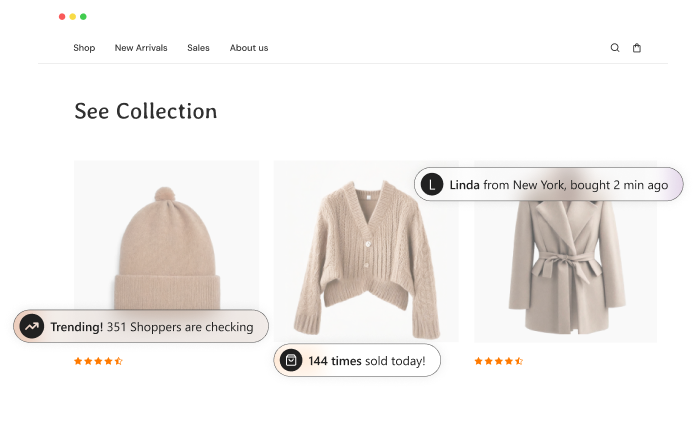
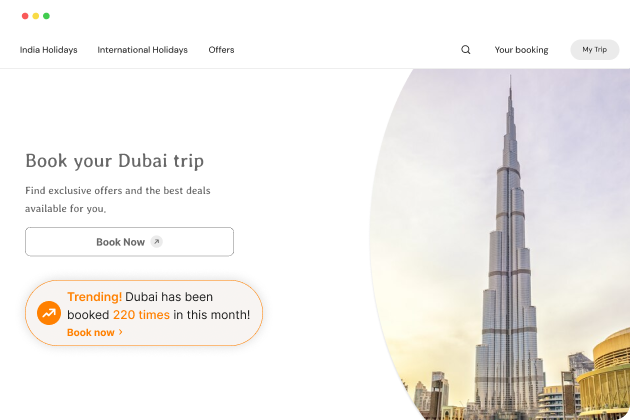
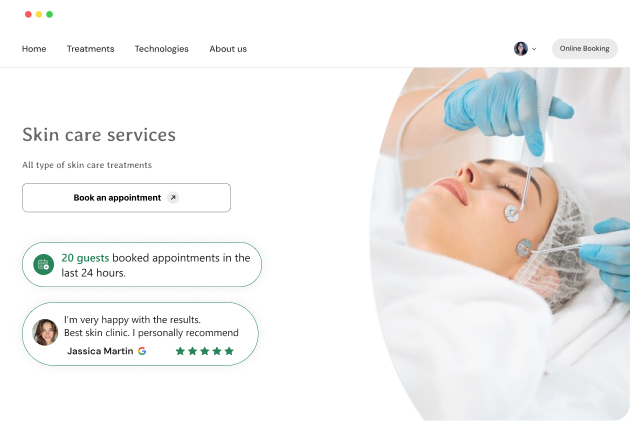
Highlight real-time activities like reviews, sales & sign-ups.
4. Trello

Trello offers multiple signup paths (Google, Microsoft, Apple, email) with clear icons for each. The clever bit is the note at the bottom: “One account for all Atlassian products.”
That single line turns a product signup into an ecosystem signup, multiplying perceived value.
What they nail: Social login options front and center, with ecosystem value messaging.
The design lesson: If your product connects to a larger suite, mention it on the signup form. Users feel they’re getting more than one product.
Also check: CTA Design Examples That Drive Clicks
5. Medium

Medium’s approach is bold: no form fields at all on the initial pop-up. Just “Sign in with Google” and “Sign in with Facebook” buttons.
The traditional email form is hidden behind a secondary link. This prioritizes the lowest-friction path and pushes 90%+ of users toward one-click signup.
What they nail: Eliminating the form entirely for social login users.
The design lesson: If most of your audience has Google accounts, make social login the primary option and email the secondary fallback.
6. Evernote

Evernote keeps the form short (email, username, password) but adds a benefit callout below: sync across all your devices.
That single line of microcopy answers the “why should I bother” question without adding visual clutter. The prominent green CTA button aligns with their brand and establishes a clear visual hierarchy.
What they nail: Benefit-driven microcopy that sells without feeling salesy.
The design lesson: Add one line of value below your form fields. Not a paragraph. One line that answers “what do I get?”
7. LinkedIn

LinkedIn needs a lot of information (name, email, password, job title, company), but breaks it into clear steps with progress indicators.
Users always know where they are in the process and how much is left. The password field includes security validation, and the CTA is always prominently placed at each step.
What they nail: Progress indicators that reduce abandonment. When users see “Step 2 of 3,” they know the end is close.
The design lesson: Multi-step forms need visible progress bars. Without them, users assume the form goes on forever.
8. Google

Google’s Gmail signup form is a masterclass in clarity. Each input field has inline instructions underneath.
The form is visually clean with generous white space. And the illustration featuring the “One account. All of Google” text conveys massive value without adding any form fields.
What they nail: Inline help text under each field that prevents errors before they happen.
The design lesson: Put helper text under fields, not inside them. Placeholder text disappears when users start typing, which causes confusion.
9. Shopify

Shopify’s signup asks three things: email, password, and store name. That’s it. No company size, no revenue range, no industry vertical.
They collect all of that later through onboarding questions inside the app. The page is distraction-free with zero navigation links that could pull users away.
What they nail: Removing site navigation from the signup page to keep users focused.
The design lesson: Strip your signup page of top nav, footer links, and sidebars. The only action should be completing the form.
10. Facebook

Facebook’s signup form is deceptively simple. Essential fields only (name, email or phone, password, birthday, gender) with benefit messaging alongside: “See photos and updates from friends,” “Stay connected.”
The form doubles as a value pitch. Users also have the choice between email and mobile number signups, reducing friction for those who don’t have email handy.
What they nail: Benefit messaging right next to the form fields. You’re reading why you should sign up while you’re signing up.
The design lesson: Place your value proposition next to (not above or below) the form. Users process both simultaneously.
11. Netflix

Netflix splits the signup process into three distinct phases: choose a plan, create an account (email + password), and enter payment information. Each phase gets its own dedicated screen.
The plan selection uses a comparison table so users self-qualify before entering any personal information. By the time they’re typing their email, they’ve already mentally committed to a plan.
What they nail: Getting the buying decision BEFORE the signup form. By the time users fill in their email, they’ve already decided to subscribe.
The design lesson: If your product has pricing tiers, show plans first. Users who choose a plan before signing up have higher completion rates.
Build trust & FOMO
Highlight real-time activities like reviews, sales & sign-ups.
12. Mailchimp

Mailchimp’s form has only three fields, but the password field is where the UX magic happens.
Instead of showing “password too weak” after you type, they show the requirements upfront and check them off as you meet each one. The chimp mascot adds brand personality without cluttering the form.
The CTA button stays inactive (white) until all fields are valid, then turns active, a subtle nudge that says “you’re done.”
What they nail: Real-time password validation that guides instead of punishes.
The design lesson: Show form requirements upfront and validate in real time. Error messages after submission feel like punishment. Live validation feels like guidance.
13. Canva

Canva places the sign-up form directly on the homepage rather than on a separate page. The form uses minimal color (just Canva blue for the CTA) and blends into the page design.
An image on the right shows what you can create with Canva and serves as a visual value proposition. The password requirement instruction (“at least 8 characters”) prevents errors before they happen.
What they nail: Embedding the signup form on the homepage so users don’t have to navigate to a separate page.
The design lesson: If your product is the homepage (like a design tool or SaaS), put the signup form right there. Every extra click between “interested” and “signed up” loses people.
14. Quicksprout

Quicksprout flips the typical signup form on its head. Instead of asking for your email, it asks for your website URL. It provides value FIRST (analyzing your site’s traffic issues) and collects your email SECOND.
This “value before ask” approach means users are already engaged with results before they’re asked to sign up.
What they nail: Leading with value instead of leading with a form. Users get something useful before giving anything up.
The design lesson: Can you give users a taste of your product before asking for their email? Free audits, instant results, or quick assessments all convert better than a blank form field.
15. Leadinfo

Leadinfo combines two conversion techniques on one page: the signup form on the right, and social proof on the left (customer logos, testimonials).
The headline mentions a 14-day free trial to lower the barrier to commitment. Clear error messages appear inline when a field is missed, preventing confusion.
What they nail: Social proof positioned alongside the signup form, so users see credibility as they decide.
The design lesson: Place customer logos or “10,000+ businesses trust us” messaging next to your form. At WiserNotify, we see this layout consistently outperform forms without social proof.
16. Nerd Fitness

Nerd Fitness asks for ONE thing: your email address. That’s it. But what makes it convert is everything around the form. A free ebook as the incentive.
Casual, fun language that matches the brand. And a powerful social proof line: “Join over 200,000 others.” When you see that 200K people have already signed up, the fear of missing out kicks in.
What they nail: Single-field form with a lead magnet (free ebook) and massive social proof (200K subscribers).
The design lesson: Fewer fields = higher conversion. If you only need an email, ask for an email. Pair it with a lead magnet and social proof for maximum impact.
Also check: 9 FOMO Marketing Techniques That Actually Work
17. TransferWise (Wise)

TransferWise (now Wise) opens with a direct value proposition: “Welcome to money without borders.” Before any form fields, users choose between personal and business accounts.
This self-segmentation ensures the right onboarding flow from the start. Despite having five fields, the clean design and generous spacing make it feel light.
What they nail: selecting account type before form fields, ensuring personalized onboarding.
The design lesson: If you serve different user segments (personal vs business, beginner vs advanced), let users self-select at the top. It personalizes the experience from the first interaction.
18. X (Twitter)

X keeps signup to three steps. Step 1: name and phone/email. Step 2: Customize your experience (opt-in to recommendations). Step 3: Confirm your info.
The customization step is smart because it gives users a sense of control, which builds trust, while also collecting preference data that improves the product experience from day one.
What they nail: A preference/customization step that feels like a benefit to the user while actually collecting segmentation data.
The design lesson: Add a “customize your experience” step between signup and completion. Users feel empowered, and you get useful data for personalization.
Build trust & FOMO
Highlight real-time activities like reviews, sales & sign-ups.
19. Reddit

Reddit’s signup is possibly the simplest on this list. Click ” Sign up, enter your email, and done. They even tell you it “takes seconds,” setting clear expectations.
Reddit understands that getting users into the community quickly is more important than collecting detailed profiles up front. Everything else (username, avatar, interests) happens inside the app after signup.
What they nail: Setting time expectations. “Takes seconds” removes the “this is going to be annoying” hesitation.
The design lesson: Tell users how quick the signup process is. “Takes 30 seconds” or “Just one field” reduces perceived effort and increases completion.
20. Primal Pet Foods

Most signup forms are generic white boxes. Primal Pet Foods breaks that pattern with two illustrated pet characters “watching” you fill out the form.
It asks for more than just email (name, zip code, pet type) but uses selection buttons instead of text fields for pet details, making it fast to complete. The personality in the design matches the brand and makes the form memorable.
What they nail: Brand personality injected into the form design itself. You remember this form.
The design lesson: Use selection buttons (radio, chips, toggles) instead of text inputs wherever possible. Clicking is faster than typing, especially on mobile.
Signup Form Best Practices
Every high-converting form in this list follows certain patterns. Here’s the complete checklist:
Reduce fields ruthlessly. The biggest conversion killer is asking for too much too soon. Name and email for newsletters. Email and password for product signups. Collect everything else after they’re inside the product.
Use social login as the primary path. Google, Apple, and Microsoft sign-in options let users skip the form entirely. Make these prominent, not buried below the email form.
Write CTAs that describe the outcome. “Get Started Free” converts better than “Submit.” “Create My Account” converts better than “Sign Up.” The CTA should tell users what happens AFTER they click.
Show one trust signal. “No credit card required,” “Join 10,000+ businesses,” or “We never share your data” next to the form field. One reassurance is enough. Three feels desperate.
Design for mobile first. Single column, 48px minimum tap targets, no horizontal scrolling, no tiny checkboxes. Test your form on a phone before publishing.
Validate in real time. Check email format, password strength, and required fields as users type, not after they submit. Inline validation reduces form errors by up to 22%.
Remove distractions. Strip navigation menus, footer links, and sidebar widgets from your signup page. The only action available should be completing the form.
Popup vs Embedded vs Full-Page: Which Form Type Converts Best?
Not all signup forms are created equal. The format matters as much as the design:
Popup forms appear over the content, usually triggered by exit intent, scroll depth, or time on page. They interrupt the user experience, which makes them hard to ignore. Conversion rates vary wildly (1-8%) depending on timing and offer. Best for: email list building, discount offers, lead magnets.
Embedded forms sit inside your page content, typically in the sidebar, footer, or within blog posts. They’re less intrusive but also easier to scroll past. Best for: newsletter signups on content sites, blog opt-ins.
Full-page signup forms dedicate the entire screen to the signup process with zero distractions. SaaS companies like Shopify and Dropbox use these for account creation. Highest completion rates because there’s literally nothing else to do on the page. Best for: product account creation, free trial signups.
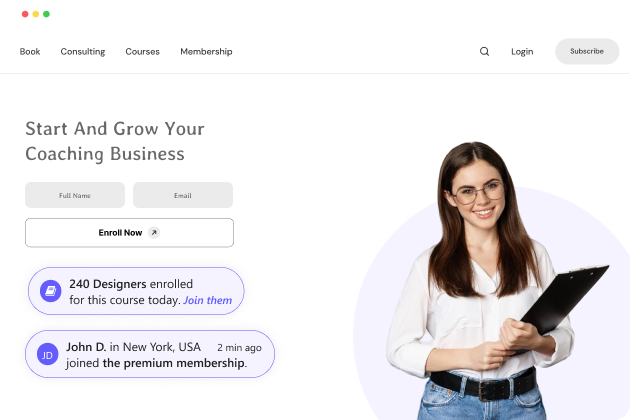
My recommendation: Use pop-up forms with exit-intent triggers for email collection, and full-page forms for product signups. Combine both with social proof notifications showing “X people signed up in the last hour” to add urgency.
Common Mistakes That Kill Signup Form Conversions
I’ve audited signup forms for dozens of WiserNotify customers. These mistakes come up repeatedly:
Asking for a phone number on a newsletter form. Unless you’re doing SMS marketing, there’s no reason for it. Phone number fields on email-only forms can drop conversion rates by 5% or more.
Using “Submit” as the CTA. “Submit” is the most boring, least motivating word you can put on a button. “Get My Free Guide,” “Start My Trial,” or “Join 10,000+ Members” all outperform it.
No mobile testing. I’ve seen beautifully designed desktop forms that are completely broken on mobile. Overlapping fields, tiny buttons, text that overflows. Always test on a real phone.
CAPTCHA on the first step. Nothing kills momentum like “select all the traffic lights” when someone is trying to create an account. Move CAPTCHA to a less critical step, or use invisible reCAPTCHA.
No confirmation or next step. After someone signs up, what happens? A blank “thank you” page wastes the momentum. Redirect them to a welcome page, their dashboard, or a “here’s what to do next” screen.
Hiding the password. Many forms still don’t include a “show password” toggle. Users can’t see what they’re typing, make typos, and get locked out on their first login. Add the eye icon like Airbnb does.
Also check: 7 Limited-Time Offer Examples to Boost Sales
Conclusion
The pattern across all 20 examples is clear: the best signup forms minimize friction and maximize perceived value.
They ask for the bare minimum upfront, lead with a clear benefit, and use smart design to guide users through completion.
Start with the simplest version of your form. One or two fields maximum. Add a specific value proposition (“Get 10% off” or “Start your free trial”). Test on mobile.
Then iterate based on data, not assumptions.
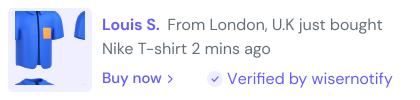
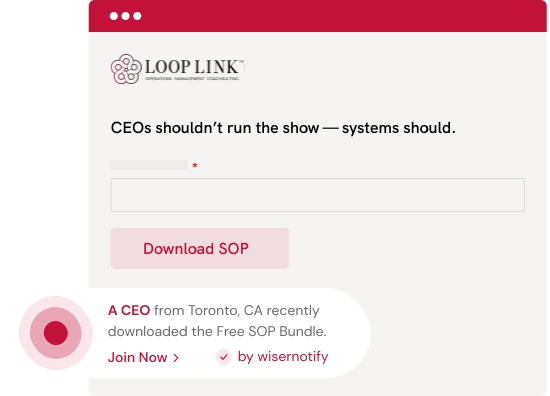
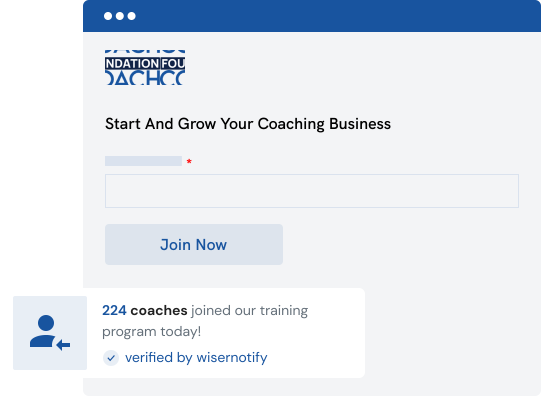
If you want to boost signup form conversions even further, adding real-time social proof notifications next to your forms (like “Sarah from Boston just signed up”) creates urgency without adding complexity to the form.
WiserNotify offers a free trial if you want to test it on your site.
Your signup form is the front door to your product. Make it as easy to walk through as possible.