
Manage Staff Option in the Account Section (WiserNotify)
Updated Sep 4, 20261 min read
On this page · 5 sections
The Manage Staff option in the Account section of WiserNotify allows account owners to add, assign, and manage team members who can access and collaborate on the platform. This feature is useful for businesses with multiple users handling notifications, integrations, or analytics.
-
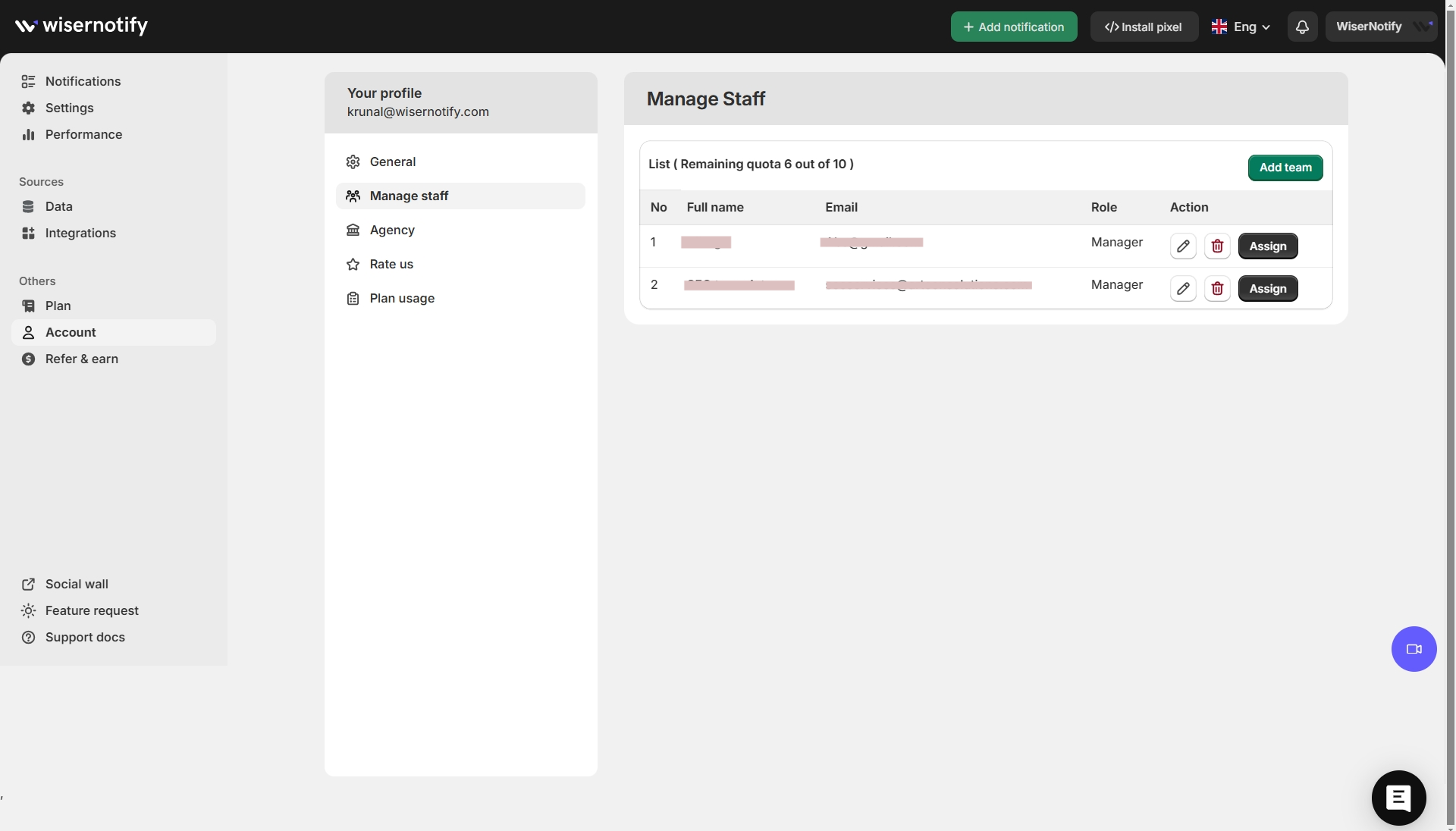
View Staff List
- Displays a list of all added team members.
- Shows details like Full Name, Email, Role, and Actions available.
- Displays remaining quota (e.g., “6 out of 10” indicates how many team members can still be added).
-
Add a New Team Member
- Click the “Add Team” button.
- Enter the team member’s email and assign a role.
- Send an invitation to allow them access.
-
Assign or Change Roles
- Team members can have roles like Manager or other predefined access levels.
- Click “Assign” to change or update their role.
-
Edit Team Member Details
- Click the edit icon (pencil) to modify a staff member’s details.
-
Remove a Team Member
- Click the trash bin icon to delete a staff member from the account.
This feature helps businesses efficiently collaborate, delegate responsibilities, and manage access control within WiserNotify. 🚀
Related guides
Your account API Key & Quota history.Create an Account using Email id, Shopify store, Gmail id, Facebook login.How to show widget after x second
 Still stuck? We'll set it up with youLive chat or a free screen-share call, every day of the year.Chat with support



 Capterra