
How to Add Yelp Reviews to Your Website (2026)

Yelp reviews carry weight for local businesses, but most of them sit on Yelp where your website visitors never see them. Showing a few on your own pages puts that proof in front of people at the moment they decide.
You can embed one review at a time from Yelp itself, or connect your Yelp page so new reviews show up on your site on their own.
This guide covers both, with the connected setup step by step, where to place the reviews, and the mistakes that get businesses in trouble with Yelp.
Can You Embed Yelp Reviews Without a Tool?
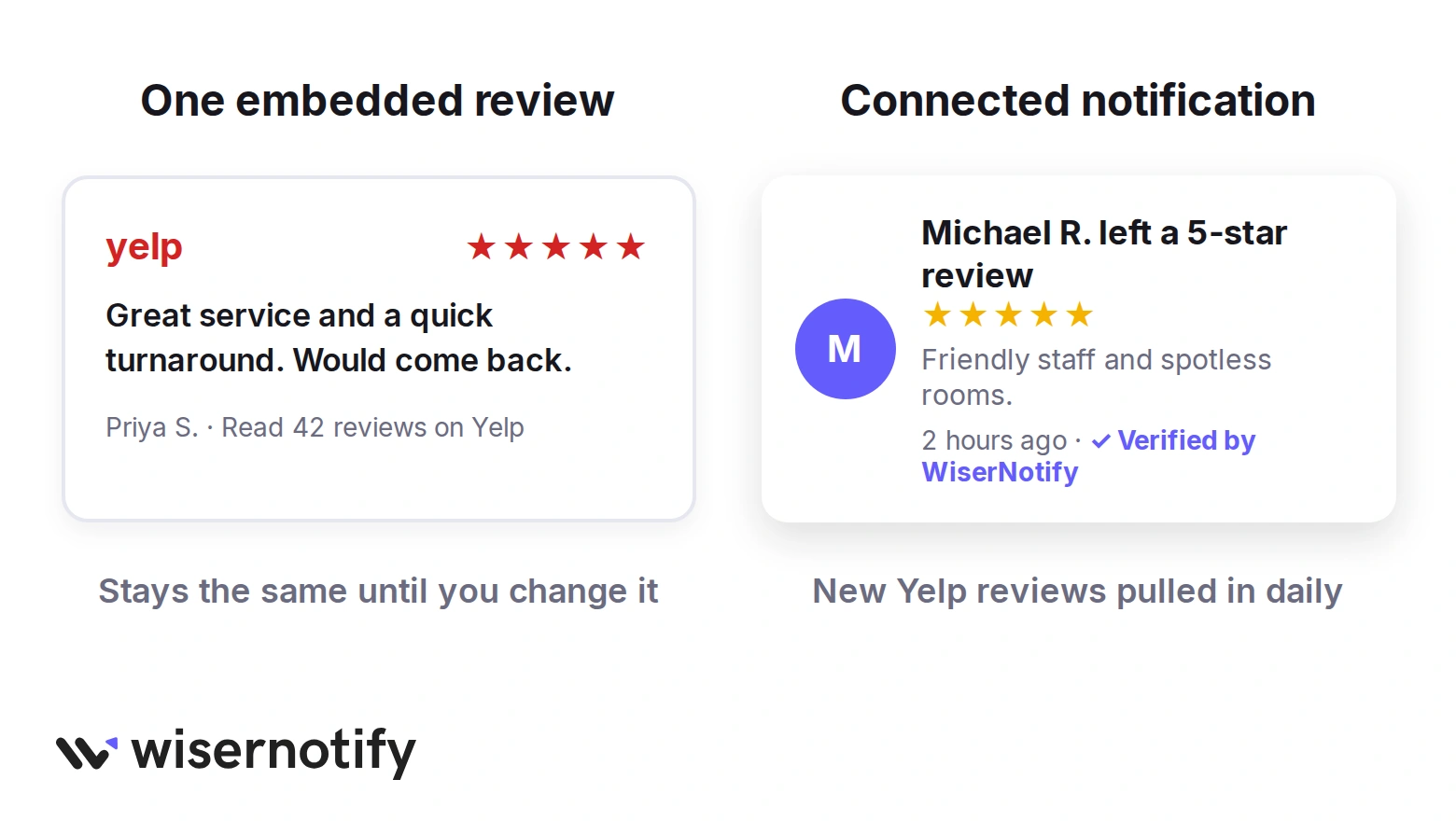
Yes, one review at a time. On yelp.com, hover over a review on your business page and an Embed review option appears, which gives you a code snippet for that single review.
- What it shows: that one review, plus your overall rating and review count.
- What it doesn’t do: update itself. New reviews never appear until you embed them too.
- The catch: if Yelp later filters that review, the embed stays but its stars turn grey.
That works for a testimonials page you update by hand. For reviews that stay current across the site, the connected setup below does the updating for you.
How to Add Yelp Reviews to Your Website
WiserNotify connects to your Yelp page, pulls in reviews, and shows them as small notifications on the pages you choose. No code beyond one pixel, and it works on any platform.
Step 1: Install the WiserNotify Pixel

- Sign up for WiserNotify and add your website.
- Click Copy code on the pixel page.
- Paste it before the closing head tag on every page.
- Click Verify pixel installation to confirm it loads.
Step 2: Find Yelp in Integrations

- Click Integrations in the left menu.
- Type Yelp in the search box.
- Open the Yelp card and click Integrate.
Step 3: Add Your Yelp Business ID
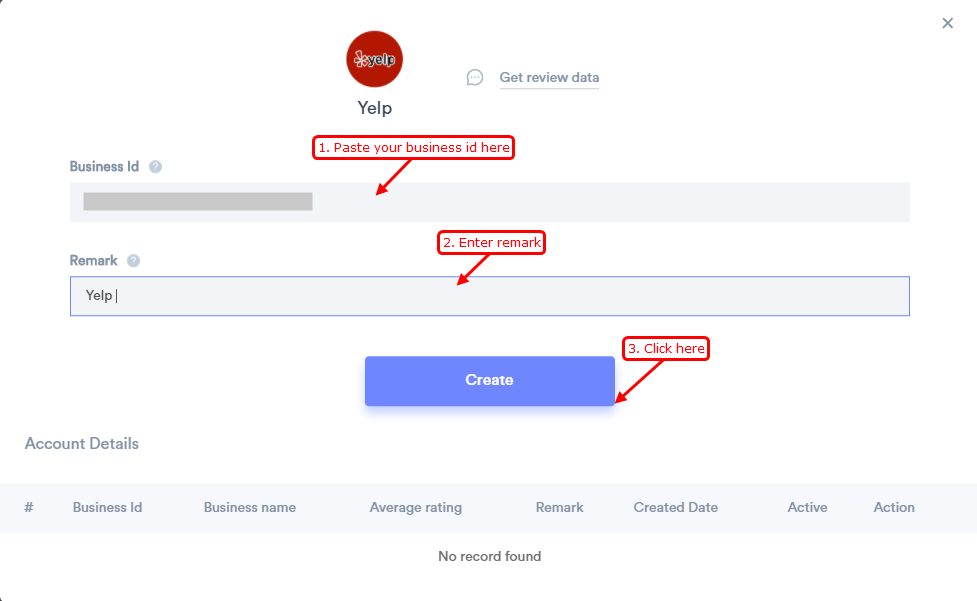
- Open your business page on yelp.com.
- Copy the ID from the address bar, the part after yelp.com/biz/.
- Back in WiserNotify, paste it into the Business Id field.
- Add a remark so you recognize the connection later, then click Create.
- WiserNotify imports your last 3 reviews now, then checks for new ones every day.
Step 4: Create a Review Notification

- Go to Notifications and open Social proof.
- Pick a Review template and click Create Notification.
- Edit the text, colors and position in the Design tab.
Step 5: Choose Yelp as the Data Source
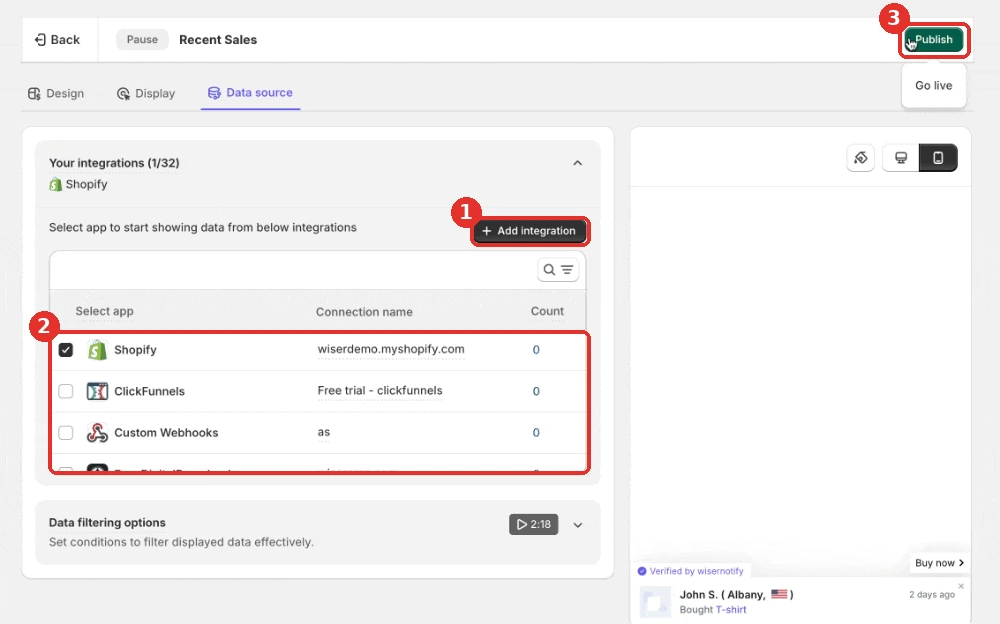
- Open the Data source tab.
- Click Add integration and tick your Yelp connection.
- Set any filters, such as 4 stars and up.
Step 6: Publish and Check It Live
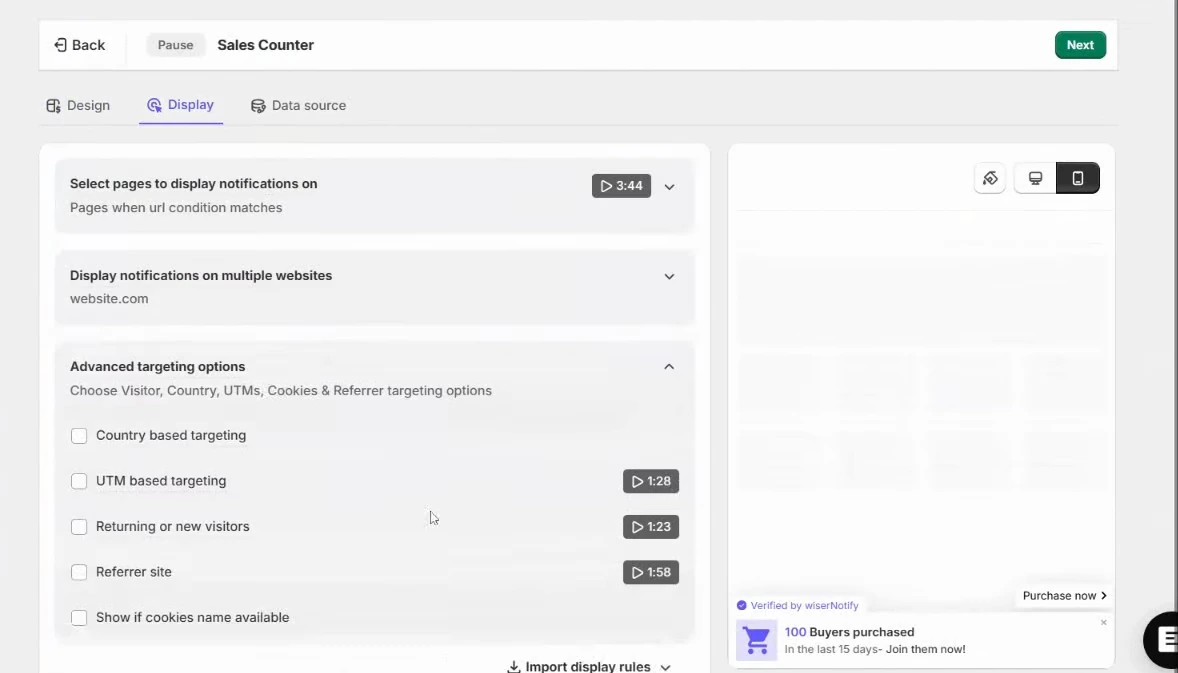
- Open the Display tab.
- Show the notification on all pages, or add URL rules for the pages you pick.
- Set a short delay so it doesn’t fire the moment the page loads.
- Click Save, then Publish.
- Open your site in a private window and check the review shows the reviewer’s name, stars and Yelp as the source.
Build trust & FOMO
Highlight real-time activities like reviews, sales & sign-ups.


How to Show a Wall of Yelp Reviews With WiserReview
Notifications show one review at a time. If you want a full wall or carousel of Yelp reviews on a page, WiserReview imports them with its Chrome extension and shows them in review widgets.
Step 1: Install the Chrome Extension
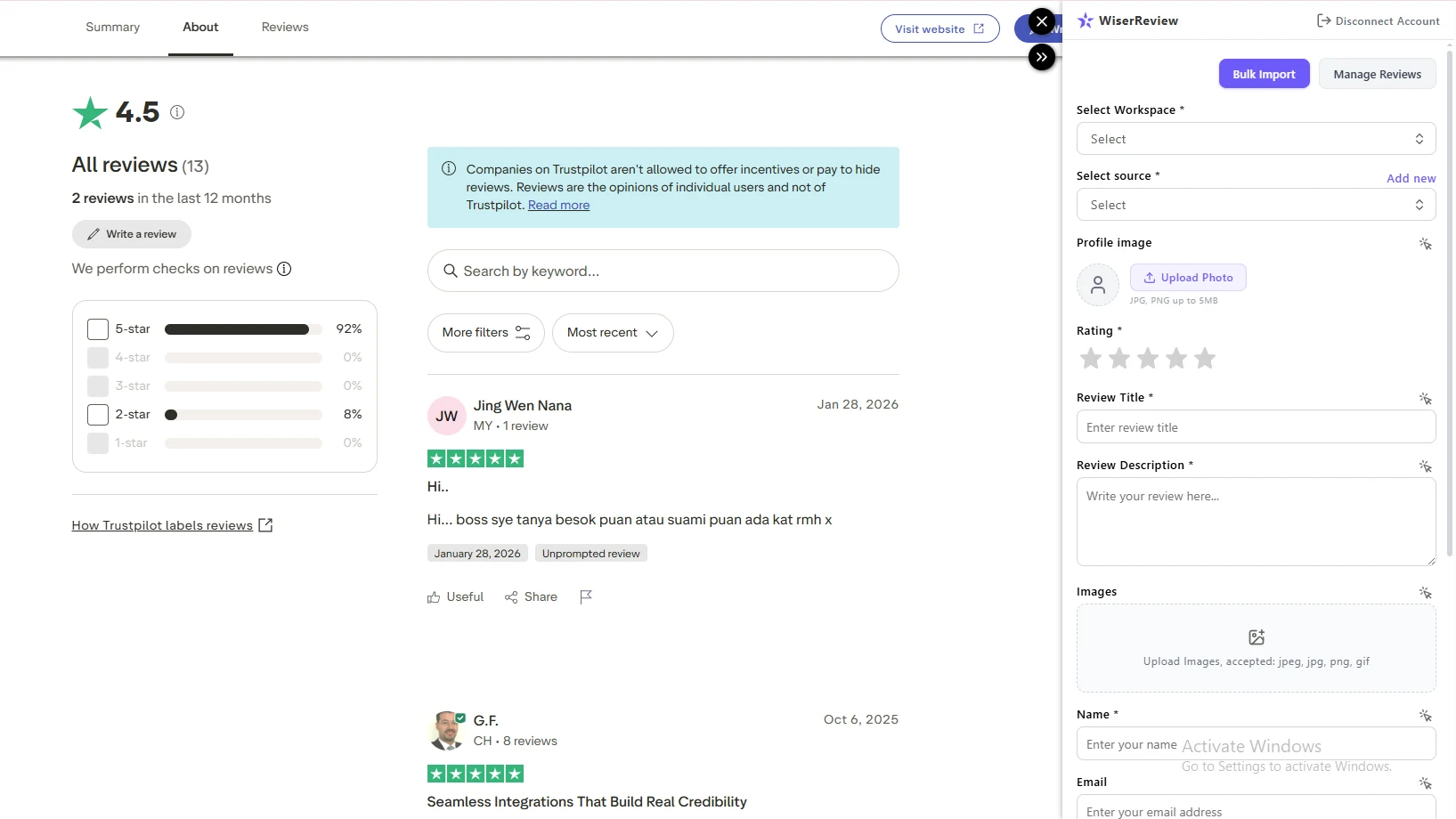
- Sign up for WiserReview and open the dashboard.
- Install the WiserReview Chrome extension from the link in your dashboard.
- Log in to the extension with your WiserReview account.
Step 2: Start a Bulk Import on Yelp
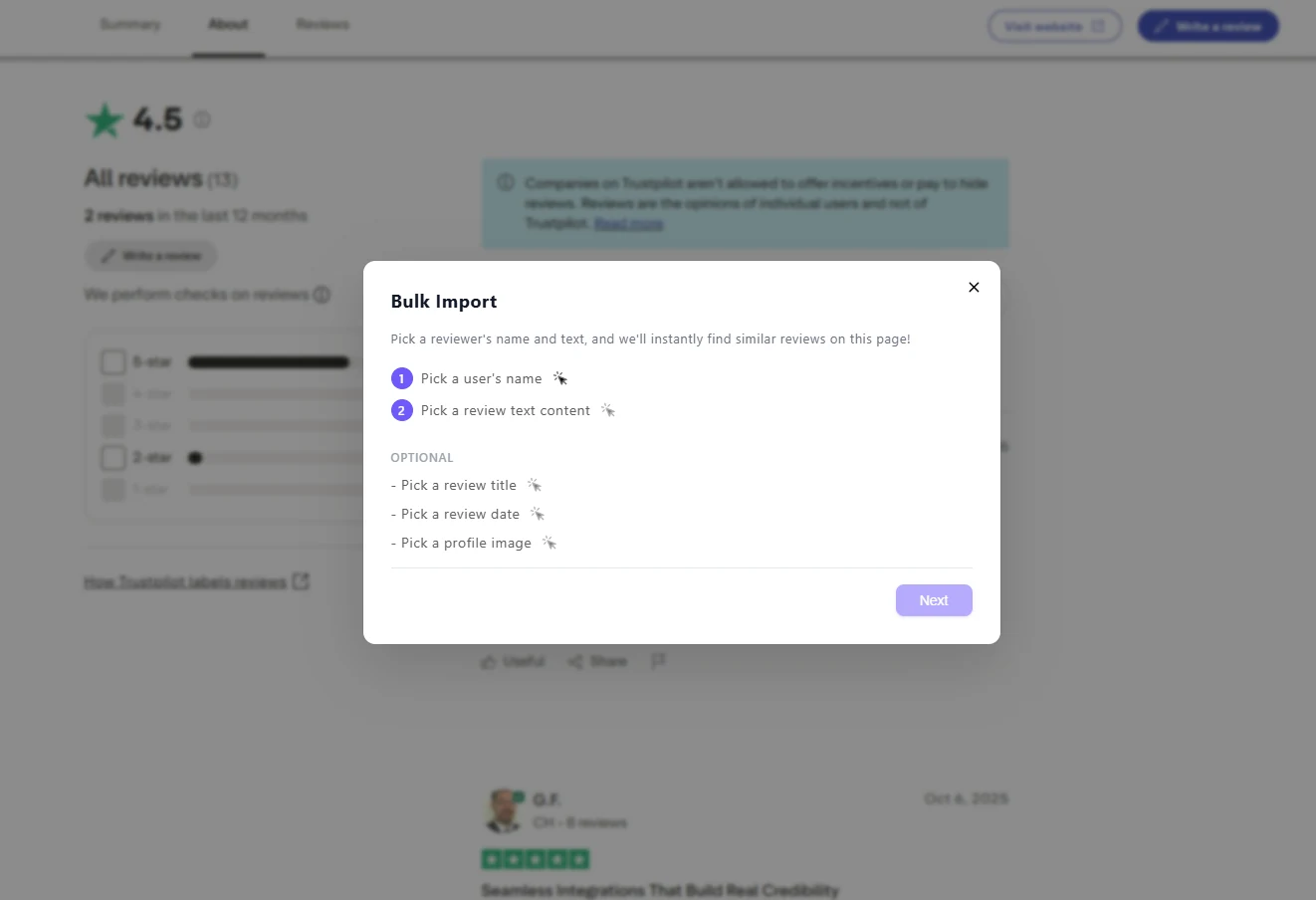
- Open your business page on yelp.com in Chrome.
- Open the extension from the toolbar and click Bulk import.
- Click a reviewer’s name, then the review text, so the extension learns where they sit on the page.
- Pick the title, date and profile image the same way if you want them.
Step 3: Select the Reviews
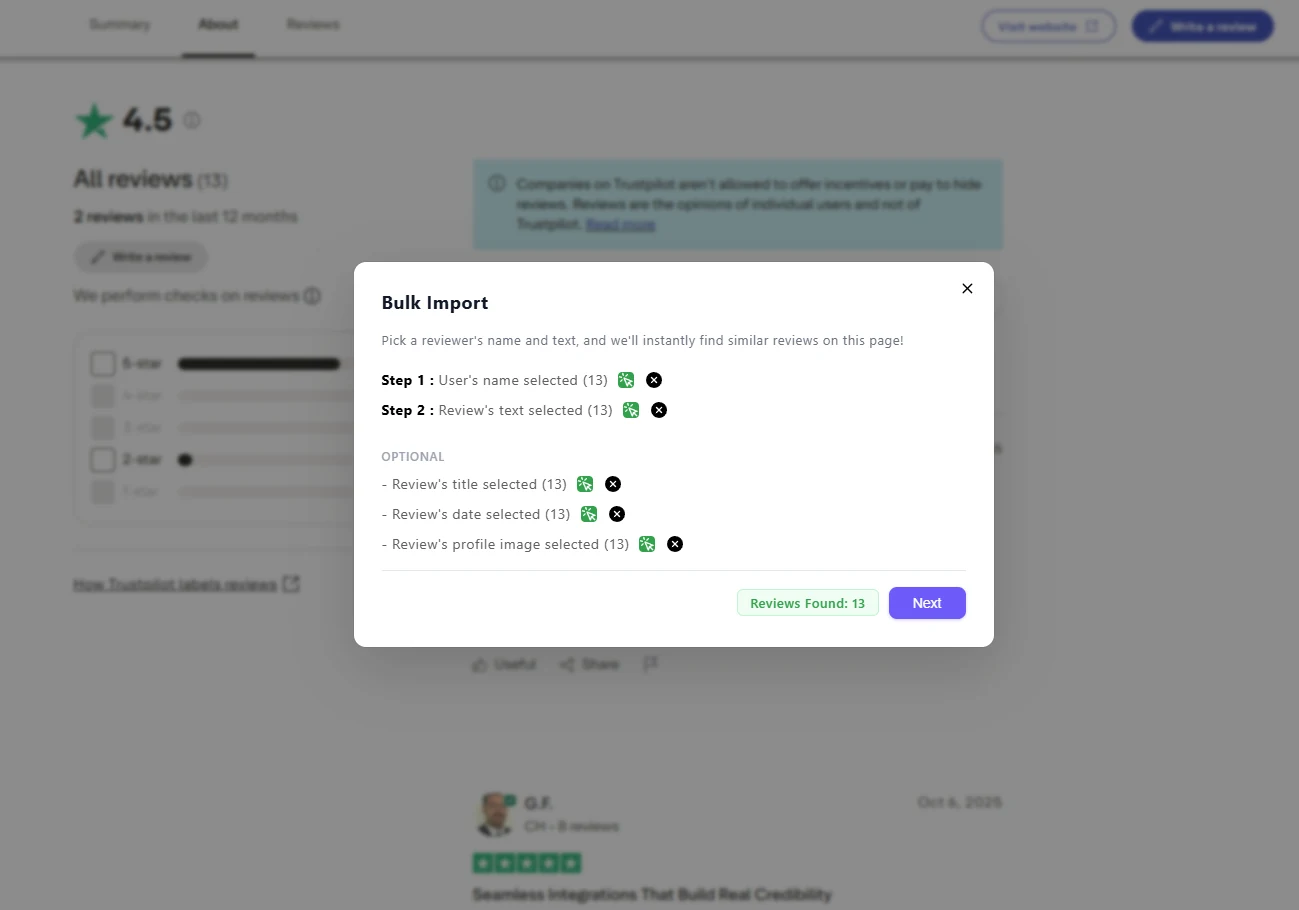
- Check the Reviews found count at the bottom of the window.
- Click Next.
Step 4: Save Them to Your Workspace
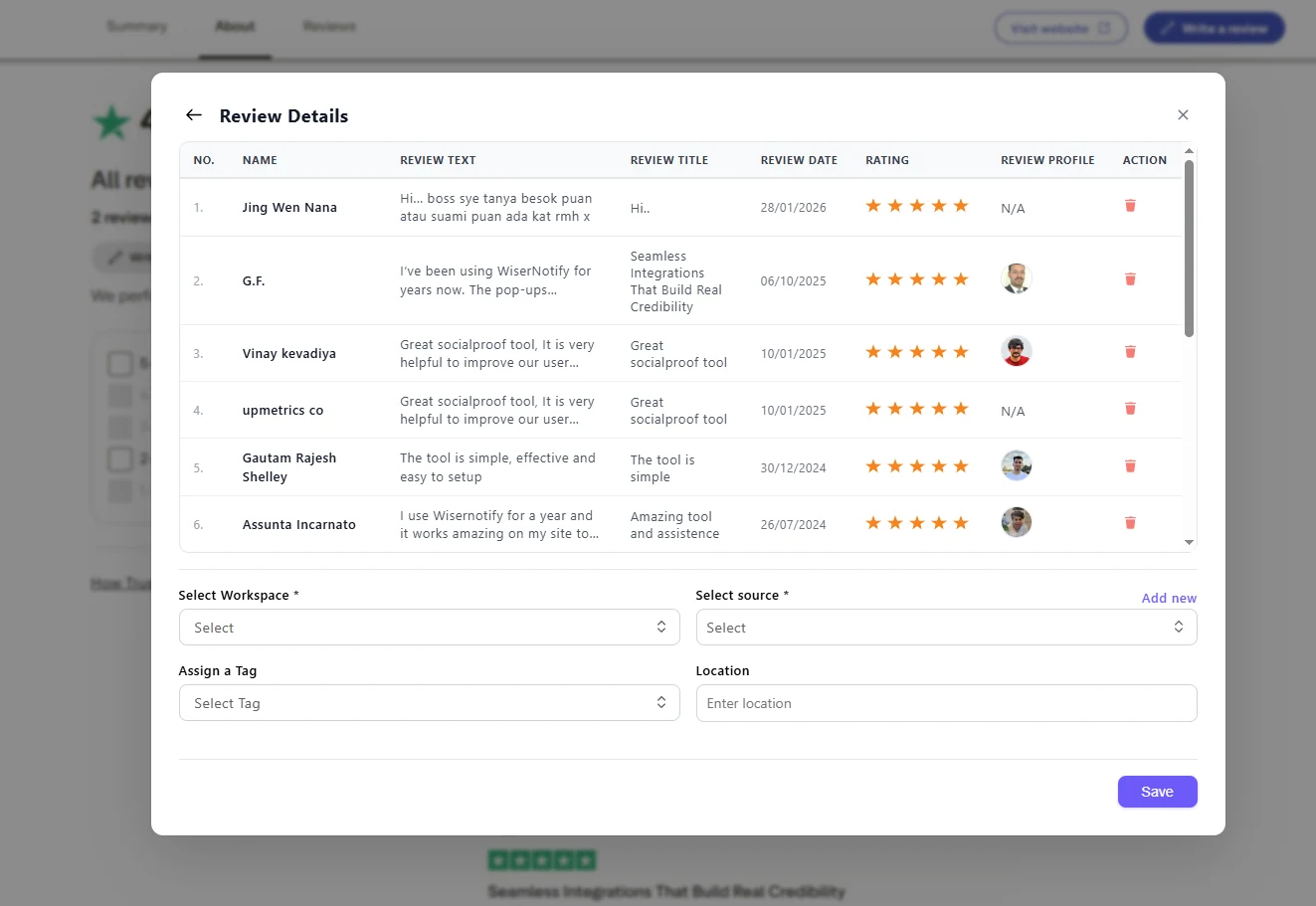
- Select your workspace and set the source to Yelp.
- Add a tag or location if you want to filter by them later.
- Click Save. The reviews appear under Manage Reviews.
Step 5: Build the Widget
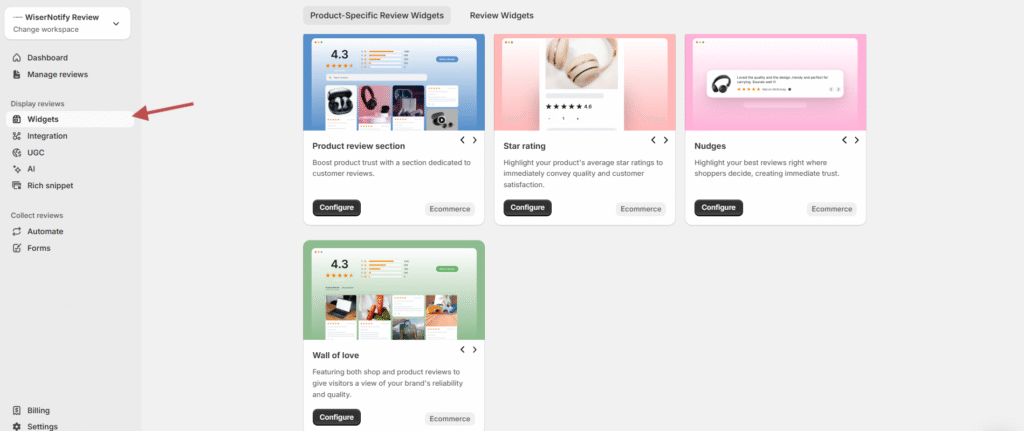
- Go to Widgets and click Configure on Wall of Love, or a carousel if you prefer.
- In the filter settings, set the source to Yelp so only those reviews show.
- Match the colors and layout to your site, then save.
Step 6: Install It on Your Site
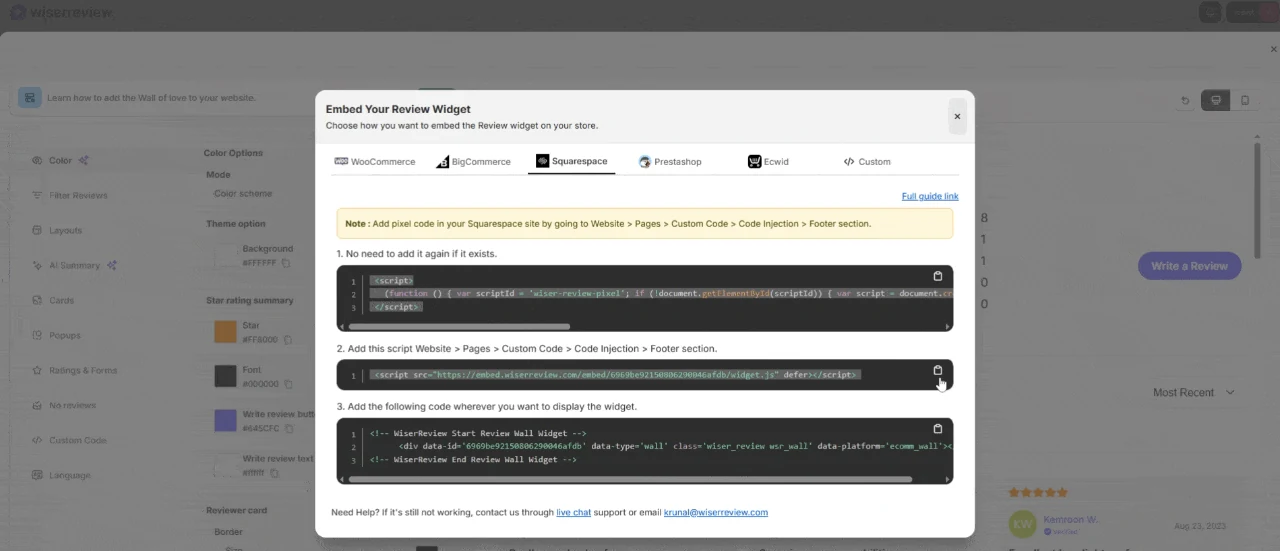
- Click Install on the widget and pick your platform tab, or Custom for any other site.
- Copy the pixel code into your site header, then the widget code where the wall should sit.
- Publish and check the page.

Put your Yelp reviews on one page
Import the reviews you already have and show them in a wall, carousel or star badge.
Where the Pixel Goes on Each Platform
The Yelp connection is the same everywhere. Only Step 1 changes, because each platform has its own place for header code.
| Platform | Where the pixel goes | Guide |
|---|---|---|
| WordPress | Install the WiserNotify plugin and paste your API key, or add the pixel to the theme header | WordPress guide |
| Shopify | Add the WiserNotify app, or paste the pixel into theme.liquid before the head tag closes | Shopify guide |
| Squarespace | Website, then Pages, then Custom Code, then Code Injection, in the Header box | Squarespace guide |
| Elementor | Same as WordPress: the WiserNotify plugin handles the pixel | Elementor guide |
| Wix | Settings, then Advanced, then Custom code, with Head selected under Place Code in | Wix pixel steps |
| Webflow | Project settings, then Custom code, in the Head code box | Webflow pixel steps |
| Weebly | Settings, then SEO, in the Header code box | Weebly pixel steps |
| HubSpot | Settings, then Tools, then Pages, then Templates, in the Site header HTML box | HubSpot pixel steps |
| Plain HTML site | Paste the pixel into every page template before the head tag closes | HTML site pixel steps |
| Any other site | Use Google Tag Manager to fire the pixel on all pages | GTM pixel steps |
Where to Show Yelp Reviews
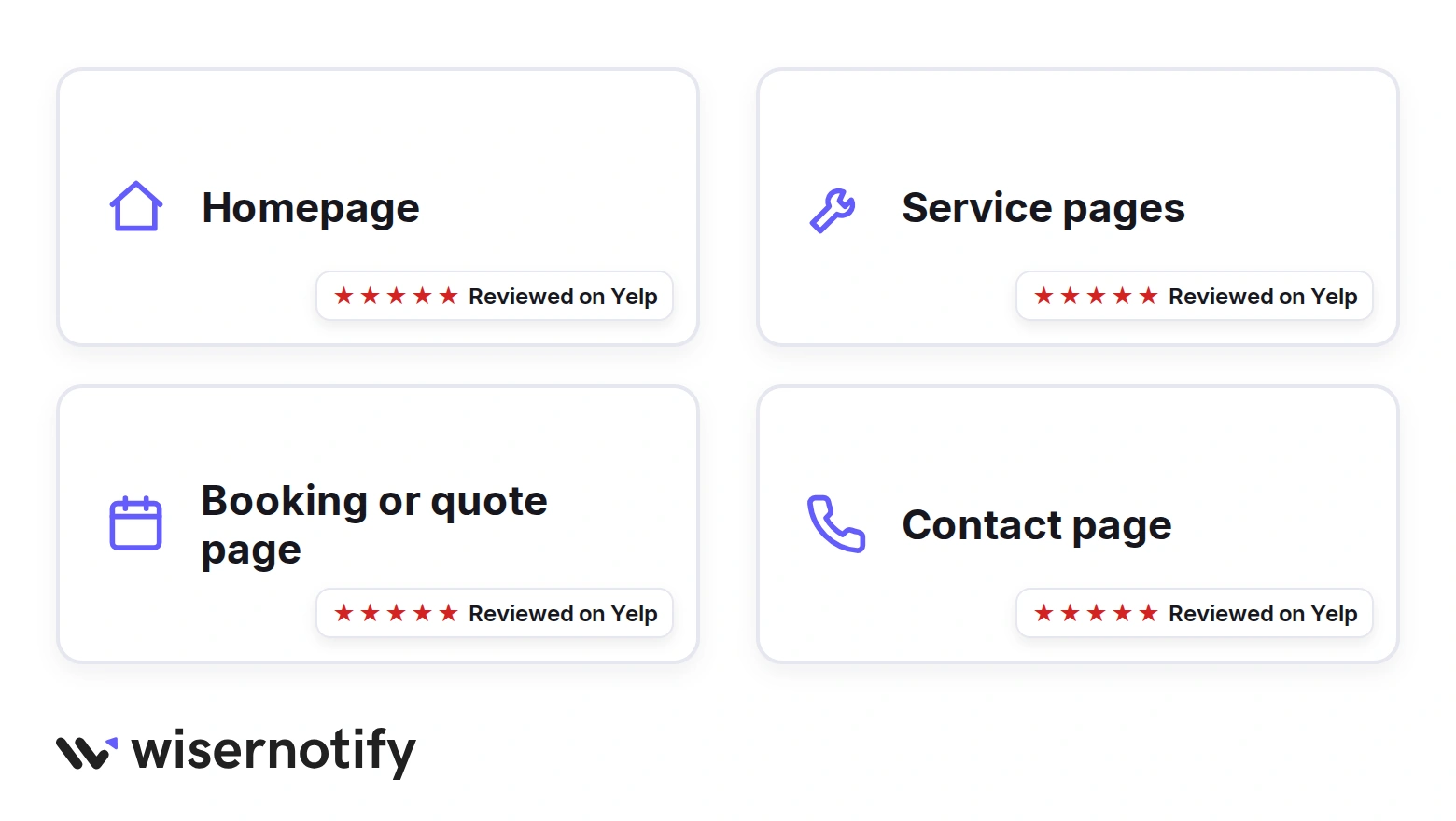
- Homepage: a recent review near the top tells first-time visitors other people chose you.
- Service pages: filter to reviews that mention that service, so the praise matches the page.
- Booking or quote page: doubt peaks right before someone commits, and a fresh review answers it.
- Contact page: a review here nudges the visitor to send the message instead of leaving.
Keep notifications off any page with a form in progress, where a pop-in can get in the way. For more placement ideas, see these ways to show reviews on your website.
Yelp Reviews Not Showing?
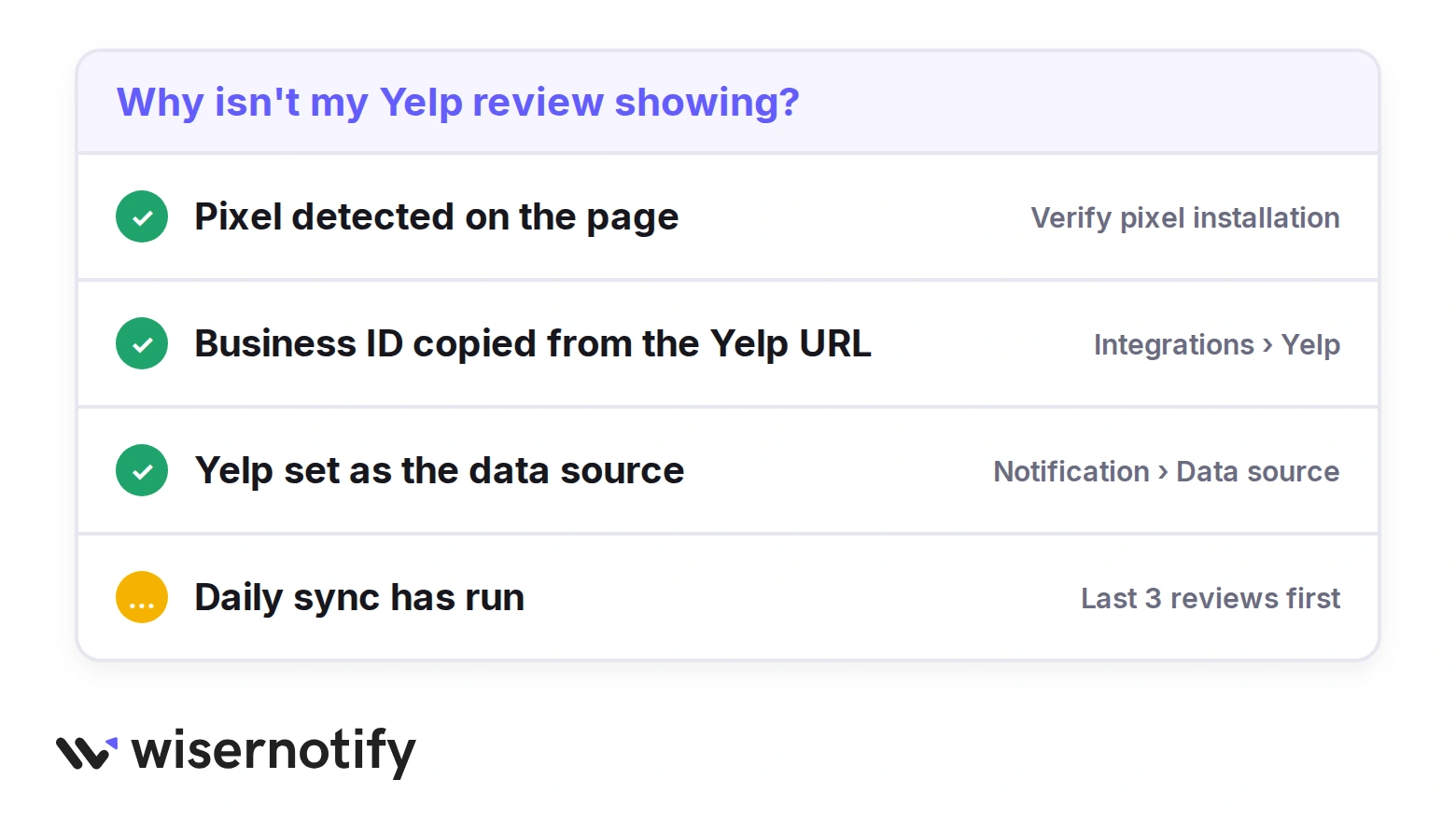
- Pixel not detected: nothing shows until the pixel loads. Use Verify pixel installation on the pixel page.
- Wrong business ID: copy only the part after yelp.com/biz/, with nothing before or after it.
- Data source not set: a notification without your Yelp connection as its source stays empty.
- Waiting on the sync: the first import brings in your last 3 reviews. Newer ones arrive on the daily check.
- Cached page: test in a private window after every change.

Boost Conversion Instantly
Add Social Proof & Urgency to your website
Mistakes That Get Businesses in Trouble
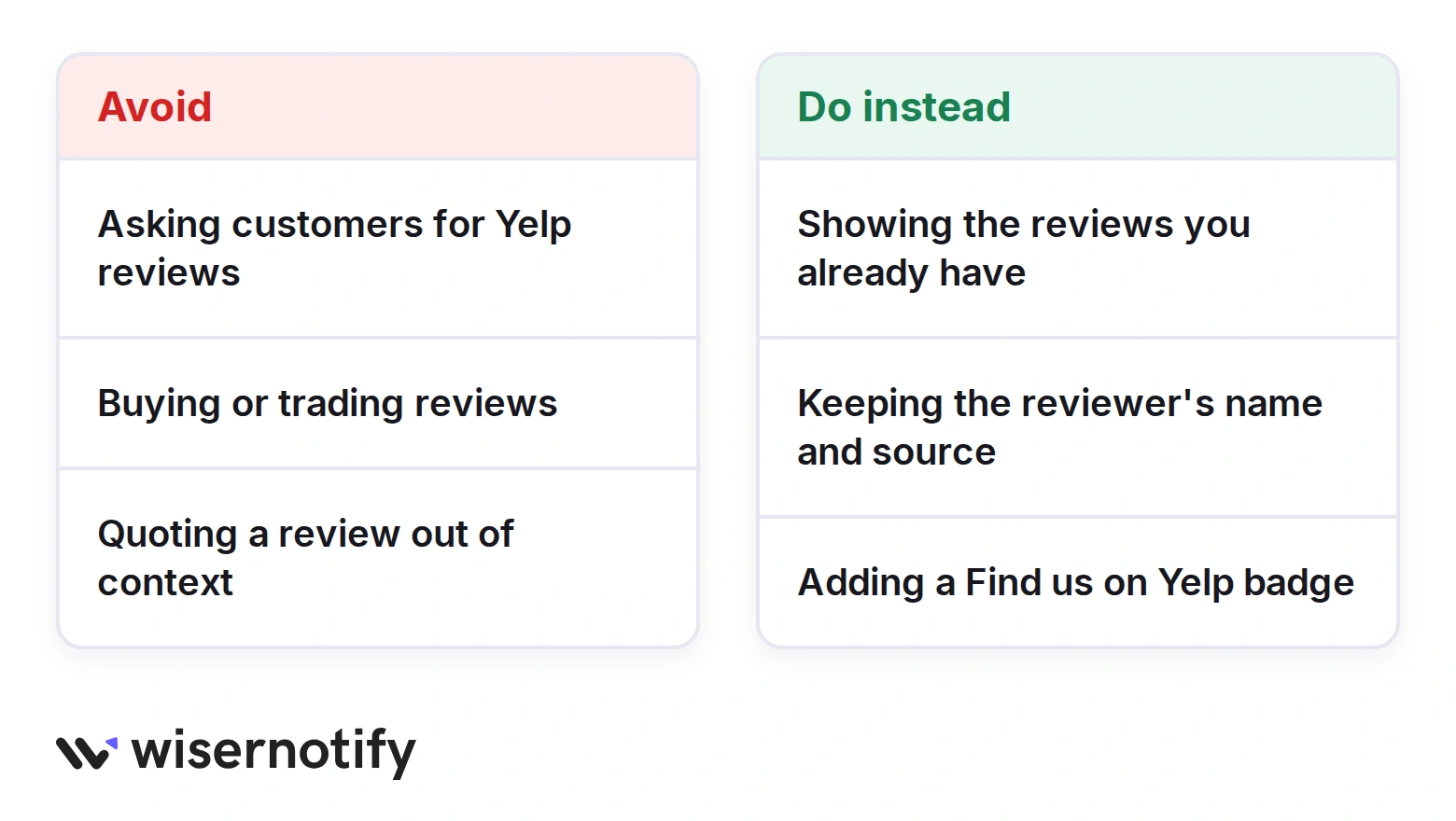
Yelp is stricter than Google here. Its guidelines tell businesses not to ask customers, staff, friends or mailing lists for reviews at all, and not to offer anything in exchange for one.
- Asking for Yelp reviews: solicited reviews tend to get filtered, and repeat offenders get a warning banner on their Yelp page.
- Buying reviews: the same banner, plus a drop in Yelp search placement.
- Quoting out of context: a positive line pulled from a mixed review reads as dishonest once someone clicks through.
- Stripping the source: keep the reviewer’s first name, the stars and the Yelp label so the proof stays believable.
Show the reviews you already have, keep them fresh with the daily sync, and let a Find us on Yelp badge do the rest. These Yelp statistics show how much a good rating is worth for a local business.
Build trust & FOMO
Highlight real-time activities like reviews, sales & sign-ups.

Wrap Up
Yelp’s own embed works for a single review you pick by hand. For reviews that keep themselves current, connect your Yelp page to WiserNotify once, or import them into a WiserReview wall when you want them all on one page.
Pick the pages where doubt is highest, keep the reviewer and source visible, and never ask or pay for the reviews. If you’re weighing which platform to lean on, see Yelp vs Google reviews.
Frequently Asked Questions
Can I embed Yelp reviews on my website for free?
Yes. On yelp.com, hover over a review and click Embed review to get a code snippet for that single review.
Do embedded Yelp reviews update automatically?
Yelp’s own embed shows one fixed review. A connected tool like WiserNotify checks your Yelp page daily and shows new reviews on its own.
Where do I find my Yelp business ID?
It is the last part of your Yelp business page URL, right after yelp.com/biz/.
How many Yelp reviews does WiserNotify import?
It brings in your last 3 reviews at setup, then adds new ones each day.
Can I ask customers to leave Yelp reviews?
No. Yelp’s guidelines tell businesses not to ask for reviews, and solicited reviews are often filtered out.
Does this work on Wix, Squarespace or Shopify?
Yes. The Yelp connection is the same on every platform. Only where you paste the pixel changes, and the table above covers each one.
Can I show all my Yelp reviews on one page?
Yes. WiserReview imports your Yelp reviews with its Chrome extension and shows them in a wall, carousel or star badge widget.

Krunal Vaghasiya is a marketing tech expert who boosts e-commerce conversion rates with automated social proof and FOMO strategies. He loves to keep posting insightful posts on online marketing software, marketing automations, and improving conversion rates.




 Capterra