
How to Add a Sales Popup to Thinkific (2026)

To add a sales popup to Thinkific, paste the WiserNotify pixel into Settings, then Code & analytics, in the Site footer code box, and install the WiserNotify app from the Thinkific App Store. The app creates a live-visitor and a purchase notification for you, so the whole setup runs about 10 minutes.
Thinkific builds and sells the course. What a visitor cannot see is whether anyone else is enrolling. A popup like “James from Denver just enrolled in Email Copywriting 101” answers that at the exact moment they hesitate.
Below is the full setup screen by screen, where each popup belongs, and the habits that keep enrollments climbing instead of annoying students.
Key takeaways
- One paste in Site footer code covers your whole Thinkific school, including course pages and checkout.
- The WiserNotify app from the Thinkific App Store feeds real signups and enrollments into the popups and creates two notifications for you.
- Thinkific does not pass visitor location, so set a fallback location in the notification settings.
- Course pages convert on enrollment proof, not store-style purchase messages, so write popups in course language.
Does Thinkific Have Built-In Sales Popups?
No. Thinkific ships themes, site pages, and checkout settings, but nothing that shows live visitor or enrollment activity on a page.
A course is a trust purchase, and new visitors look for signs that real students are joining before they pay. That proof layer comes from outside, through one pixel in the site footer, without touching your Thinkific theme.
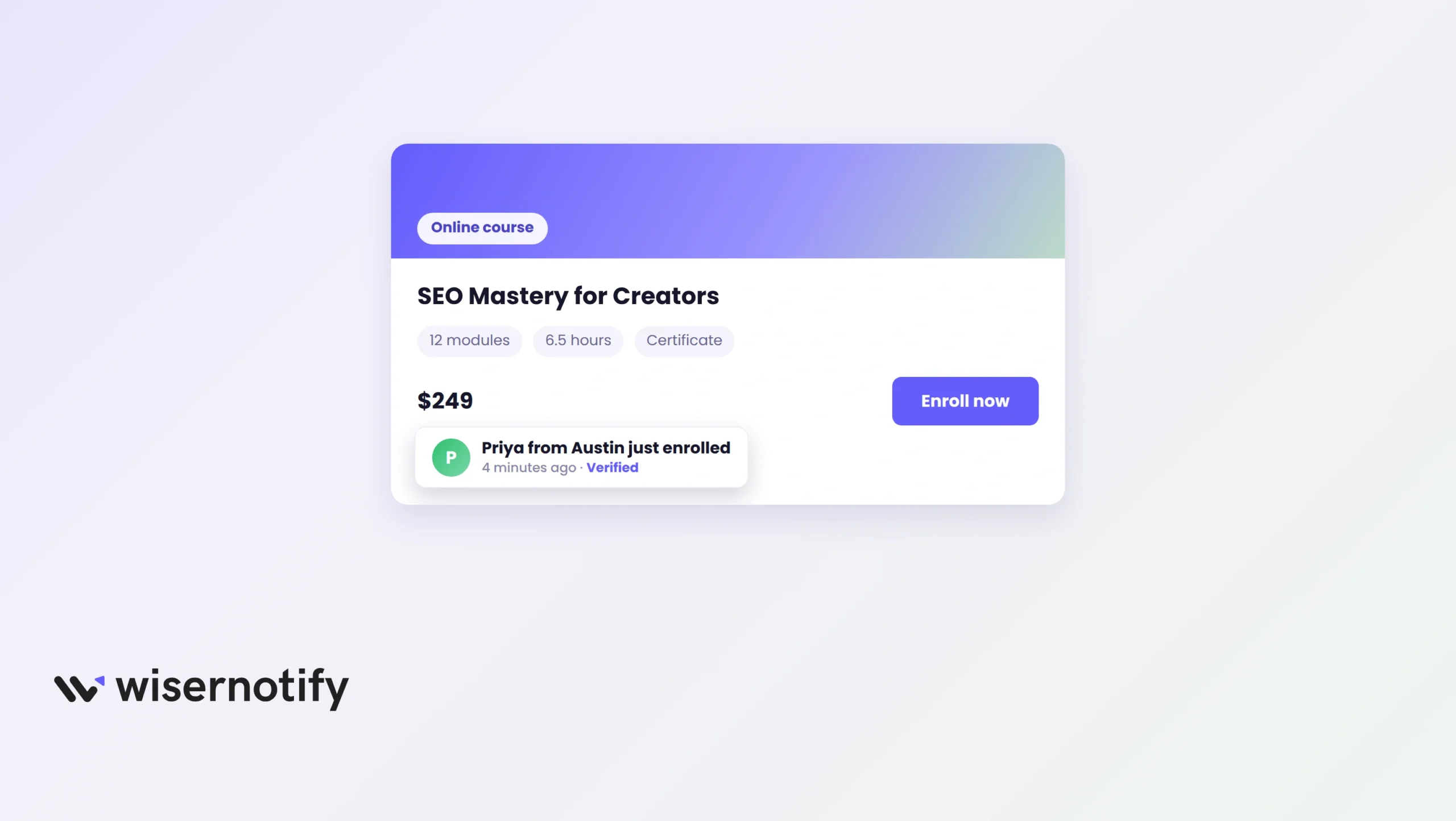
Where Each Popup Belongs on Thinkific
Match the notification to the page’s job, and skip the pages where students are learning.
| Thinkific page | Popup to run | What it does there |
|---|---|---|
| Course sales page | Recent enrollments | Names and course titles land while the visitor weighs the price |
| Checkout | Live visitor count | Quiet reassurance that others are paying for the same course right now |
| Homepage | Enrollment counter | A running student total frames the school as active before any pitch |
| Lesson pages | None | Paying students need focus, not conversion nudges |
How to Add a Sales Popup to Thinkific
You work in two places, the WiserNotify dashboard and your Thinkific admin, and Thinkific’s app store does the data plumbing for you.
The video covers the widget side. The numbered steps handle everything Thinkific-specific.
Step 1: Copy Your WiserNotify Pixel
Sign in at WiserNotify and grab the snippet from the Install Pixel page. Keep that tab open, you will return to it to verify.

Step 2: Paste It in Site Footer Code
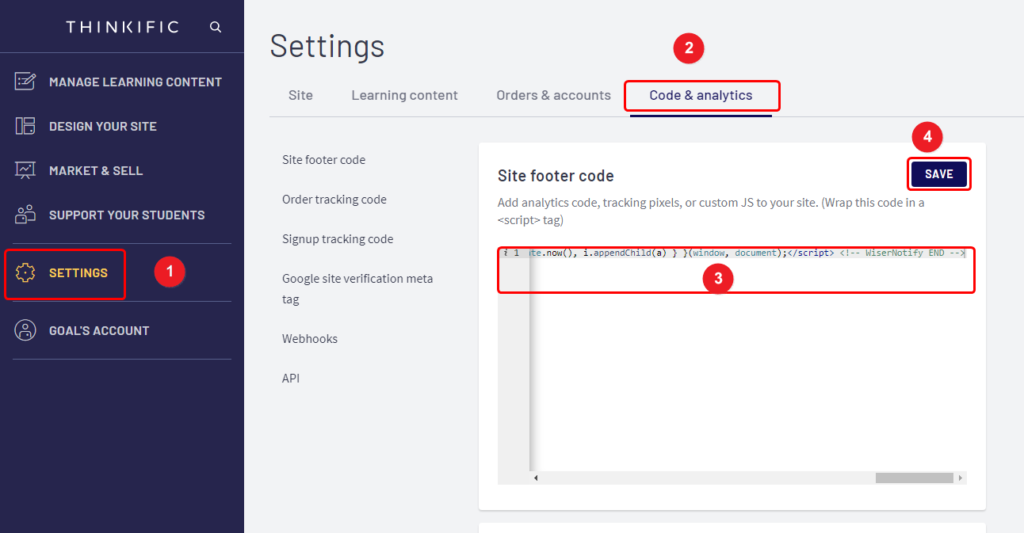
In Thinkific, open Settings, switch to the Code & analytics tab, and drop the pixel into the Site footer code box. Hit Save. This one paste loads the script on every page of your school.
Step 3: Verify the Pixel
Open your school’s live site once, then press verify pixel installation back on the WiserNotify pixel page. Wait for the Pixel Active message before moving on.

Step 4: Install the WiserNotify App
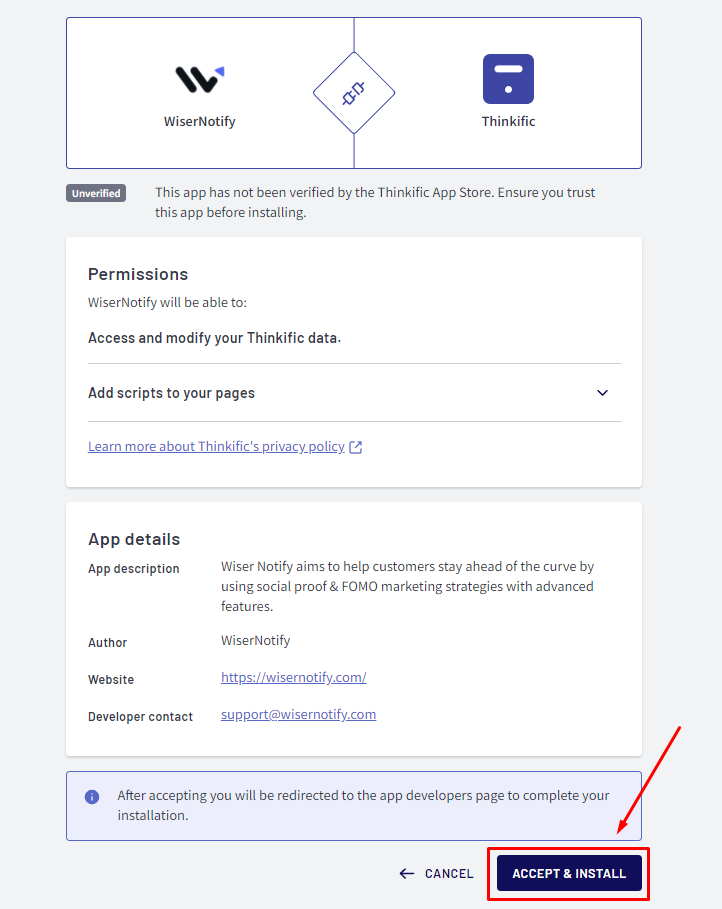
Find WiserNotify in the Thinkific App Store and click Accept & Install. This connection is what sends your real signups and enrollments into the popups, no webhook setup needed.
Step 5: Open the Two Ready Notifications
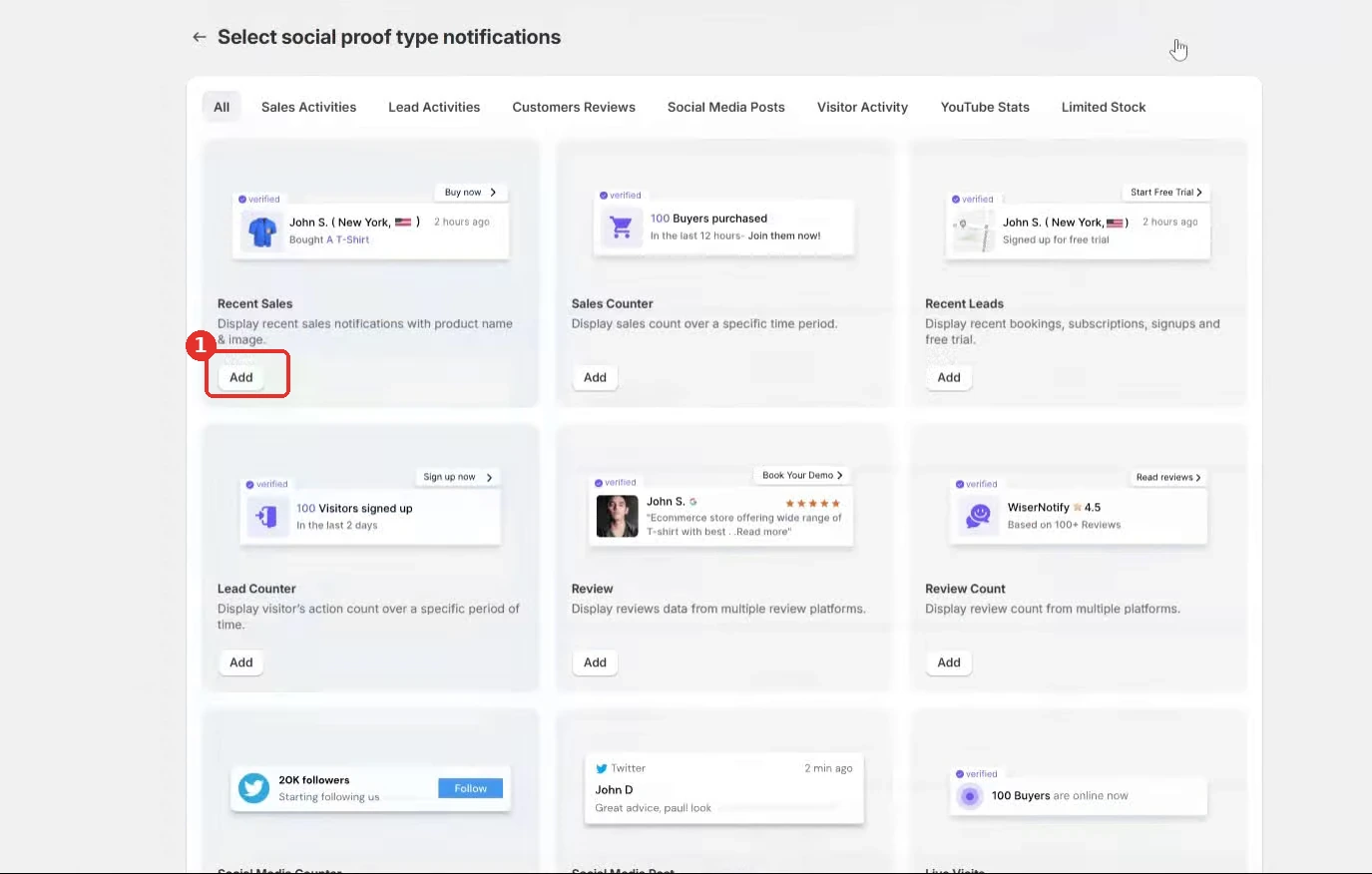
After the install, reload your Thinkific site once. WiserNotify creates a Live Notification and a Purchase Notification for you automatically, and both appear in your Widgets list ready to edit. Want more types later, like signup counters? Add them from the same Social Proof list.
Step 6: Write It in Course Language
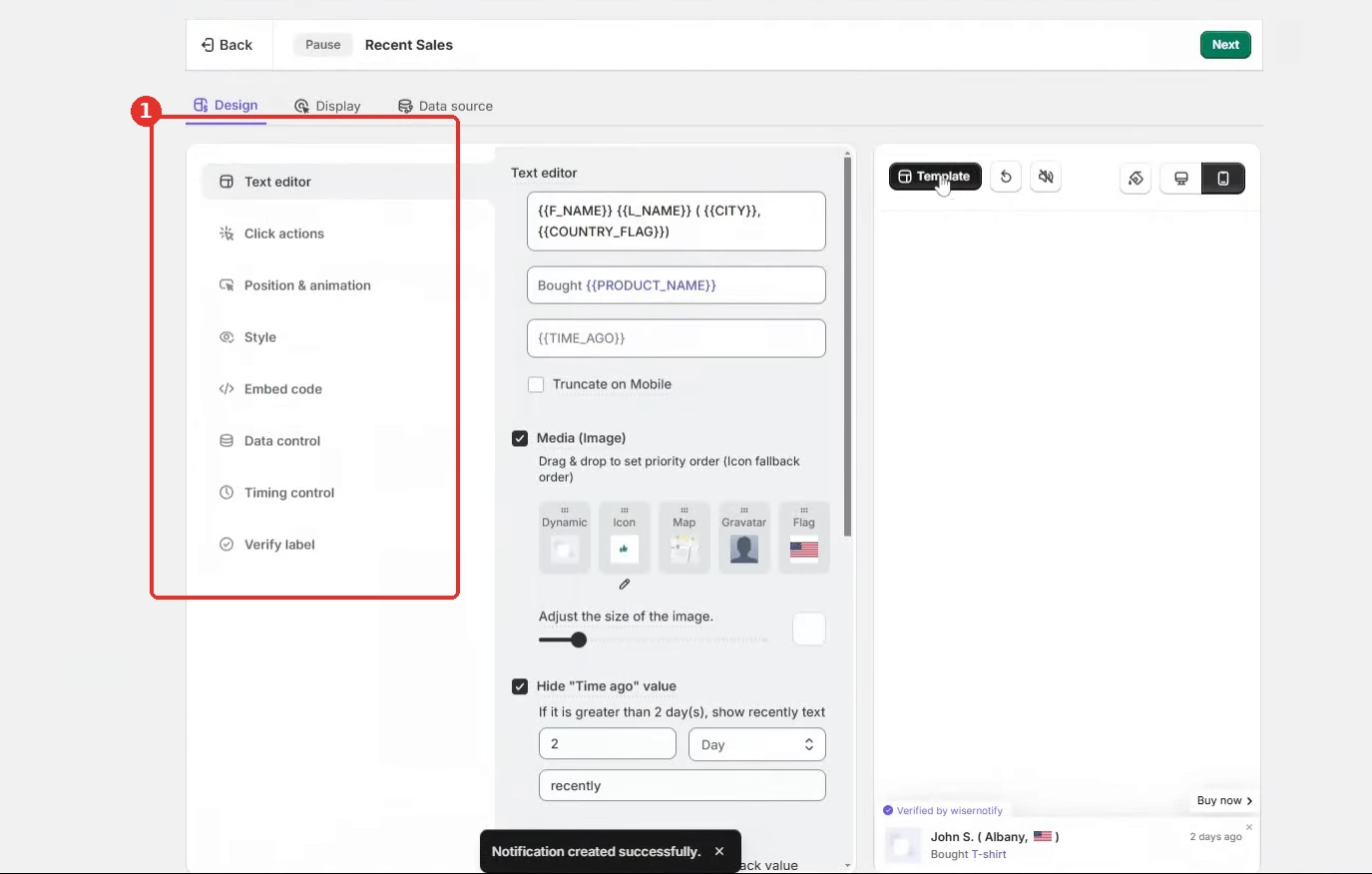
Open the Design tab and shape the template around enrollments. “Enrolled in” with the course name pulled in dynamically beats any store-style purchase line on a course page.
Step 7: Set Pages and Location Fallback
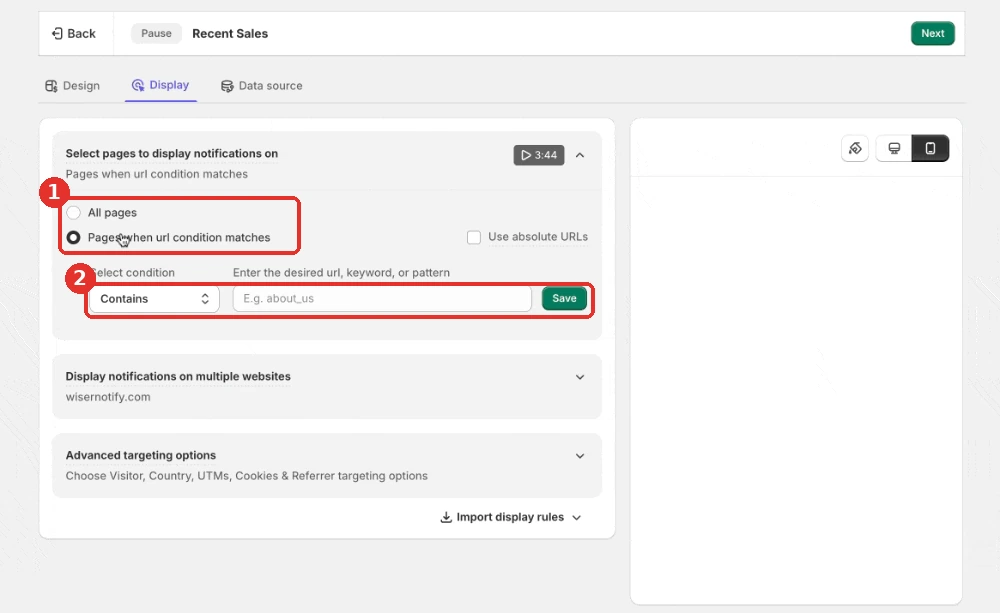
In the Display tab, target your course sales pages and checkout, and delay the first popup by a few seconds. Thinkific does not pass visitor geolocation, so set a fallback location here or the place in your message stays blank.
Step 8: Pick the Data Source and Publish
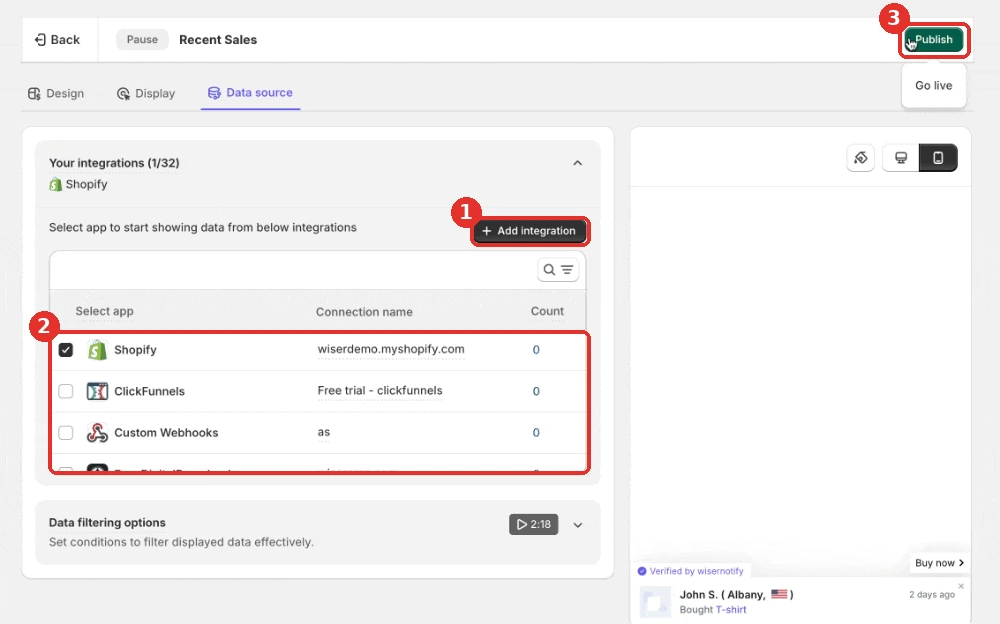
Set the notification’s data source to your Thinkific connection, publish, and load a course page in a private window. Your newest enrollments should start rotating through.
Build trust & FOMO
Highlight real-time activities like reviews, sales & sign-ups.


Sales Popup Not Showing on Thinkific?
Run down this list before touching the design again.
- The pixel sits in the wrong box. Code & analytics has several fields. The pixel goes in Site footer code, not the order or signup tracking boxes.
- The app never finished installing. Reopen the Thinkific App Store listing and confirm it shows as installed, then reload your site once.
- Display rules point at the wrong URL. A school on a custom domain needs rules written for that domain, not the .thinkific.com address.
- Your browser cached the page. Always check in a private window first.
Verification settles where the problem lives. An active pixel means the widget’s rules need the fix, not Thinkific.
3 Popup Examples That Fit Course Pages
Course visitors respond to student activity. These three map to what a Thinkific page sells.
1. Recent Enrollments
“Maya from Toronto just enrolled in Watercolor Basics” does for a course page what a purchase popup does for a store. Pull the course name in dynamically so each message names the exact program on that page.
2. Enrollment Counters
“214 students joined this month” works once the number sounds good out loud. Counters suit homepages and bundle pages, where one running total says more than a stream of names.
3. Live Checkout Visitors
A small “6 people are viewing this course” on checkout steadies the buyer at the exact moment second thoughts creep in. Keep it in a corner, away from the payment fields.
Is It Free to Use on Thinkific?
Every WiserNotify plan opens with a 7-day free trial, enough time to run popups on real course traffic and judge the numbers.
Paid plans start at $16 per month on Pro for 10,000 monthly visitors, or $59 per year on Basic for 5,000 visitors. All notification types come with both.
Sales Popup Tips for Thinkific
Settings decide whether popups sell seats or get ignored.
- Name the course, always. A popup that says which program someone joined carries the proof. Vague lines read as decoration.
- Hold the first popup back. Let the visitor read for 10 to 20 seconds or scroll into the curriculum before anything slides in.
- Weight your best pages. Course landing pages, bundles, and checkout are decision moments. Spend your popup budget there.
- Cap the frequency. A popup every 30 seconds with three per visit as the ceiling keeps the proof believable.
- Lean on launches. During an enrollment window, a popup naming the current cohort stacks a deadline on top of the proof.
- Match your school’s look. Carry your fonts and colors into the popup so it reads as part of the site, not an ad.
Mistakes That Cost Enrollments
The same few errors keep showing up on Thinkific schools.
- Popups inside lessons. Interrupting a paying student mid-module burns goodwill for zero new revenue. Exclude course content areas in your display rules.
- Faceless messages. “Someone just signed up” convinces nobody. A first name or initials plus the course title is the minimum.
- Unchecked mobile layouts. A popup that covers the enroll button on a phone costs the exact tap it was meant to win. Preview on small screens before publishing.
- Skipping the test run. Load the live page in a private window after every change, since a broken popup looks worse than none.
- Never reading the numbers. Views, hovers, and clicks per message sit in the dashboard. The messages that pull clicks earn more rotation, the rest get rewritten.
How to Measure the Impact
Start with the widget analytics, which show whether each message gets seen and clicked at all.
Then judge by enrollments. Alternate a week of popups on with a week off and compare course sales across the two. Whatever the data crowns stays live, and a sagging click rate is your cue to rewrite the message.

Boost Conversion Instantly
Add Social Proof & Urgency to your website
Wrap-Up
Thinkific carries the course, the checkout, and the student experience. What it leaves invisible is the crowd of people enrolling around each visitor.
One footer paste, one app install, and that crowd becomes visible right where the next student decides. Set it up, watch a week of numbers, and let real enrollments make the argument.
Frequently Asked Questions
Where do I paste the popup code in Thinkific?
In Settings, under Code & analytics, in the Site footer code box. One paste covers every page of your school.
Do I need coding skills to add a sales popup to Thinkific?
No. You paste the pixel once into Site footer code and install the WiserNotify app, then everything is managed from the dashboard.
How do popups get my real enrollment data?
The WiserNotify app from the Thinkific App Store sends signups and enrollments straight into your notifications, with no webhook setup.
Will a sales popup slow down my Thinkific site?
Not noticeably. The widget loads through one lightweight async script, so page speed stays where it was.
Can I show different popups on different course pages?
Yes. Display rules target by page URL, device, and visitor behavior, so each course or funnel step can carry its own message.

Krunal Vaghasiya is a marketing tech expert who boosts e-commerce conversion rates with automated social proof and FOMO strategies. He loves to keep posting insightful posts on online marketing software, marketing automations, and improving conversion rates.




 Capterra