
How to Add a WhatsApp Chat Widget to Strikingly (2026)
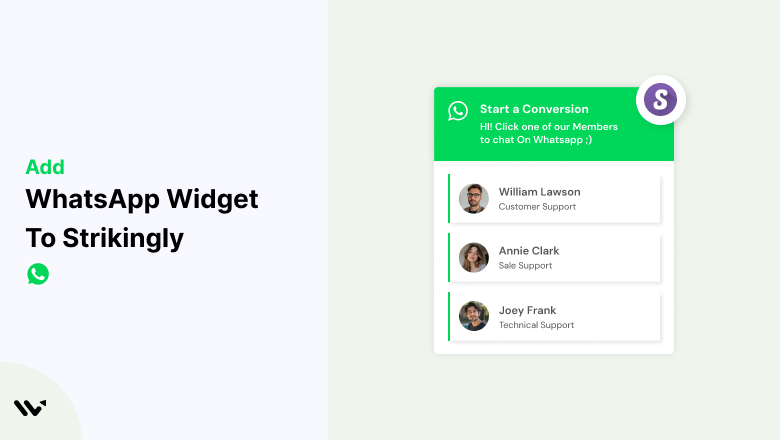
To add a WhatsApp chat widget to Strikingly, paste the WiserNotify pixel into Settings > Advanced > Custom Code > Header in your Strikingly editor. Then build a WhatsApp widget in WiserNotify with your team’s numbers and publish it.
You do not need an embed block on every section.
Many Strikingly sites are one long page, so a visitor with a question about price or booking has to scroll back to a contact form. A tap on WhatsApp saves that trip.
Below are the 7 steps, a short look at how the widget works as live chat, and a checklist for when it does not show.
Do You Need the WhatsApp Business API?
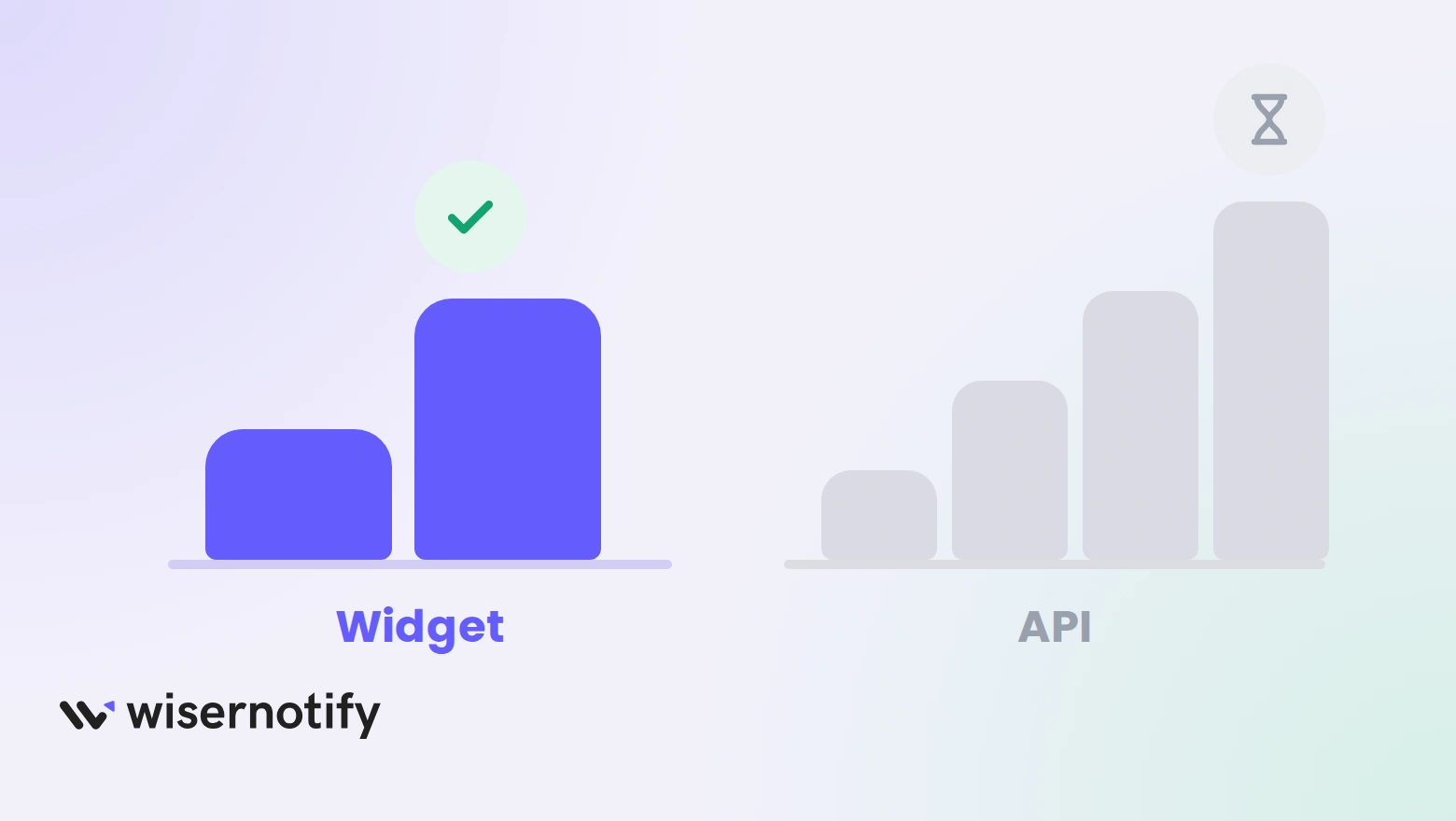
No. Tapping the widget starts a regular WhatsApp conversation, like a wa.me link. You skip the approval queue, the message templates and the API application.
The WhatsApp Business API is a separate product, built for sending notices such as delivery updates to people who have not messaged you. Letting visitors write to you first does not need it.
WhatsApp as Live Chat on Strikingly
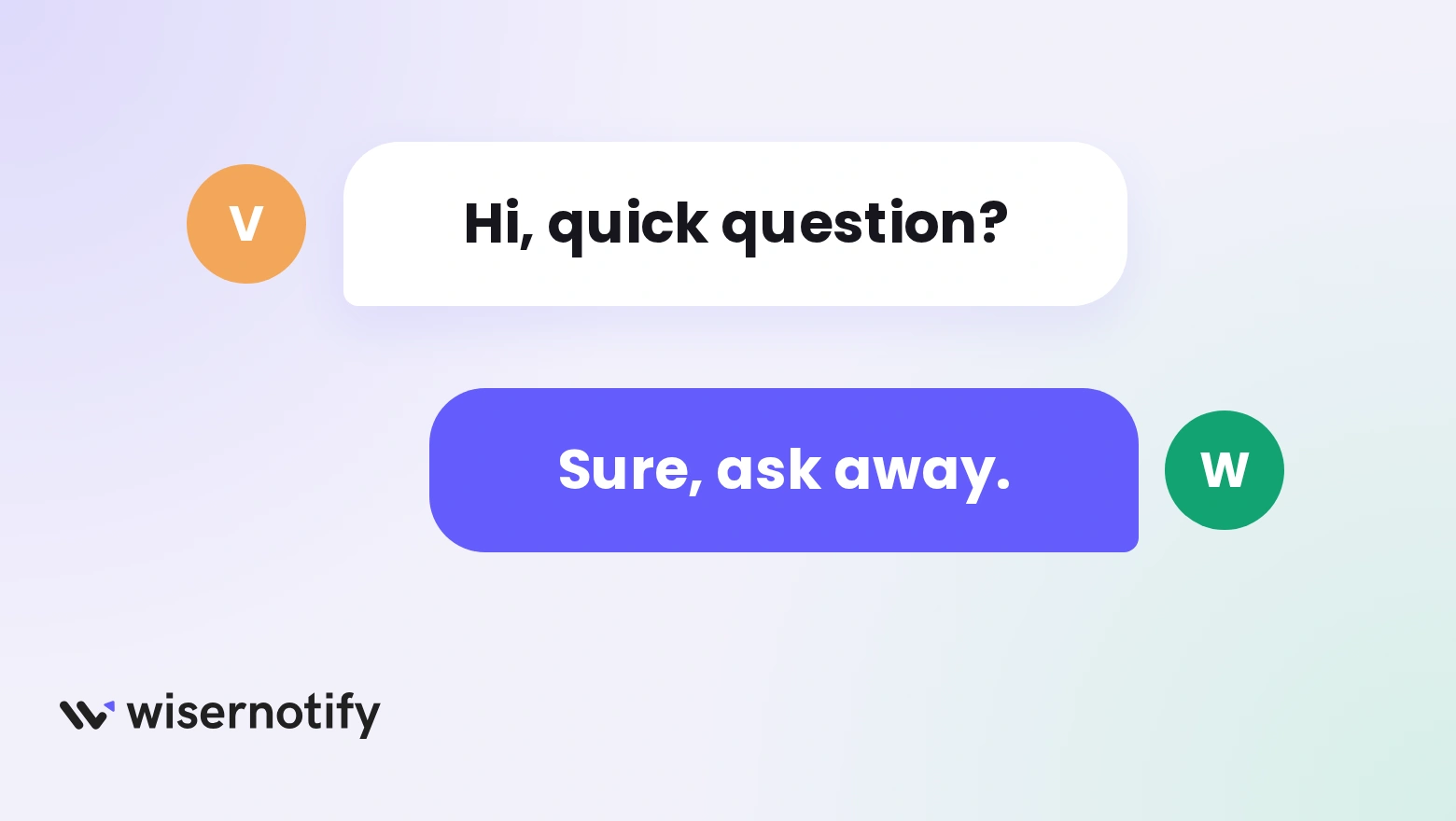
Searches for Strikingly chat usually mean a bubble that visitors can use to reach you. The WhatsApp widget does that, and the conversation continues in WhatsApp.
- A chat bubble on every page you choose: it sits in a corner and opens a list of your team members.
- Replies in an app you already use: chats arrive in WhatsApp on your phone or desktop, so no extra inbox is needed.
- The page URL in the first message: your team sees which page the visitor was reading.
- Timing and page rules: show it after a few seconds, a scroll or on exit intent, and keep it off pages that do not need it.
How to Add a WhatsApp Chat Widget to Strikingly
The setup uses two places, your Strikingly site settings and the WiserNotify dashboard. The pixel goes in once, and each widget you build later loads through it.
The video covers the full widget build, which matches steps 4 to 7. Steps 1 to 3 are the Strikingly side.
Step 1: Copy Your WiserNotify Pixel

- Sign up for WiserNotify and start the 7-day free trial, or log in if you already have an account.
- Add your Strikingly site as a website and open the Install Pixel page.
- Click Copy code.
Step 2: Paste It in Custom Code
- Log in to Strikingly and edit your site.
- Go to Settings > Advanced > Custom Code.
- Paste the full pixel, script tags included, into the Header box.
- Save, and publish your site if the editor asks you to.
Header code loads on every page of the site. Custom Code may need a paid Strikingly plan, so check that yours includes it. The Strikingly pixel guide has the same step in short form.
Step 3: Verify the Pixel

- Open your live Strikingly site once and refresh it.
- Go back to the Install Pixel page in WiserNotify.
- Click Verify pixel installation.
- Look for the green line that says the pixel code was detected.
Step 4: Open the WhatsApp Widget
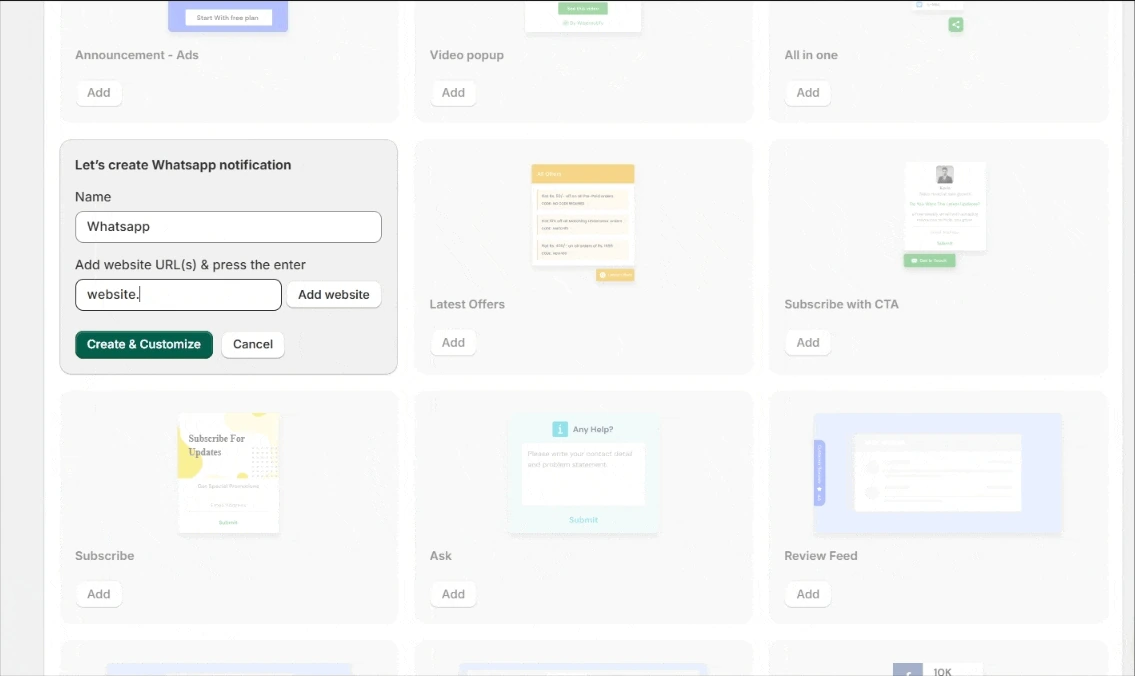
- In WiserNotify, go to Widgets and click Add notification.
- Open the Call To Actions tab, find WhatsApp and click Add.
- Type a name and your Strikingly site address, then click Create and Customize.
Step 5: Build Your Team List

- In Add list, open the three sample people and overwrite them with yours. Use Add item to include more.
- Fill in each person’s WhatsApp number, photo, role and name.
- Add the message that opens the chat. The page URL is attached automatically.
- In Text editor, write a heading such as Start a conversation, plus one short, friendly line.
- In Click actions, choose the WhatsApp icon, its background color and the close icon color.
- Set placement for mobile and desktop in Position and animation, then adjust Style for colors, size and shadow.
Step 6: Set Timing and Pages

- In Timing control, add start and expiry dates if the widget should only run for a set period.
- Pick a display rule, such as showing it after 5 seconds, after 10 scrolls or on exit intent.
- Use Hide after to limit how long it stays on screen, then click Next.
- In the Display tab, keep all pages, or choose Pages when URL condition matches and add your rule.
- Advanced targeting can narrow it by visitor type, UTM source, cookie or referrer.
Step 7: Publish and Test
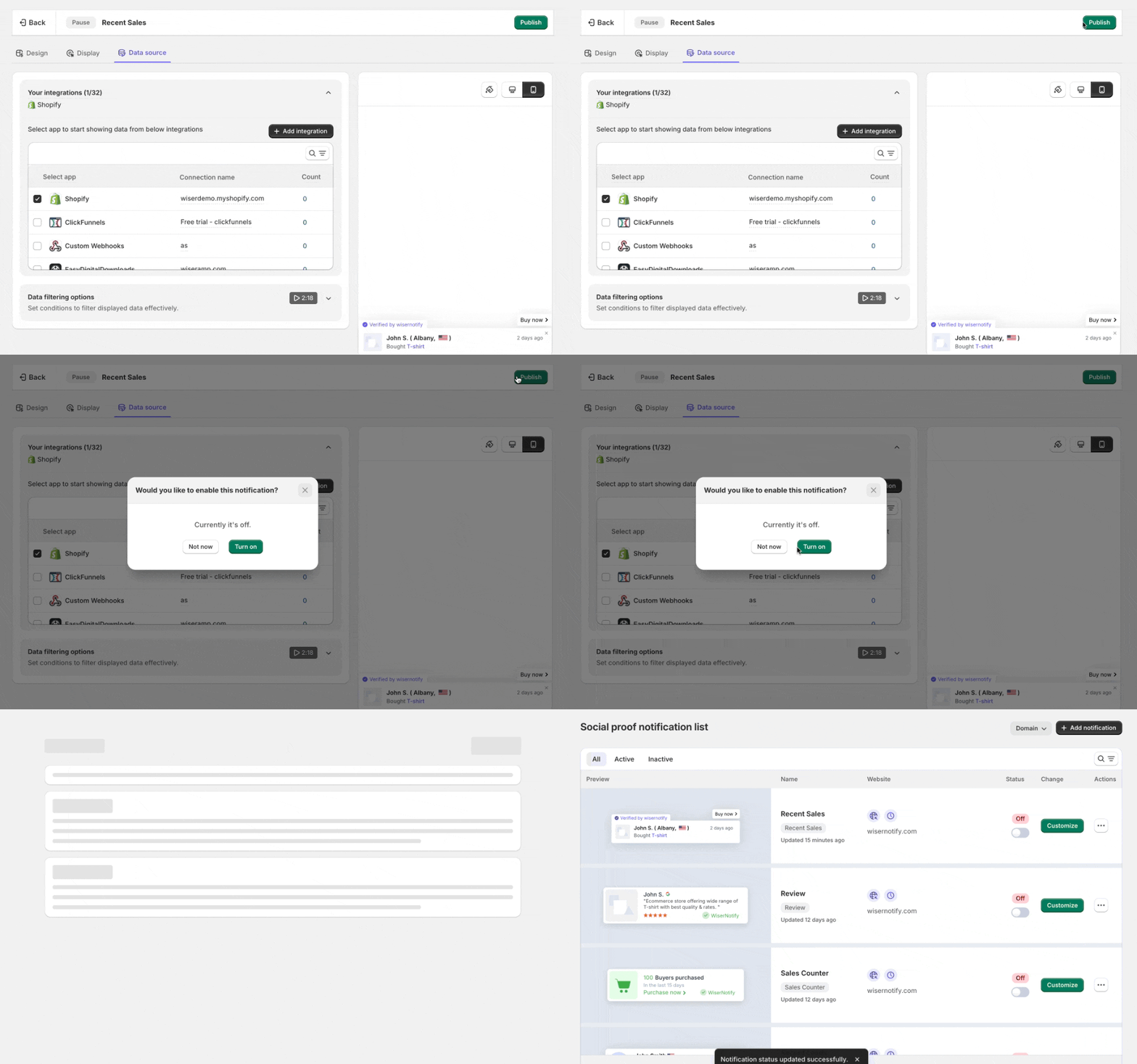
- Click Publish to turn the widget on.
- Open your Strikingly site in a private window and refresh once or twice.
- Once the delay passes, the WhatsApp icon appears.
If the icon stays hidden, start with the troubleshoot option in the widget list. The WhatsApp widget guide explains every option in the editor.

Boost Conversion Instantly
Add Social Proof & Urgency to your website
Where to Place the Widget on a Strikingly Site
- Home page: a visitor sizing you up can ask a question without leaving the page.
- Pricing or packages section: questions about cost and what is included come up here first.
- Contact page: a tap on WhatsApp is quicker than a form for many visitors.
- Store and product pages: shoppers check sizing, stock and shipping before they buy.
- Blog posts: worthwhile on the posts that attract enquiries.
On a site built as one long page, every section shares one URL, so a page rule covers the whole page.
Use the page rule from Step 6 to separate the pages that need the widget from those that do not.
WhatsApp Widget Not Showing on Strikingly?
- Wrong box: the pixel belongs in Custom Code > Header, not in an embed block on one section.
- Plan without Custom Code: if the Custom Code option is missing in Settings > Advanced, check that your Strikingly plan includes it.
- Site not republished: publish the site after saving, then open the live address, not the editor.
- Partial paste: the Header box needs the whole pixel with its script tags, copied straight from WiserNotify.
- Pixel unverified: load the live site, then run Verify pixel installation again.
- Draft status: a saved widget stays off until you press Publish.
- Trigger still counting down: a delay or scroll rule needs a few seconds or some scrolling first.
- Dates: a future start date or a past expiry date hides the widget.
- Skip seen enabled: Data control remembers who has seen the widget, you included, so test in a private window.
- URL rule too narrow: test with all pages first, then tighten the rule.
Nothing yet? Run the troubleshoot option in the widget list, or ask live chat to review your setup.
Build trust & FOMO
Highlight real-time activities like reviews, sales & sign-ups.


Best Practices for Your WhatsApp Widget
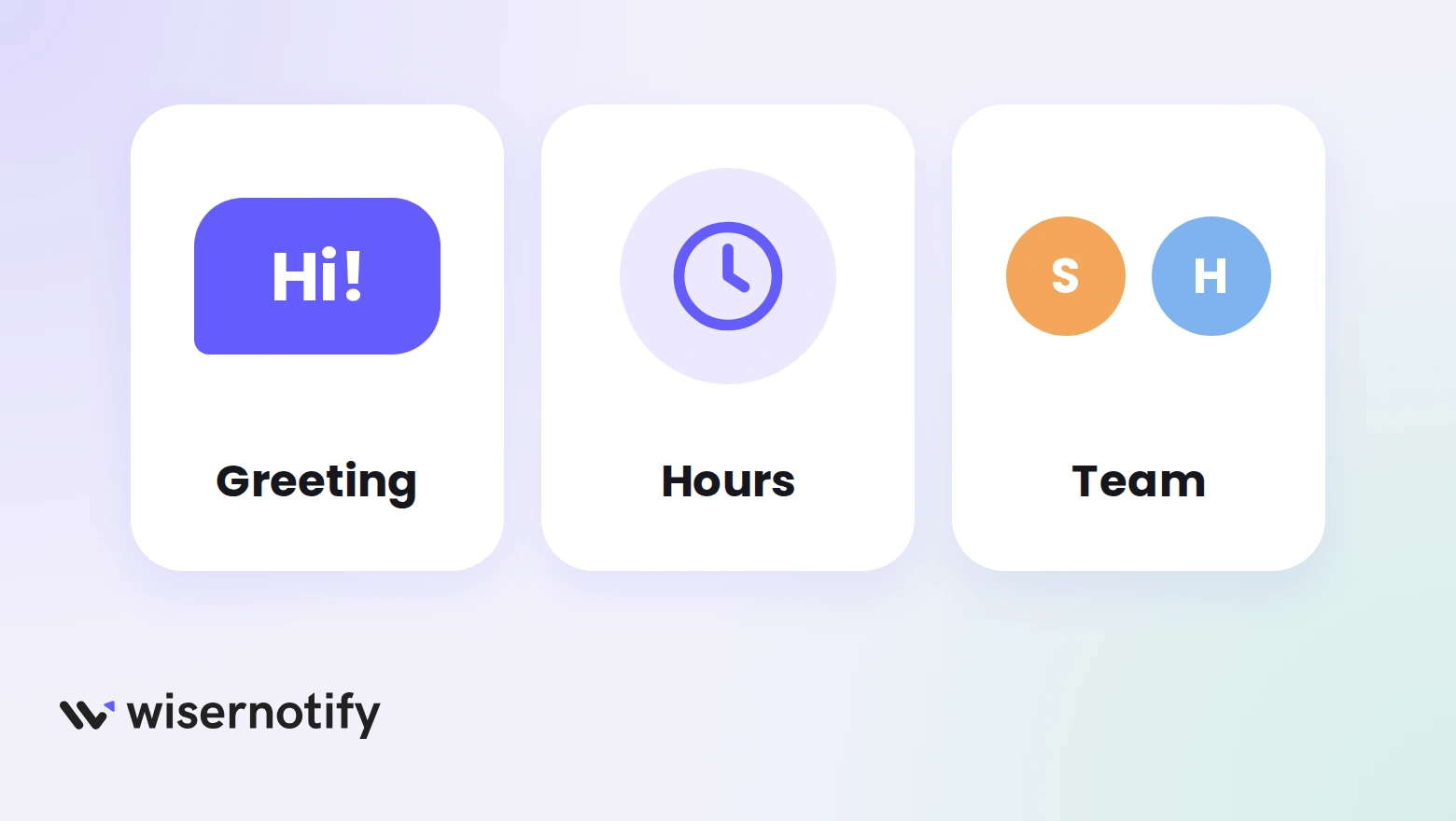
- Greet with a clear offer: “Questions before you book?” tells a visitor exactly what the chat is for.
- Match your Strikingly design: take colors and fonts from your site so the widget looks like it belongs.
- State your reply hours: a line in the description sets expectations before anyone writes.
- Split the team by topic: a sales contact and a support contact keep chats with the right person.
- Prefer a WhatsApp Business account: quick replies and away messages answer people when you are busy.
WhatsApp Widget Mistakes to Avoid
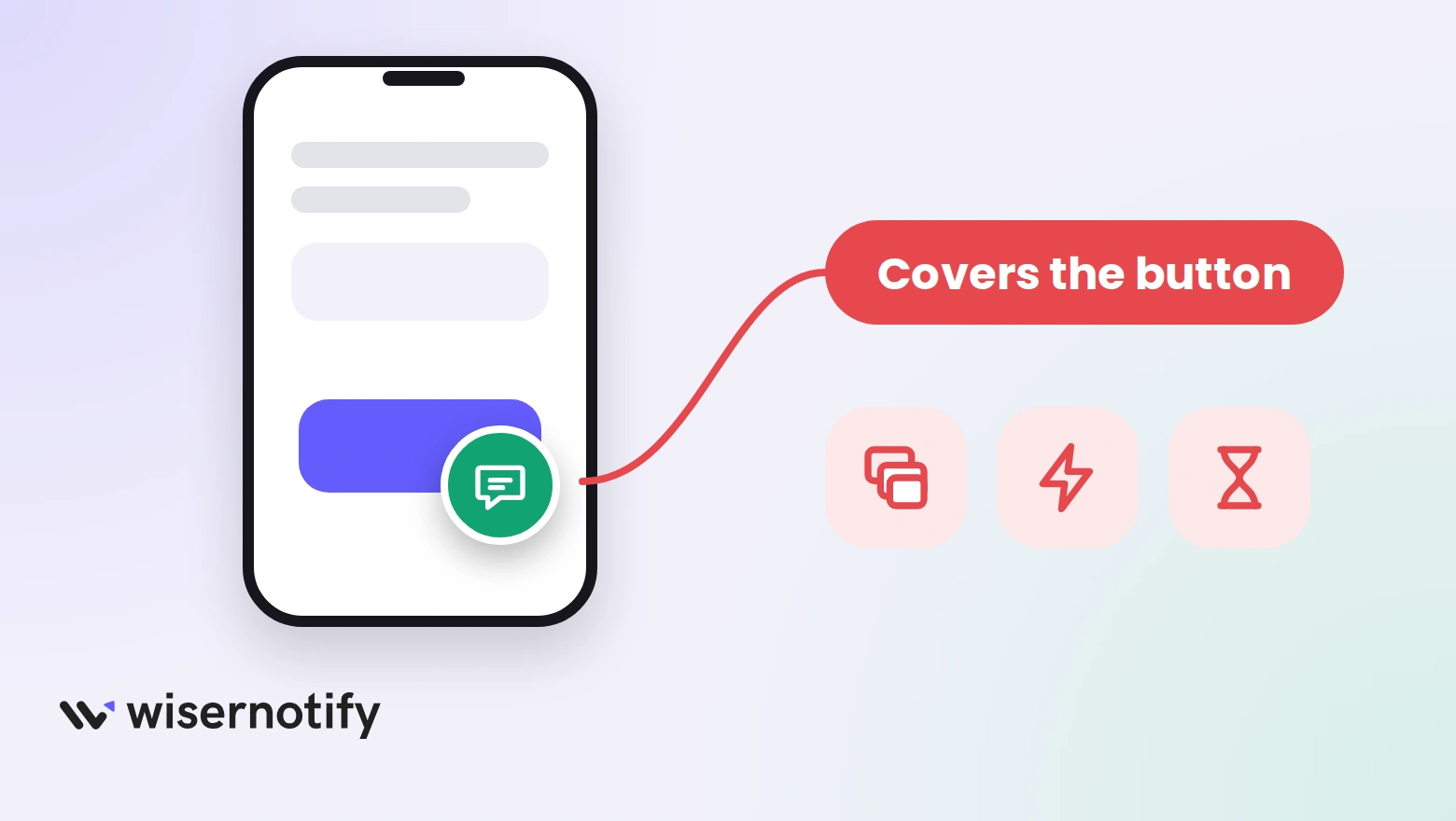
- Covering your main button: on a phone, the wrong corner can hide a booking or buy button. Check the mobile preview first.
- Popping up at load: a bubble that appears the instant the page opens feels pushy. Use a delay or a scroll rule.
- Running two chat tools: two bubbles in one corner leave visitors unsure where to write.
- Leaving chats waiting: a visitor who hears nothing for a day has usually moved on.
- Never trying it on a phone: open your live site on a real phone before you leave the widget running.
How to Measure Your Chat Widget’s Impact
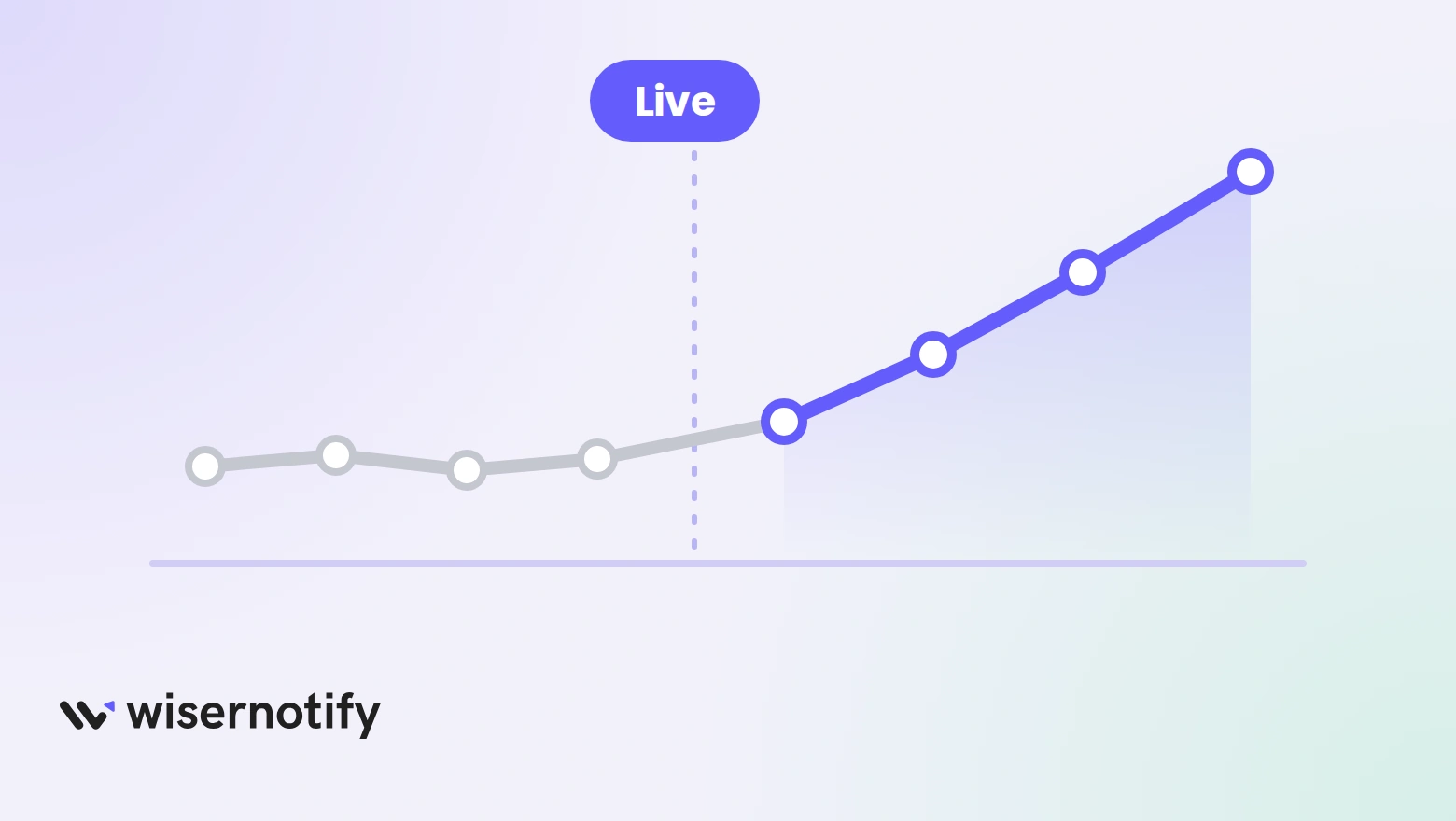
- Open your WiserNotify dashboard for widget views and clicks. Views show reach, and clicks show how many people opened the chat.
- Time your first reply, since speed often decides whether a chat goes anywhere.
- Compare enquiries or sales after the widget goes live with the weeks before it.
- Read the opening messages that carry a page URL, since they show which pages prompt the most questions.
Build trust & FOMO
Highlight real-time activities like reviews, sales & sign-ups.
Wrap Up
A WhatsApp widget gives Strikingly visitors an easy way to reach you at the moment a question comes up. Paste the pixel in Custom Code, build the widget, and publish.
Start on your home page or pricing section, then widen the rule once you see which questions come in.
Related Posts
Frequently Asked Questions
How do I add a WhatsApp chat widget to Strikingly?
Paste the WiserNotify pixel into Settings, Advanced, Custom Code and the Header box, then build a WhatsApp widget under Widgets and Call To Actions and publish it.
Do I need the WhatsApp Business API for the widget?
No. The widget opens a normal WhatsApp chat, like a wa.me link, so there is no approval or API to apply for.
Where do I paste the WiserNotify pixel in Strikingly?
Edit your site, go to Settings, then Advanced, then Custom Code, and paste the full pixel into the Header box. Save and publish the site.
Can the widget work as live chat on my Strikingly site?
Yes. It shows a chat bubble with your team list, and the conversation continues in WhatsApp on your phone or desktop.
Can I show the widget only on certain pages?
Yes. The Display tab limits it to pages that match a URL rule, and Timing control sets when it appears.
Does the WhatsApp widget work on mobile?
Yes. You set position and animation separately for mobile and desktop, and the preview shows both.

Krunal Vaghasiya is a marketing tech expert who boosts e-commerce conversion rates with automated social proof and FOMO strategies. He loves to keep posting insightful posts on online marketing software, marketing automations, and improving conversion rates.




 Capterra