

Many ClickFunnels users struggle with low conversion rates, often due to a lack of trust-building elements on their funnels.
Without trust signals, visitors may hesitate, abandon your funnel, or choose a competitor—leading to wasted traffic and missed revenue opportunities.
Incorporating testimonials into your ClickFunnels pages builds credibility, reassures prospects, and drives conversions by showcasing real customer success stories.
Why Add Testimonials to ClickFunnels?
Testimonials are a cornerstone of high-converting funnels. Here’s why they matter for ClickFunnels users:
Build Trust Instantly: Testimonials establish credibility by showing proof of your product or service’s effectiveness.
Reduce Buyer Hesitation: They address common objections and reassure prospects that others have achieved success with your offer.
Increase Conversions: Funnels with testimonials strategically placed near CTAs have been shown to improve conversions by up to 34%.
Strengthen Your Funnel’s Story: By highlighting relatable customer journeys, testimonials reinforce the emotional and logical appeal of your funnel.
Enhance SEO: Customer testimonials often contain long-tail keywords, improving organic traffic to your funnel.
Build trust & FOMO
Highlight real-time activities like reviews, sales & sign-ups.


How to Add Testimonials to ClickFunnels
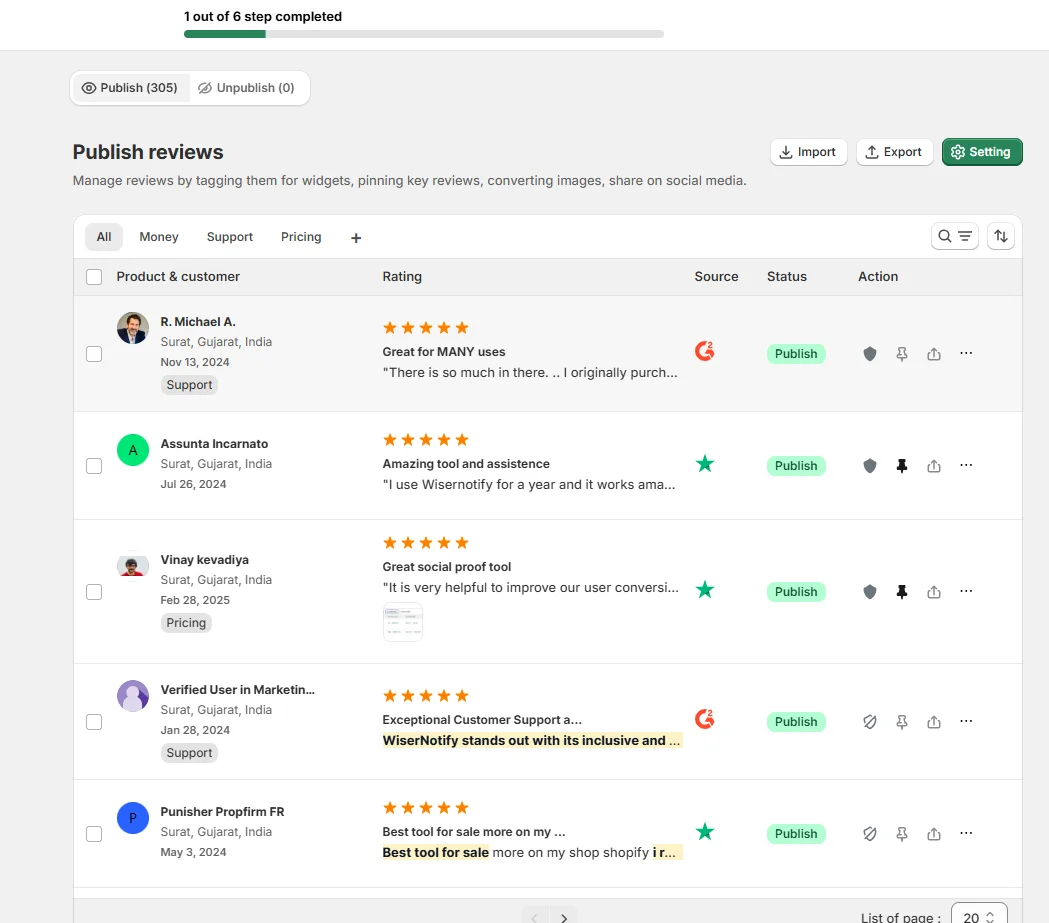
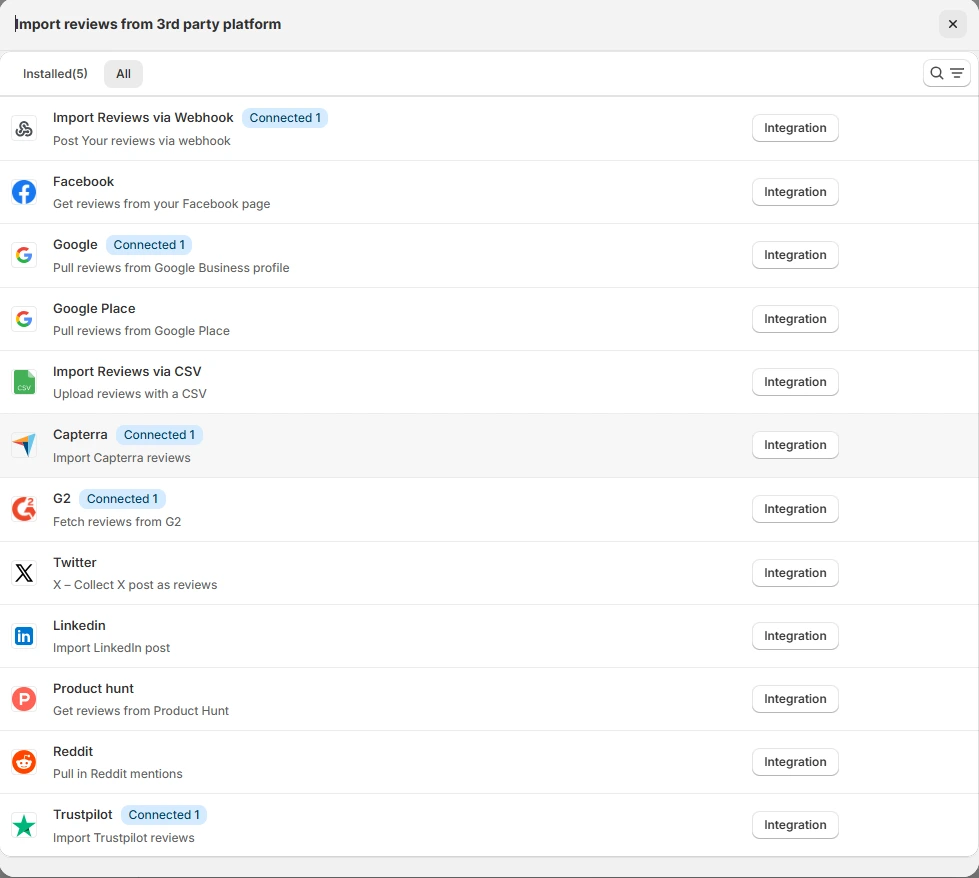


Embed Testimonials on ClickFunnels
1. Use the Testimonial Element
- Navigate to the ClickFunnels editor.
- Drag and drop the “Testimonial” element into your desired section.
- Customize the text, layout, and styling to align with your funnel’s design.
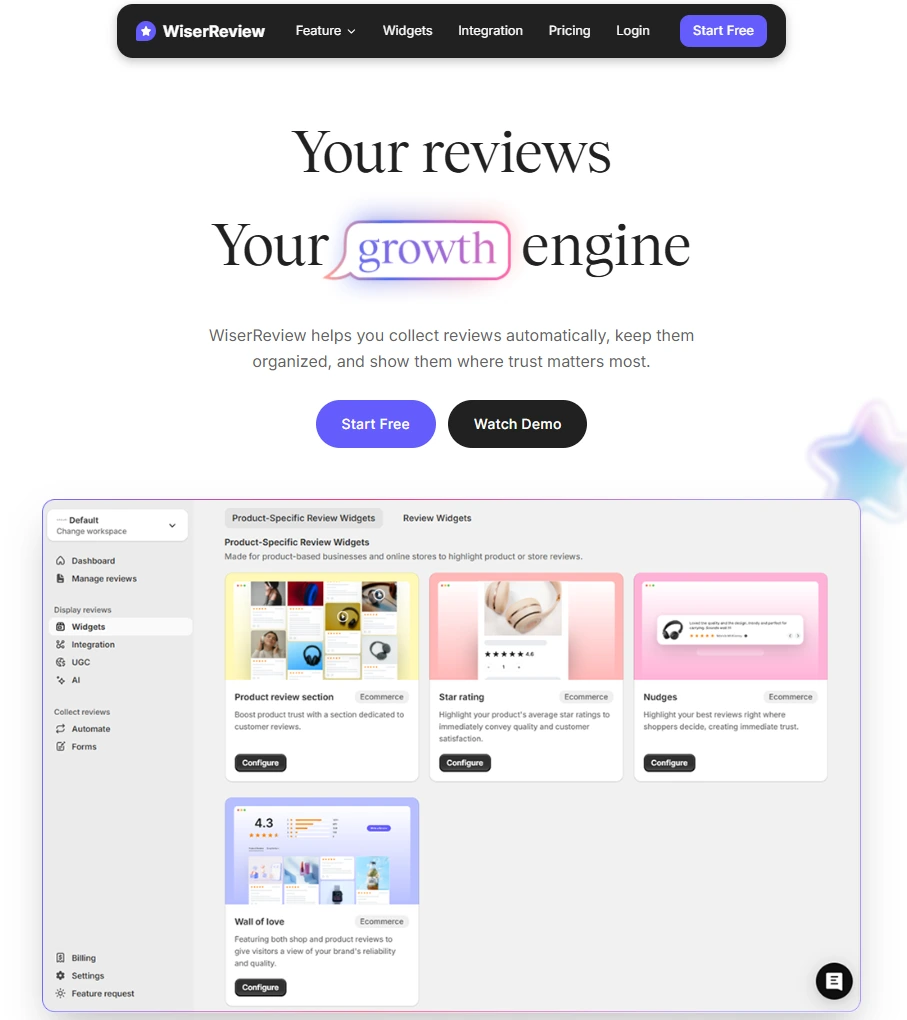
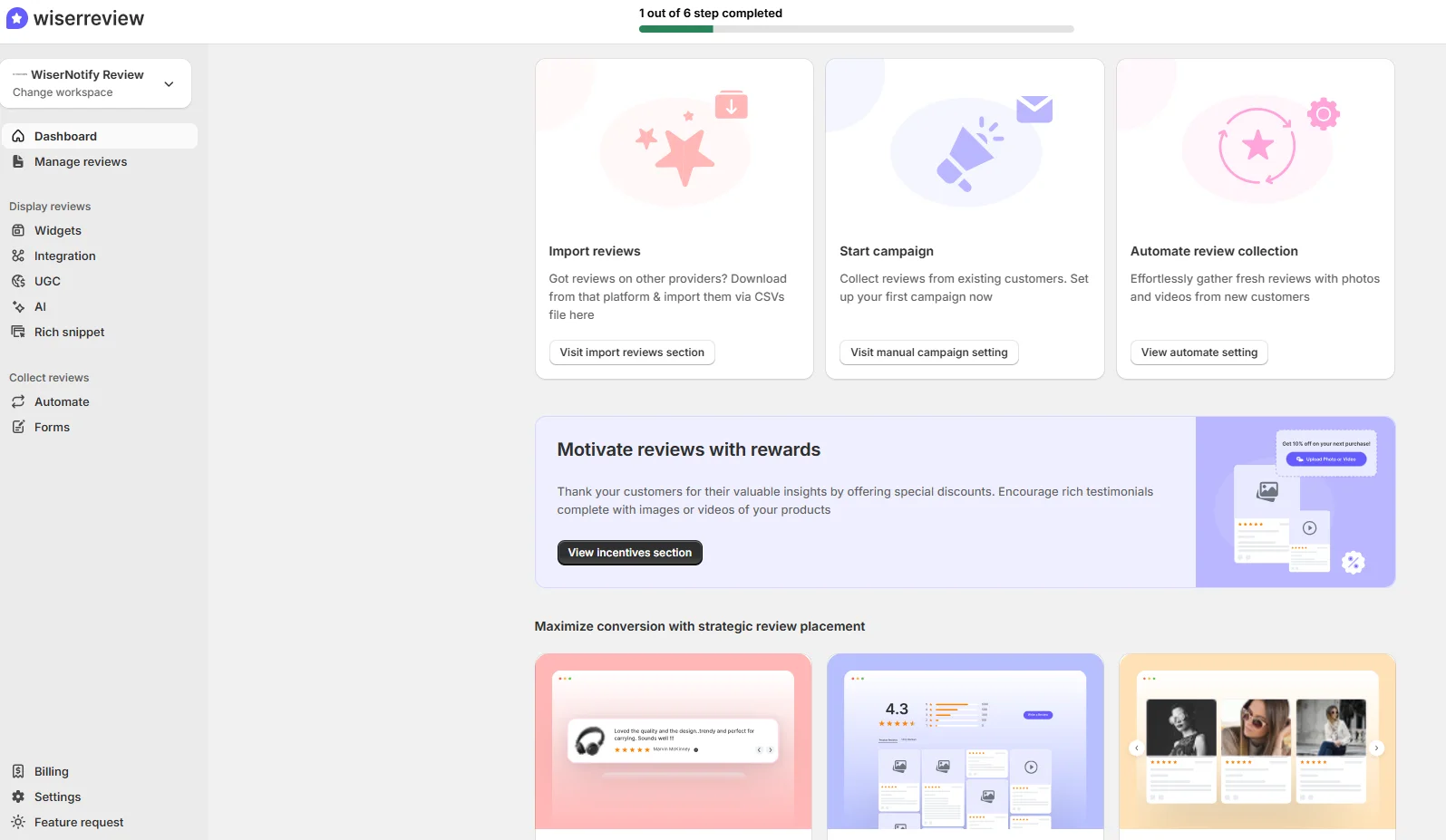
2. Integrate WiserNotify Widgets
- Copy your WiserNotify widget code.
- In ClickFunnels, go to Settings > Tracking Code and paste the script into the footer or header of your funnel.
- Save and preview to ensure the widget displays correctly.
3. Embed Video Testimonials
- Use the “Video” element to upload or embed customer testimonial videos.
- Position these videos near key decision points, such as just above a pricing table or CTA.
4. Design a Dedicated Testimonials Section
- Use columns to display multiple testimonials in a visually appealing format.
- Add profile photos, names, and specific outcomes to boost authenticity.
3 Testimonial Optimization Tips for ClickFunnels
Use Testimonials with Specific Results: Focus on testimonials that quantify success, such as “Increased my revenue by 50% in 30 days.”
Leverage Video Content: Videos are more engaging and trustworthy than text alone, and customers retain 95% of a message delivered via video.
Personalize Testimonials: Include customer names, businesses, or locations to make testimonials more relatable.
Best Places to Show Testimonials on ClickFunnels
Above the Fold
- Add a standout testimonial slider or video at the top of your funnel to grab attention immediately.
Near the CTA
- Place testimonials next to buttons like “Buy Now” or “Sign Up” to reassure prospects at the decision-making stage.
Sales Pages
- Include testimonials near pricing tables to reinforce the value of your offer.
Order Confirmation Pages
- Showcase testimonials about product delivery or service success to reduce buyer’s remorse and encourage upsells.
Webinar Funnels
- Add testimonials from past attendees to highlight the value of your webinar.
Other Ways to Add Testimonials to ClickFunnels
Real-Time Notifications
- Use WiserNotify to display recent customer actions, such as “John just purchased this course!”
Testimonial Carousels
- Design a rotating testimonial carousel using ClickFunnels’ slider features for dynamic engagement.
Countdown Timers with Testimonials
- Pair countdown timers with urgent testimonials like “This deal transformed my business—don’t miss it!”
Social Proof Widgets
- Display customer milestones, such as “Over 5,000 people have joined our program!”
Email Campaign Integration
- Include testimonials in your ClickFunnels email sequences to nurture leads and drive them back to your funnel.
3 Testimonial Mistakes on ClickFunnels
Using Vague Testimonials
- Avoid generic phrases like “Great product!”—focus on detailed and relatable success stories.
Ignoring Mobile Optimization
- Ensure that testimonial sections are fully responsive and look great on mobile devices, where most users access funnels.
Overloading with Too Many Testimonials
- Display the most impactful testimonials and rotate them dynamically to maintain a clean layout.
Wrap-Up
Incorporating testimonials into your ClickFunnels pages can drastically improve trust and conversions. By strategically placing testimonials and optimizing them for impact, you create a persuasive funnel that moves visitors confidently toward action.
Related Posts:


