
Add Sold Counter to PrestaShop: Boost Trust and Increase Sales
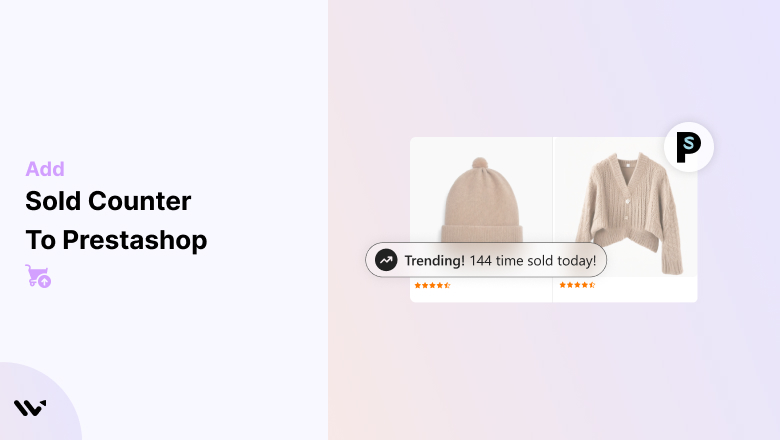
A sold counter is a powerful tool for your PrestaShop store to build trust, create urgency, and boost sales. By showcasing real-time or cumulative sales data, you can provide social proof that motivates customers to act quickly.
This guide explains the benefits of using a sold counter, steps to add one, and best practices to maximize its impact on your PrestaShop store.
Key Benefits of Adding a Sold Counter to PrestaShop
1. Builds Social Proof
Display real-time sales to reassure customers that others are purchasing your products, fostering trust and confidence.
2. Creates Urgency
Leverage FOMO (Fear of Missing Out) by showcasing live sales activity to encourage faster purchasing decisions.
3. Highlights Popular Products
Draw attention to trending or high-demand items, increasing their appeal to potential buyers.
4. Enhances Credibility
A visible sales counter signals that your store is active and trusted by other shoppers.
5. Boosts Conversion Rates
Combining trust and urgency nudges hesitant customers toward completing their purchases.
6. Customizable for Campaigns
Adapt counters for specific marketing campaigns, such as seasonal sales, product launches, or flash sales.
Add Sold Counter to PrestaShop Addons
- Open the Wisernotify Site.
- Log in to your Wisernotify account and connect it with your PrestaShop store.


Best Practices for Using a Sold Counter on PrestaShop
1. Use Authentic Sales Data
Ensure your counter displays real sales figures to maintain trust and credibility with your customers.
2. Position Counters Strategically
Place counters on high-impact pages, such as product detail pages, the homepage, or the checkout page.
3. Focus on Best-Selling Items
Showcase counters for trending or popular products to draw attention and create urgency.
4. Keep the Design Simple
Ensure the counter blends seamlessly with your store’s design and doesn’t overwhelm the user experience.
5. Leverage Dynamic Messaging
Use engaging, time-based messages like “Hurry! 10 items sold in the last hour!” to encourage quick action.
6. Combine with Other Features
Pair sold counters with countdown timers, promotional banners, or discount offers to amplify urgency.
7. Optimize for Mobile Devices
Ensure the counter is responsive and displays correctly on all devices, particularly mobile phones.
8. Monitor Analytics
Track metrics such as impressions, clicks, and conversions to evaluate the counter’s effectiveness. Adjust placement or design based on performance data.
9. Avoid Overuse
Focus on key products or campaigns to avoid cluttering your site with too many counters.
Conclusion
Adding a sold counter to your PrestaShop store is an excellent way to build trust, create urgency, and boost conversions. The Wisernotify plugin makes it easy to integrate and customize sales counters that align with your store’s branding and objectives.
By following the steps and best practices outlined in this guide, you can leverage the power of a sold counter to enhance your PrestaShop store’s performance and create a compelling shopping experience that drives sales.
Related Posts:
Frequently Asked Questions
What is a Sold Counter, and how does it benefit my PrestaShop store?
A Sold Counter shows the number of items sold for a product, providing social proof that builds trust among shoppers. It highlights product popularity, creates urgency, and encourages faster purchase decisions, ultimately increasing conversions.
Are there PrestaShop Addons available to add a Sold Counter?
Yes, there are several PrestaShop Addons available for adding a Sold Counter, such as:
- Product Sold Counter: Displays the total sales for each product.
- Sales Pop Notifications: Shows recent sales with dynamic counters.
- Product Statistics: Includes features like sales tracking and counters. These addons are customizable and easy to integrate.
How do I install a Sold Counter Addon in PrestaShop?
You can install a Sold Counter Addon by:
- Purchasing or downloading the addon from the PrestaShop Addons Marketplace.
- Uploading the module via your PrestaShop Admin Panel under Modules > Module Manager > Upload Module.
- Configuring the addon settings to enable and customize the Sold Counter.
Can I customize the appearance of the Sold Counter in PrestaShop?
Yes, most addons allow you to customize the Sold Counter’s design and placement. You can typically adjust:
- Font size, color, and style.
- Position (e.g., on product pages or category listings).
- Display rules for specific products or categories.
Will adding a Sold Counter impact my PrestaShop store’s performance?
If you choose a well-optimized addon, adding a Sold Counter will not significantly affect performance. However:
- Select lightweight modules from trusted developers.
- Regularly test and optimize your store speed after installation.

Krunal Vaghasiya is a marketing tech expert who boosts e-commerce conversion rates with automated social proof and FOMO strategies. He loves to keep posting insightful posts on online marketing software, marketing automations, and improving conversion rates.




 Capterra