
How to Add a Sold Counter to WooCommerce (2026)
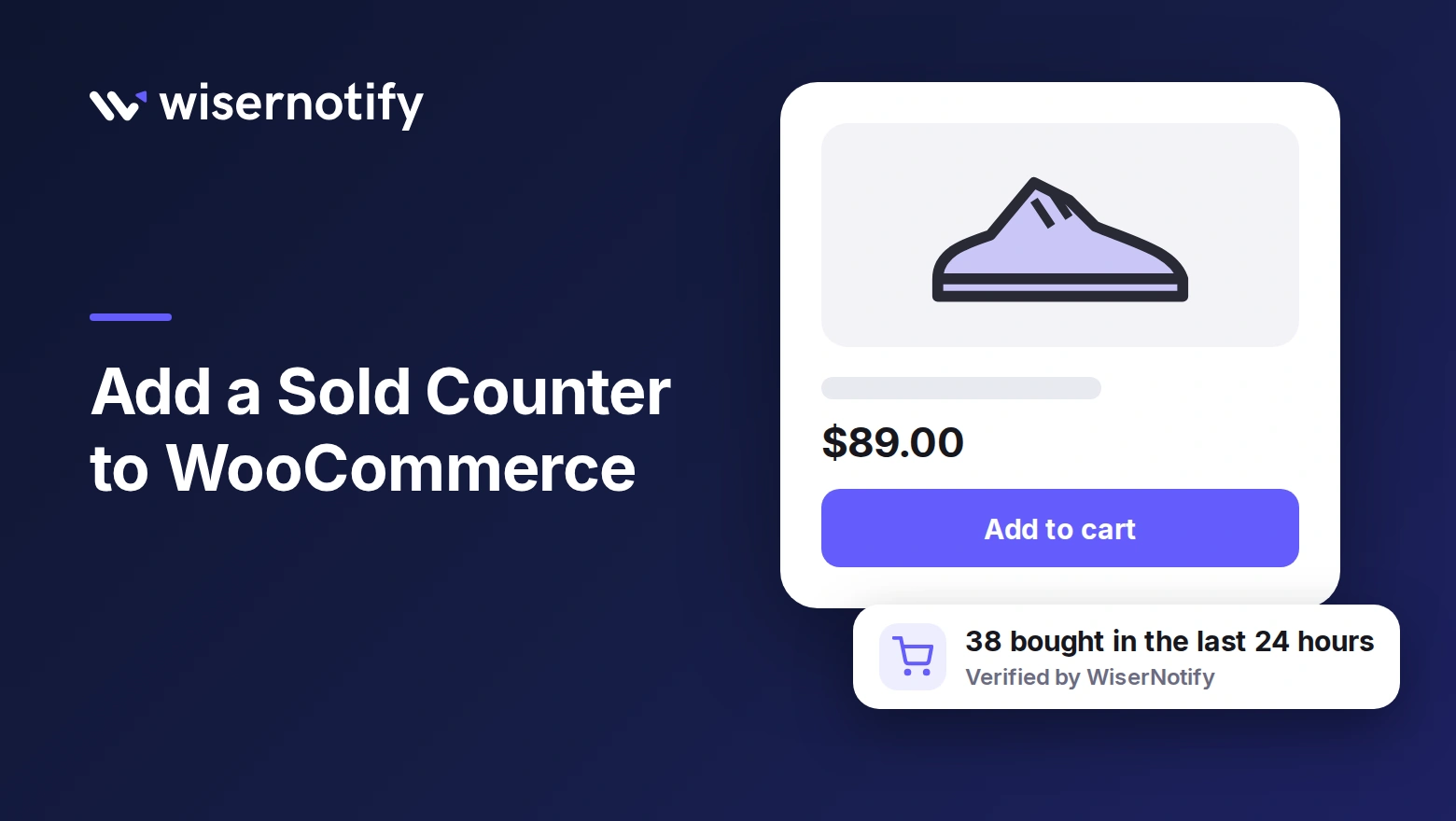
A shopper on a product page wants to know one thing before the price makes sense. Is anyone else buying this?
WooCommerce already knows the answer. It counts every order, and that count is what sorts your shop by popularity. Shoppers just never see the number.
This guide puts that number on the page as a live counter, like “38 bought in the last 24 hours,” either as a small popup or as a line beside Add to cart.
Your orders feed it, and your theme files stay untouched unless you want the inline version.
Does WooCommerce Show How Many Times a Product Sold?
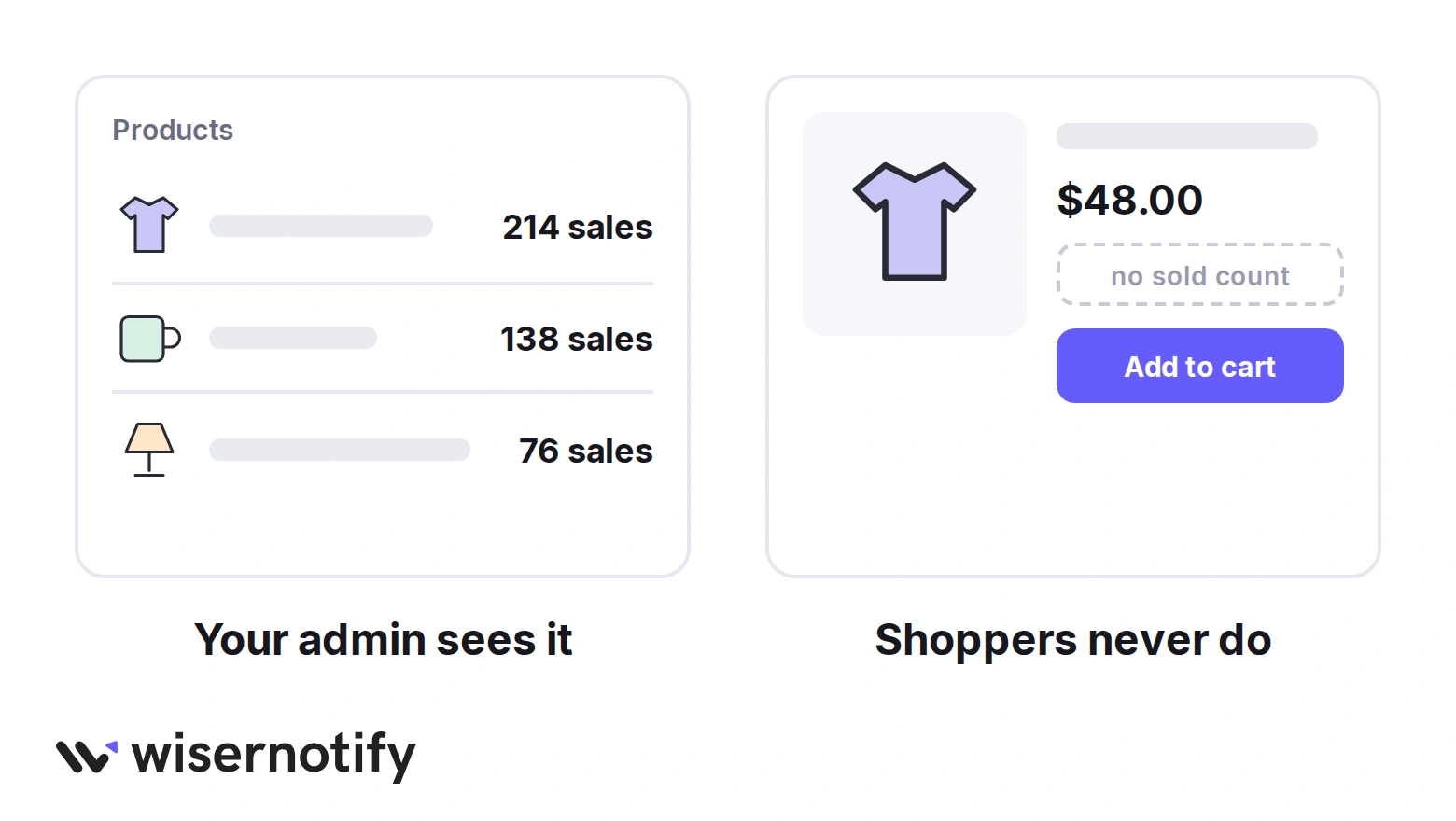
Not to shoppers. WooCommerce records a sales total for every product and uses it for “Sort by popularity,” but the storefront never prints it.
- The admin shows you orders and sales totals. The product page shows the shopper a price and a button.
- There’s no setting to turn the count on. A plugin or extension has to put it there.
- Most of them print one lifetime total, and “Sold 214 times” says nothing about whether the last one was yesterday or three years ago.
A number tied to a short window does more work. “38 bought in the last 24 hours” tells the shopper the store is selling right now, and that’s the version these steps set up.
How to Add a Sold Counter to WooCommerce
The counter runs on WiserNotify’s WordPress plugin. You install it from the plugin directory, paste one API key, and the plugin sends each WooCommerce order to the dashboard that builds the counter. The popup version never touches your theme.
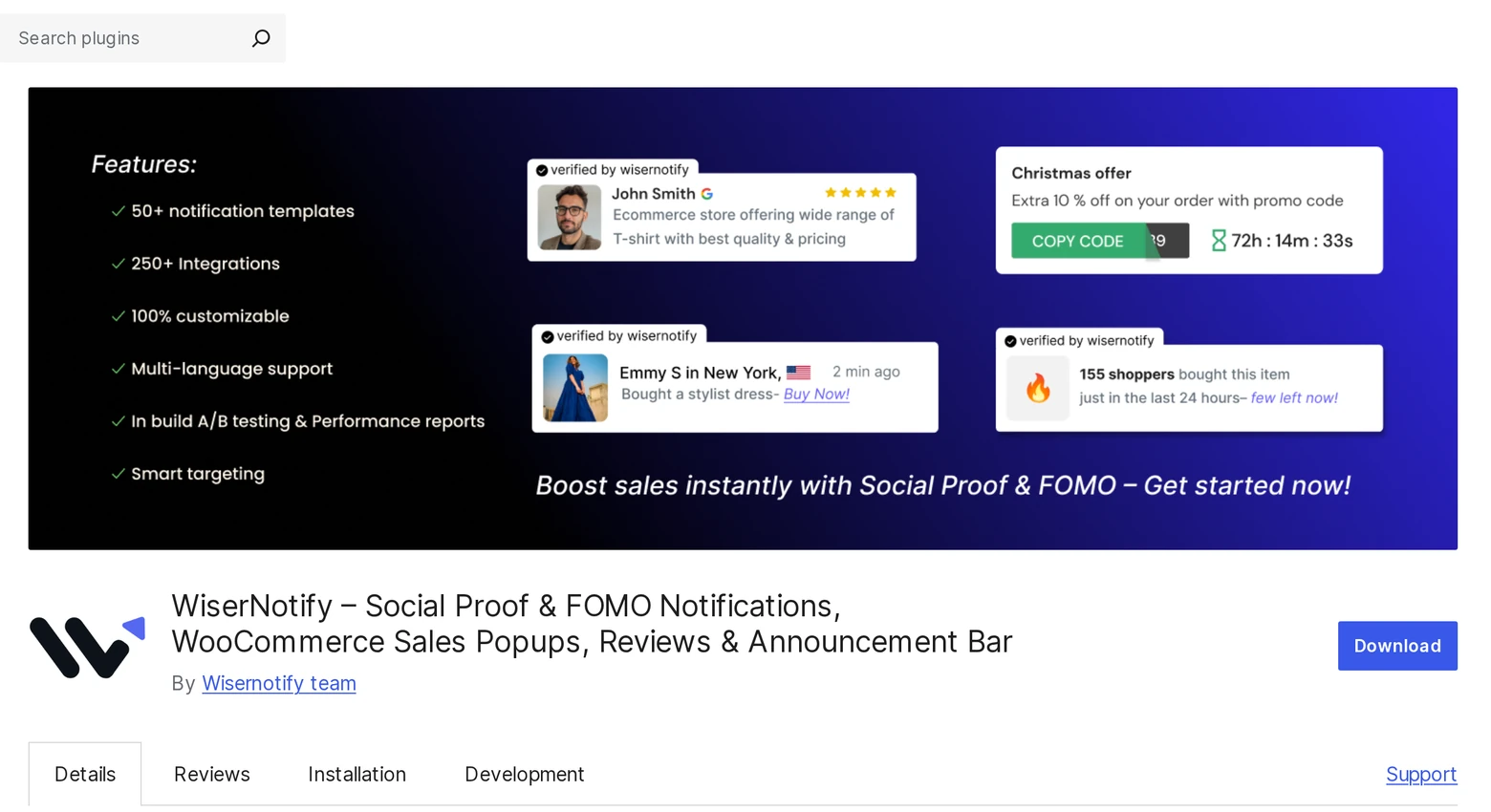
Step 1: Copy Your API Key
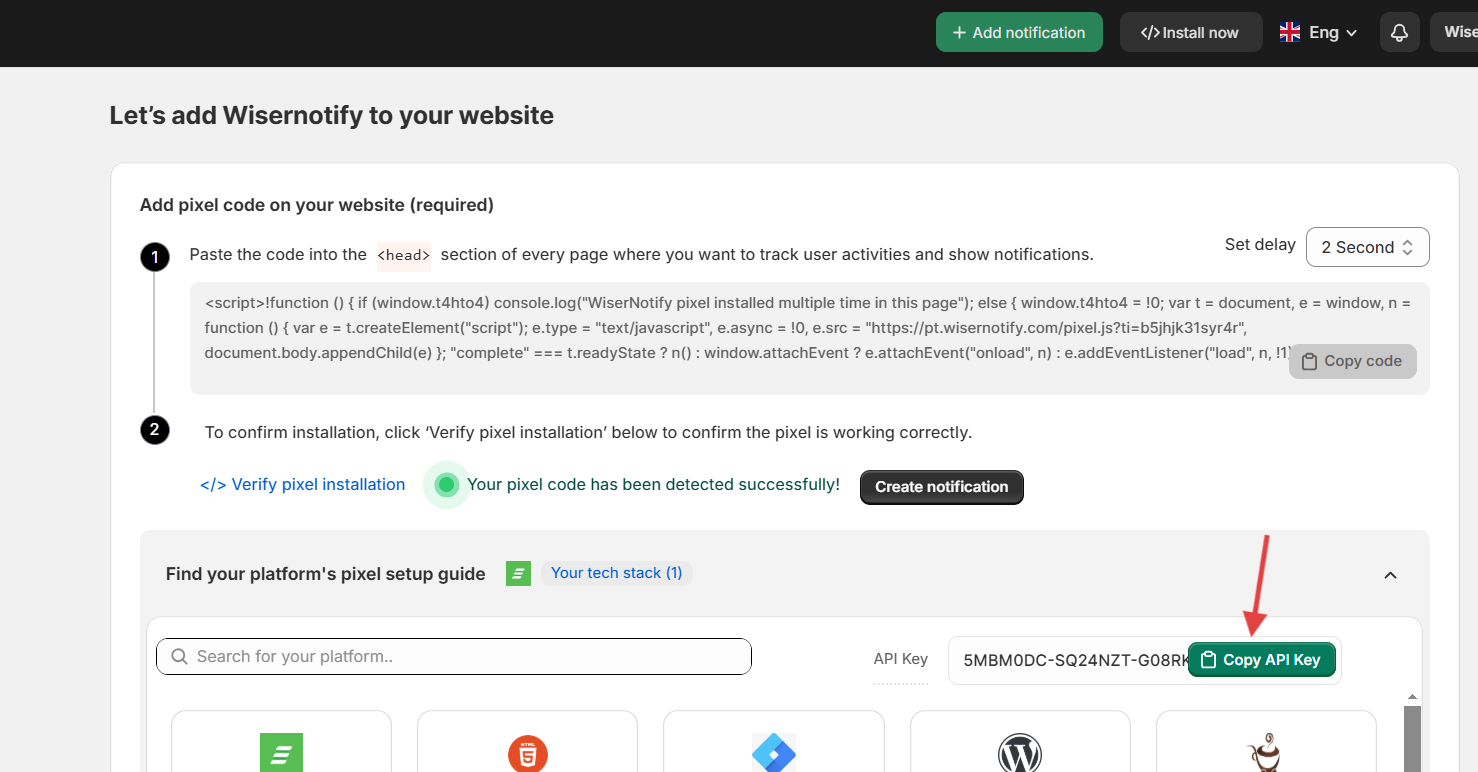
- Sign up for WiserNotify and add your store.
- Open the pixel page in your dashboard.
- Scroll to the API key and click Copy API Key.
Step 2: Open Add New Plugin
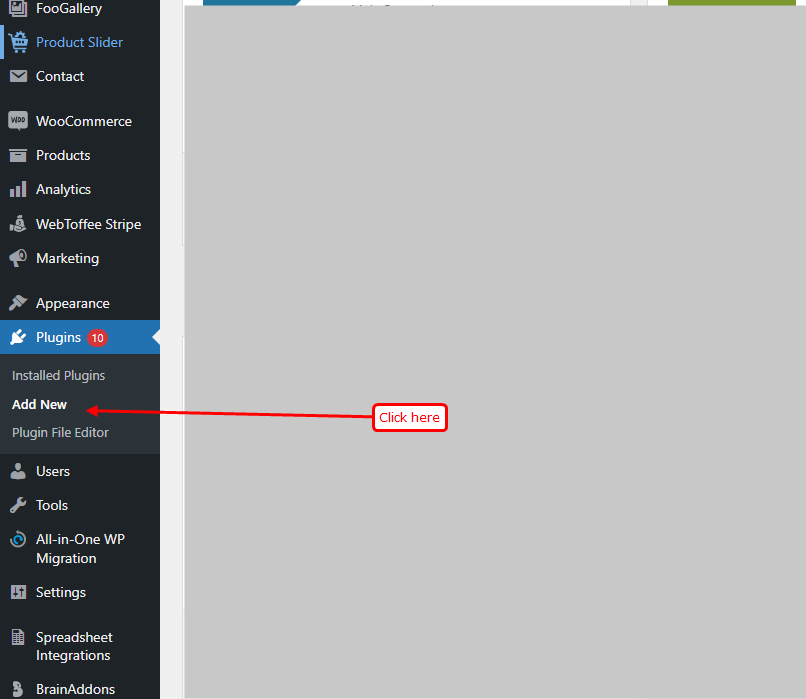
- Log in to your WordPress admin.
- Go to Plugins, then Add New.
Step 3: Install WiserNotify
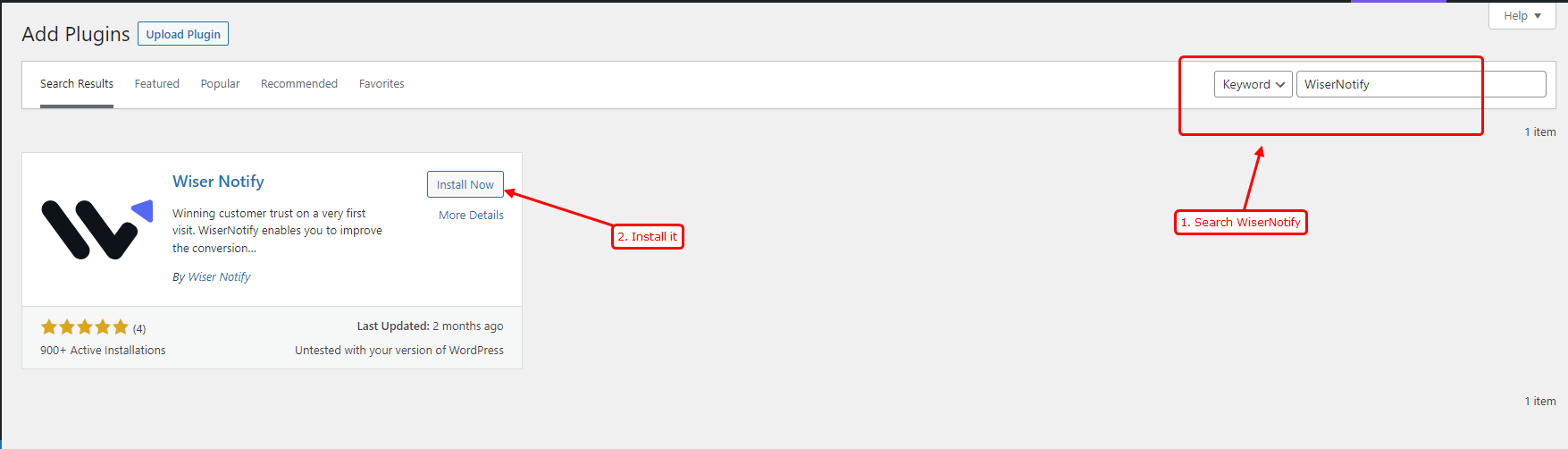
- Type WiserNotify in the search box.
- Click Install Now on the WiserNotify plugin.
Step 4: Activate the Plugin
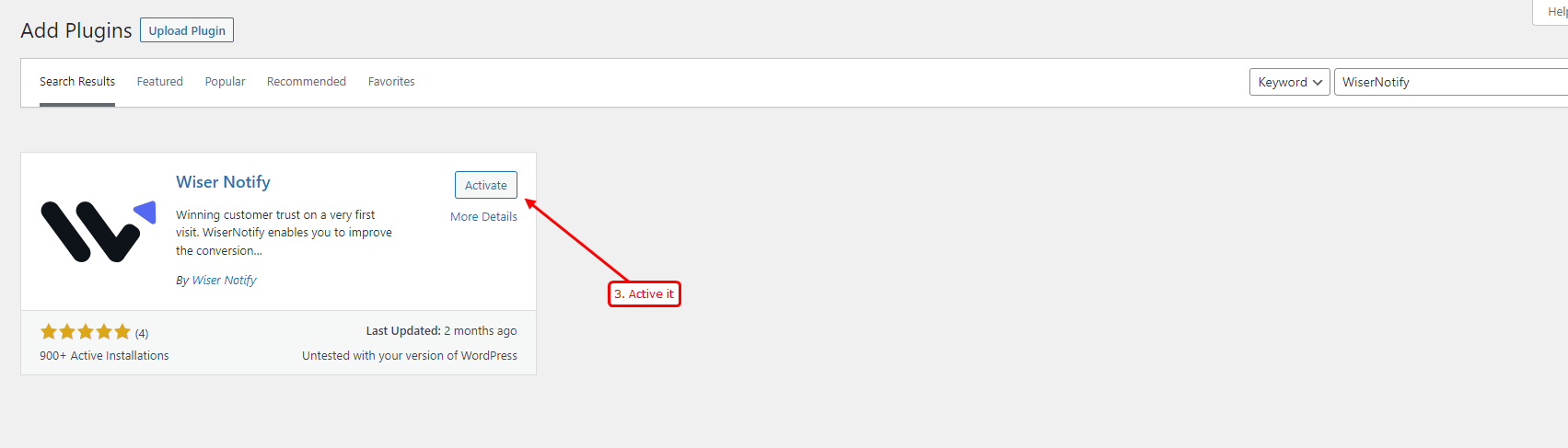
- Click Activate.
- A Wiser item now appears in your admin menu.
Step 5: Paste the API Key and Submit
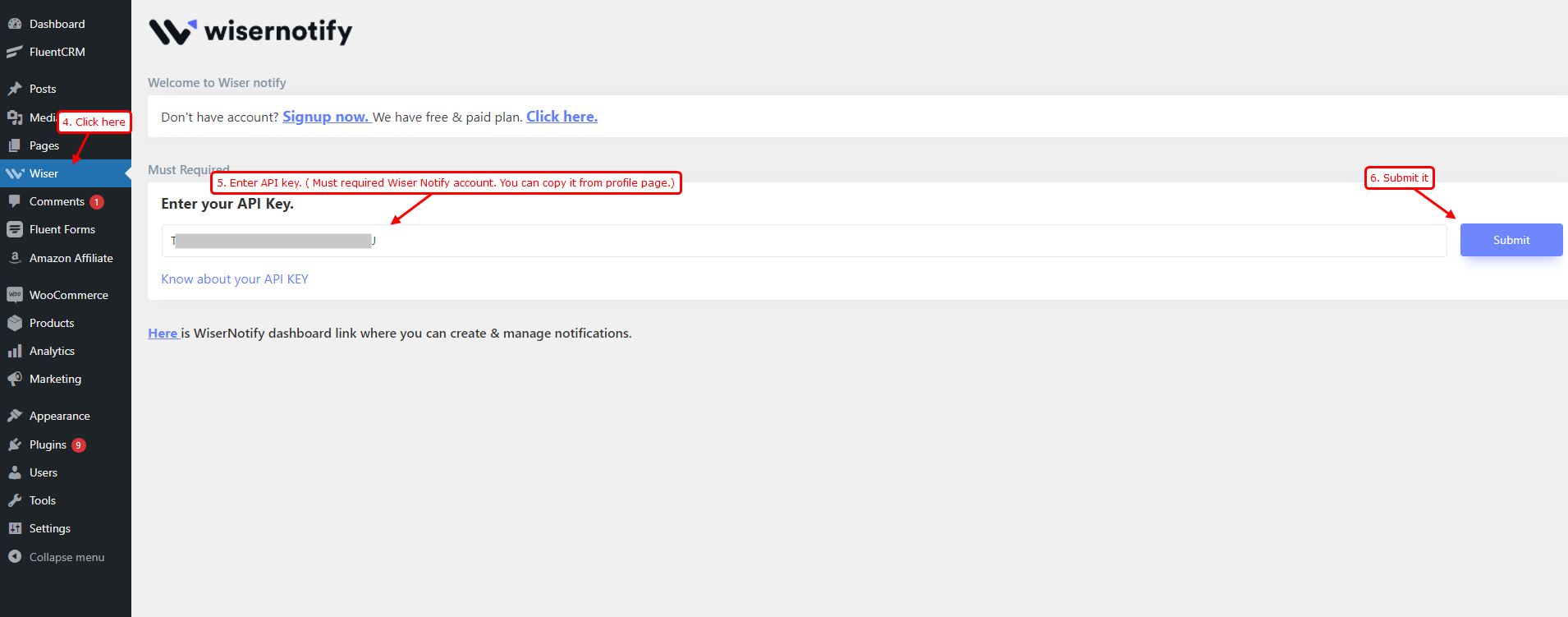
- Click Wiser in the admin menu.
- Paste your API key and click Submit.
- If you run a caching plugin, clear the cache once.
The plugin adds the pixel to every page for you and pulls in your last 30 WooCommerce orders, so the counter has data before the next sale lands. Each new order is sent over as it happens.
The WooCommerce setup guide lists the caching and security plugins that can get in the way.
Step 6: Pick the Sales Counter
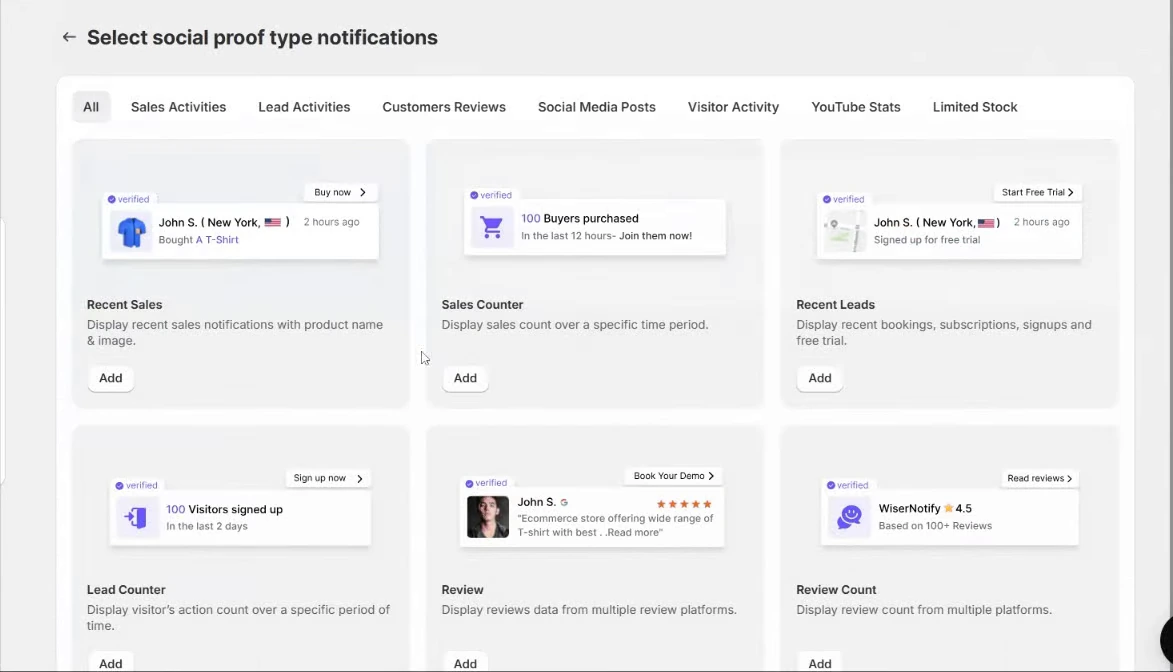
- In WiserNotify, open Notifications and click Add notification.
- Find Sales Counter, the card next to Recent Sales.
- Click Add.
Step 7: Name It and Add Your Store
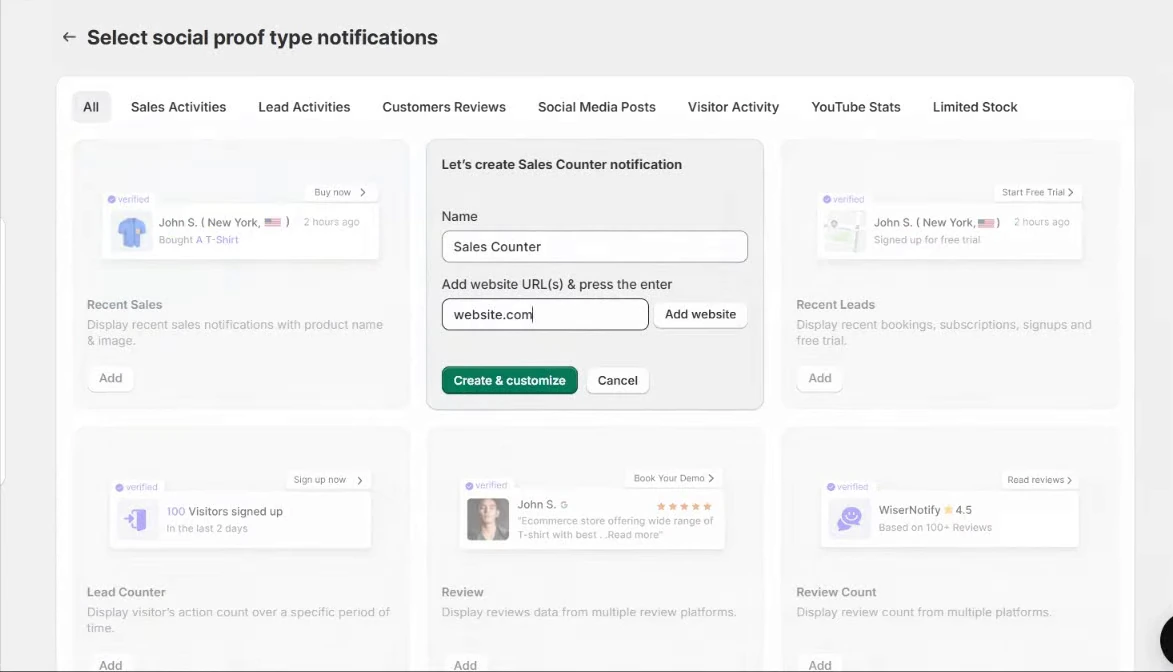
- Give it a name you’ll recognize, like WooCommerce sold counter.
- Enter your store URL and press Enter.
- Click Create and customize.
Step 8: Write the Counter Message
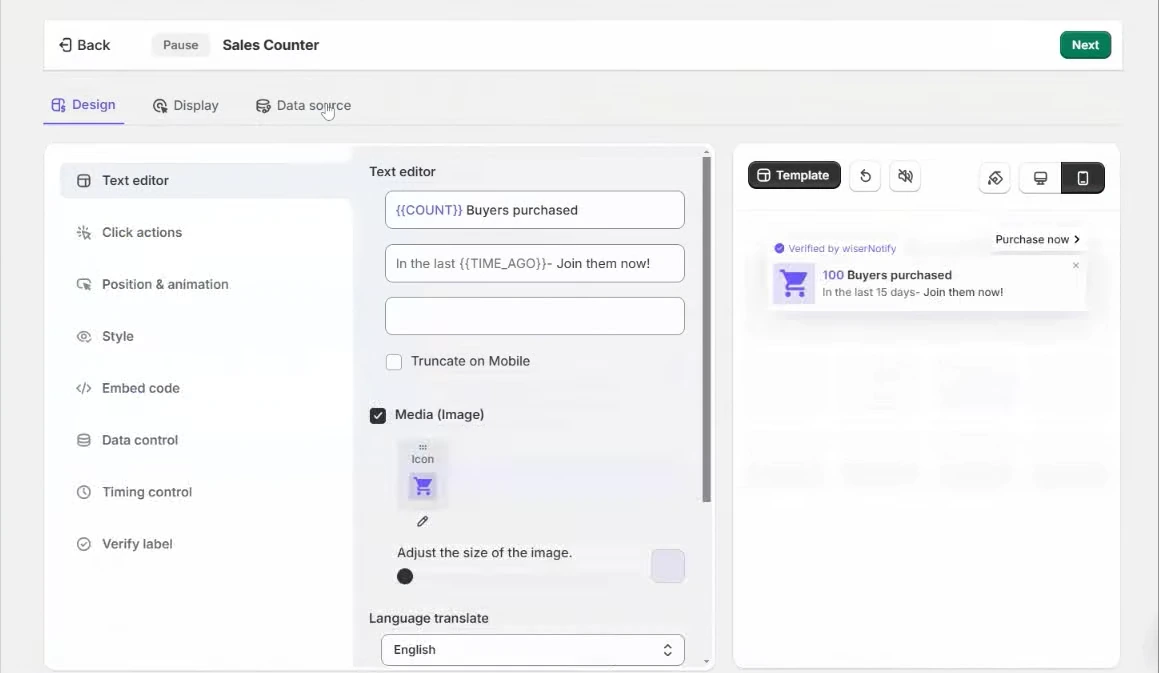
- In the Design tab, open Text editor.
- The first line holds the count, {{COUNT}} Buyers purchased. Change the wording to fit your store.
- The second line holds the window, In the last {{TIME_AGO}}. Add a nudge like Join them now if you want one.
- Under Media, keep the cart icon or upload your own.
Step 9: Set the Window and a Minimum
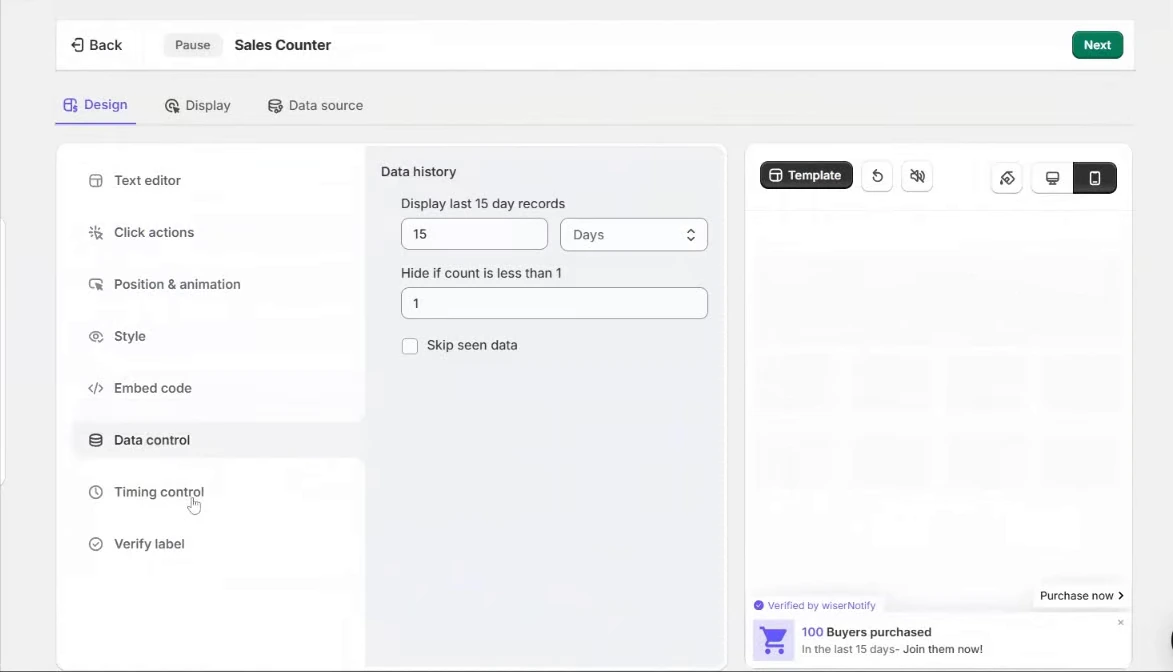
- Open Data control.
- Set how many days of orders the count covers. 15 is the default, 1 gives you “in the last 24 hours.”
- Set Hide if count is less than to the lowest number you’re happy to show.
That second setting is the one most stores skip. With it, a quiet product shows nothing instead of “1 bought.”
Step 10: Choose the Pages
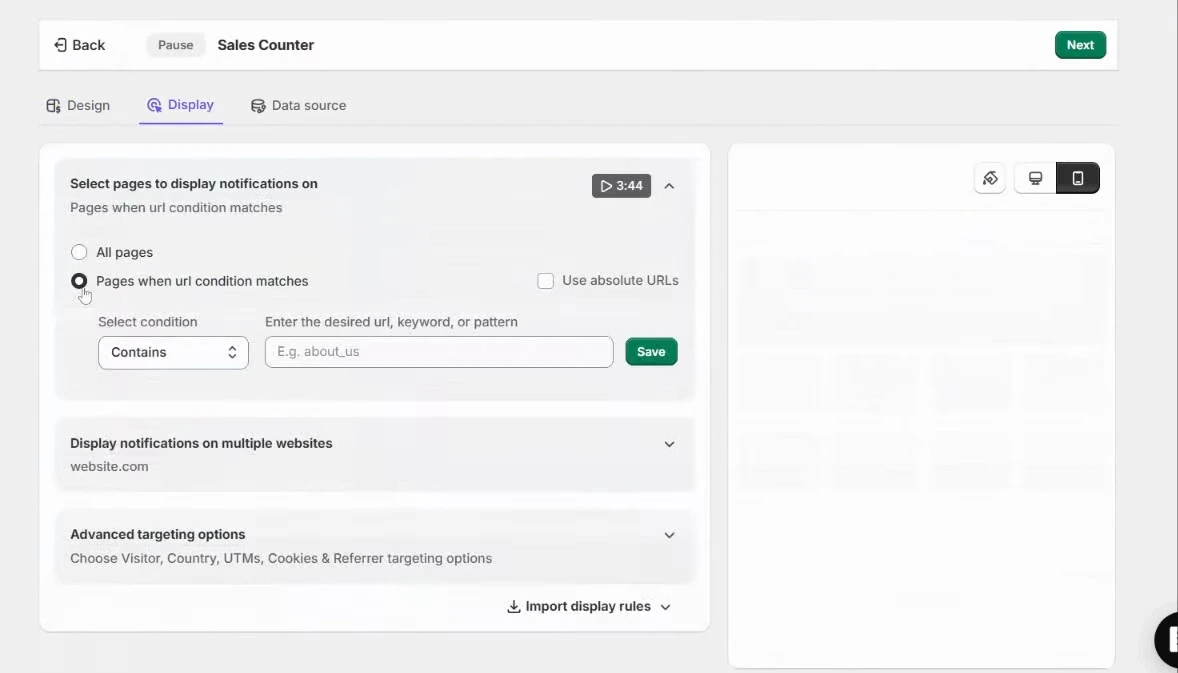
- Open the Display tab.
- Pick All pages, or choose Pages when url condition matches and add product so it only runs on product pages.
- Click Save.
Step 11: Connect Your Orders and Publish
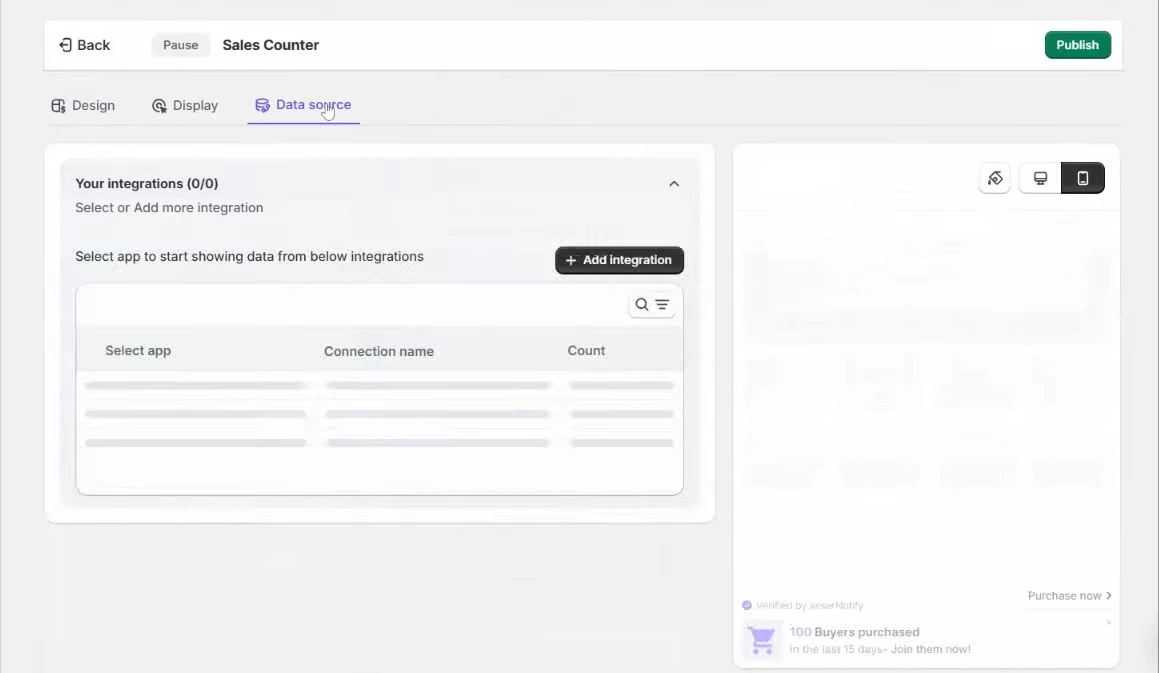
- Open the Data source tab.
- Click Add integration and tick your WordPress connection, the one the plugin created.
- Click Publish.
- Load a product page in a private window. The counter should slide in within a few seconds.
Build trust & FOMO
Highlight real-time activities like reviews, sales & sign-ups.
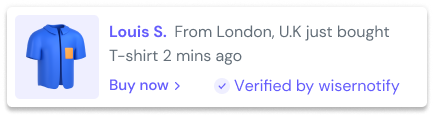

Show the Counter Inside Product Pages
The popup is the quick win. A counter that sits under the price, right where the shopper is already looking, reads like part of your product page instead of a notification.
In WiserNotify these are inline notifications. One short line in your product template marks the spot, and the wording, window and styling all stay in the dashboard.
Step A: Open Inline Social Proof

- In the notification picker, click Explore under Inline social proof.
Step B: Pick the Product Detail Page

- Under Product detail page, click Start creating inline.
- Add your store URL when it asks for a website.
Step C: Copy the WooCommerce Code
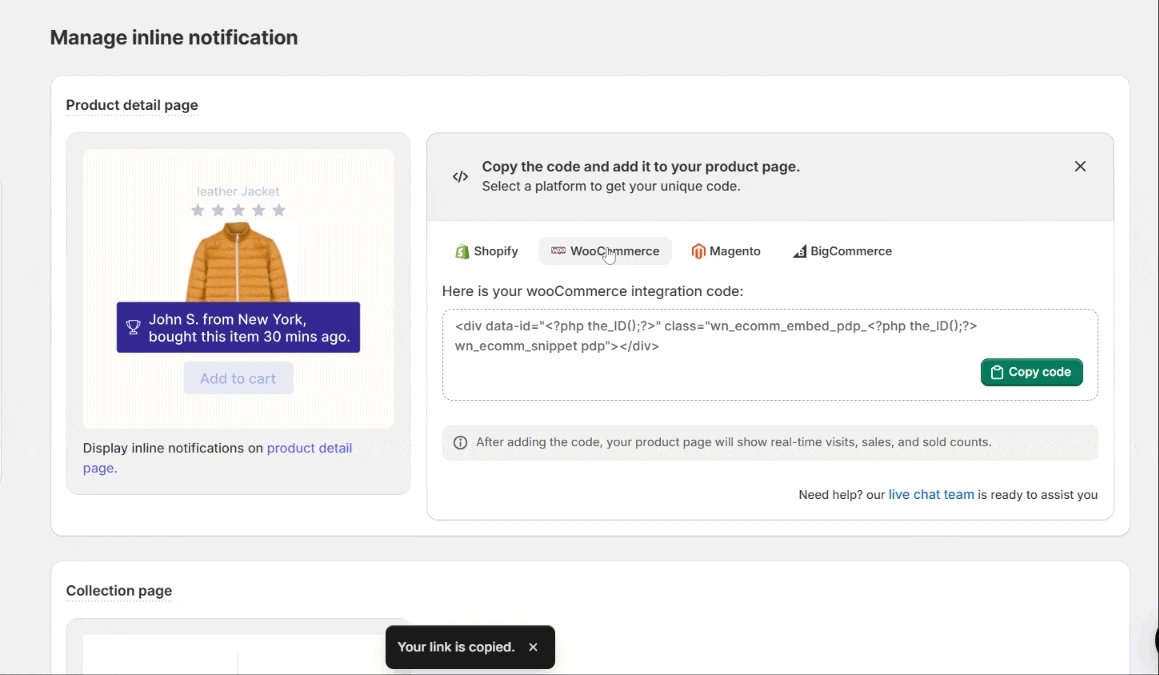
- Click Install now, then the WooCommerce tab.
- Click Copy code.
- Paste the line into your theme’s single product template, where you want the count to sit. Under the price or just above Add to cart works best.
Step D: Turn On Sales Count

- In the product detail page list, switch on Sales Count.
- Click Customize.
Step E: Write the Inline Line

- Write a short mobile line, like Popular! {{COUNT}} sold recently.
- Write a longer desktop line, like {{COUNT}} people bought in the last {{TIME_AGO}}.
- Match the icon and colors to your theme, then save and publish.
Step F: Check the Product Page

- Open a product page in a private window.
- Check the line sits where you pasted the code and shows a real count.
On Shop and Category Pages

The same setup works on product tiles. Pick Collection page in Step B, copy the collection code, and paste it into your product loop template. The count then shows on every tile that has sales.
Sold Counter Not Showing Up?
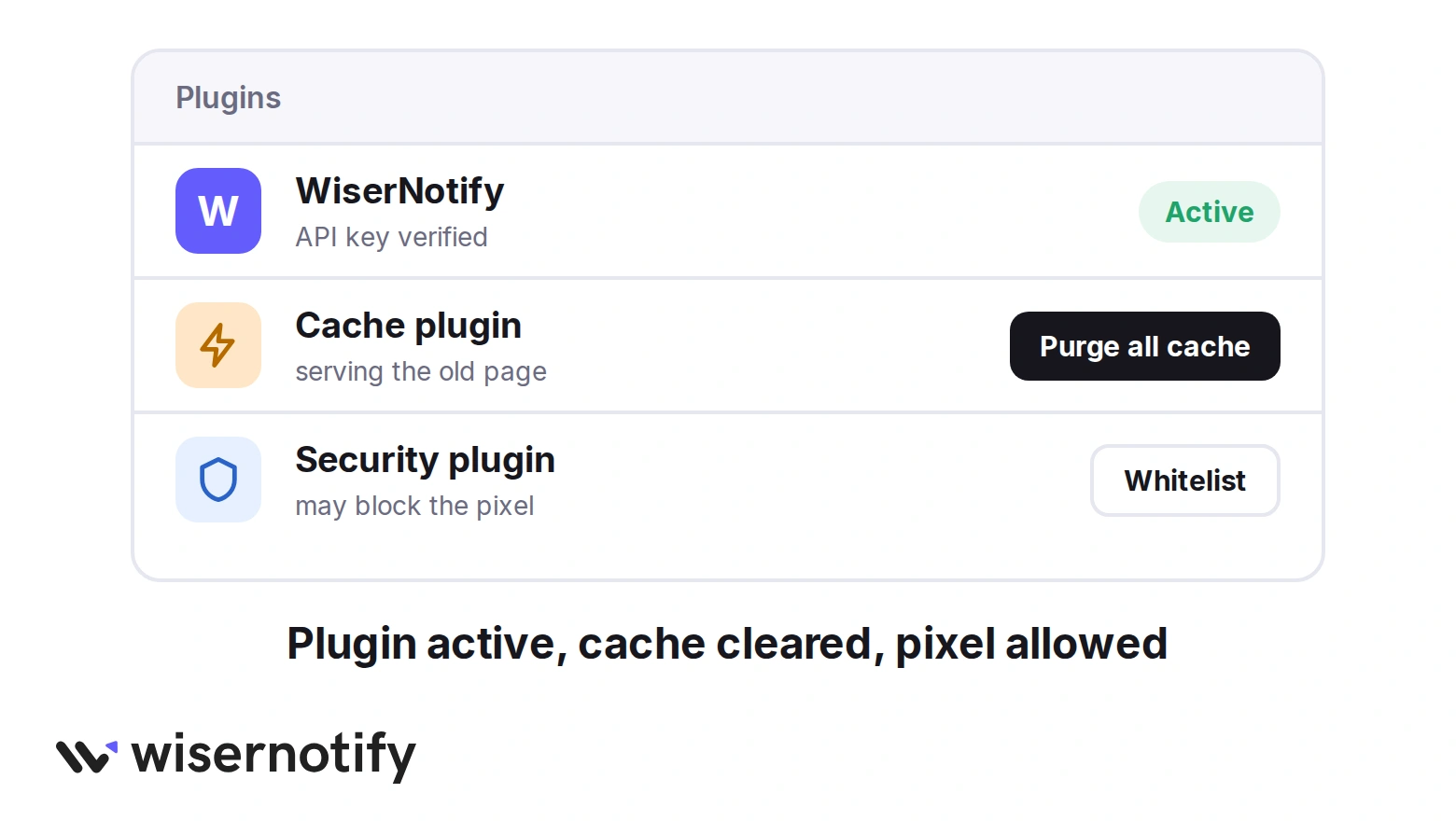
Nearly every missing counter traces back to one of these.
- The plugin is installed but the API key was never submitted. Click Wiser in your admin menu and check the key is in place.
- A caching plugin is serving the old page. LiteSpeed Cache and WP Speed of Light are the usual ones. Purge the cache after verifying the key.
- A security plugin is blocking the pixel. Wordfence is the common one. Whitelist WiserNotify and verify the key again.
- The widget’s Data source isn’t pointed at your WordPress connection, so the count has no orders to read.
- The count sits below your Hide if count is less than number. Check Data control before you assume it’s broken.
- You’re looking at a cached tab. Test in a private window after every change.
Where to Show a Sold Counter in WooCommerce
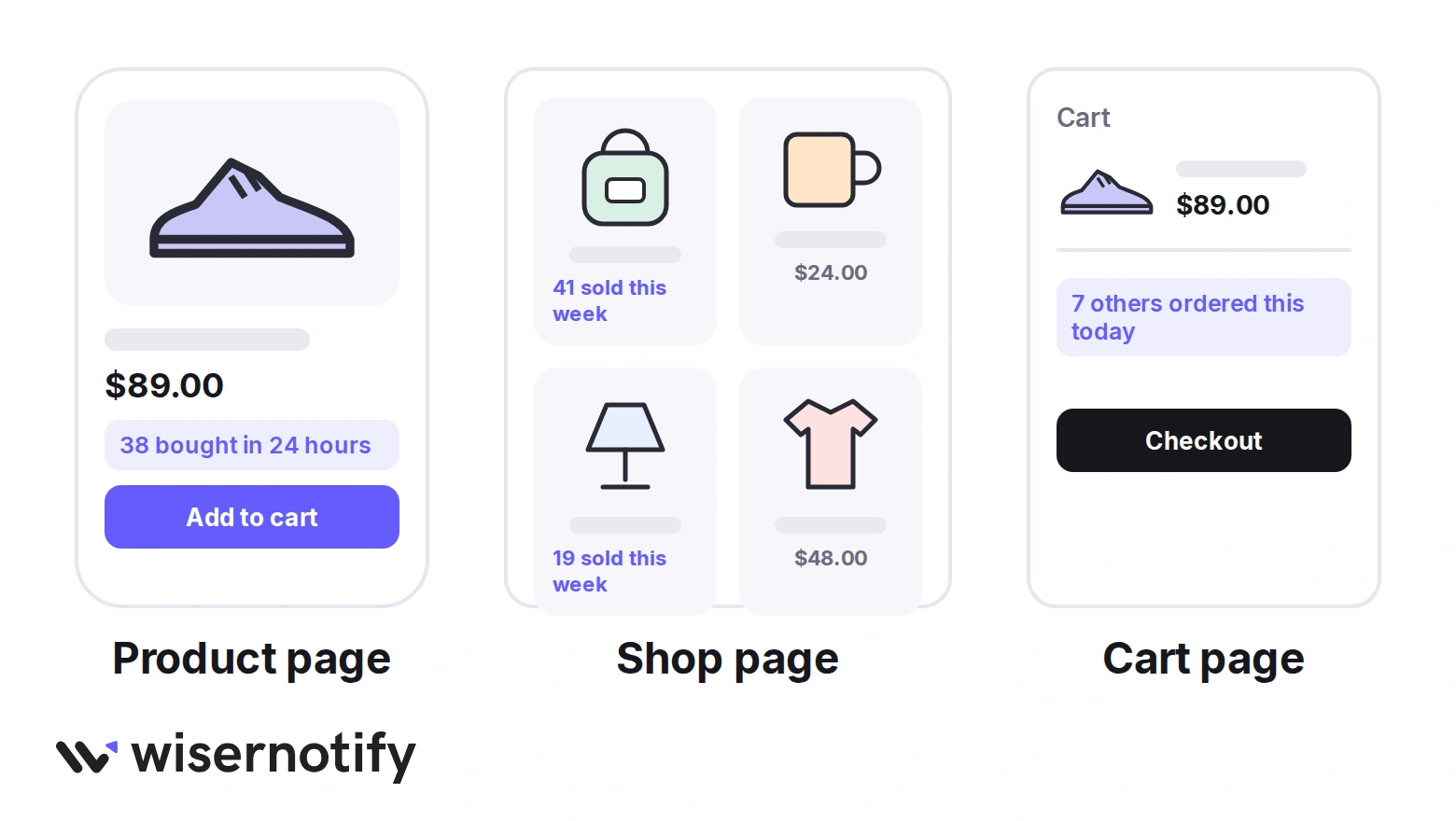
- Product pages. A count beside Add to cart answers the question at the moment it’s asked. This is where most stores stop, and it’s the right first stop.
- Shop and category pages. A count on the tiles that sell steers browsers toward products with momentum before they click.
- Cart page. A store-wide count like “7 others ordered this today” steadies a shopper who is about to abandon.
- Homepage during a sale. Run the popup version site-wide for the week and switch it back to product pages after.
Counting the visitors on a page right now is a separate widget. See how to add a visitor counter to WooCommerce if that’s the signal you want.
For a popup that names the buyer and the product instead of a count, the WooCommerce sales popup guide covers that setup.
Build trust & FOMO
Highlight real-time activities like reviews, sales & sign-ups.

Mistakes That Make a Sold Counter Backfire
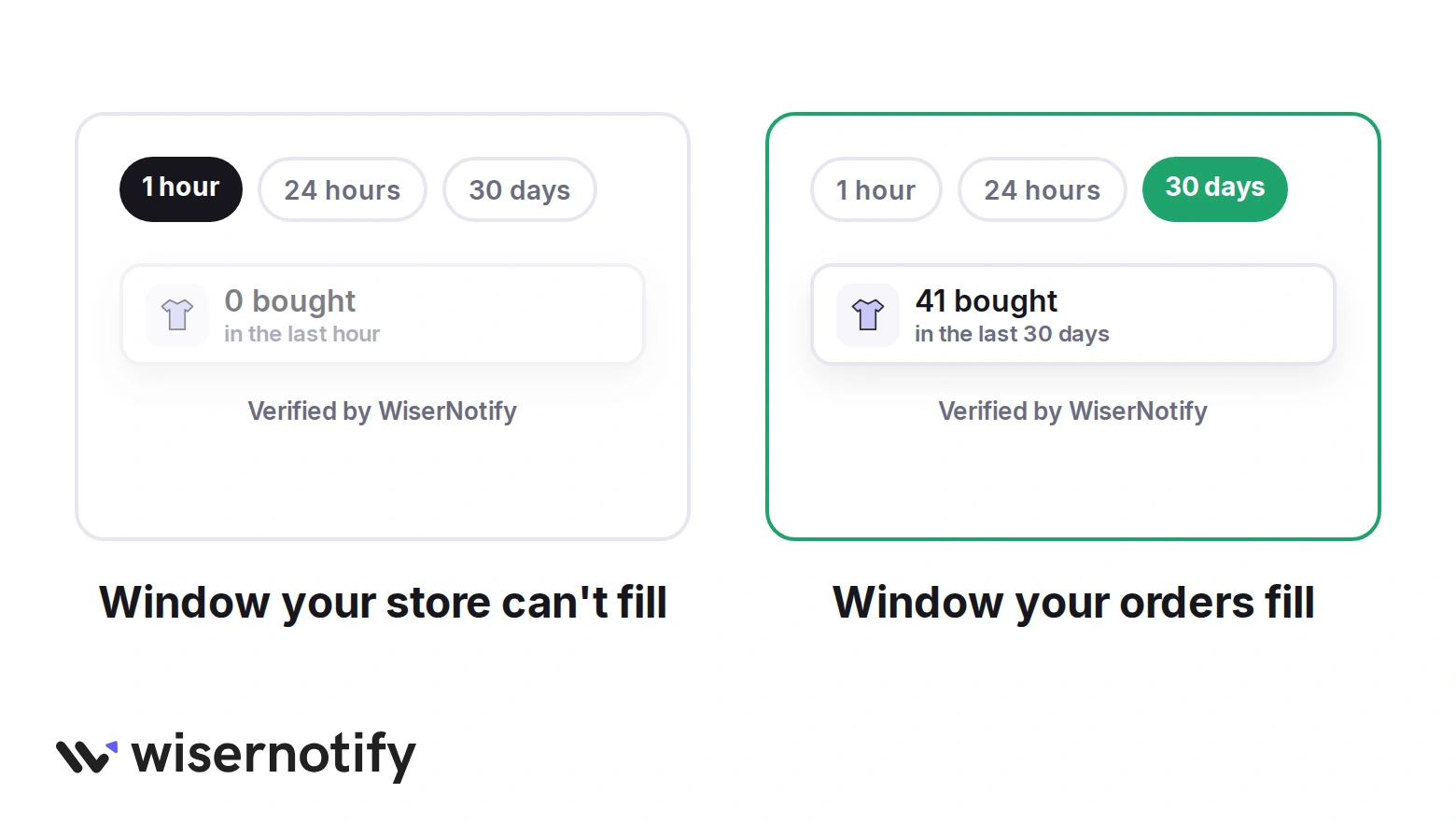
- A window your orders can’t fill. “0 bought in the last hour” does more damage than no counter. A store doing a few orders a day belongs on a 7 or 30 day window.
- No minimum. Set Hide if count is less than, so slow products show nothing instead of a tiny number.
- Typing numbers in by hand. The count reads from your orders for a reason. Shoppers who sense a made-up number doubt the price too.
- Counters on everything. A sold count on your About page is noise. Keep it to product, shop and cart pages.
- Counters on sold-out products. Pause the widget for anything out of stock, or the count just rubs it in.
- Never checking a phone. Most themes rearrange the product page on mobile, so check the inline line on your phone before a sale starts. Pair it with a countdown timer on WooCommerce only when the deadline is real.
How to Tell If the Counter Works
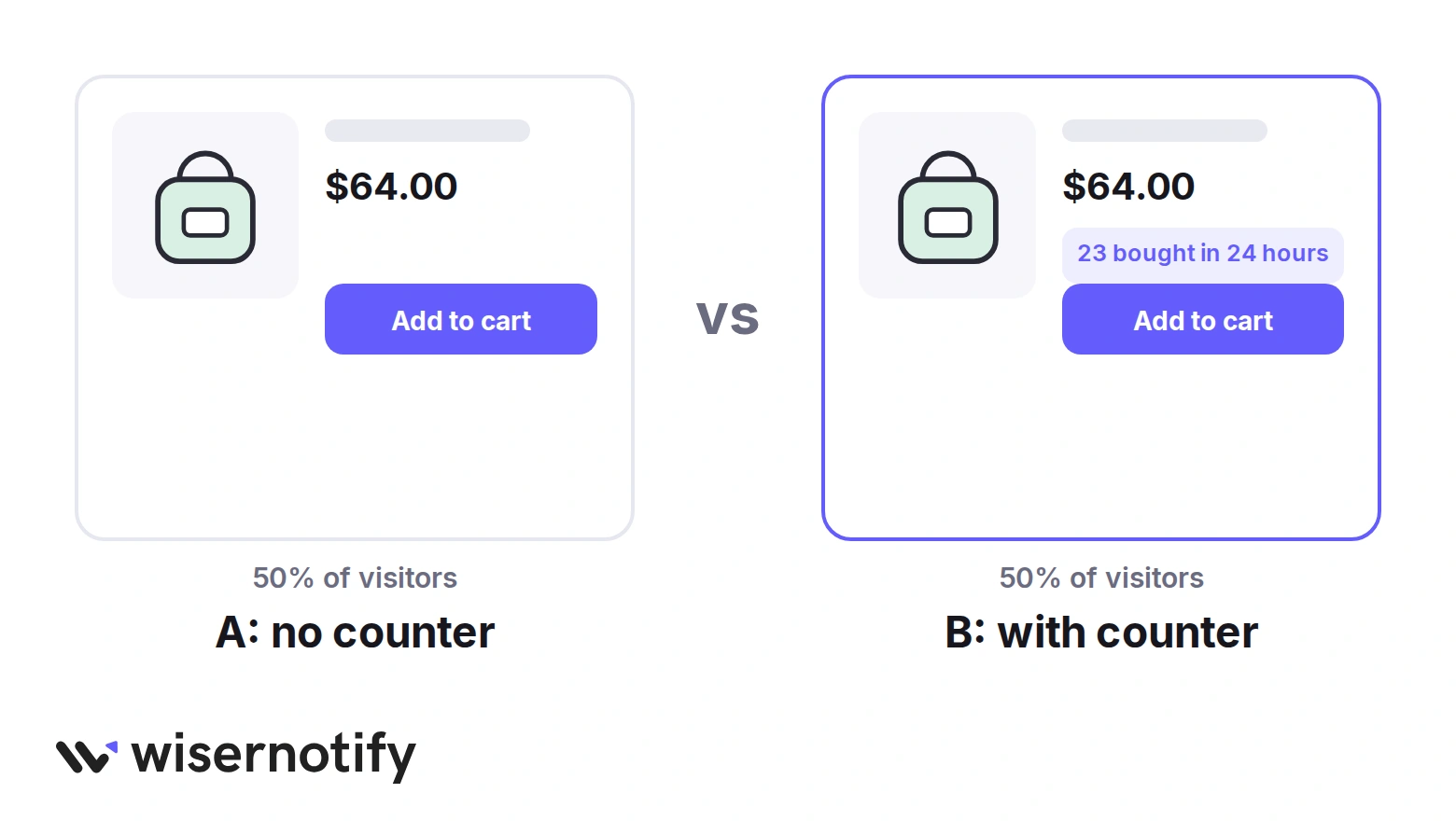
WiserNotify logs views, clicks and conversions per widget, so you can see whether the people who saw the count went on to buy.
For a cleaner read, switch on the built-in A/B test so half your visitors get the counter and half don’t. WooCommerce Analytics then shows which group ordered more in the same period.
When views climb and orders don’t, the counter is doing its job and something else on the page isn’t. Check price, photos and shipping cost first. These sales notification examples show message patterns that pull more clicks when the wording is the weak spot.

Boost Conversion Instantly
Add Social Proof & Urgency to your website
Wrap Up
WooCommerce has been counting your sales all along. One plugin and an API key put that number where shoppers can see it, and your real orders keep it honest.
Start with the popup on product pages, add the inline line once you like the numbers, and keep the window one your store can fill.
For more ways to lift the store around it, see these ideas to increase your WooCommerce store sales.
Related Posts:
Frequently Asked Questions
Does WooCommerce show how many times a product has sold?
No. It records sales for sorting by popularity but never prints the number on the storefront, so a plugin has to show it.
How do I show bought in the last 24 hours on WooCommerce?
Set the Sales Counter’s Data control window to 1 day and the count resets to the last 24 hours of orders.
Does the counter use my real WooCommerce orders?
Yes. The plugin imports your last 30 orders when you submit the API key and sends each new order as it happens.
Can the sold counter show on shop and category pages?
Yes. Use the inline Collection page placement and the count appears under each product tile that has sales.
Can I hide the counter when a product has few sales?
Yes. The Hide if count is less than setting in Data control keeps the counter off until a product reaches your minimum.
Why does the counter work for me but not for visitors?
You’re seeing a logged-in view. Clear your caching plugin, whitelist WiserNotify in any security plugin and check again in a private window.

Krunal Vaghasiya is a marketing tech expert who boosts e-commerce conversion rates with automated social proof and FOMO strategies. He loves to keep posting insightful posts on online marketing software, marketing automations, and improving conversion rates.




 Capterra