
Best Way to Add RSS Feed on Elementor in 2026

Building beautiful pages with Elementor is easy—but keeping them updated with fresh, dynamic content? That’s a challenge many users face. Static pages can quickly start feeling outdated, reducing engagement and trust.
Embedding an RSS Feed is the perfect solution. By automatically showcasing your latest blog posts, news updates, or podcasts, you make your Elementor-built pages look active and trustworthy. And with Wisernotify, adding an RSS Feed to Elementor is simple, quick, and code-free.
This guide will walk you through why you should add an RSS Feed to your Elementor site and exactly how to do it.
Why Add an RSS Feed on Elementor?
Keep Pages Fresh and Engaging: Your content stays updated automatically without manually editing each page.
Improve SEO and Visitor Retention: Fresh content keeps search engines happy and encourages visitors to stay longer on your site.
Highlight Your Expertise: Showcase your latest articles, updates, or episodes to build authority and social proof.
Example Use Cases:
- Show the latest blog posts in a homepage section.
- Display recent podcast episodes on a landing page.
- Highlight company news on your “About Us” page.
Relevant Stat: Regular content updates can increase return visitor rates by up to 25% (source: Content Marketing Institute).
How to Add an RSS Feed on Elementor

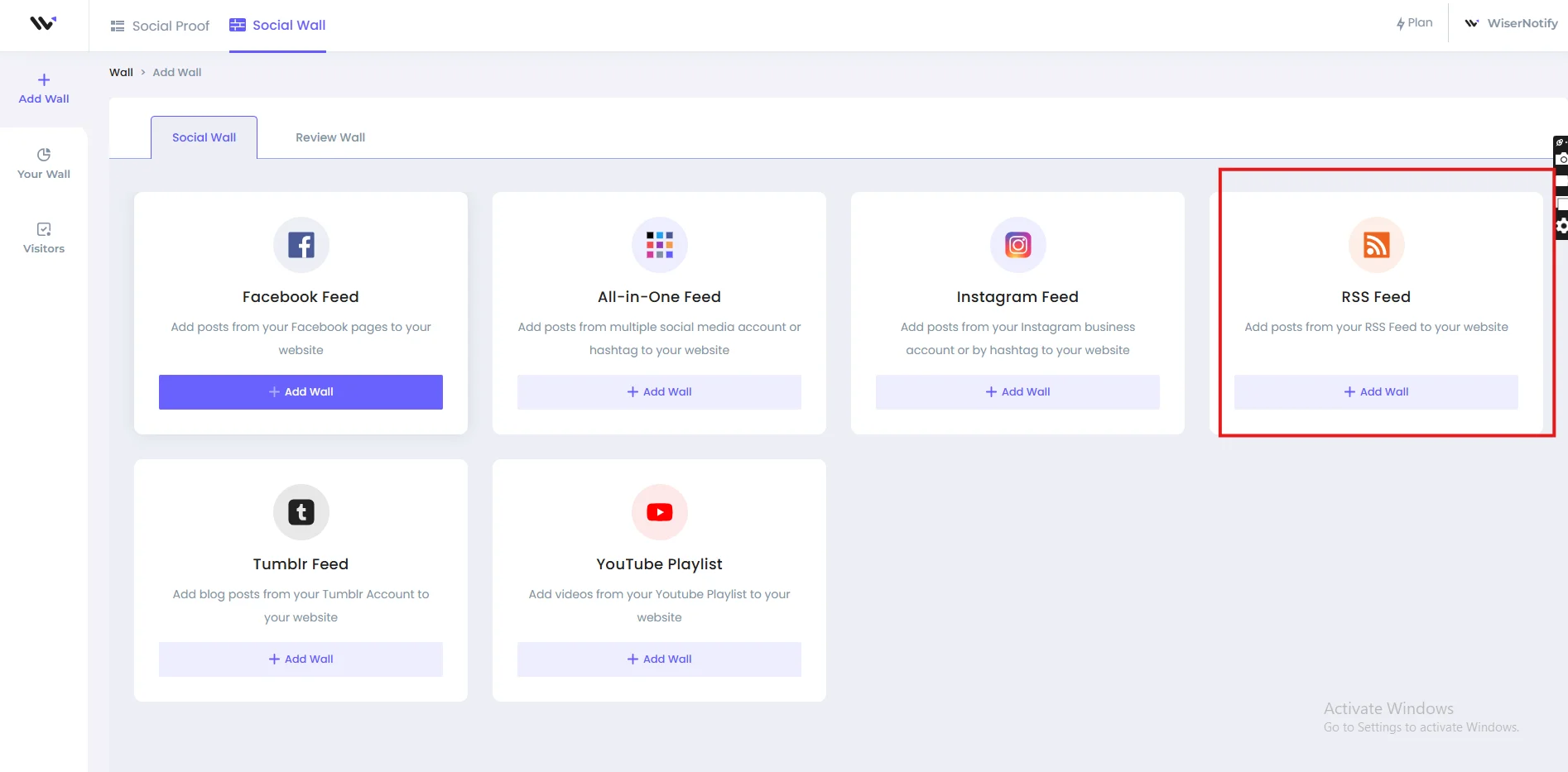

How to Embed RSS Feed on Elementor
Once you have your RSS Feed embed code from Wisernotify, follow these easy steps to add it in Elementor:
- Log in to your WordPress Admin Panel.
- Open the Page you want to edit with Elementor.
- Click “Edit with Elementor.”
- Drag and Drop the HTML Widget:
- Find the “HTML” widget in Elementor’s widget panel.
- Drag it to the section where you want your RSS Feed displayed.
- Paste Your Wisernotify Embed Code: Paste the Wisernotify code into the HTML field.
- Preview and Update: Check the live preview to ensure the feed looks good, then click “Update” to publish changes.
Your Elementor page will now display a live, updating RSS Feed!
Best Practices for Showcasing RSS Feed on Elementor
✅ Choose High-Traffic Areas: Place your RSS Feed on landing pages, homepages, or blog sidebars to maximize visibility.
✅ Customize the Look: Use Wisernotify’s design settings to match your Elementor site’s colors, fonts, and style for a seamless experience.
✅ Keep It Concise: Limit the number of visible posts to 5–7 items to maintain a clean, uncluttered design.
✅ Highlight Strategic Content: Feature high-performing blog posts, podcasts, or articles that reinforce your sales funnel.
Common Mistakes to Avoid When Adding RSS Feed to Elementor
Adding Feeds Without Customization
A generic feed can make your page look unprofessional. Customize it with Wisernotify settings.
Ignoring Mobile Optimization
Elementor is highly mobile-friendly. Ensure your RSS Feed is responsive and preview it across devices.
Using Too Many Feeds on One Page
Multiple feeds can slow down load time and overwhelm visitors. Stick to one main feed per page.
Embedding in the Wrong Section
Always use the “HTML” widget—don’t paste code into text blocks or other widget types.
Wrap-Up
Adding an RSS Feed to your Elementor site can instantly make it more dynamic, trustworthy, and engaging. With Wisernotify, it’s effortless to embed a beautiful, real-time feed that keeps your site fresh and your visitors coming back.
Want to bring your Elementor pages to life with dynamic updates? Try Wisernotify today and see the difference live content makes!
Related guides
Want to add a Rss feed on a different platform? These step-by-step guides walk through it:
Frequently Asked Questions
Can I embed multiple RSS Feeds on different Elementor pages?
Yes, Wisernotify allows you to create different widgets and embed them wherever you like.
Will adding an RSS Feed affect my Elementor site's speed?
No, Wisernotify’s widgets are optimized for performance and load efficiently.
Is Wisernotify compatible with Elementor Pro?
Absolutely. Whether you use free Elementor or Elementor Pro, Wisernotify widgets integrate smoothly.
Can I customize the design of my RSS Feed widget?
Yes, Wisernotify offers full customization of colors, fonts, layouts, and more.
Do I need coding knowledge to add RSS Feeds in Elementor?
Not at all. Just copy and paste the embed code into an HTML widget—no coding required.

Krunal Vaghasiya is a marketing tech expert who boosts e-commerce conversion rates with automated social proof and FOMO strategies. He loves to keep posting insightful posts on online marketing software, marketing automations, and improving conversion rates.




 Capterra