


Creating high-converting landing pages on Unbounce is essential for driving leads and sales. However, without social proof, even the most persuasive pages can fail to convert visitors into customers.
Visitors to your Unbounce pages often hesitate to take action because they lack the trust and confidence that your product or service delivers. Without visible testimonials or reviews, potential customers may abandon your page without converting.
Embedding Google Reviews on your Unbounce landing pages provides the social proof needed to build trust, reassure visitors, and increase conversions.
Why Add Google Reviews to Unbounce?
Google Reviews are a game-changer for landing pages, providing the trust signals that can elevate your Unbounce campaigns. Here’s why they’re indispensable:
1. Builds Trust Instantly
- Credibility: Google Reviews are widely trusted because they come from verified users.
- Reassurance: Positive reviews help convince visitors to engage with your offer.
2. Boosts Conversion Rates
- Social Proof: Reviews validate your claims and make your product or service more appealing.
- Hesitation Reduction: Address visitor concerns with authentic feedback.
3. Enhances SEO Performance
- Search Visibility: Google prioritizes user-generated content, including reviews.
- Rich Snippets: Ratings displayed in search results improve click-through rates.
4. Encourages Visitor Engagement
- Feedback Loop: Featuring reviews demonstrates that you value customer opinions.
- Shareability: Positive reviews often lead to word-of-mouth recommendations.
5. Differentiates Your Landing Pages
- Stand Out: Reviews provide unique, compelling content that sets your landing page apart from competitors.
- Increased Trust: Highlighting authentic customer experiences makes your offer more trustworthy.

All your Google reviews in one place
Collect reviews, manage every response, and display them where they matter most.
How to Add Google Reviews to Unbounce
To seamlessly integrate Google Reviews into your Unbounce landing pages, use the following Elementor code:




Embed Google Reviews on Unbounce
Adding Google Reviews to Unbounce landing pages is simple with custom HTML or third-party tools. Here’s how:
Steps to Embed Google Reviews on Unbounce
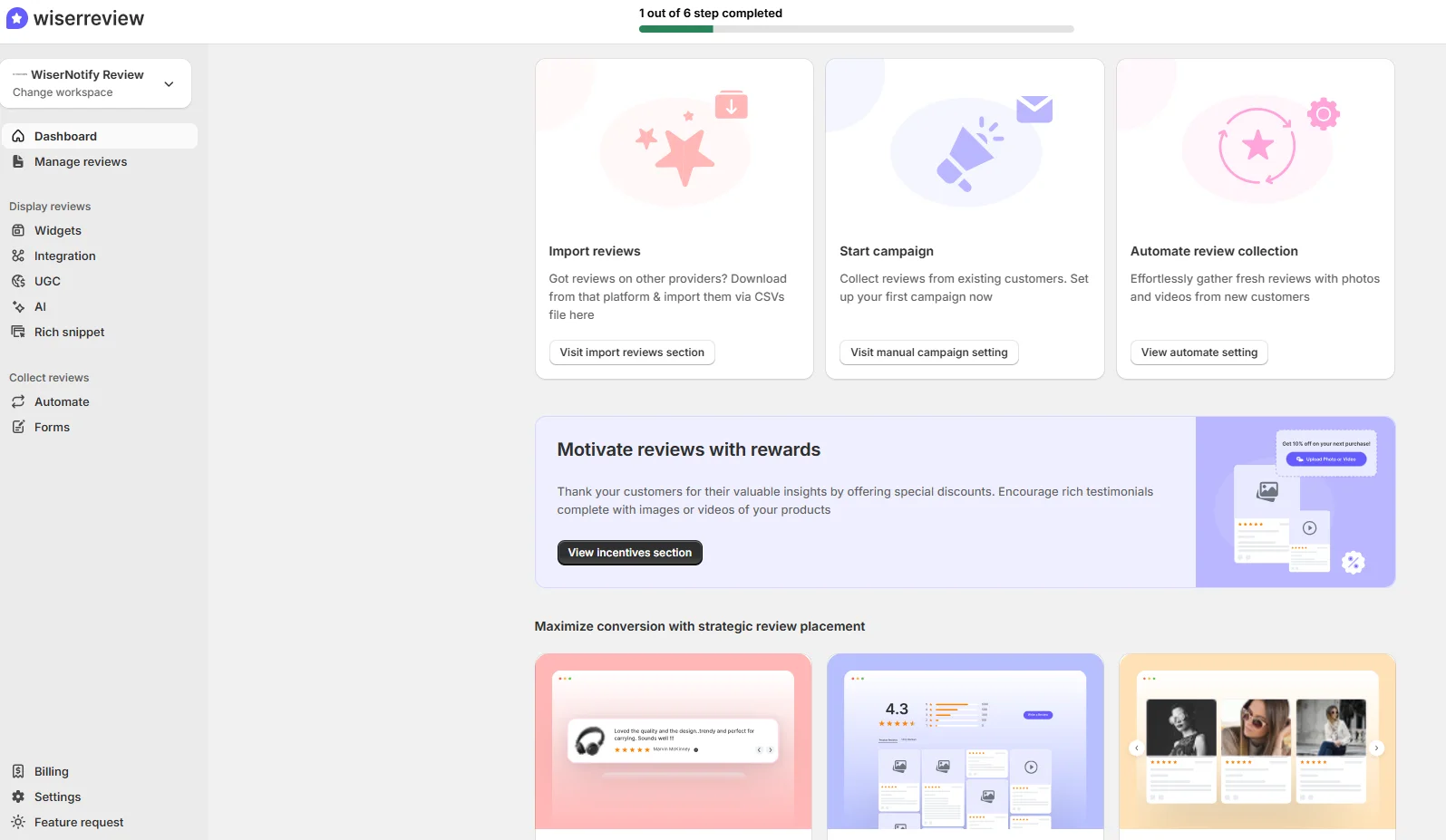
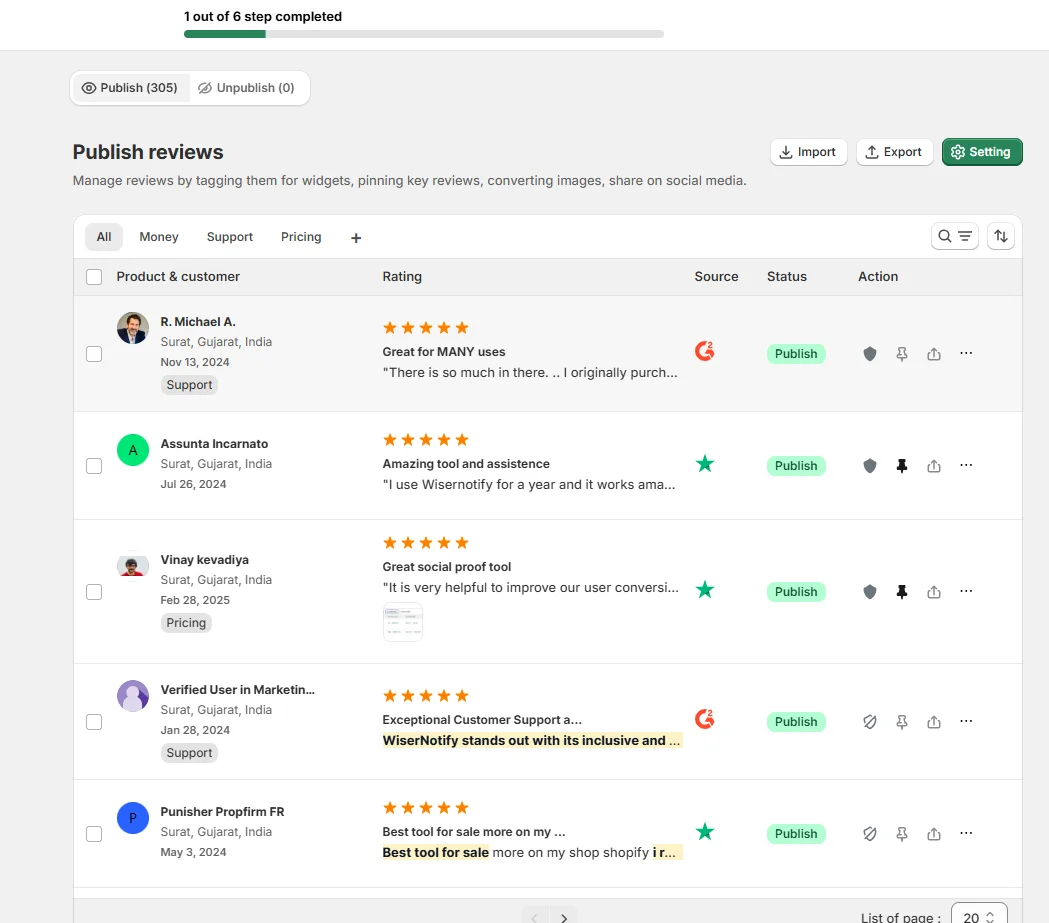
- Choose a Review Widget: Popular options include Wisernotify, Elfsight, or EmbedSocial.
- Generate Embed Code: Connect your Google My Business account, customize the review widget, and generate the embed code.
- Insert Code into Unbounce:
- Open the Unbounce editor for the landing page you want to edit.
- Drag and drop the “HTML” widget to the desired section.
- Paste the embed code into the widget.
- Preview and Publish: Test the page to ensure reviews display correctly, then publish your changes.
Best Places to Show Google Reviews on Unbounce
Strategic placement of Google Reviews ensures maximum visibility and impact. Here are the best locations on your Unbounce landing pages:
1. Above the Fold
- Why: The top section of your landing page is where visitors form their first impression.
- How: Use a concise review snippet or star rating widget near your headline.
- Example: Add a standout customer quote alongside your value proposition.
2. Near Call-to-Action Buttons
- Why: Reviews next to CTAs can reinforce decision-making.
- How: Place reviews close to buttons like “Sign Up” or “Buy Now.”
- Tip: Highlight specific benefits or outcomes in these reviews.
3. In Testimonial Sections
- Why: Dedicated testimonial areas add depth and credibility to your page.
- How: Create a carousel or grid displaying Google Reviews under a heading like “What Our Customers Say.”
4. Footer Section
- Why: The footer is visible across all landing pages and serves as a final trust signal.
- How: Include a snippet summarizing review highlights with a link to “Read More Reviews.”
5. On Confirmation Pages
- Why: After a visitor converts, reviews can reinforce their decision and encourage referrals.
- How: Display reviews that praise your product or service on thank-you or confirmation pages.
Other Ways to Add Google Reviews to Unbounce
If embedding widgets isn’t your preferred method, here are other ways to feature Google Reviews on your Unbounce landing pages:
1. Static Review Screenshots
How:
- Capture screenshots of standout Google Reviews.
- Upload them as images to your Unbounce pages.
Pros:
- Simple and quick to implement.
- Highlights specific feedback effectively.
Cons:
- Static and requires manual updates.
- No SEO benefit from images.
2. Third-Party Review Tools
Recommended Tools:
- Elfsight: Offers customizable Google Review widgets.
- Wisernotify: Adds dynamic, real-time reviews.
- EmbedSocial: Automatically syncs with your Google My Business reviews.
Pros:
- Dynamic updates keep reviews fresh.
- Customizable designs fit your branding.
Cons:
- May require a subscription or fee.
- Reliant on external services.
3. API Integration
How:
- Use Google’s Places API to fetch and display reviews dynamically.
Pros:
- Fully customizable and real-time updates.
- Seamlessly integrates into Unbounce pages.
Cons:
- Requires developer expertise.
- API usage may incur additional costs.
All your Google reviews in one place
Collect reviews, manage every response, and display them where they matter most.
3 Google Review Mistakes on Unbounce
Avoid these common mistakes when adding Google Reviews to your Unbounce landing pages:
1. Ignoring Negative Reviews
- Impact: Omitting bad reviews may appear disingenuous to visitors.
- Solution: Display a mix of reviews and address negative feedback professionally.
2. Overloading Pages with Too Many Reviews
- Impact: An excessive number of reviews can overwhelm and distract visitors.
- Solution: Curate the most impactful and relevant reviews for clarity.
3. Using Fake Reviews
- Impact: Inauthentic reviews harm credibility and may violate Google policies.
- Solution: Encourage genuine reviews from real customers to maintain trust.
Wrap Up
Adding Google Reviews to your Unbounce landing pages is a powerful way to boost trust and increase conversions. By embedding reviews strategically and leveraging tools that simplify integration, you can create compelling pages that inspire action.
Start showcasing your Google Reviews today to unlock the full potential of your Unbounce campaigns.
Related Posts:


