

Teachable is a great platform for creating and selling online courses. However, even the most informative courses can struggle to attract students if your site lacks credibility. Establishing trust is crucial for turning visitors into learners.
Potential students may hesitate to enroll in your courses if they don’t see proof of your expertise or customer satisfaction. Without visible social proof like Google Reviews, you may lose leads to competitors.
Embedding Google Reviews on your Teachable site builds trust, enhances credibility, and encourages more enrollments by showcasing authentic feedback from satisfied students.
Why Add Google Reviews to Teachable?
Google Reviews are a powerful tool for increasing credibility and driving course enrollments. Here’s why they’re essential for your Teachable site:
1. Builds Instant Trust
- Authenticity: Google Reviews come from verified users, making them highly credible.
- Reassurance: Positive reviews reassure potential students about the quality of your courses and teaching.
2. Boosts Enrollment Rates
- Social Proof: Reviews validate your expertise and encourage visitors to take action.
- Overcomes Hesitations: Genuine feedback addresses concerns and builds confidence in your courses.
3. Improves SEO Performance
- Search Visibility: User-generated content like reviews enhances your site’s ranking in search engine results.
- Rich Snippets: Star ratings in search results increase click-through rates and drive traffic.
4. Increases Engagement
- Interactive Content: Reviews encourage visitors to explore your site further.
- Customer Loyalty: Highlighting positive feedback fosters trust and repeat enrollments.

All your Google reviews in one place
Collect Google reviews, manage every response, and display them where they matter most.
How to Add Google Reviews to Teachable




Embed Google Reviews on Teachable
Adding Google Reviews to Teachable is simple using widgets or custom HTML. Here’s how:
Steps to Embed Google Reviews on Teachable
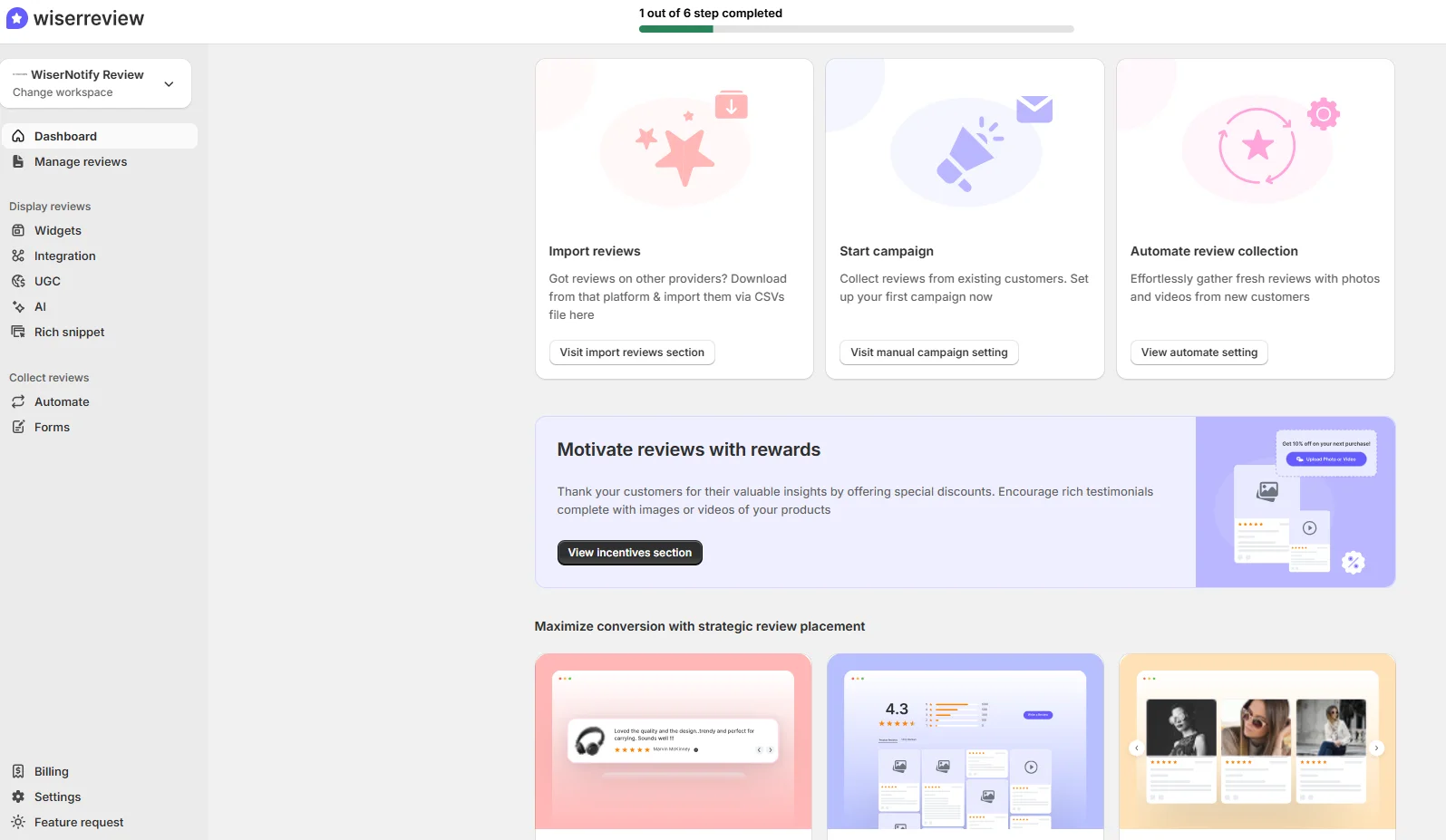
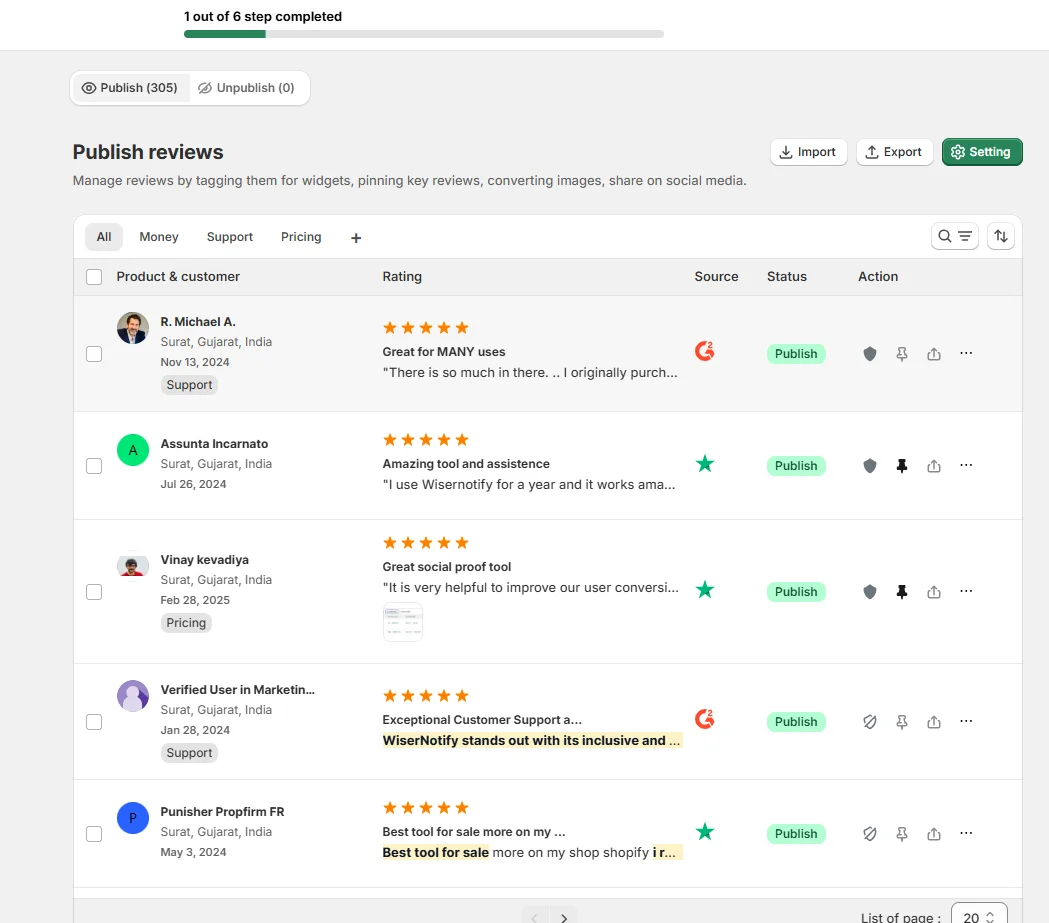
- Choose a Review Widget: Use tools like Elfsight, EmbedSocial, or Wisernotify to generate a Google Reviews widget.
- Generate Embed Code: Connect your Google My Business account, customize the widget, and generate the embed code.
- Add Code to Teachable:
- Log in to your Teachable admin dashboard.
- Navigate to “Site” > “Pages” and select the page where you want to display reviews.
- Add a “Custom HTML” block to the desired section of the page.
- Paste the embed code into the block.
- Save and Test: Save your changes and preview the page to ensure the reviews display correctly.
Best Places to Show Google Reviews on Teachable Websites
Strategic placement of Google Reviews ensures maximum visibility and impact. Here are the best locations:
1. Homepage
- Why: The homepage is often the first point of contact for potential students.
- How: Use a slider or grid to showcase top reviews prominently above the fold.
- Example: Highlight testimonials that emphasize student success and satisfaction.
2. Course Pages
- Why: Visitors evaluating specific courses benefit from relevant feedback.
- How: Embed reviews below course descriptions or near “Enroll Now” buttons.
- Tip: Use filters to display reviews related to the specific course being featured.
3. Checkout Page
- Why: Visitors on the checkout page may experience hesitation before completing their purchase.
- How: Add a concise widget summarizing positive reviews near the checkout button to build confidence.
4. Footer Section
- Why: The footer appears across all pages, providing consistent visibility for reviews.
- How: Include a snippet of top reviews with a link to “Read All Reviews.”
5. About Us Page
- Why: This page is ideal for building trust by sharing your brand’s story and values.
- How: Highlight reviews that align with your mission and commitment to student success.
Other Ways to Add Google Reviews to Teachable
If embedding widgets isn’t suitable, consider these alternative methods:
1. Static Screenshots
How:
- Capture screenshots of standout Google Reviews.
- Upload them as images in a “Testimonials” section or page.
Pros:
- Quick and simple to implement.
- Highlights specific customer feedback effectively.
Cons:
- Static and requires manual updates.
- No SEO benefits from screenshots.
2. Using Review Widgets or Apps
Recommended Tools:
- Elfsight Google Reviews Widget: Provides customizable displays for reviews.
- EmbedSocial for Teachable: Syncs directly with Google My Business reviews.
- Wisernotify: Displays dynamic, real-time reviews.
Pros:
- Dynamic updates keep reviews fresh.
- Easy integration with Teachable’s platform.
Cons:
- Subscription fees may apply.
- Relies on external services.
3. API Integration
How:
- Use Google’s Places API to fetch and display reviews dynamically.
Pros:
- Fully customizable and real-time updates.
- Seamlessly integrates with Teachable advanced features.
Cons:
- Requires developer expertise.
- Potential costs for API usage.
All your Google reviews in one place
Collect Google reviews, manage every response, and display them where they matter most.
3 Google Review Mistakes on Teachable Websites
Avoid these common mistakes to ensure your Google Reviews strategy is effective:
1. Ignoring Negative Reviews
- Impact: Omitting or ignoring negative feedback may appear disingenuous.
- Solution: Respond professionally to criticisms and showcase a balanced mix of reviews.
2. Overloading Pages with Too Many Reviews
- Impact: An excessive number of reviews can overwhelm visitors and clutter your design.
- Solution: Display the most relevant and impactful reviews for clarity.
3. Using Fake Reviews
- Impact: Inauthentic reviews damage credibility and can lead to penalties from Google.
- Solution: Encourage genuine feedback from real customers to maintain trust.
Wrap Up
Adding Google Reviews to your Teachable website is a powerful way to build trust, enhance engagement, and increase course enrollments.
By embedding reviews strategically and leveraging the right tools, you can create an authentic and compelling learning experience that resonates with your audience.
Start showcasing your Google Reviews today to elevate your Teachable site’s credibility and performance.
Related Posts:


