
How to add Google reviews to GoHighLevel in 5 minutes
GoHighLevel is an exceptional platform for creating high-converting funnels and websites.
However, even the most optimized designs may fail to convert without trust signals.
Establishing credibility is crucial for turning visitors into loyal customers.
Potential leads and clients might hesitate to take action if they don’t see evidence of reliability or customer satisfaction.
Without social proof like Google Reviews, your GoHighLevel funnels could underperform.
Embedding Google Reviews on your GoHighLevel pages enhances trust, builds credibility, and increases conversions by showcasing authentic feedback from satisfied customers.
Why Add Google Reviews to GoHighLevel?

Google Reviews are an essential element for building trust and improving conversions.
Here’s why they’re vital for your GoHighLevel funnels and websites:
1. Establishes Instant Credibility
Authenticity: Google Reviews are from verified users, making them highly trustworthy.
Reassurance: Displaying positive feedback reassures visitors about your product or service quality.
2. Boosts Conversion Rates
Social Proof: Reviews validate your offerings and encourage visitors to take action.
Addresses Hesitations: Genuine feedback addresses potential concerns, building confidence in your brand.
3. Enhances User Engagement
Interactive Content: Reviews encourage visitors to explore further and spend more time on your site.
Customer Loyalty: Highlighting satisfied customers fosters trust and repeat business.
4. Improves SEO Performance
Search Visibility: User-generated content like reviews improves your site’s rankings in search engine results.
Rich Snippets: Star ratings in search results increase click-through rates and drive more organic traffic.

All your Google reviews in one place
Collect Google reviews, manage every response, and display them where they matter most.
How to Add Google Reviews to GoHighLevel


Embed Google Reviews on GoHighLevel
Adding Google Reviews to GoHighLevel is straightforward using widgets or custom HTML.
Here’s how:
Steps to Embed Google Reviews on GoHighLevel
1. Choose a Review Widget: Use tools like Elfsight, EmbedSocial, or Wisernotify to generate a Google Reviews widget.
2. Generate Embed Code: Connect your Google My Business account, customize the widget, and generate the embed code.
3. Add Code to GoHighLevel:
- Log in to your GoHighLevel dashboard and open the funnel or website editor.
- Drag and drop an “HTML” element into the desired section of your page.
- Paste the embed code into the element.
4. Save and Test: Save your changes and preview the page to ensure the reviews display correctly.
Best Places to Show Google Reviews on GoHighLevel Pages
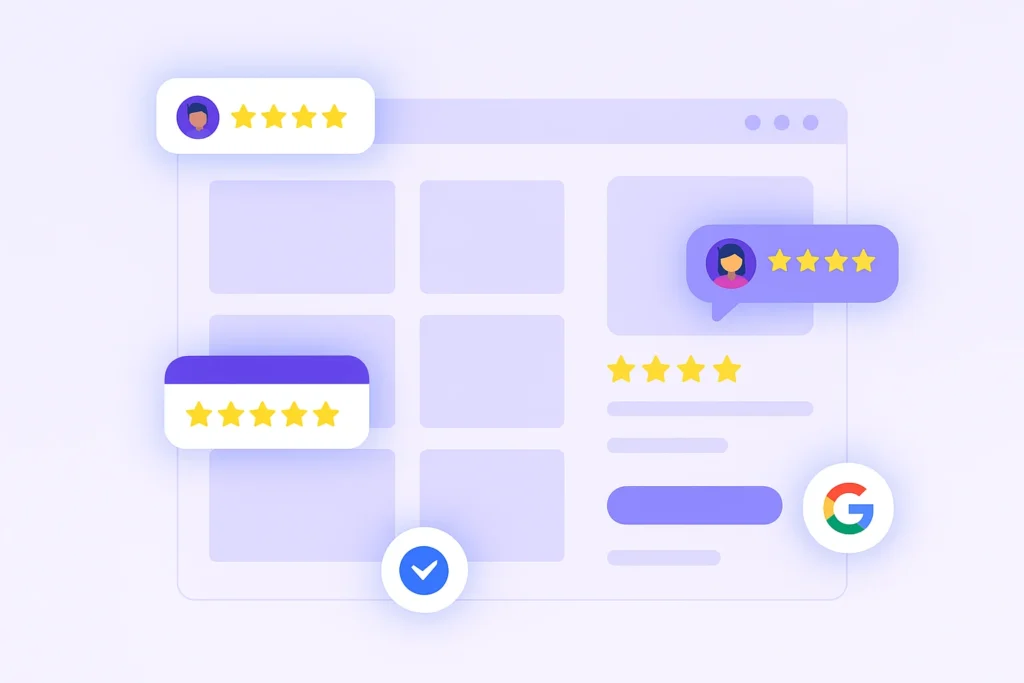
Strategic placement of Google Reviews ensures maximum visibility and impact.
Here are the best locations:
1. Hero Section
Why: The hero section is the first thing visitors see when they land on your page.
How: Use a slider or grid to showcase top reviews prominently above the fold.
Example: Highlight testimonials that emphasize customer satisfaction and success stories.
2. Call-to-Action (CTA) Section
Why: Social proof near your CTAs can significantly boost conversions.
How: Place a concise reviews widget next to buttons like “Sign Up” or “Buy Now.”
3. Features or Benefits Section
Why: Adding reviews validates your claims about your products or services.
How: Include testimonials that align with the features or benefits highlighted in this section.
4. Footer Section
Why: The footer appears across all pages, ensuring consistent review exposure.
How: Display a snippet of top reviews with a link to “Read All Reviews.”
5. About Us Page
Why: This page helps build trust by sharing your brand’s story and values.
How: Highlight reviews that reflect your mission and customer-centric approach.
Other Ways to Add Google Reviews to GoHighLevel

If embedding widgets isn’t suitable, consider these alternative methods:
1. Static Screenshots
How:
- Capture screenshots of standout Google Reviews.
- Upload them as images in a “Testimonials” section or page.
Pros:
- Quick and simple to implement.
- Highlights specific customer feedback effectively.
Cons:
- Static and requires manual updates.
- No SEO benefits from screenshots.
2. Using Review Widgets or Apps
Recommended Tool:
- Wisernotify: Displays dynamic, real-time reviews.
Pros:
- Dynamic updates keep reviews fresh.
- Easy integration with GoHighLevel’s platform.
Cons:
- Subscription fees may apply.
- Relies on external services.
3. API Integration
How:
- Use Google’s Places API to fetch and display reviews dynamically.
Pros:
- Fully customizable and real-time updates.
- Seamlessly integrates with GoHighLevel’s advanced features.
Cons:
- Requires developer expertise.
- Potential costs for API usage.
All your Google reviews in one place
Collect Google reviews, manage every response, and display them where they matter most.
3 Google Review Mistakes on GoHighLevel Pages
Avoid these common mistakes to ensure your Google Reviews strategy is effective:
1. Ignoring Negative Reviews
Impact: Omitting or ignoring negative feedback may appear disingenuous.
Solution: Respond professionally to criticisms and showcase a balanced mix of reviews.
2. Overloading the Page with Too Many Reviews
Impact: Excessive reviews can overwhelm visitors and clutter your design.
Solution: Display the most relevant and impactful reviews for clarity.
3. Using Fake Reviews
Impact: Inauthentic reviews damage credibility and can lead to penalties from Google.
Solution: Encourage genuine feedback from real customers to maintain trust.
Wrap Up
Adding Google Reviews to your GoHighLevel funnels and websites is a powerful way to build trust, enhance engagement, and increase conversions.
By embedding reviews strategically and using the right tools, you can create compelling sales funnels and pages that resonate with your audience.
Start showcasing your Google Reviews today to elevate your GoHighLevel site’s credibility and performance.
Frequently Asked Questions
How can I integrate Google Reviews into a sticky sidebar on my GoHighLevel pages?
GoHighLevel allows you to add sticky elements using its page editor. Embed the Google Reviews widget in an HTML block and configure it to stay fixed as visitors scroll through the funnel, ensuring continuous visibility of your reviews.
Can I showcase Google Reviews for specific services within my GoHighLevel funnels?
Yes, tools like EmbedSocial let you filter reviews by keywords or star ratings. This allows you to embed widgets that display only reviews related to the specific service being promoted in your funnel.
How do I A/B test the placement of Google Reviews on my GoHighLevel funnels?
GoHighLevel’s A/B testing feature enables you to create variations of your funnel pages. Test different placements for the Google Reviews widget, such as the hero section or near the checkout button, to see which position drives higher conversions.
Can I embed Google Reviews on GoHighLevel pop-ups to boost lead generation?
Absolutely. Use GoHighLevel’s pop-up feature to embed a Google Reviews widget. This is particularly effective for highlighting customer testimonials while encouraging visitors to fill out lead capture forms.
How can I integrate Google Reviews seamlessly into my mobile GoHighLevel funnels?
Most Google Review tools like Wisernotify and Elfsight are mobile-responsive. Customize the widget’s size and layout in GoHighLevel’s editor to ensure it looks polished and professional on smaller screens.

Krunal Vaghasiya is a marketing tech expert who boosts e-commerce conversion rates with automated social proof and FOMO strategies. He loves to keep posting insightful posts on online marketing software, marketing automations, and improving conversion rates.




 Capterra