
How to Add a WhatsApp Chat Widget to Thinkific
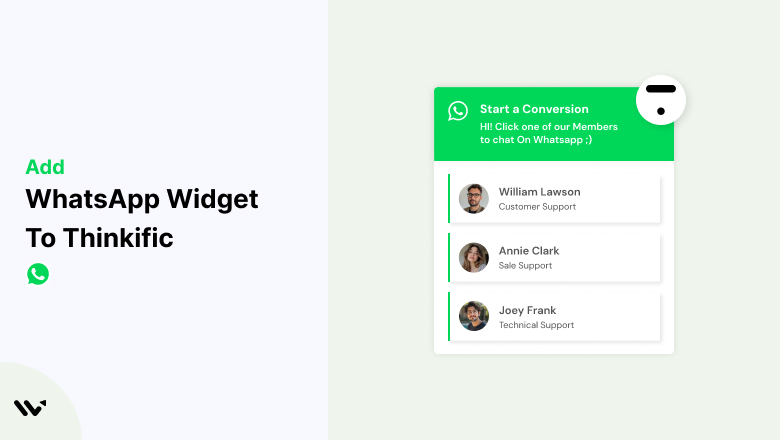
To add a WhatsApp chat widget to Thinkific, paste the WiserNotify pixel into Settings, Code & Analytics, Site footer code, then build a WhatsApp widget with your number and welcome message and publish it. The chat button appears across your site in minutes.
A student with a question about pricing or course content rarely fills in a contact form. They leave. A WhatsApp tap gets them an answer inside an app they already use daily.
The steps below cover the one-time pixel paste, the widget build with screenshots, and the settings that keep the button helpful instead of pushy.
Key takeaways
- Setup is one paste in Site footer code. No theme editing and no WhatsApp Business API approval.
- The widget runs on your regular WhatsApp or WhatsApp Business number and covers every site page at once.
- Show it on sales and pricing pages with a short delay, and keep it off the lesson player.
Do You Need the WhatsApp Business API?
No. The API is built for high-volume automated messaging, with provider approval, message templates, and per-conversation fees attached.
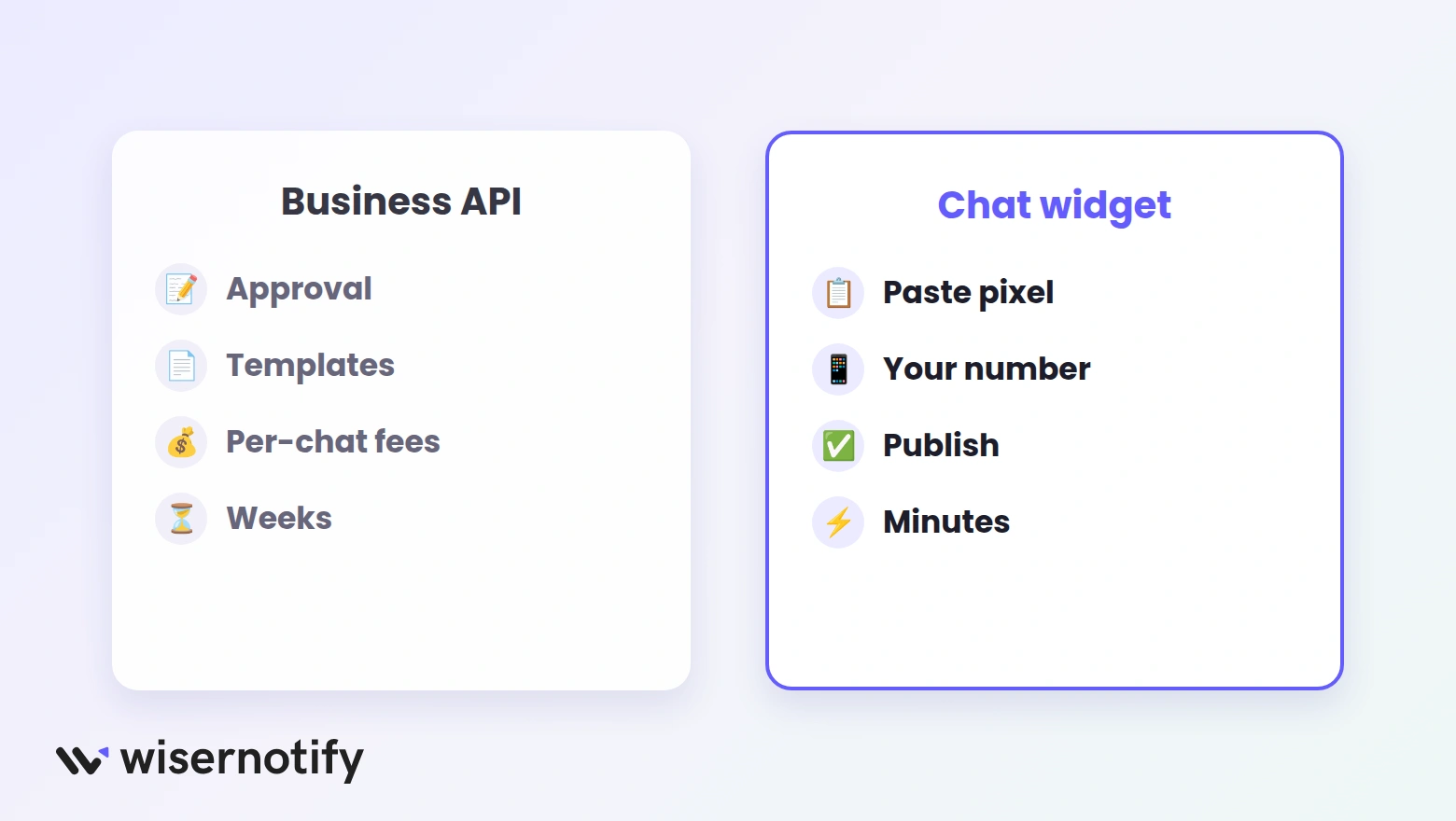
A chat widget is the simple version. It opens a WhatsApp conversation with your number when a visitor taps it. Any personal or free WhatsApp Business account works, and you reply from the same app you already use.
Why a Chat Widget on Thinkific
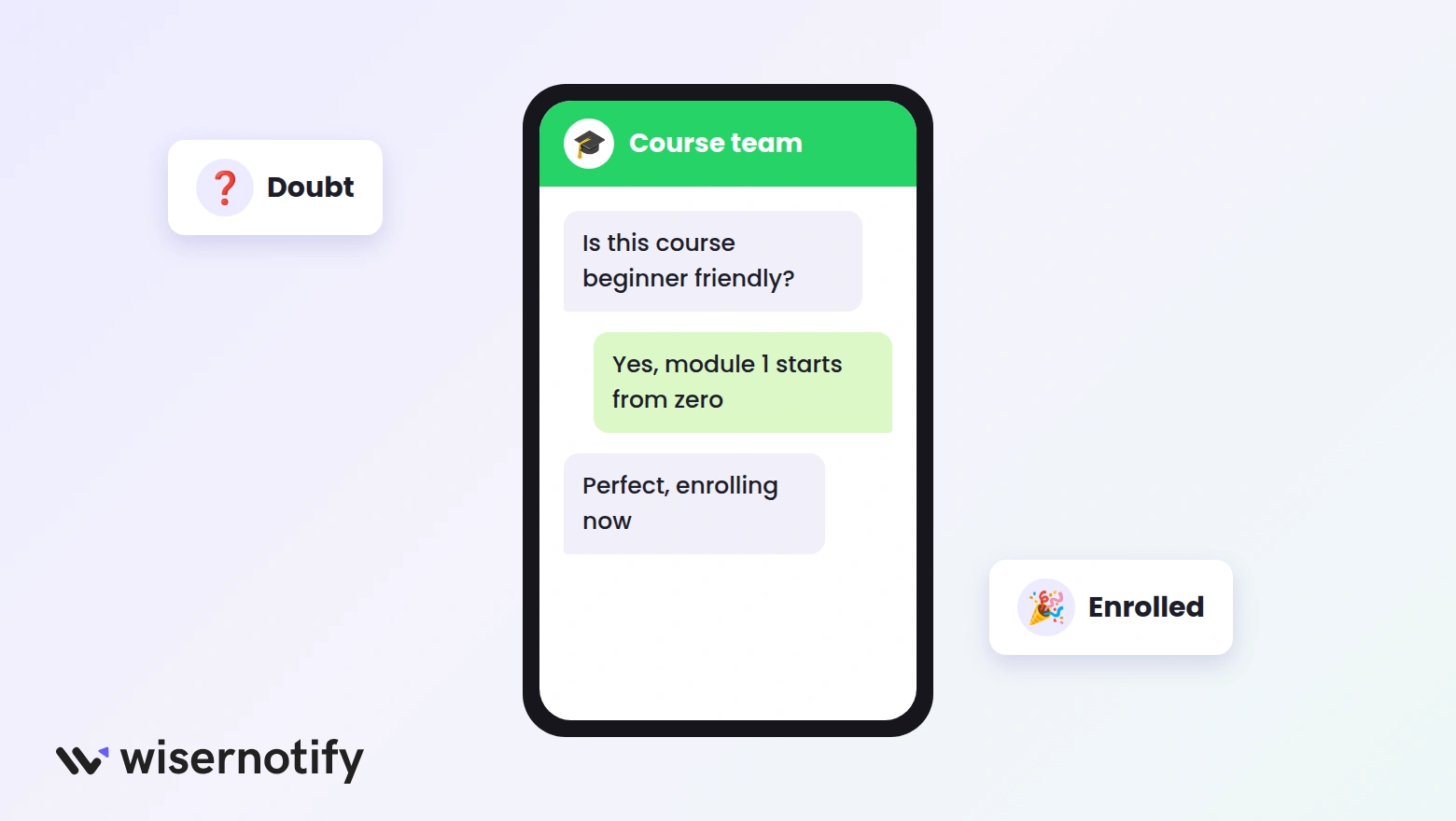
Course buyers hesitate over real questions. Does this fit my level, is there a refund window, when does the cohort start. A visible chat button turns those doubts into conversations instead of exits, and a quick human answer often closes the enrollment on the spot. WiserNotify adds the button without code, so the whole thing is a one-time setup.
Build trust & FOMO
Highlight real-time activities like reviews, sales & sign-ups.


How to Add a WhatsApp Widget to Thinkific
The video walks through the widget build inside WiserNotify. The written steps with screenshots follow.
Step 1: Copy Your WiserNotify Pixel

Create a WiserNotify account with the 7-day free trial, or sign in. Open the Install Pixel page and click Copy code.
Step 2: Paste It in Site Footer Code
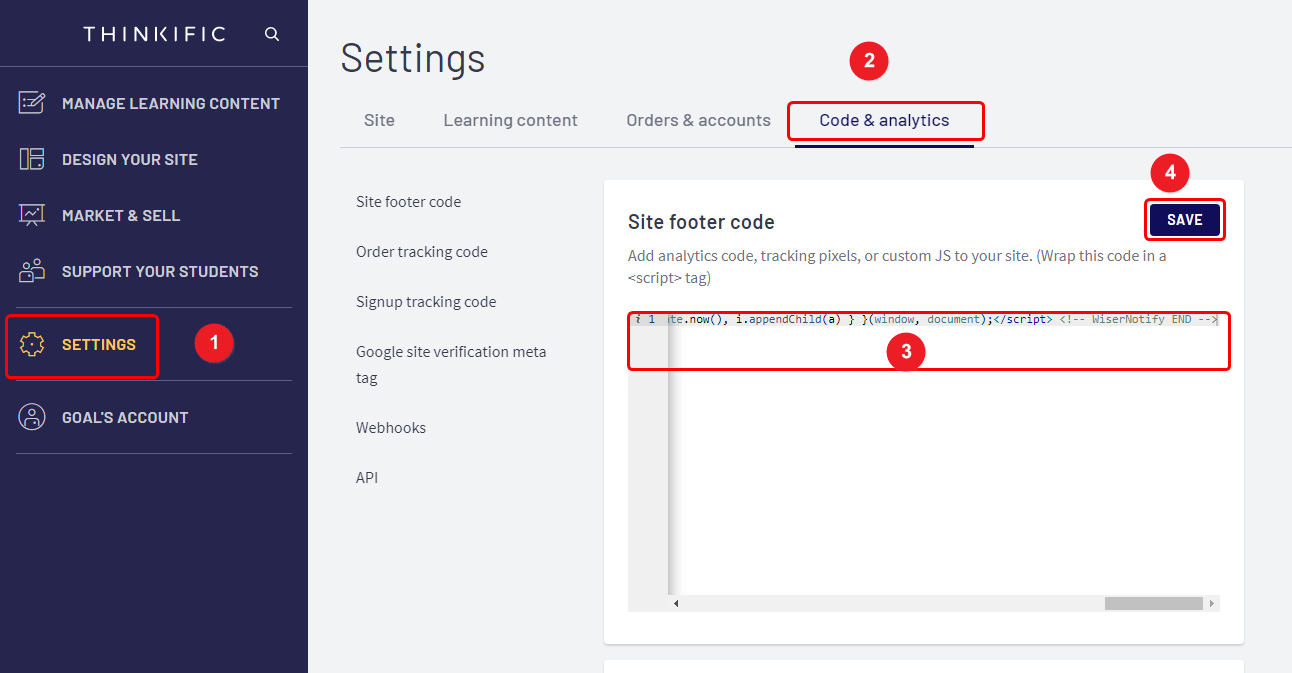
In your Thinkific admin, go to Settings > Code & Analytics. Paste the full pixel into the Site footer code box and click Save. One paste covers your whole site.
Prefer an app? WiserNotify is also in the Thinkific App Store, and installing it there drops the pixel in for you. The Thinkific integration doc shows both routes.
Step 3: Verify the Pixel

Open your school once in a new tab, then click Verify pixel installation in WiserNotify. Pixel Active means Thinkific is serving the script.
Step 4: Create the WhatsApp Widget
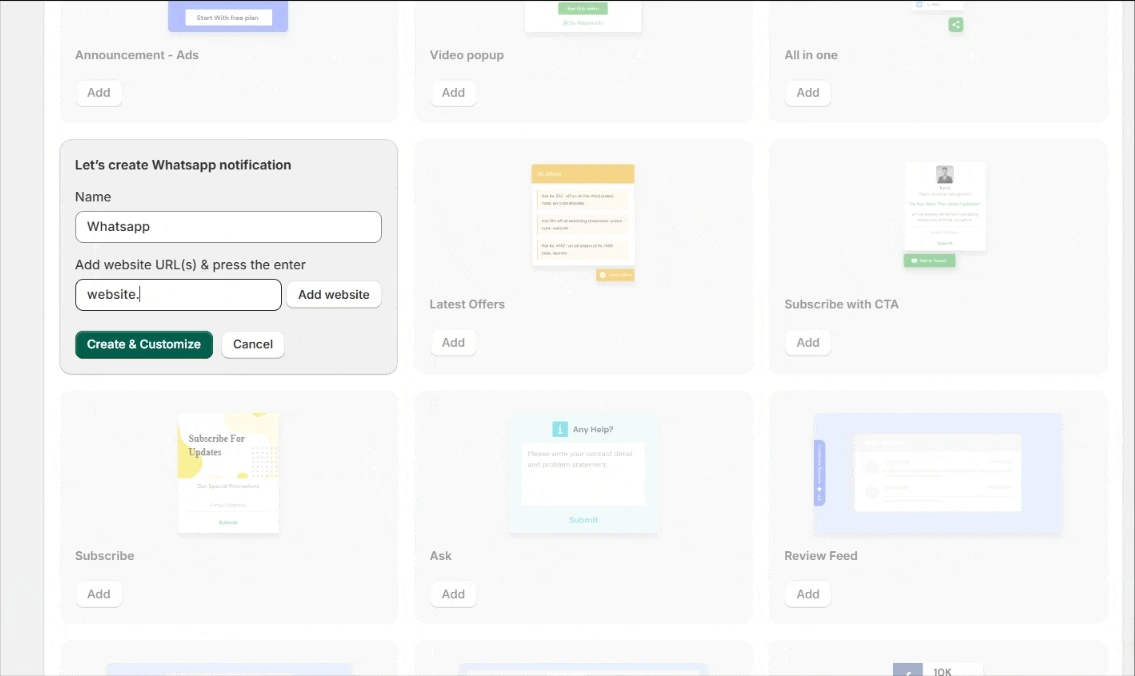
Back in WiserNotify, the path is Widgets > Call To Actions > WhatsApp, then Add. Name the widget and enter your school’s exact URL.
Step 5: Add Your Number and Message

Add your WhatsApp number in the Add list panel, more than one if teammates share support. Write a short greeting a student would answer, set your hours, and match the colors to your school’s branding in the design options.
Step 6: Set Timing and Pages

In Timing control, add a few seconds of delay so the button arrives after the page settles. In the Display tab, target your sales and pricing pages with a Contains rule, or run it on all pages.
Step 7: Publish and Test
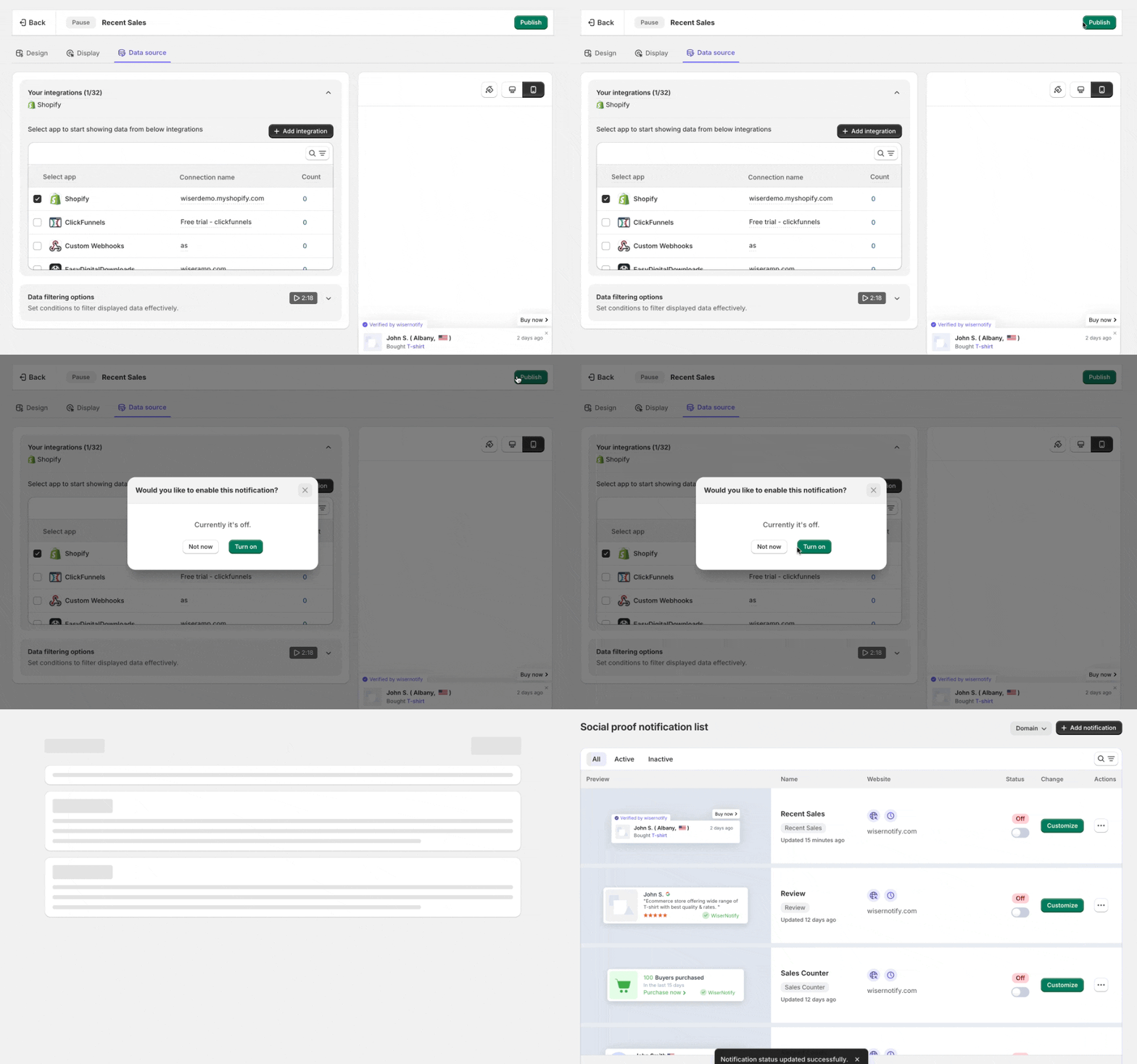
Click Publish and turn the widget on. Load a course page on your phone, tap the button, and confirm the chat opens on the right number with your greeting prefilled.
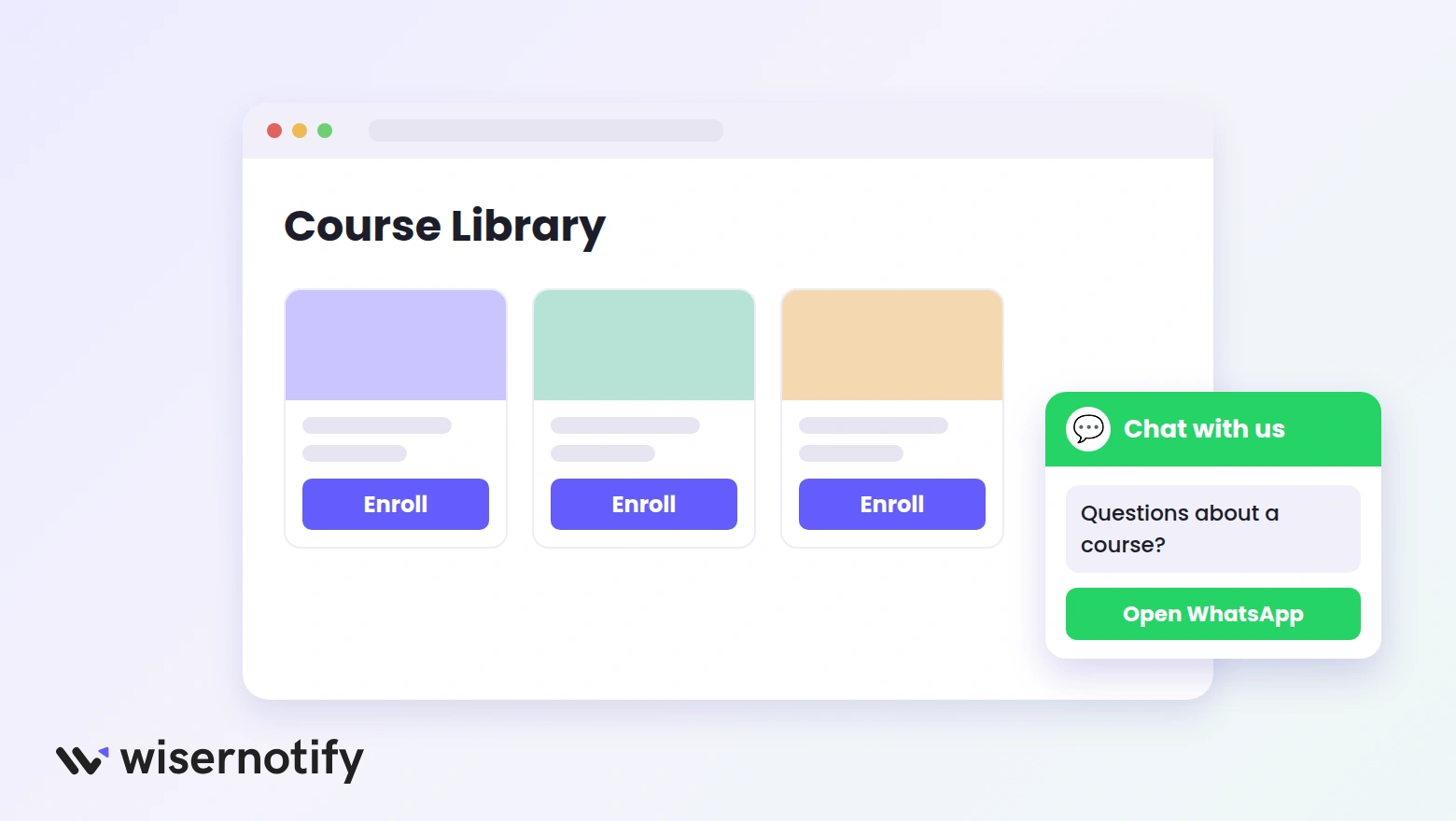
Here is the result a visitor sees.

Boost Conversion Instantly
Add Social Proof & Urgency to your website
Where to Place the Widget on Thinkific
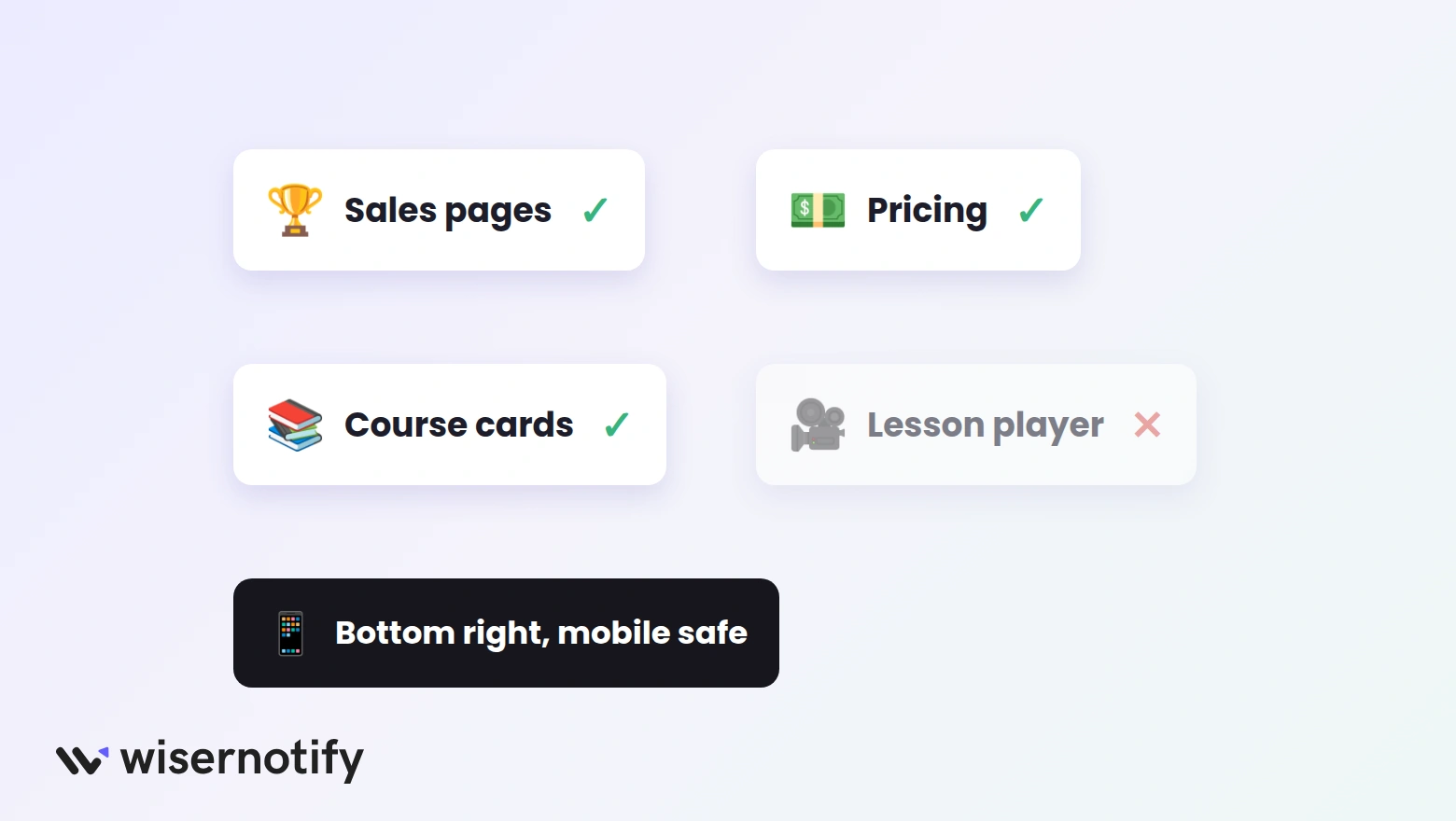
- Course sales pages. This is where buying doubts live, so the button earns the most chats here.
- Pricing and checkout questions. A fast answer on refunds or payment plans saves enrollments that would otherwise stall.
- Course library and landing pages. New visitors deciding between courses often need one nudge.
- Keep it off the lesson player. Enrolled students are there to learn, and a floating button over video controls annoys them.
On mobile, bottom right with a small size keeps the button clear of Thinkific’s navigation.
WhatsApp Widget Not Showing on Thinkific?
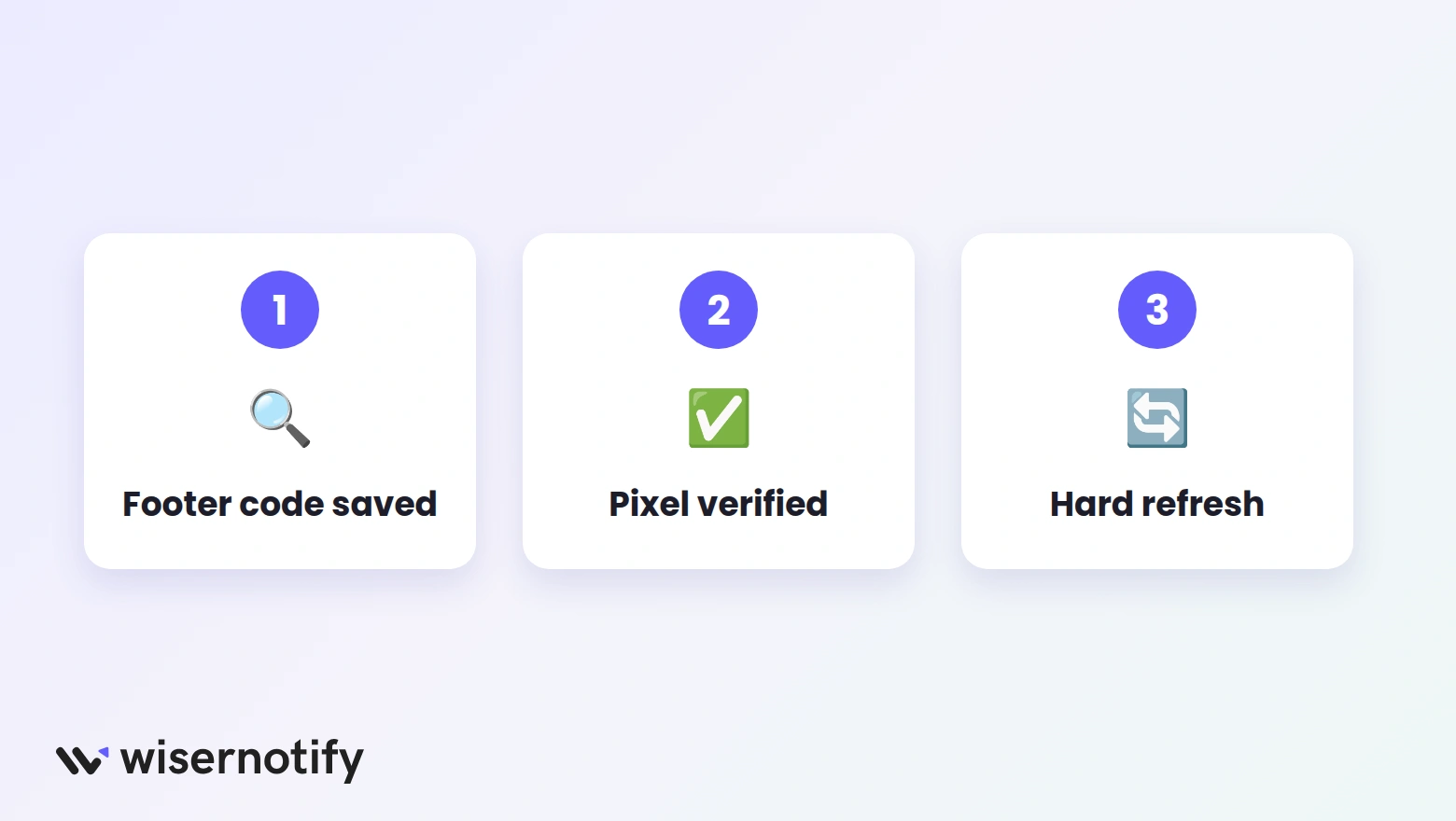
- The pixel never saved. Reopen Settings > Code & Analytics and confirm the full script sits in Site footer code, not in the header box of a single page.
- Verification was skipped. Run Verify pixel installation. If it fails, re-copy the pixel and paste again without trimming the script tags.
- The widget is off or mistargeted. Check it shows Published and On, and switch an Equals page rule to Contains.
- You are looking at a cached tab. Hard refresh or open a private window after every change.
Best Practices for Your Chat Widget
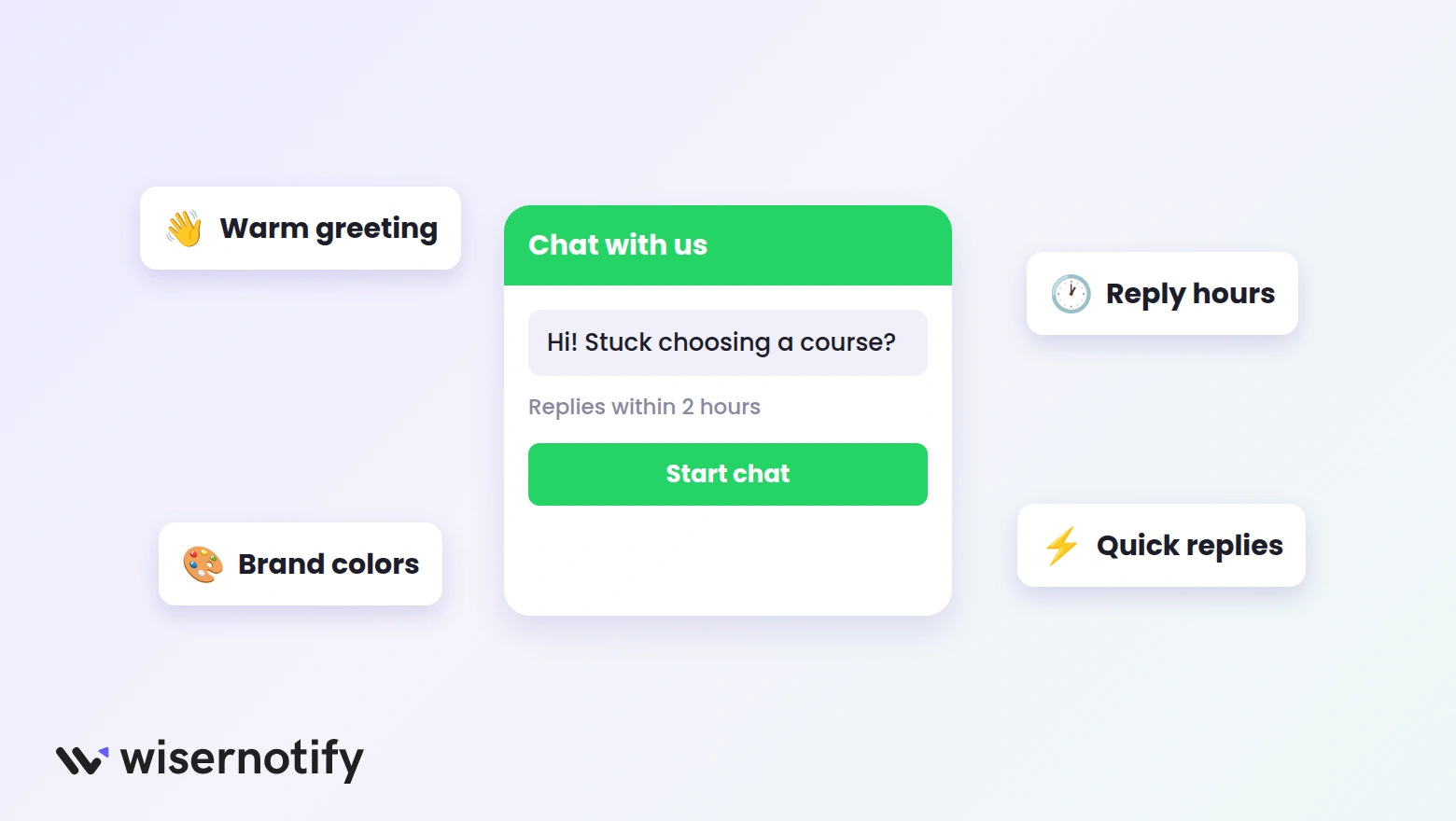
- Greet like a teacher, not a bot. “Hi! Stuck choosing a course? Ask me anything” out-performs a generic welcome.
- State your hours. A reply-time note under the greeting keeps expectations honest when you teach in a different timezone.
- Use WhatsApp Business. Quick replies and away messages answer the repeat questions about refunds and schedules for you.
- Stay on brand. Match the widget colors to your school so it reads as part of the site.
- Answer fast when it counts. Launch weeks and enrollment deadlines are when a 5-minute reply wins the sale.
Mistakes to Avoid
- Popping up instantly. A button that lands before the page loads feels aggressive. A short delay reads as helpful.
- Running it alongside other popups. One floating element per corner. Stacked widgets bury each other.
- Using a number nobody checks. An unanswered chat is worse than no chat. Route it to whoever answers chats day to day.
- Skipping the phone test. Most taps come from mobile, so test the exact tap-to-chat flow there, not just on desktop.
How to Measure the Widget’s Impact
WiserNotify counts views and clicks per widget, so you can see how many visitors open a chat from each page.
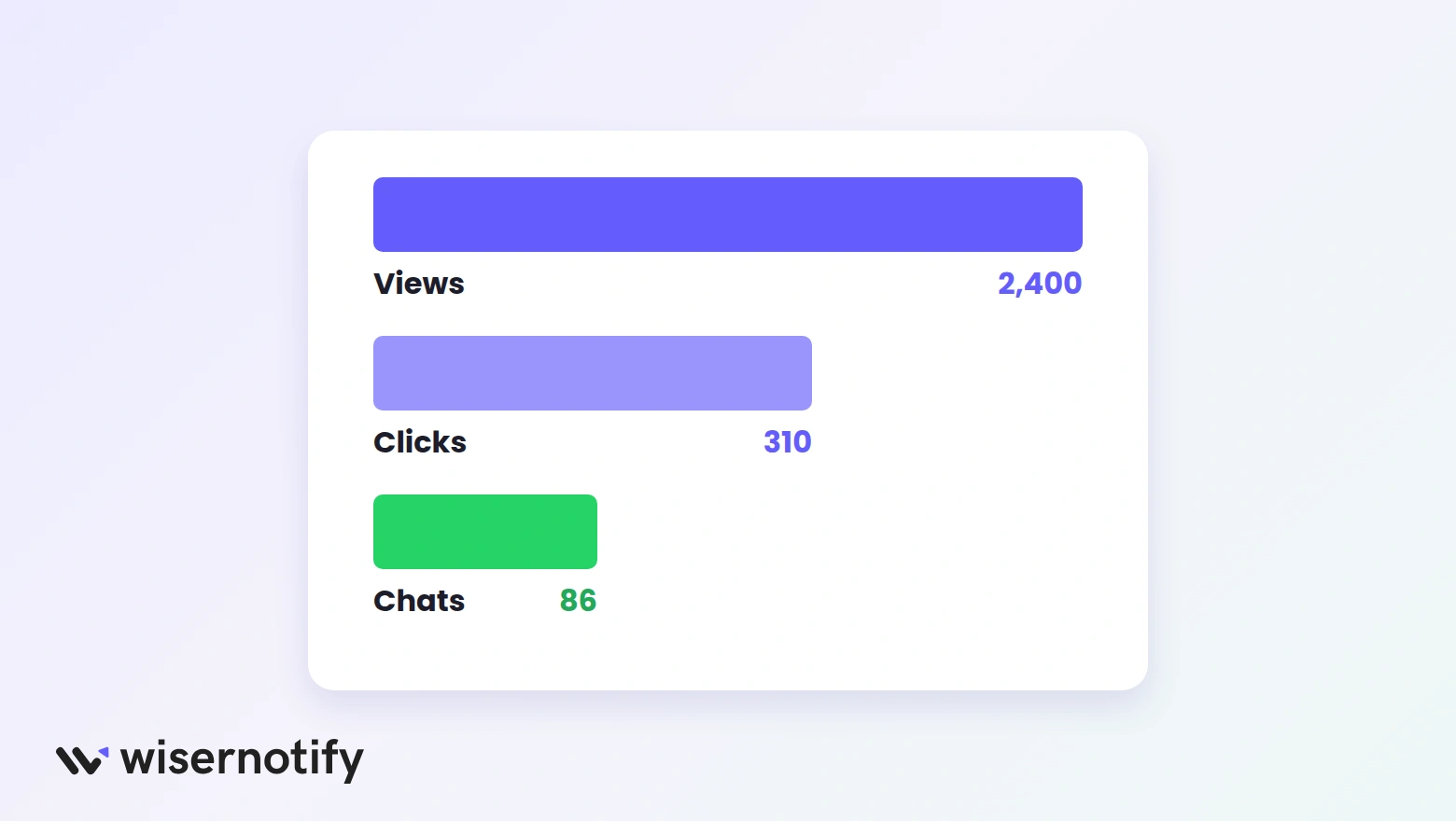
Pair that with your own numbers. Track how many chats mention a course before buying, and compare enrollments in the weeks before and after the widget went live. If clicks are high and chats stay empty, the greeting needs work, not the placement.
Wrap Up
Questions kill enrollments quietly. The student who could not ask simply closes the tab.
One pixel paste in Site footer code and one published widget give every visitor a direct line to you on an app they already trust.
Set it up, answer the first week of chats yourself, and watch which questions keep repeating. Those are your next FAQ page and your next sales-page fix.
Related Post
Frequently Asked Questions
Is it free to add a WhatsApp chat widget to Thinkific?
WiserNotify comes with a 7-day free trial, so you can set up and test the widget before paying. Thinkific itself charges nothing for the footer code paste.
Can I use my personal WhatsApp number for the widget?
Yes, any WhatsApp number works. A free WhatsApp Business account adds quick replies, away messages, and a business profile, which help with student support.
Does the widget work on mobile?
Yes. A tap opens the chat in the WhatsApp app with your greeting prefilled. Test the flow on your phone after publishing.
How do I track how many students use the widget?
WiserNotify counts views and clicks per widget in its analytics, so you can see which pages start the most chats.
Can I automate replies to common questions?
Yes. Set up quick replies and away messages in WhatsApp Business to cover repeat questions about refunds, schedules, and course access.

Krunal Vaghasiya is a marketing tech expert who boosts e-commerce conversion rates with automated social proof and FOMO strategies. He loves to keep posting insightful posts on online marketing software, marketing automations, and improving conversion rates.




 Capterra