
Easily Add WhatsApp Chat Widget to Landingi Website
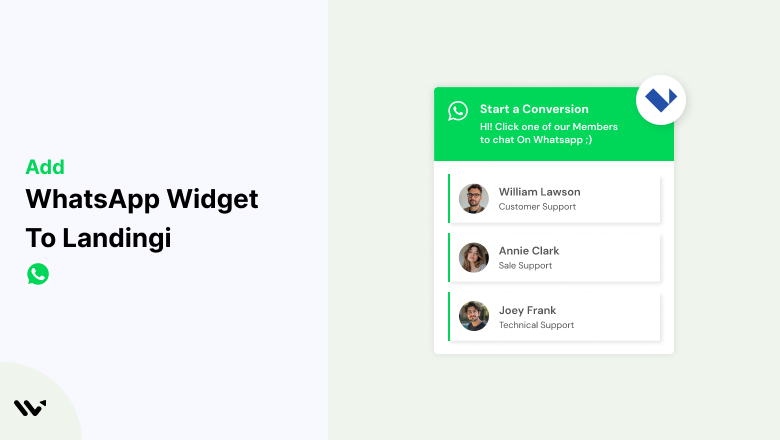
A visitor on your Landingi landing page has a question, doesn’t see a fast way to ask it, and leaves instead of converting. A WhatsApp chat widget puts a direct line to you right on the page, so that question gets asked instead of costing you the lead.
Landingi doesn’t have a native WhatsApp widget, but connecting a tool like WiserNotify adds one in a few minutes.
Running Multiple Landing Pages or A/B Tests?
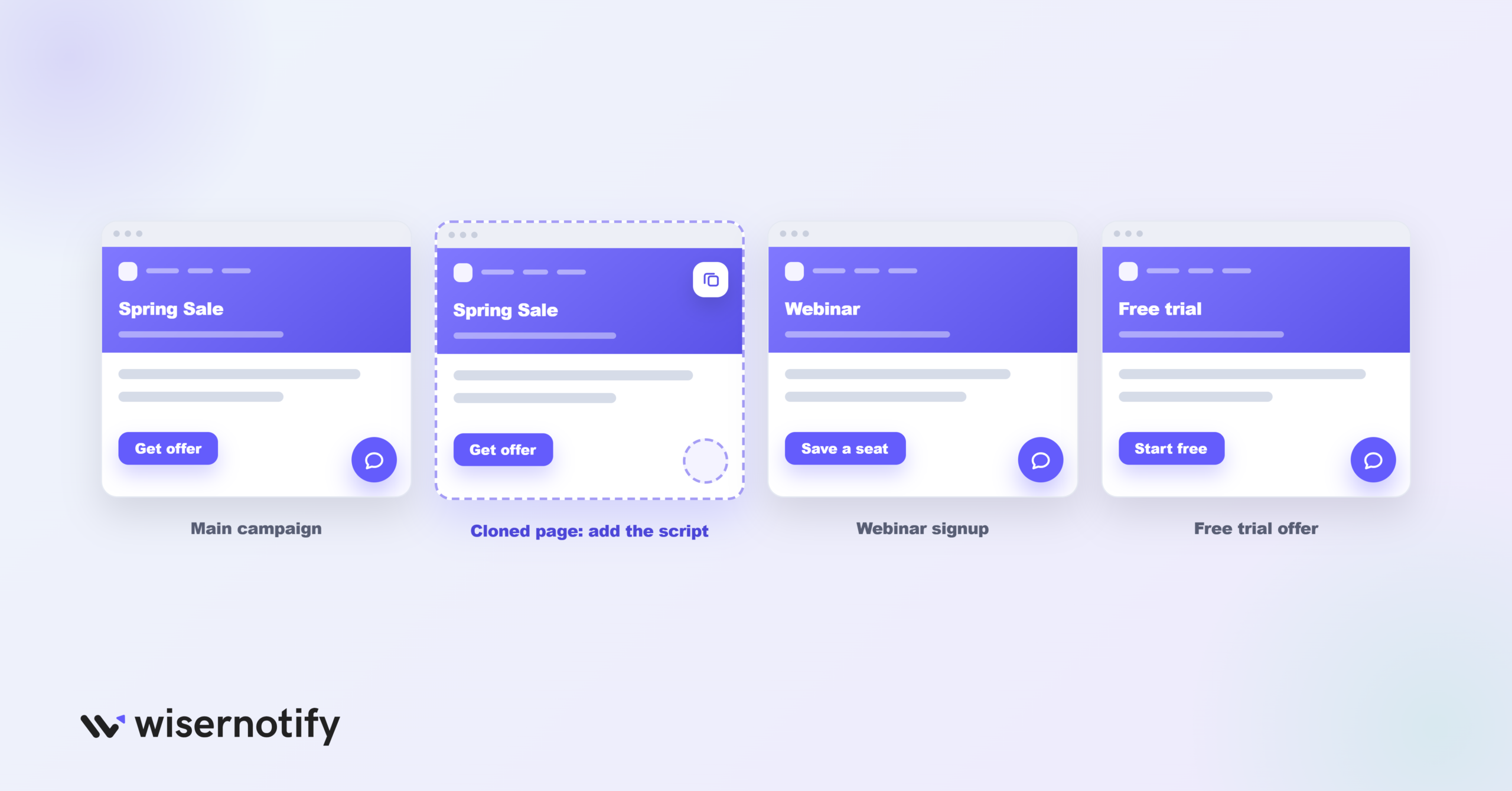
Unlike most platforms, Landingi adds the WiserNotify pixel one page at a time through each page’s own JavaScript Code section, not as a single site-wide setting. That’s easy to overlook if you’re managing several campaigns.
If you clone a page to build a new variant or launch a fresh campaign, don’t assume the script carried over. Check the new page’s JavaScript Code section and add it there too if it’s missing; otherwise, the widget simply won’t show up on that page.
How to Add a WhatsApp Chat Widget to Landingi
The widget-building part of this walkthrough matches the video below; the Landingi-specific installation steps are written out beneath it.
Step 1: Get Your WiserNotify Pixel Code
- Sign up for WiserNotify. Create a free account at wisernotify.com, or log in if you already have one, then go to the Install Pixel page and click Copy Code.

Step 2: Add the Pixel Code to Landingi
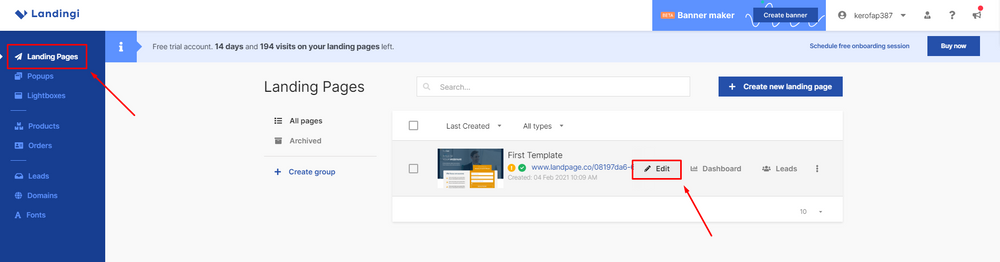
- Log in to Landingi, go to Landing Pages, and click Edit on the page you want to add the pixel to.
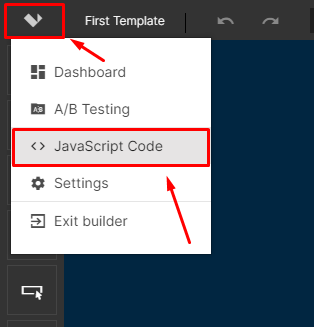
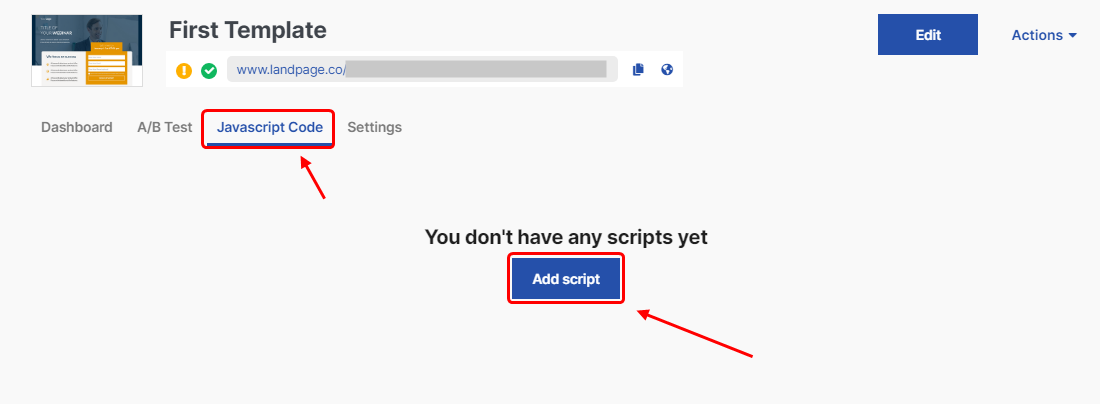
- Click the menu icon in the top left of the editor and select JavaScript Code.
- Click Add script.
- Name it, paste the pixel code into Content, set Position to Head, set Page to Both, keep Enabled checked, then click Add.
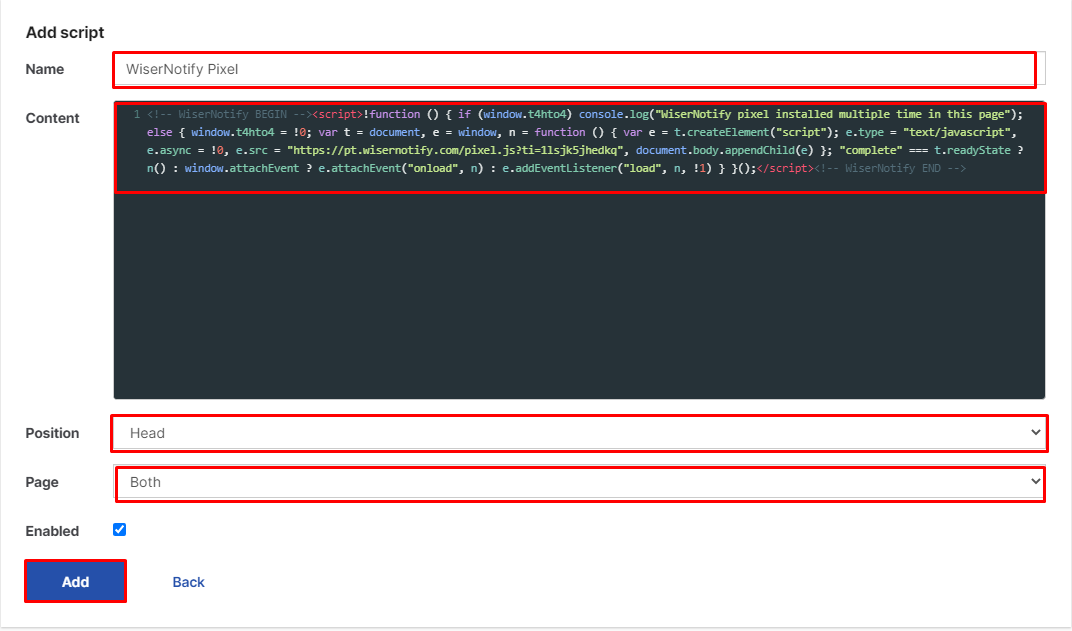
Repeat this on every landing page where you want the widget to appear. See the full Landingi integration guide for more detail on this step.
Step 3: Verify the Install
- Visit your landing page once, then go back to the WiserNotify pixel page and click Verify pixel installation. You should see a “Pixel Active” message.

Step 4: Create and Customize the WhatsApp Widget
- In WiserNotify, click Widgets in the sidebar, select the Call To Actions tab, find WhatsApp, and click Add. Enter the website name and click Create and Customize.
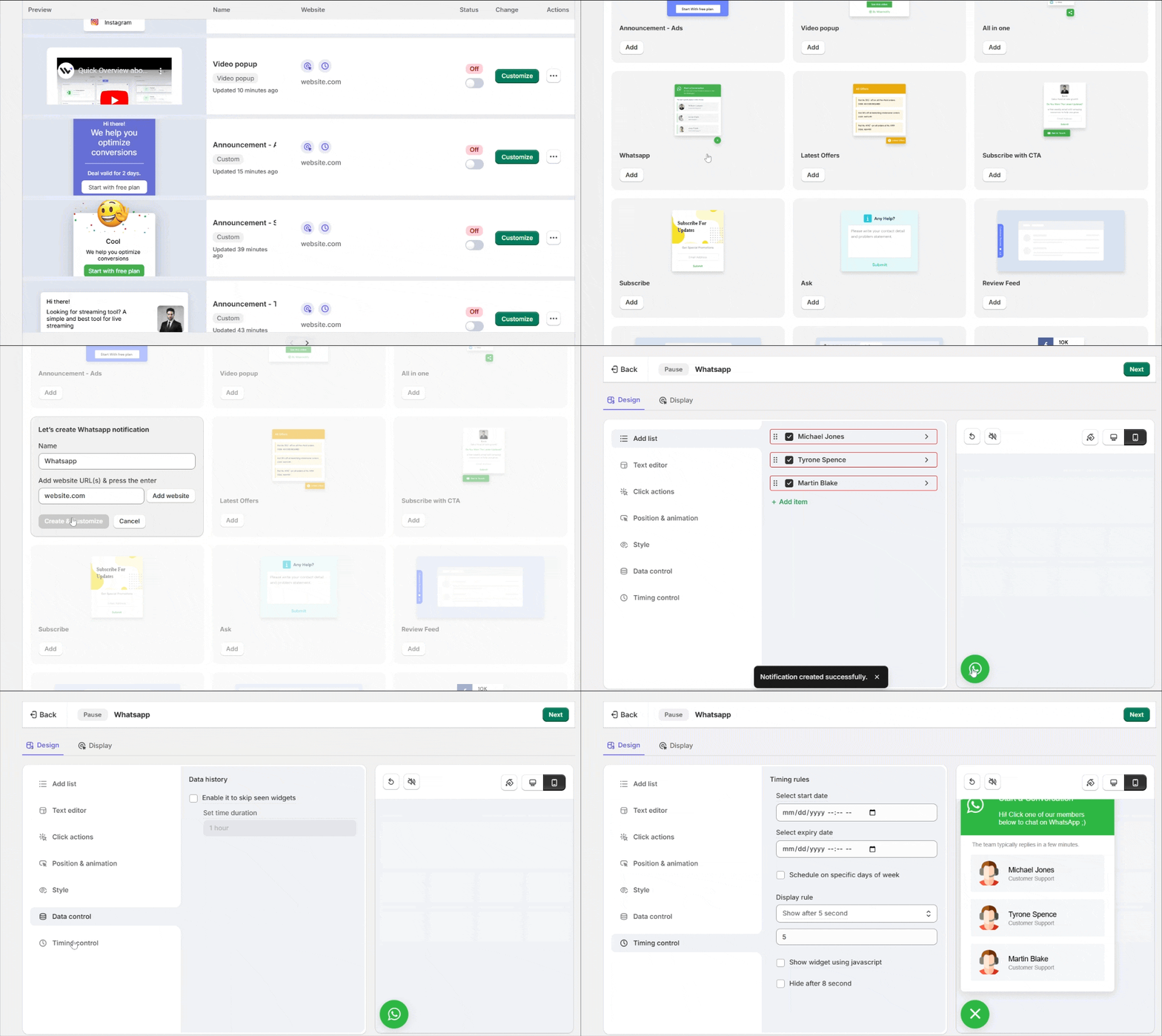
- Add your team. In Add List, add each rep’s WhatsApp number, avatar, name, and a message that auto-sends with the page URL when clicked.
- Set the text. In Text Editor, add a heading and a short welcome message.
- Style it. Use Click Actions, Position & Animation, and Style to set the icon, placement, and colors.
- Set the timing. In Timing Control, choose a trigger (delay, scroll, exit intent) and how long it stays visible.
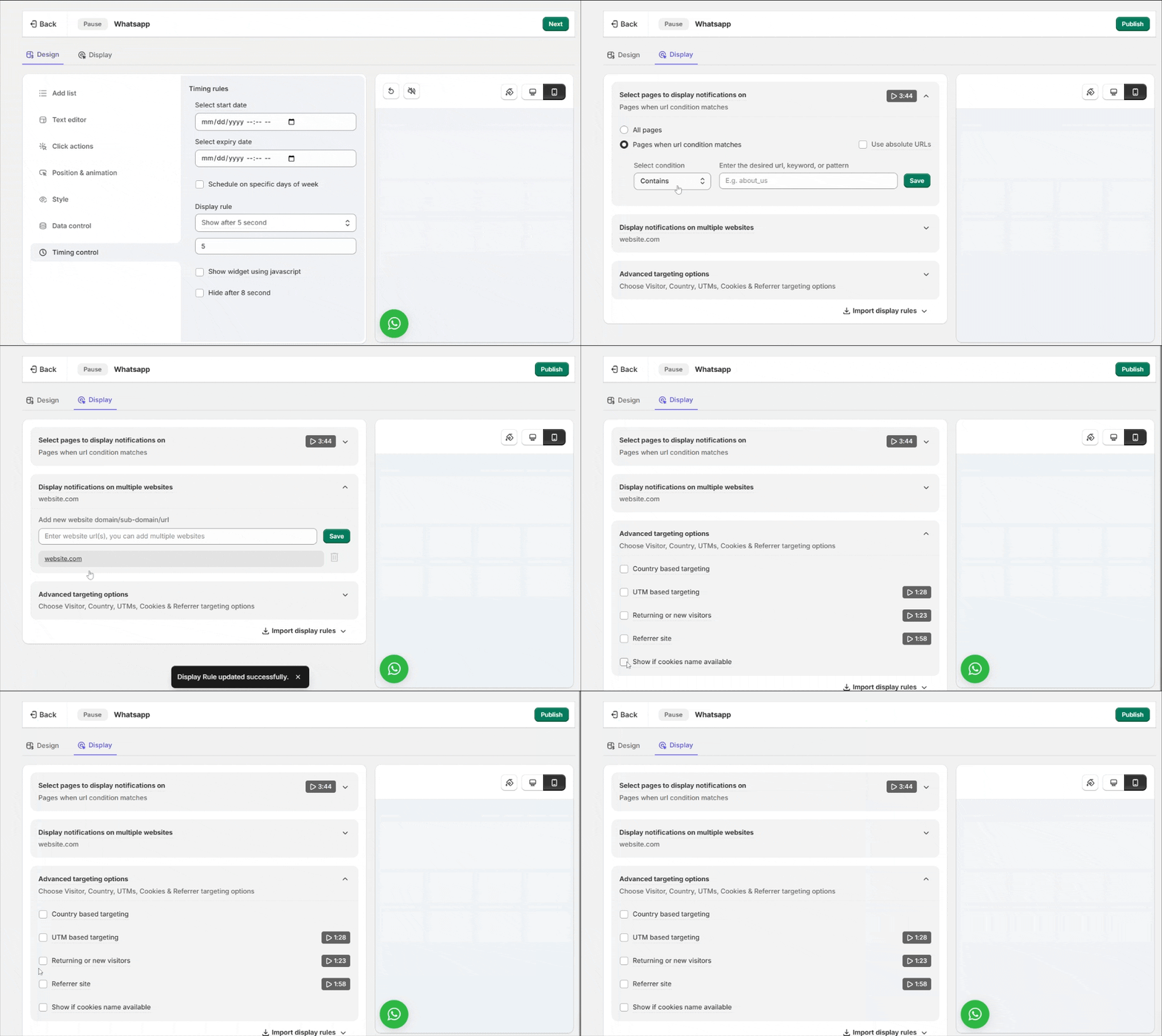
- Choose where it shows. In Display, target all pages or specific ones, and add advanced targeting if needed.
- Publish and test. Click Publish, then check your live page in a private browser to avoid cache issues. If it’s not showing, use the Troubleshoot option in the widget list.
See the full WhatsApp widget guide for every option in this editor.

Boost Conversion Instantly
Add Social Proof & Urgency to your website
Troubleshooting: Widget Not Showing Up?
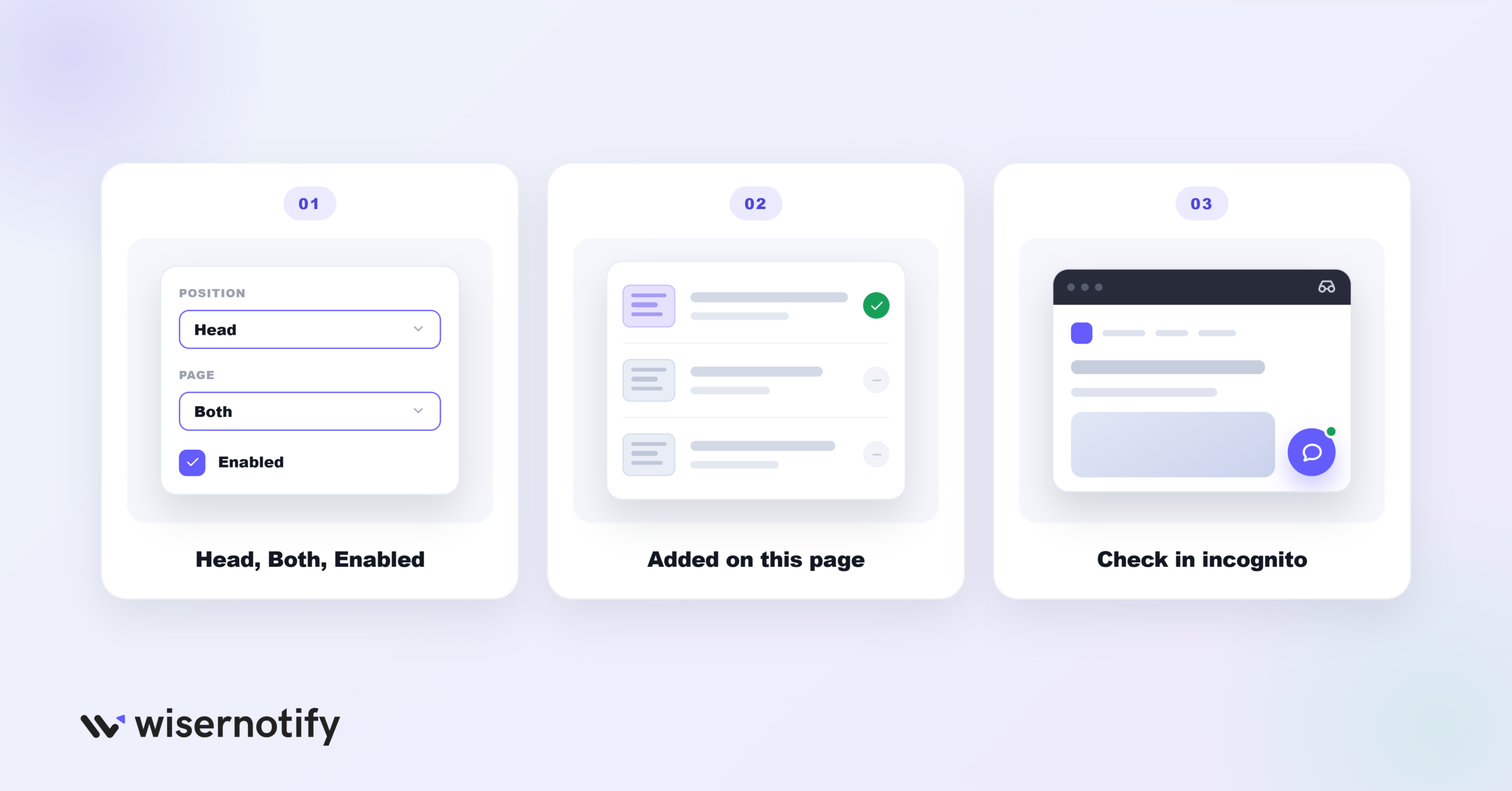
A few Landingi-specific gotchas cause most setup issues:
- Wrong page or position setting: in the script form, double-check that Position is set to Head and Page is set to Both, not just one option.
- Script left disabled: make sure the Enabled checkbox is ticked. A saved but disabled script won’t load.
- Only added to one page: since the script is per page, confirm the specific page you’re testing has it added.
- Browser cache: check your result in a private or incognito window, since a cached page can hide the widget even after a correct install.
Still stuck? Use the Troubleshoot option in your WiserNotify widget list, or reach out to WiserNotify’s live chat support.
Best Practices for Your WhatsApp Chat Widget
- Put it somewhere obvious: a bottom corner works well, since visitors scanning a landing page will notice it there. Pairing it with testimonials on Landingi reinforces the same trust signal.
- Open with something warm: a line like “Questions before you sign up? We’re happy to help” reads a lot friendlier than a bare chat icon.
- Make it look like it belongs: match the colors and style to your landing page so it doesn’t feel bolted on.
- Say when you’re around: a note about your hours saves people from wondering why nobody answered right away.
- Run it through a business account: it comes with quick replies and an away message, and it looks more legitimate than a personal number.
- Glance at the numbers now and then: your WiserNotify dashboard will show you whether visitors are clicking it.
Common Mistakes to Avoid
- Chatting from a personal number: it works, but a business account gives you tools a personal line just doesn’t have.
- Never testing it yourself: a widget you haven’t checked might be broken or invisible on someone’s phone.
- Piling on too many popups: one chat widget is helpful; several overlapping widgets on the same landing page just annoys people.
- Leaving it unanswered for hours: without some kind of quick reply set up, people give up waiting and move on.
- Adding the script to only one page: since Landingi’s script is set per page, remember to repeat the install on every landing page you want it on.
How to Measure Your Chat Widget’s Impact
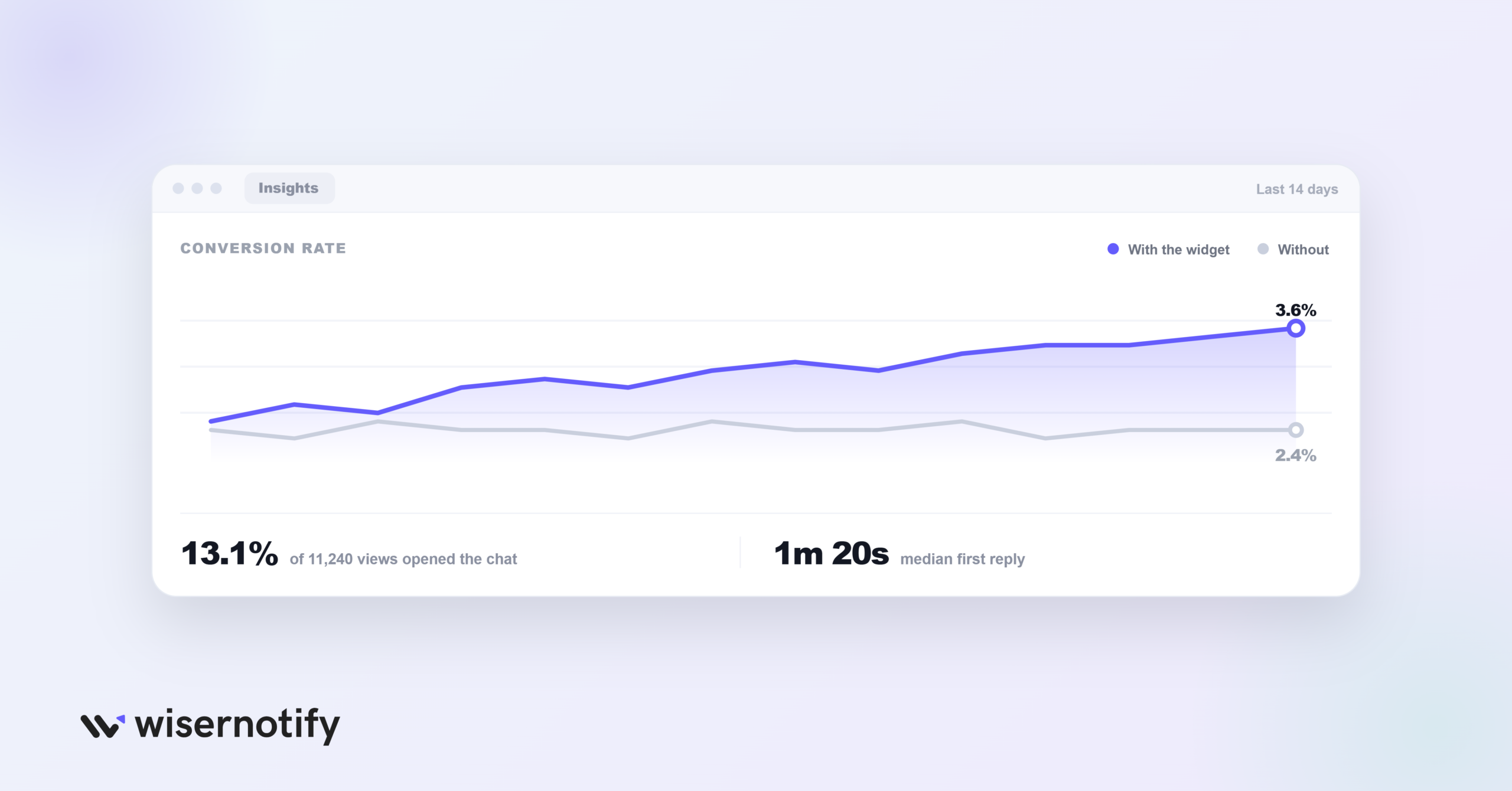
A widget that’s live doesn’t automatically mean people are using it.
- Widget views and clicks: both in your WiserNotify dashboard; together, they show whether people are noticing and opening the chat.
- Response time: a slow reply is one of the fastest ways to lose someone who was ready to convert.
- Conversion rate on pages with the widget: compare against pages without it over a week or two.
Build urgency
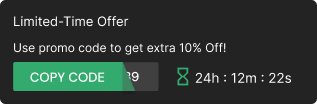
Add floating offers with countdown timer & coupon code.

Conclusion
Adding a WhatsApp chat widget to your Landingi pages is a simple step that puts real-time help in front of visitors right when they need it.
Connecting WiserNotify takes a few minutes per page, and once it’s set up, you can build and manage the widget entirely from the dashboard without touching code.
Use a proper business account, keep it easy to find, and keep an eye on how people are using it.
Related Posts:
Frequently Asked Questions
How can I add a WhatsApp chat widget to my Landingi landing page?
Install the WiserNotify pixel via Landingi’s JavaScript Code option on each landing page, then create a WhatsApp widget from the Call To Actions tab in your WiserNotify dashboard. No custom code needed beyond pasting the pixel once per page.
Can I use my personal WhatsApp number for the chat widget?
Yes, and it’s recommended. A WhatsApp Business account gives you quick replies, away messages, and a proper business profile that a personal number doesn’t have.
Does the WhatsApp widget work on mobile devices?
Yes, the widget editor lets you set separate animation and position settings for mobile and desktop.
How can I track visitor interactions on WhatsApp?
Your WiserNotify dashboard shows widget views and clicks. For replies and response times, check WhatsApp Business’s own analytics.
Can I automate responses in the WhatsApp chat widget?
That part is handled in WhatsApp Business itself, not in WiserNotify. Set up quick replies and away messages there so people get an immediate response even outside your hours.

Krunal Vaghasiya is a marketing tech expert who boosts e-commerce conversion rates with automated social proof and FOMO strategies. He loves to keep posting insightful posts on online marketing software, marketing automations, and improving conversion rates.




 Capterra