
How to Add Testimonials to Your Website (Any Platform, 2026)

Adding testimonials to a website takes two decisions. Where the testimonials come from, and how they get onto the page.
The fastest route on any site is a review widget. You collect or import testimonials once, pick a layout, and paste one embed code. The widget updates itself as new testimonials arrive.
Website builders also ship their own testimonial blocks, and hand-coded HTML still works for a handful of quotes. This guide covers all three, plus guides for 20 platforms and where on the page testimonials do the most work.
Three Ways to Add Testimonials to a Website
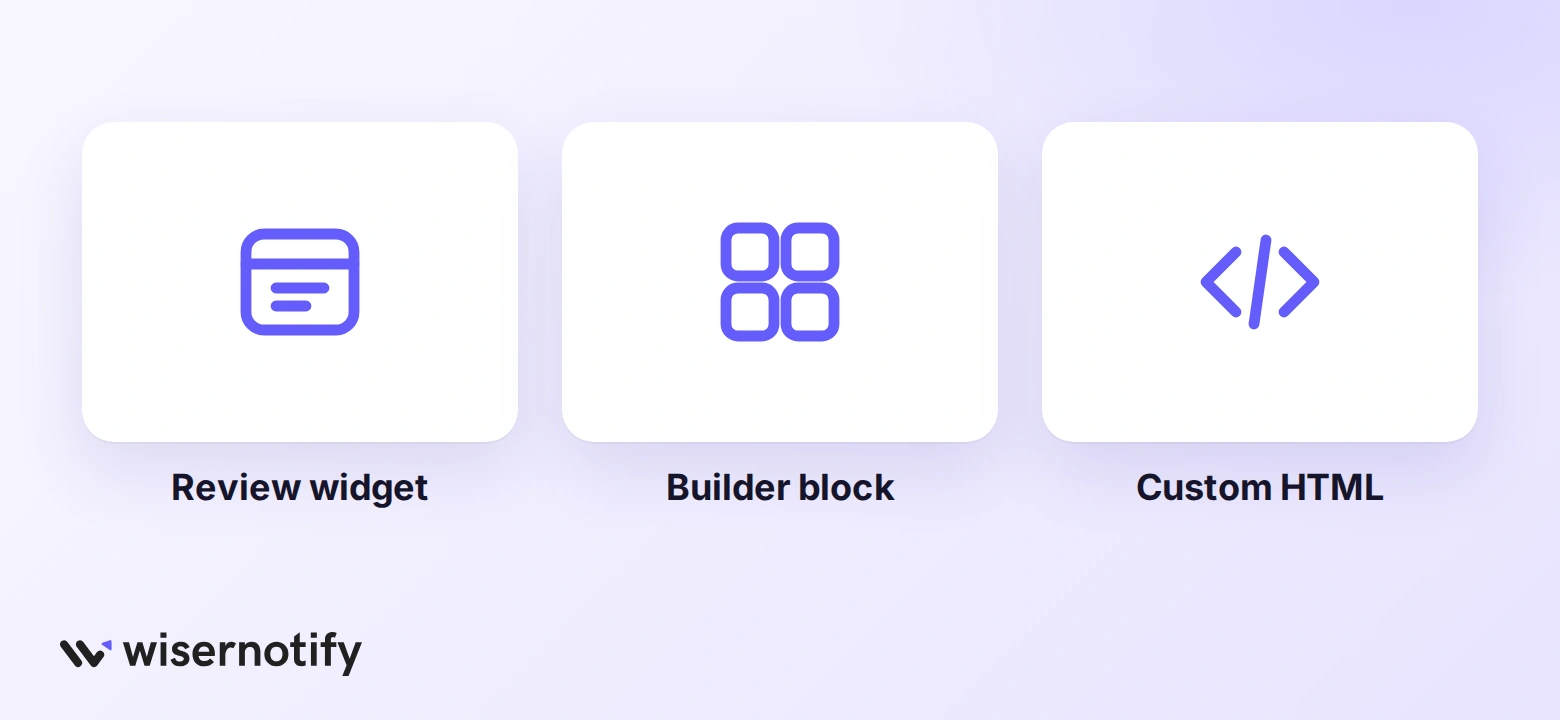
Testimonials reach a web page in one of three ways. A review widget pulls them from a dashboard, a builder block stores them inside the page editor, and plain HTML hard-codes each quote.
| Method | How it works | Best when |
|---|---|---|
| Review widget | Collect or import testimonials in one dashboard, then paste one embed code on any page | You want new testimonials to appear without editing the page |
| Builder block | Drag a Testimonials section into the page and type each quote in | You have a few fixed quotes and rarely change them |
| Custom HTML | Write the quote, name, and photo in HTML and style it with CSS | A developer owns the site and wants full control of the design |
The widget route wins for most sites because testimonials keep arriving. A block or hard-coded section shows the same five quotes until someone remembers to edit the page.
If you are still deciding what counts as a testimonial versus a review, read testimonial vs review first. Both can go into the same widget.
How to Add Testimonials With a Widget
These steps use the WiserReview carousel widget, which works on any website that lets you paste a script or an iframe. The same flow applies to its review wall and star rating widgets.
Step 1: Bring Your Testimonials In

- Open the WiserReview dashboard and go to Manage Reviews.
- Click Import Reviews.
- Pick a source such as Google, Facebook, or a CSV export from your old tool.
- Map the columns and confirm the import.
- Turn on review requests so new testimonials arrive after each purchase or project.
Step 2: Open the Carousel Widget
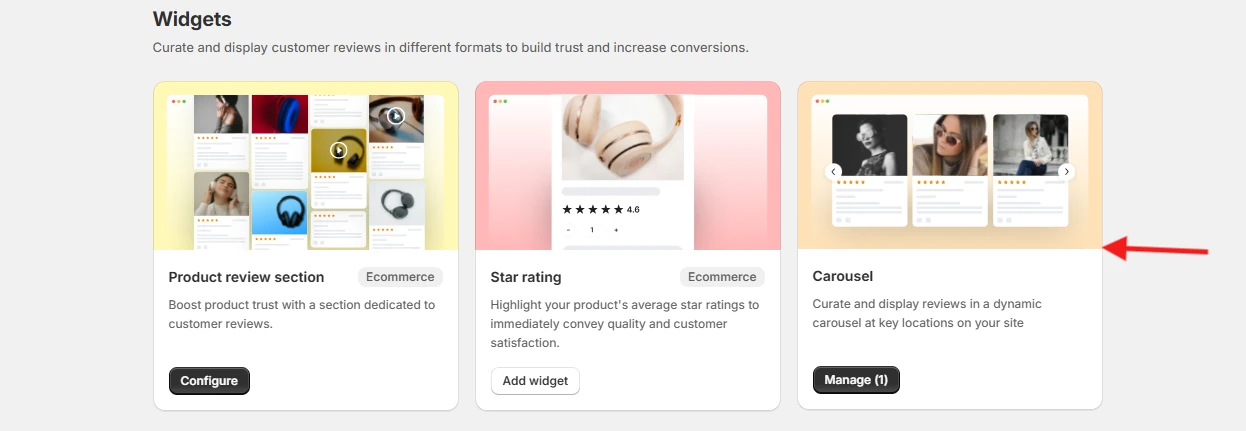
- Go to Widgets in the WiserReview dashboard.
- Find the Carousel card.
- Click Add widget, or Manage if a carousel already exists.
Step 3: Name the Carousel
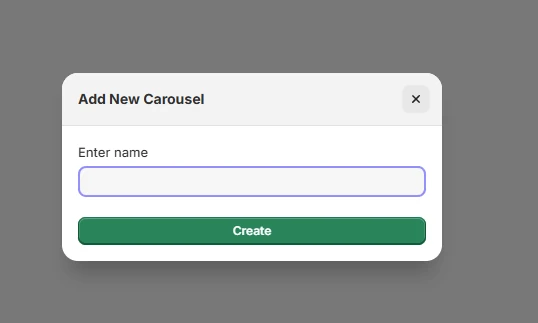
- Type a name that says where it will go, such as Homepage testimonials.
- Click Create.
Step 4: Pick Which Testimonials Show
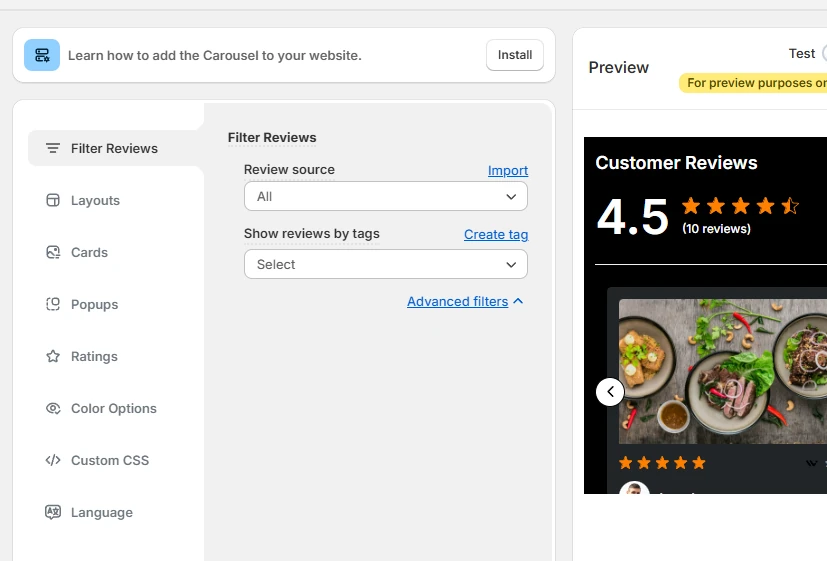
- Open Filter Reviews in the left menu.
- Choose a review source, or leave it on All.
- Pick a tag so each page shows the testimonials that fit it.
Step 5: Style It and Click Install
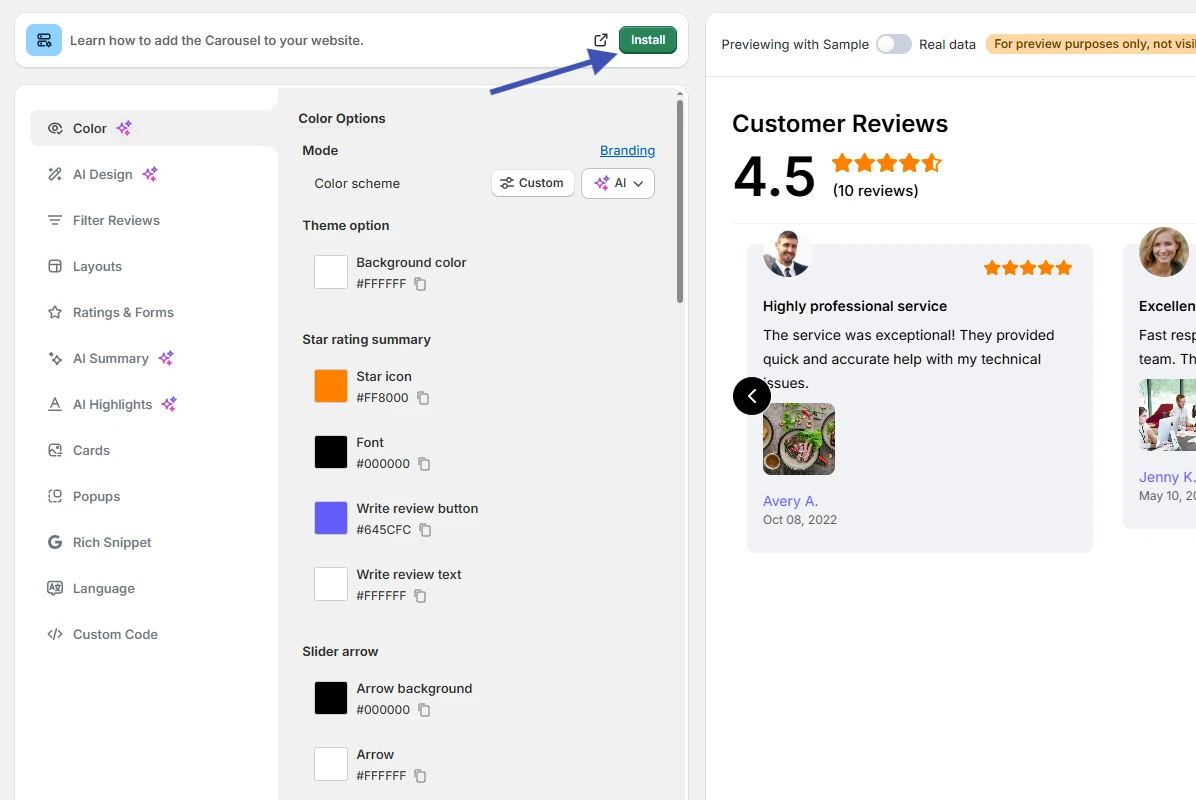
- Work through Layouts, Cards, and Color Options to match your site.
- Watch the preview on the right as you change settings.
- Click Install at the top of the page.
Step 6: Paste the Code on Your Page
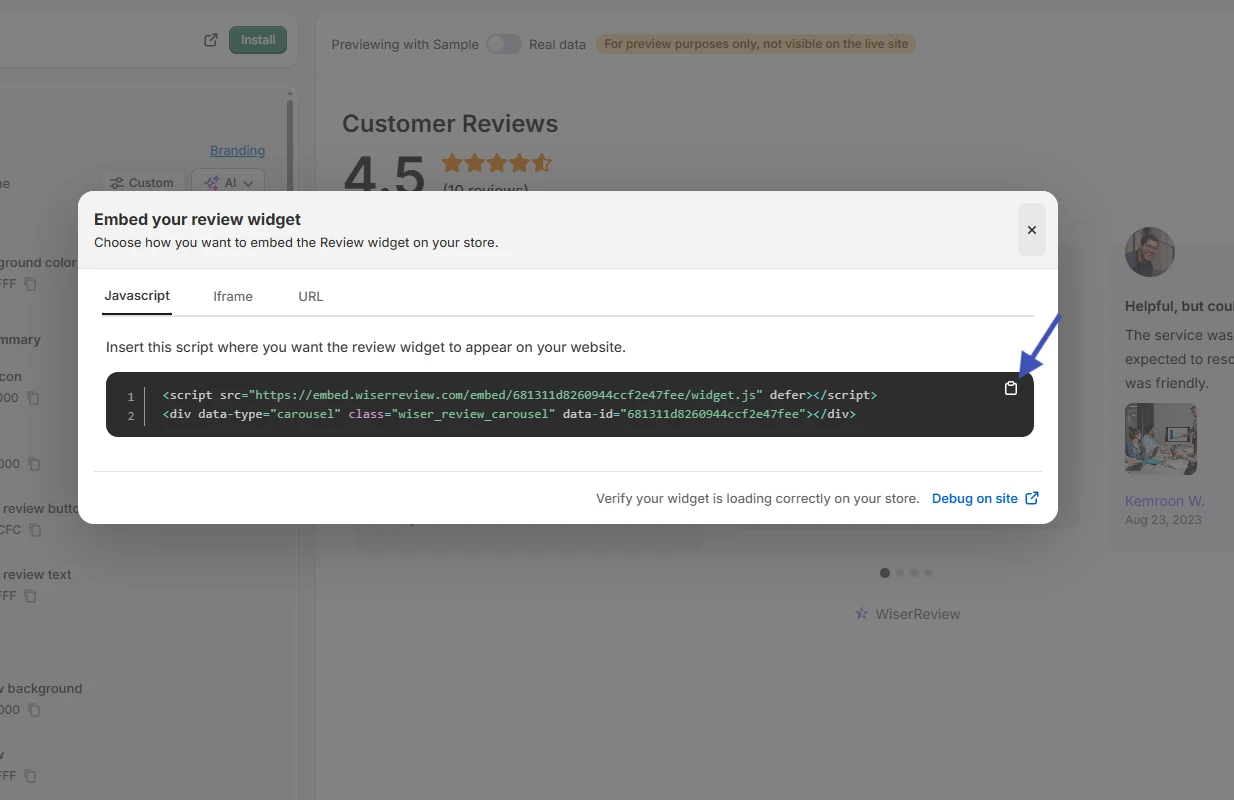
- Stay on the Javascript tab and copy the script.
- Paste it where the carousel should appear on your page.
- On a builder that blocks scripts, use the iFrame embed instead.
- Use the direct URL when you want to link to the testimonials from a button or an email.
- Publish the page and reload it to see the carousel.
If you use Shopify, Wix, WordPress, or another platform with its own WiserReview app, the install step is a one-click connection instead of a code paste. The platform guides below cover each one.

All your testimonials in one place
Collect reviews, manage every response, and display them where they matter most.
Add Testimonials on Your Platform

Every platform has its own place to paste code or install an app. Pick yours below for the exact clicks, with screenshots.
Website builders
- Add testimonials to Wix
- Add testimonials to Squarespace
- Add testimonials to Webflow
- Add testimonials to Weebly
- Add testimonials to Duda
- Add testimonials to Carrd
WordPress and other CMS platforms
- Add testimonials to WordPress
- Add testimonials to Elementor
- Add testimonials to OptimizePress
- Add testimonials to HubSpot
- Add testimonials to Joomla
- Add testimonials to Drupal
Ecommerce platforms
Course platforms and funnels
- Add testimonials to Kajabi
- Add testimonials to Teachable
- Add testimonials to Thinkific
- Add testimonials to Podia
- Add testimonials to GoHighLevel
WordPress users who would rather use a plugin can compare the WordPress testimonial plugins that still get updates.
How to Get Testimonials Worth Showing
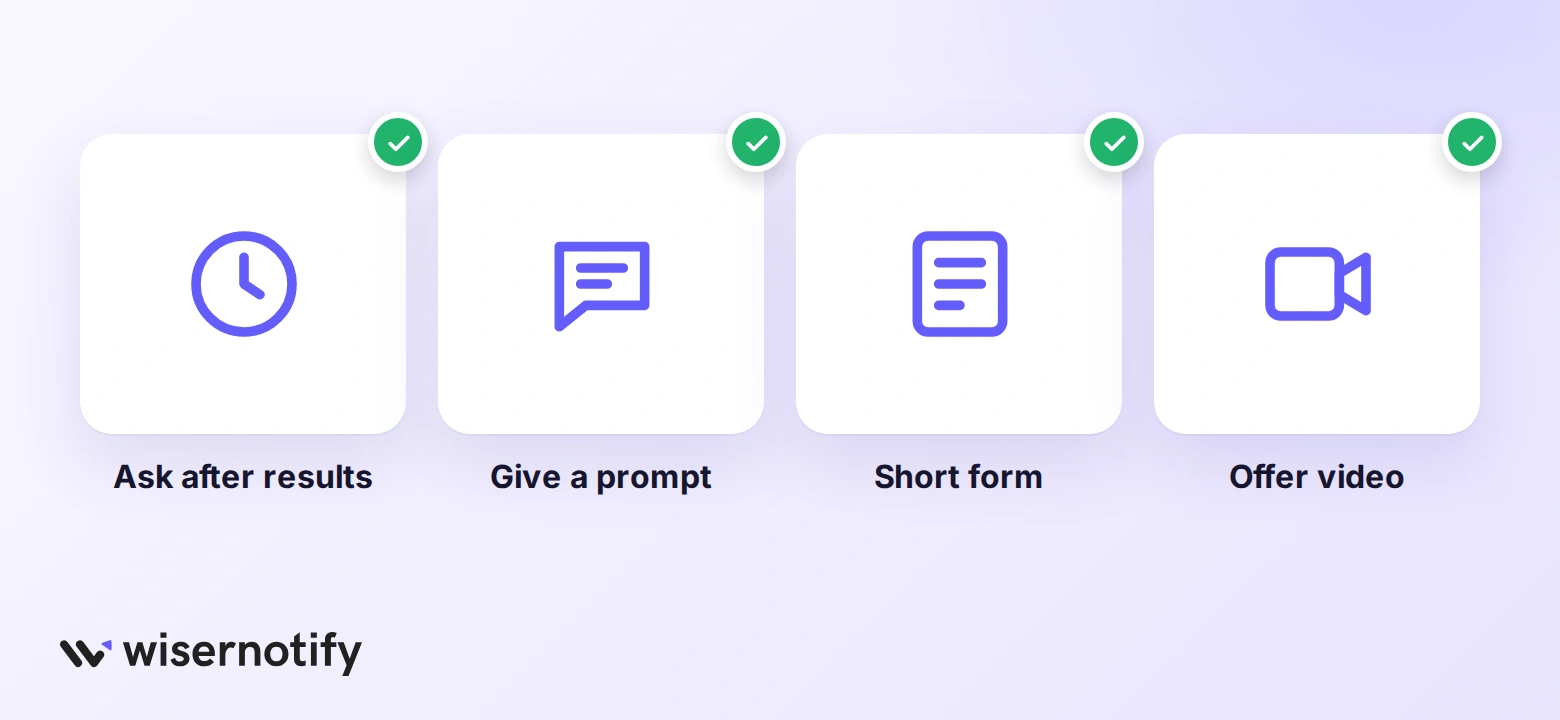
A widget only works if testimonials keep coming in. The ask matters more than the tool, so make it short and well timed.
- Ask right after the result: a delivered order, a finished project, or a completed course. Satisfaction fades within days.
- Give a prompt, not a blank box: “What changed after you started using this?” produces a specific sentence. “Leave a review” produces “Great!”
- Keep the form to two minutes: one rating, one text field, an optional photo or video, and a consent checkbox.
- Offer video as an option: some customers will record a thirty-second clip if the form makes it easy.
- Import what already exists: Google, Facebook, and marketplace reviews count. Pull them in so the widget is not empty on day one.
Automated requests by email, SMS, or WhatsApp handle the timing for you, which is how most stores keep a steady flow without chasing anyone.
Best Ways to Display Testimonials
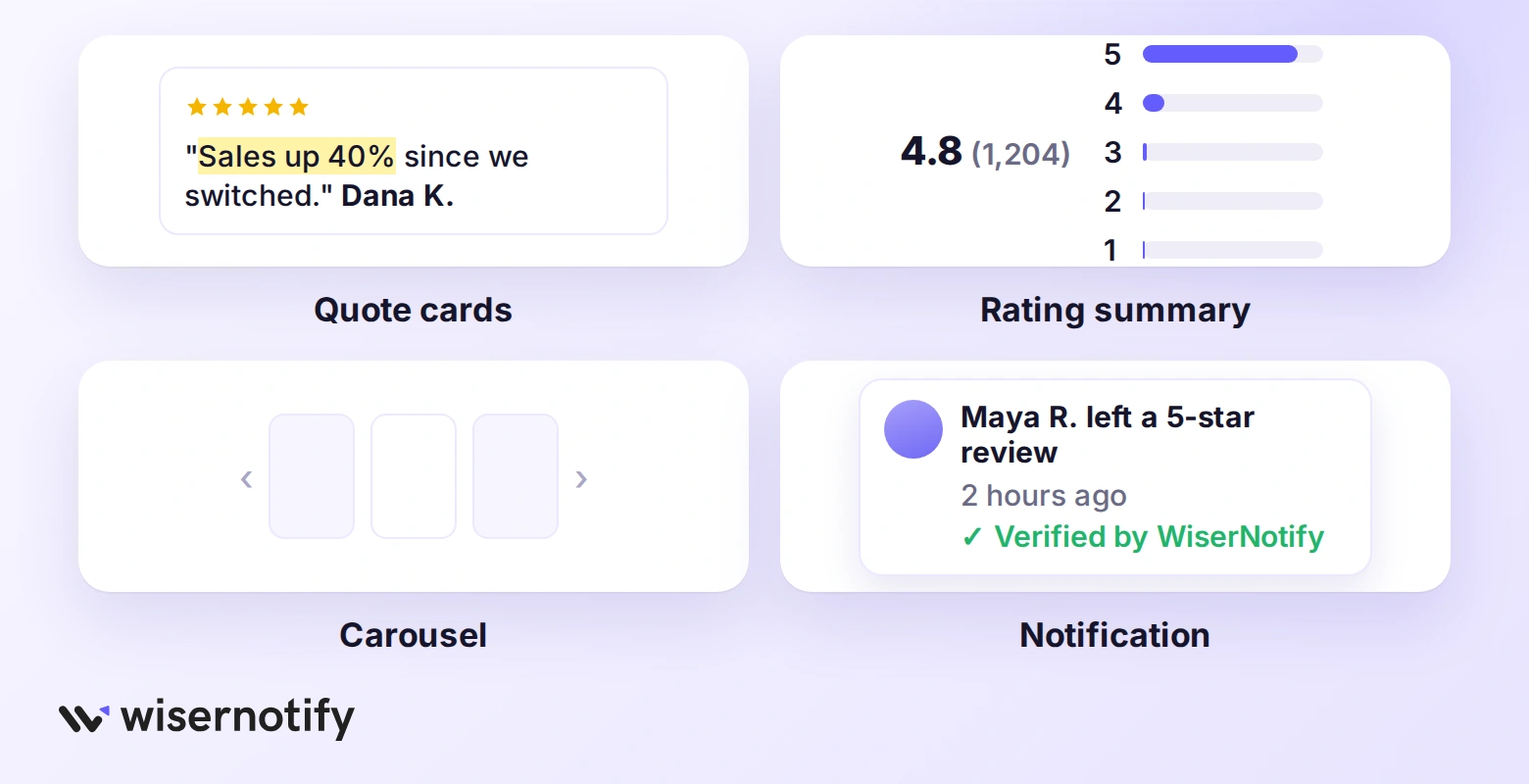
The best way to display testimonials depends on how many you have and where they sit. Quote cards suit a homepage, full reviews with ratings suit product pages, and a notification suits pages built around one call to action.
Quote Cards With a Highlight
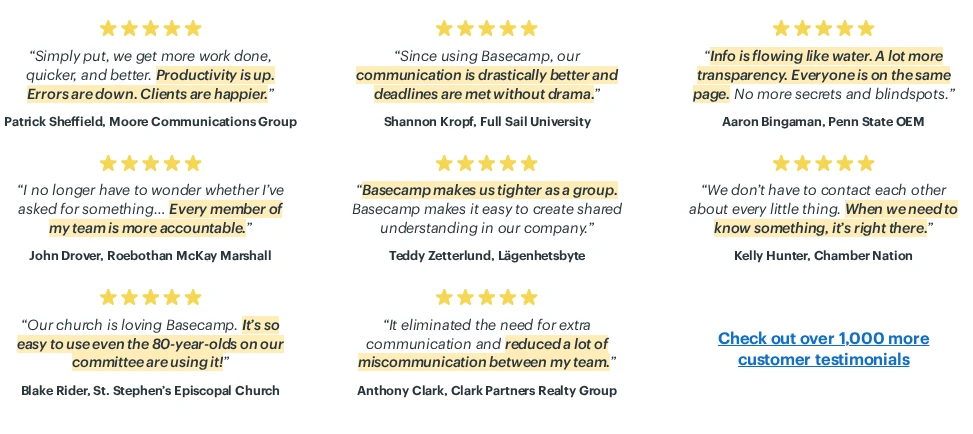
Basecamp runs a grid of short customer quotes on its homepage. Each card carries five stars, a name and company, and one phrase marked in yellow, so a skimmer reads the result before the sentence.
Copy the highlight idea. Mark the outcome in each quote and keep every card to two or three lines.
Full Reviews With a Rating Summary
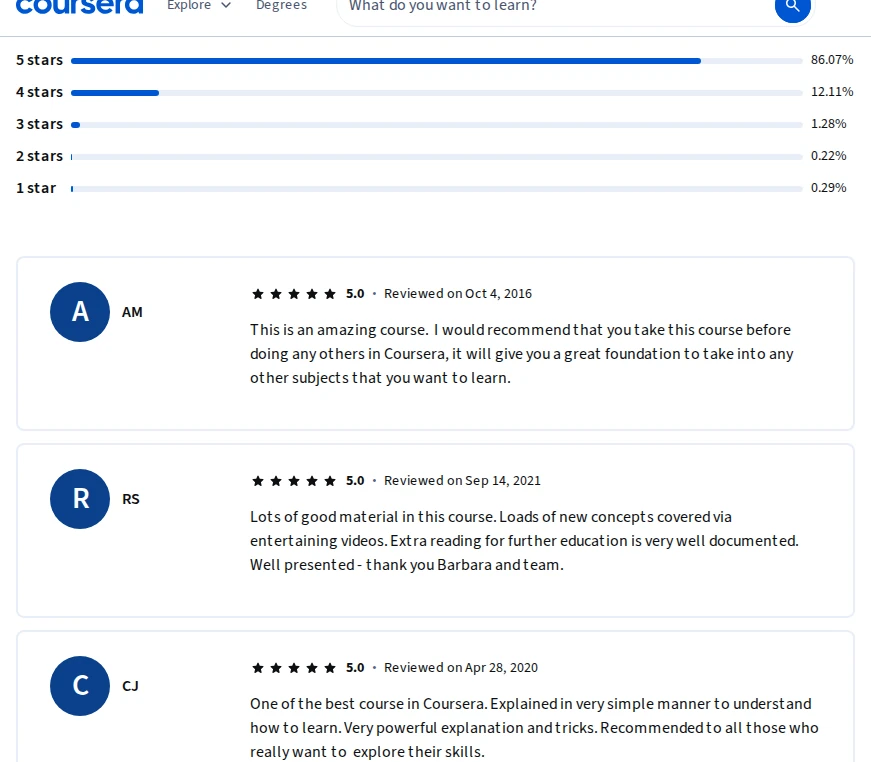
Coursera shows a rating breakdown above its learner reviews, then individual cards with the rating, the date, and the full comment.
The breakdown does the persuading. A visitor sees that most learners gave five stars before reading a single review. Use this layout on product, service, and course pages where people want detail.
A Carousel or Wall of Love
A carousel rotates a few testimonials in a small space, which suits a homepage band or a pricing page. A wall of love lists every testimonial on one page, so skeptical visitors can read until they are convinced.
WiserReview builds both from the same testimonial pool, so a quote added once shows up in every widget that uses its tag.
If you want the wall as its own page, see how to build a review section that looks like part of your site.
Video Testimonials
A short video of a customer explaining the result carries weight that text cannot. Keep each clip under a minute, add captions, and put the transcript on the page so the words count for search.
The numbers behind this format are in our video testimonial statistics.
A Review Notification
A notification shows one recent review in a small card in the corner of the page, such as “Maya R. left a 5-star review two hours ago.”
It works on landing pages and checkouts, where a full testimonial block would compete with the call to action.
WiserNotify pulls these from your review sources and shows them with a verified label, so the proof moves with the visitor instead of sitting in one section.
Build trust & FOMO
Highlight real-time activities like reviews, sales & sign-ups.


Where to Put Testimonials on Your Site
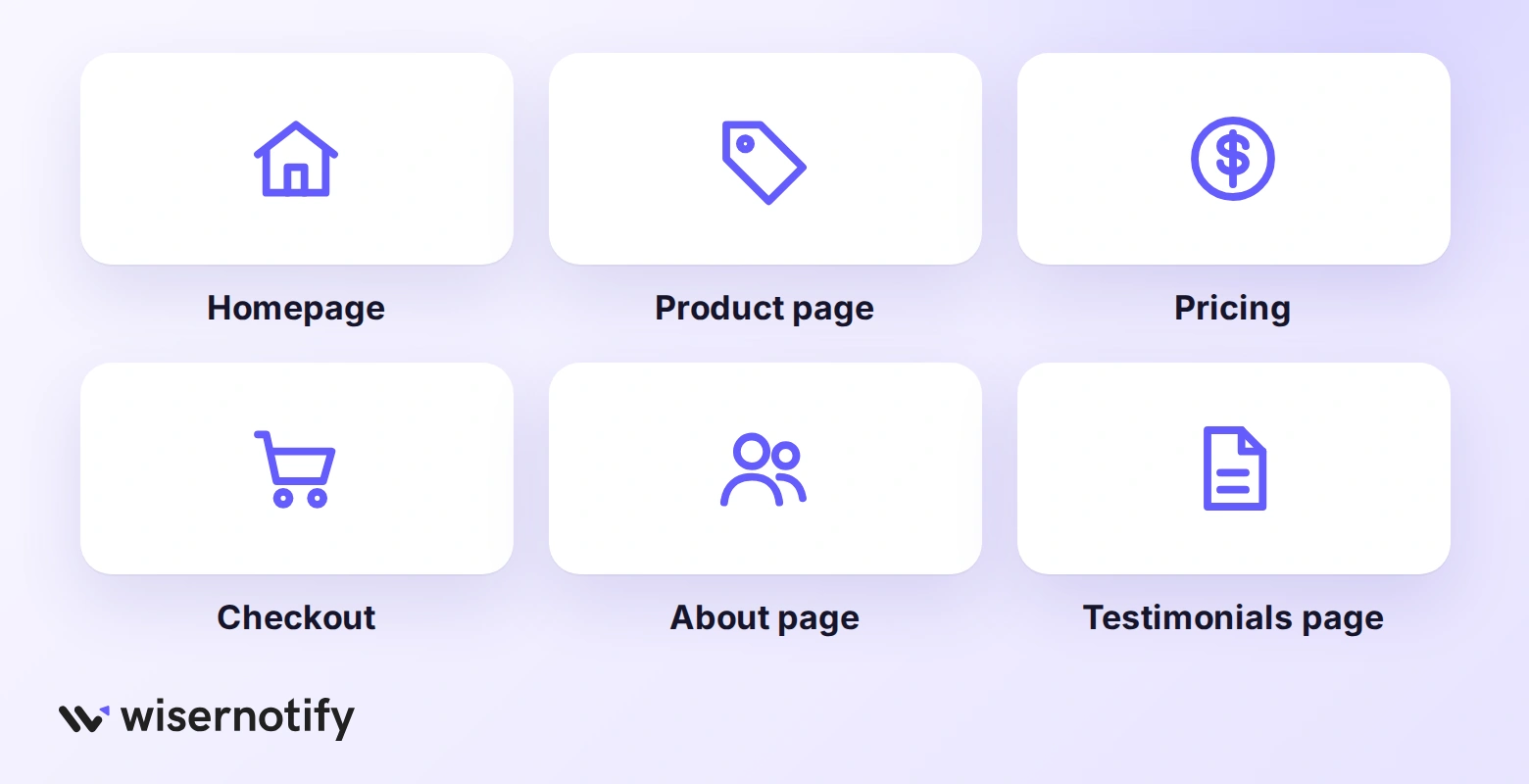
Placement decides whether a testimonial gets read. The rule is simple: put proof next to the decision it supports.
- Homepage, below the hero: three or four short quotes after your main promise, so the first scroll answers “is this real?”
- Product and service pages: full reviews with ratings next to the price and the add-to-cart or book button.
- Pricing page: one quote per plan from a customer on that plan, placed under the plan card.
- Landing pages: a single strong quote above the form, plus a notification for recent reviews.
- Checkout and sign-up: one line of proof near the payment or submit button, nothing that pulls attention away.
- About page: two or three quotes that mention the team or the experience, not the product specs.
- A dedicated testimonials page: the full wall, linked from the main navigation or footer.
For layouts that handle each of these spots, our testimonial examples show how real brands do it.
How Many Testimonials Should You Show?
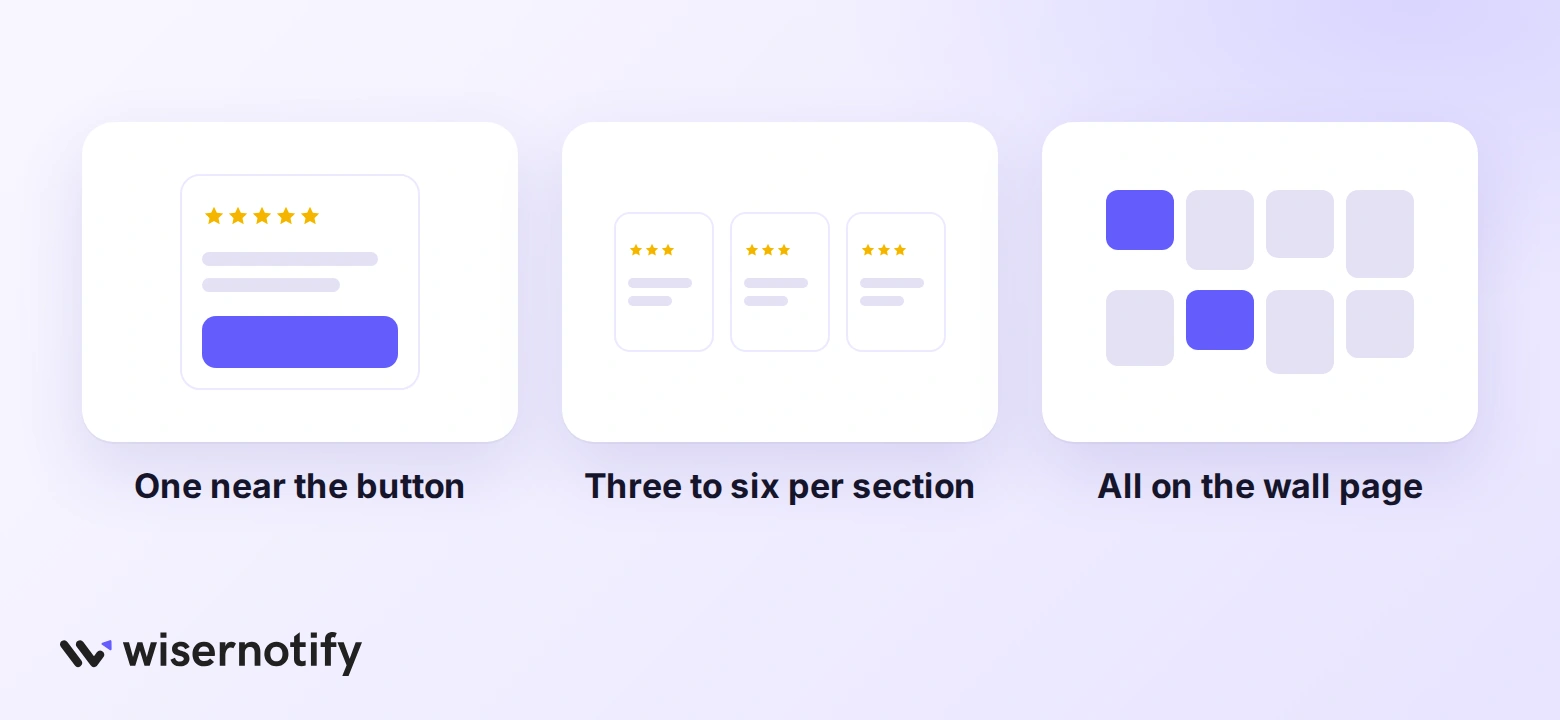
Show one testimonial where the visitor is about to act, three to six in a section that supports a claim, and all of them on a dedicated page. More than six in one block stops getting read.
A few rules keep the count useful.
- Match the testimonial to the page. A quote about shipping speed belongs near checkout, not on the About page.
- Rotate instead of stacking. A carousel shows ten testimonials in the space of one.
- Lead with the most specific quote. “Cut our onboarding time in half” beats “Great service” every time.
- Refresh the set when you get stronger ones. Dated testimonials read as a quiet business.
Our testimonial statistics cover how readers react to testimonial count and format.
Testimonials and SEO
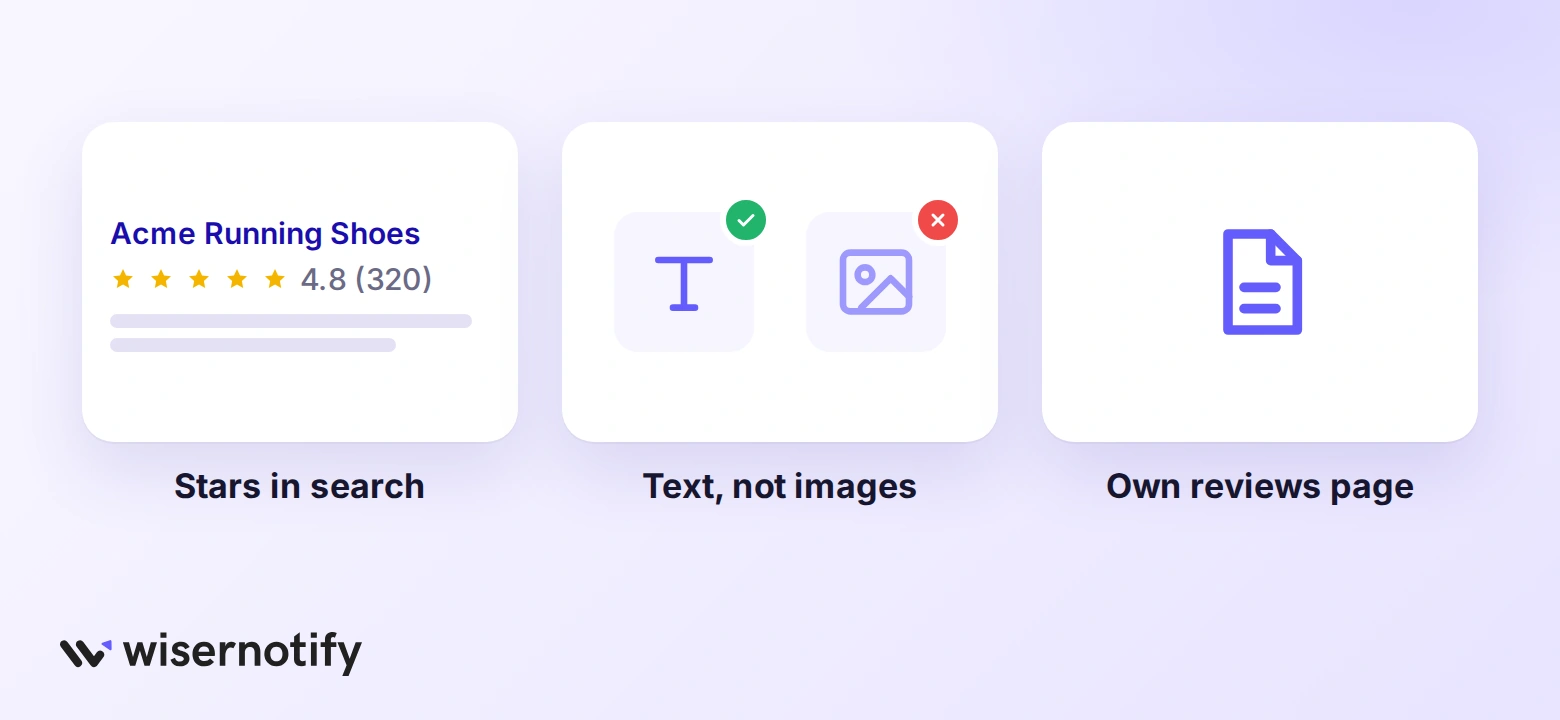
Testimonials help search in two ways. The text adds the words customers use to describe your product, and review markup can add star ratings to your search listings.
- Keep testimonials as text: a quote pasted in as an image is invisible to search engines.
- Use a widget that renders on the page: some embeds load reviews only after a click, which hides the words from crawlers.
- Add review schema on product pages: WiserReview adds the markup automatically, so ratings can show in search results.
- Skip schema on your homepage: Google treats a business rating itself on its own site as self-serving and will not show stars for it.
- Give the wall its own page: a dedicated testimonials page can rank for “[brand] reviews” searches.
Testimonials also work outside your site. Our guide to testimonial advertising covers reusing them in ads.
Build trust & FOMO
Highlight real-time activities like reviews, sales & sign-ups.

What to Check Before You Publish
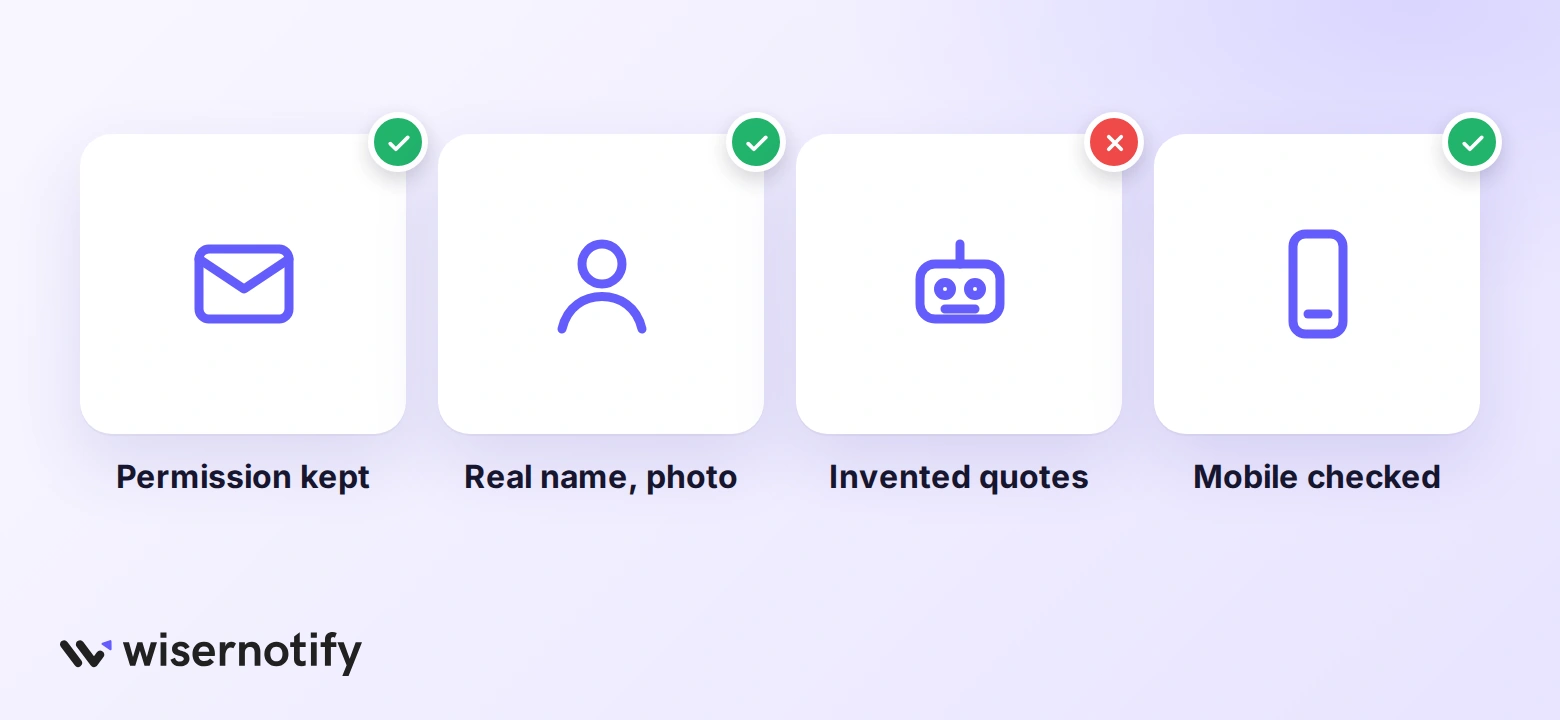
A testimonial that cannot be backed up does more harm than none. Run through these points before the page goes live.
- Permission on file: keep the email, form submission, or review that shows the customer agreed to be quoted by name.
- Nothing invented: the FTC rule on fake reviews bans made-up or AI-written testimonials and buying positive reviews, with fines per violation.
- Typical results: if a quote claims a result most customers will not get, say what a typical customer can expect.
- Real names and photos: use the customer’s own name, company, and photo, or none at all. Stock photos next to quotes read as fake.
- Mobile check: open the page on a phone. Carousels that cut off text or sliders that trap the thumb get skipped.
- Negative reviews handled: if your widget shows live reviews, decide how you reply to a bad one before it appears. Our guide on how to manage testimonials covers that workflow.
Wrap Up
Pick the route that fits how often testimonials arrive. A widget keeps the page current on its own, a builder block works for a fixed set of quotes, and HTML suits a developer-run site.
Then place each testimonial next to the decision it supports, keep the count small outside the dedicated page, and make sure every quote comes with permission and a real name.
The platform guides above cover the clicks for your builder.
Frequently Asked Questions
Can I add testimonials to a website without coding?
Yes. Builder blocks and widget iframes need no code, and most platforms have a one-click WiserReview app.
Are testimonials and reviews the same thing?
A review is left on a public platform in the customer’s words, while a testimonial is collected by the business and chosen for the site. Both can be shown with the same widget.
Should testimonials go on every page?
No. Put them where a decision happens, such as product, pricing, and checkout pages, and keep the full set on one testimonials page.
How long should a testimonial be?
Two or three sentences with one specific result reads best on a page, and a video clip should stay under a minute.
Do I need permission to use a customer's testimonial?
Yes. Keep the email, form submission, or review that shows the customer agreed to be quoted by name.

Krunal Vaghasiya is a marketing tech expert who boosts e-commerce conversion rates with automated social proof and FOMO strategies. He loves to keep posting insightful posts on online marketing software, marketing automations, and improving conversion rates.




 Capterra