
How to Add a WhatsApp Chat Widget to Google Sites (2026)
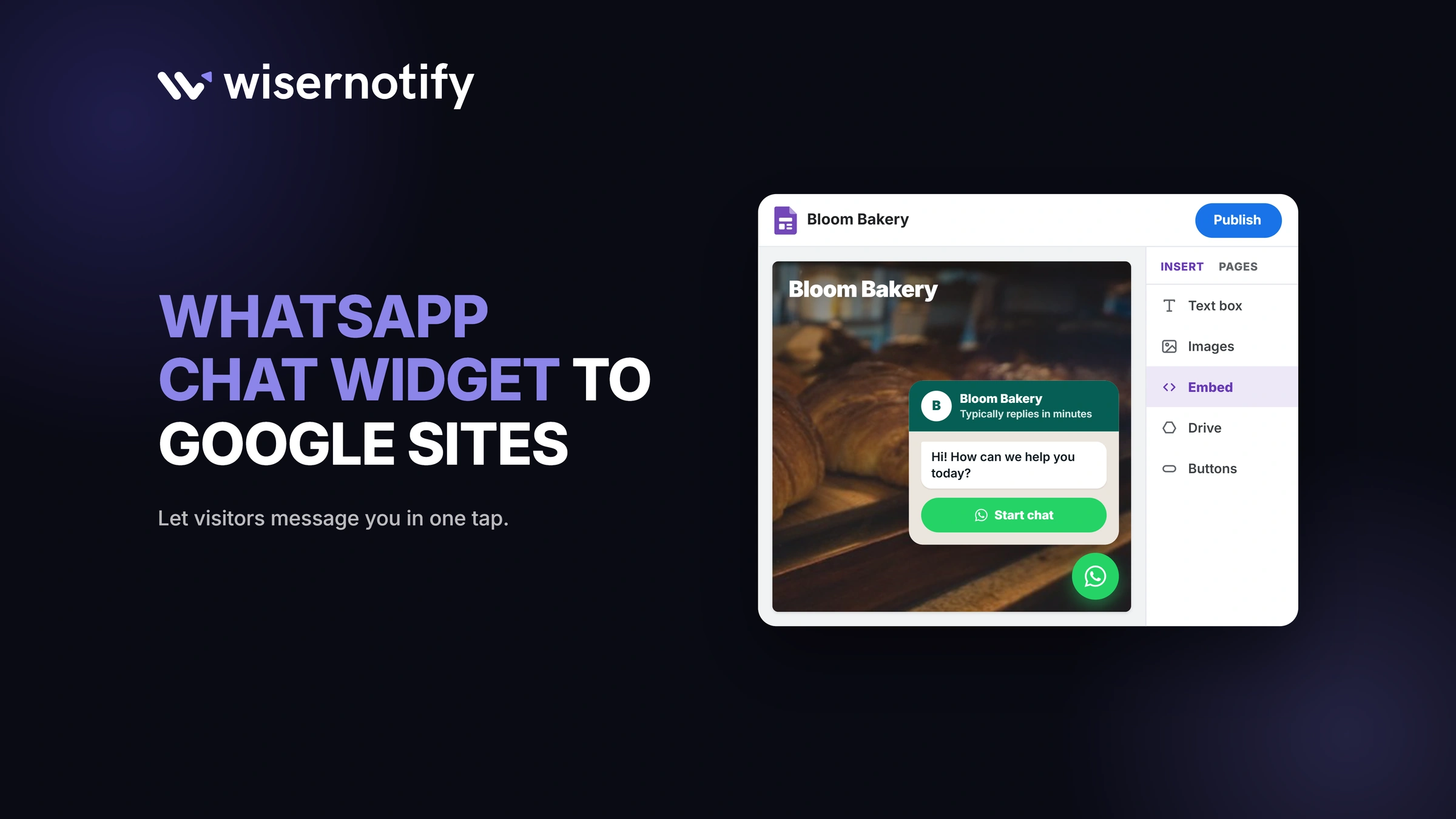
To put a WhatsApp chat widget on Google Sites, create the widget in WiserNotify, paste your WiserNotify code into an embed block in Google Sites, then size the block and publish.
Google Sites doesn't let you add scripts to every page, so the embed block is the only way in.
It also runs your code in a separate, sandboxed frame. That means the widget lives inside the block instead of floating over the whole page.
Below are the exact steps, plus how to place the block so the chat is easy to find.
Build trust & FOMO
Highlight real-time activities like reviews, sales & sign-ups.

How to Add a WhatsApp Chat Widget to Google Sites
You only paste one piece of code, and there's no theme to edit. Start a 7-day free trial, then follow the steps below. The video shows the widget setup in WiserNotify.
Step 1: Create the WhatsApp Widget
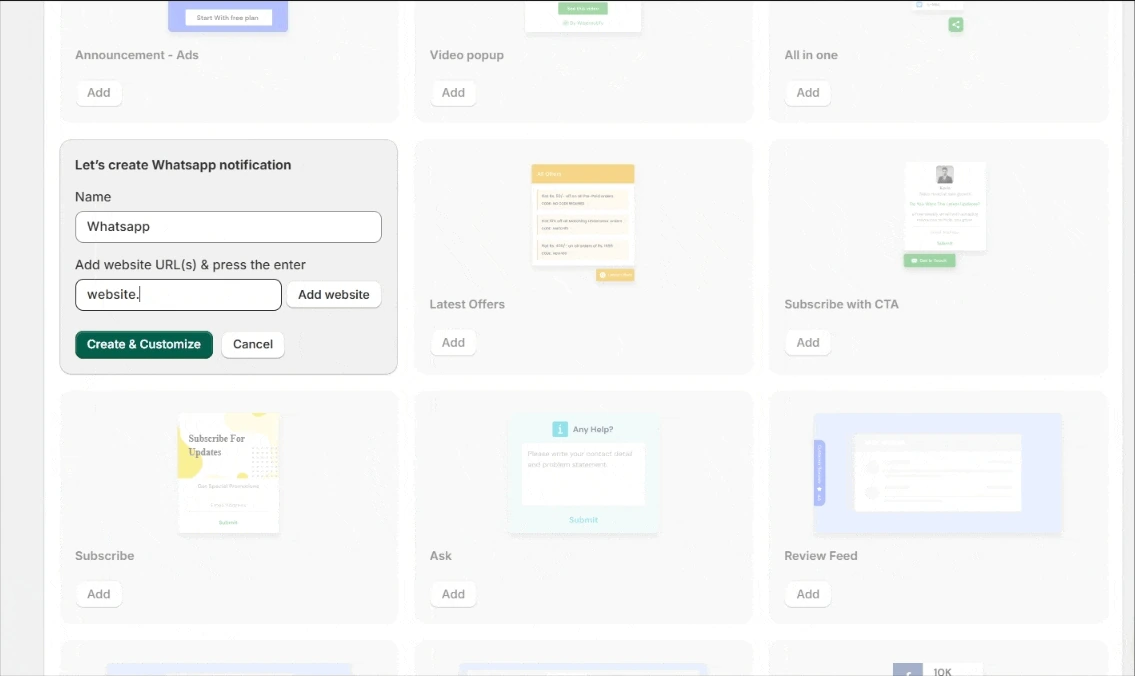
- Sign up for WiserNotify, or log in to your dashboard.
- Go to Widgets, click Add notification, and open the Call To Actions tab.
- Click Add on the WhatsApp widget.
- Name it, enter your Google Sites address, and click Create & Customize.
Step 2: Add Your Team and Message
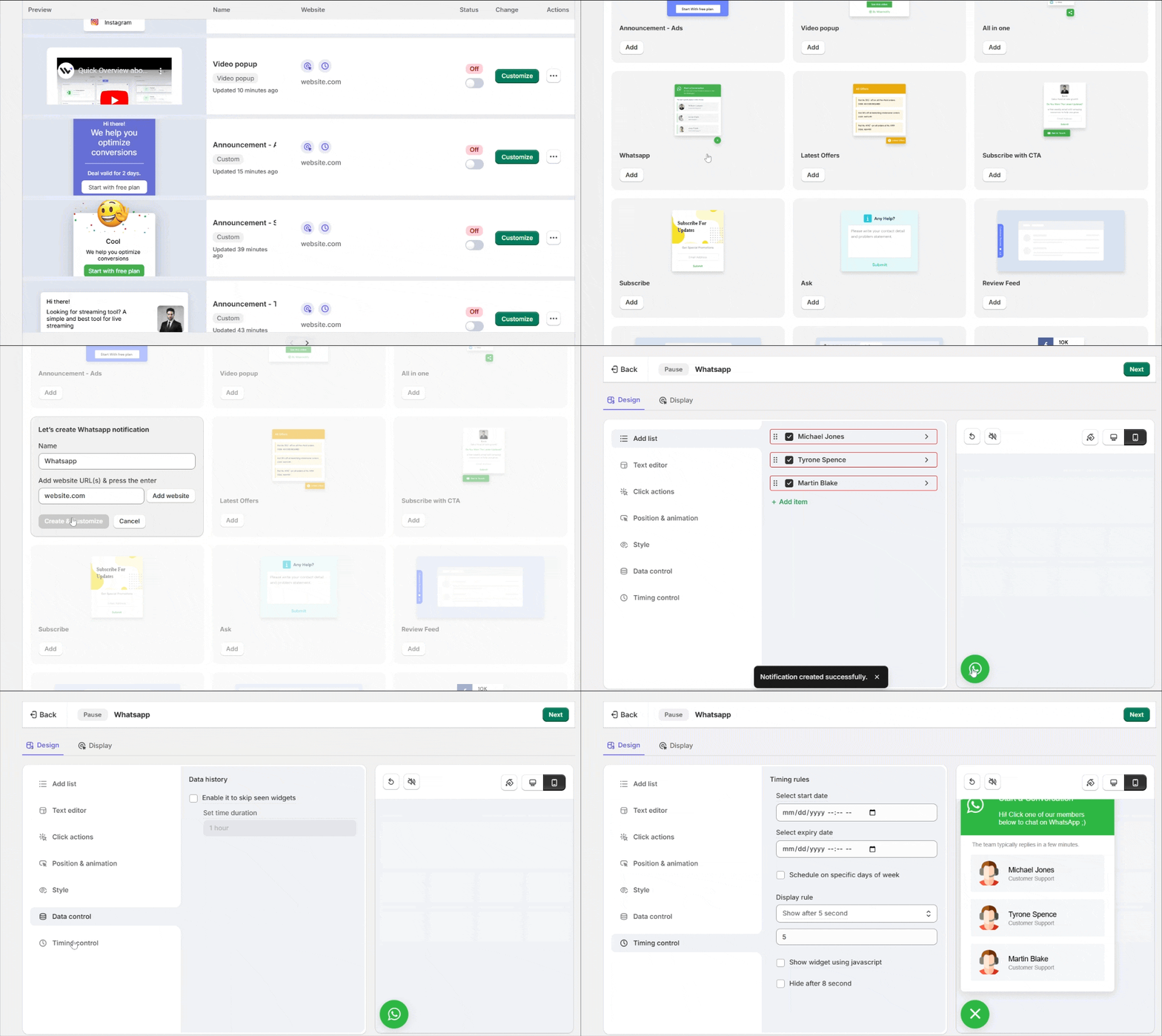
- In Add list, enter each person's WhatsApp number with the country code, plus their name, role, and photo.
- Write the message that opens the chat. WiserNotify adds the page address, so your team sees where the visitor came from.
- In Text editor, set a heading like "Start a conversation" and a short greeting.
- Match the icon and colors to your site in Click actions and Style.
- In Position & animation, pick the bottom-right or bottom-left corner.
Step 3: Set Timing and Publish
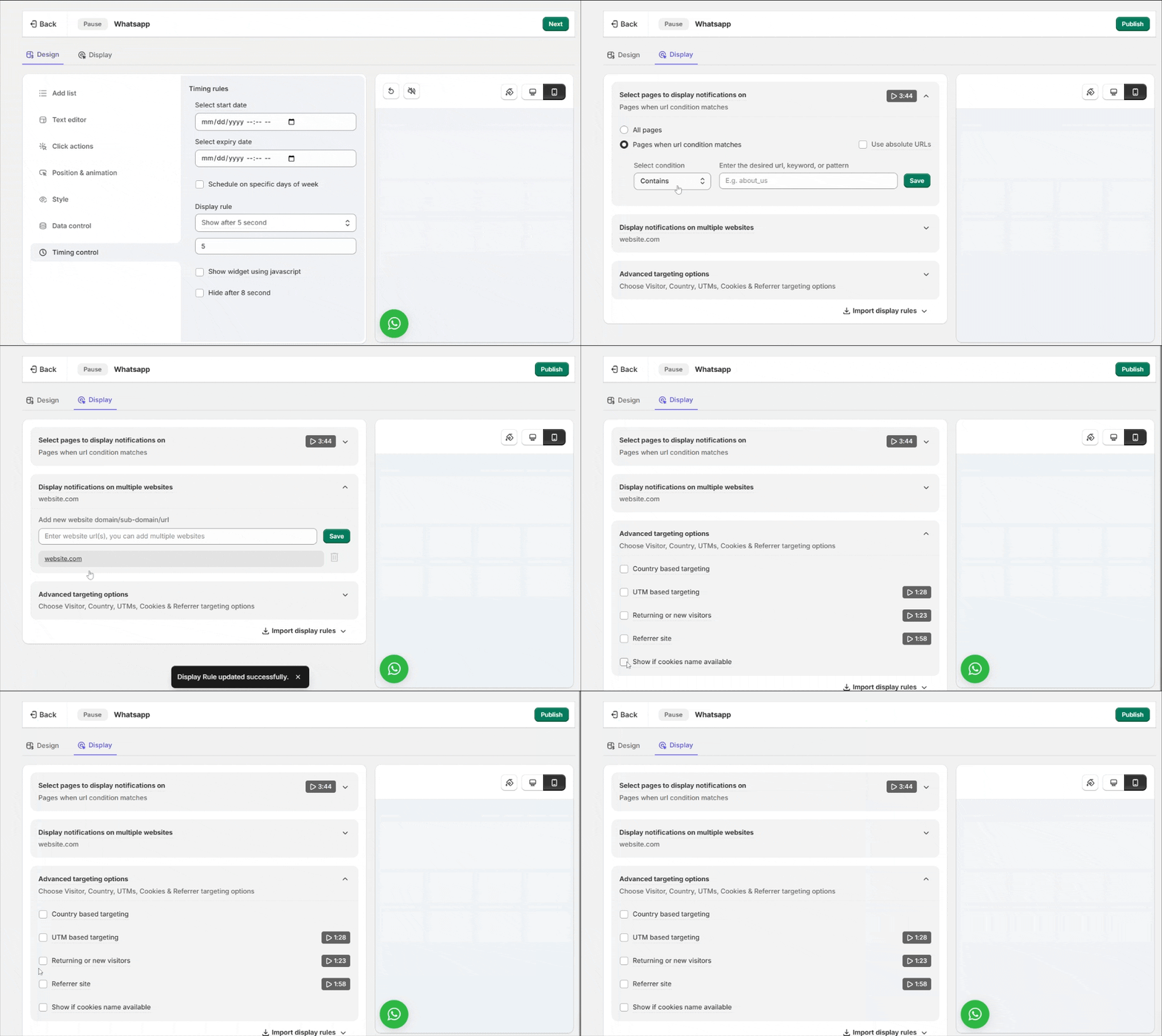
- In Timing control, choose when the widget appears, such as after a few seconds.
- Click Save, then open the Display tab.
- Keep All pages selected, since Google Sites runs embeds on a separate Google address.
- Click Publish.
Step 4: Copy Your WiserNotify Code
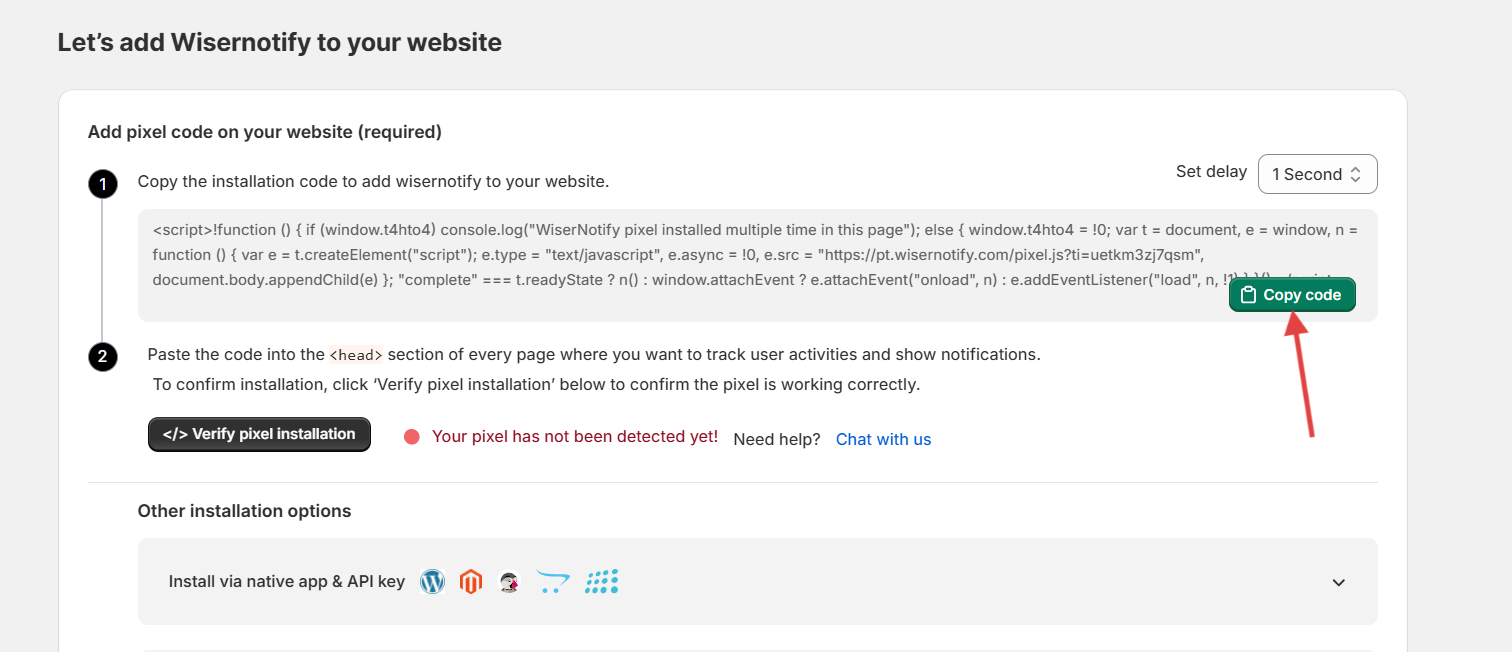
- Open the pixel page in your WiserNotify dashboard.
- Click Copy code.
Step 5: Add an Embed Block
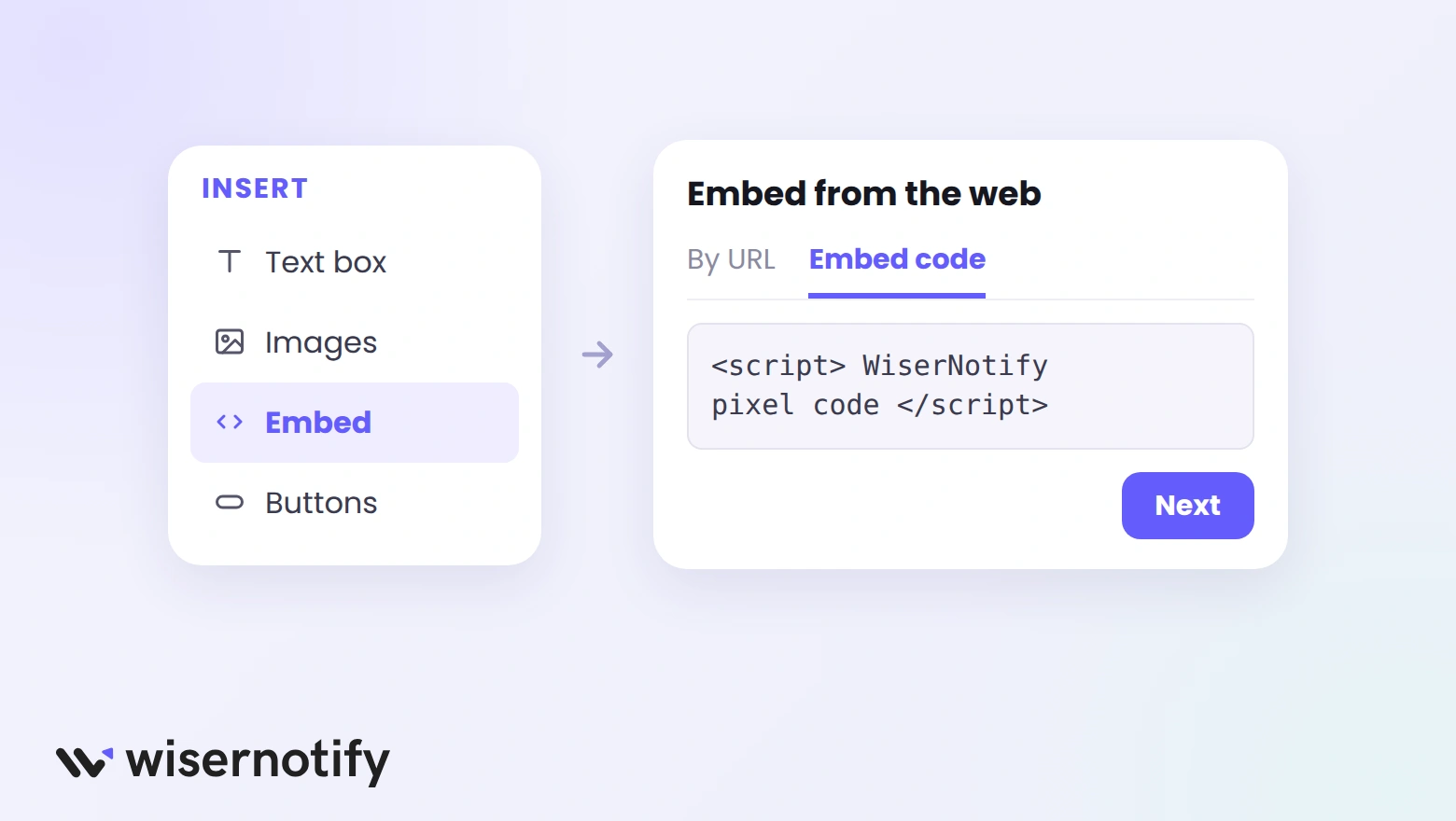
- Open your site in the Google Sites editor and go to the page you want.
- In the right panel, click Insert, then Embed.
- Choose the Embed code tab and paste your WiserNotify code.
- Click Next, then Insert.
Step 6: Size the Block and Publish
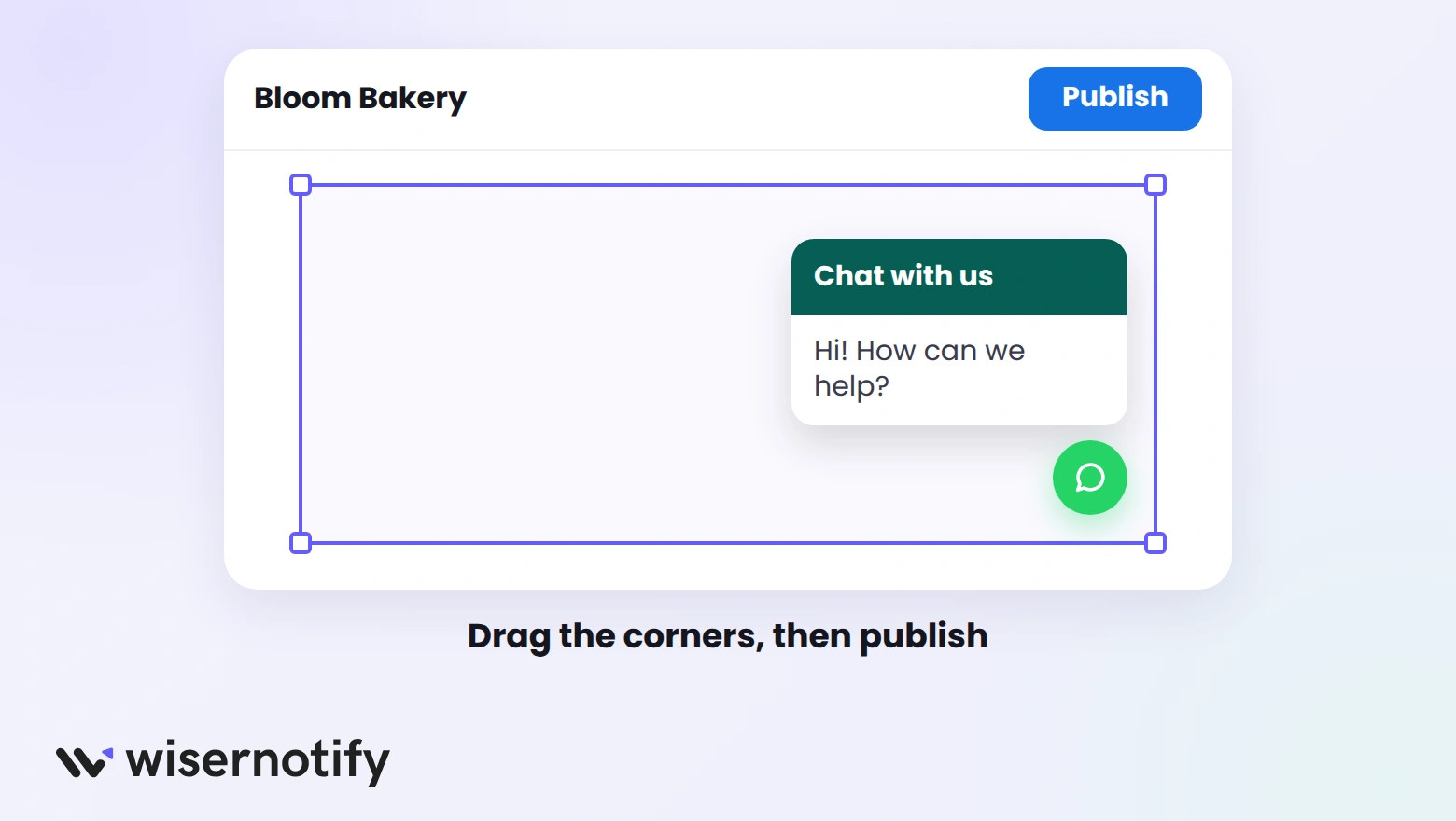
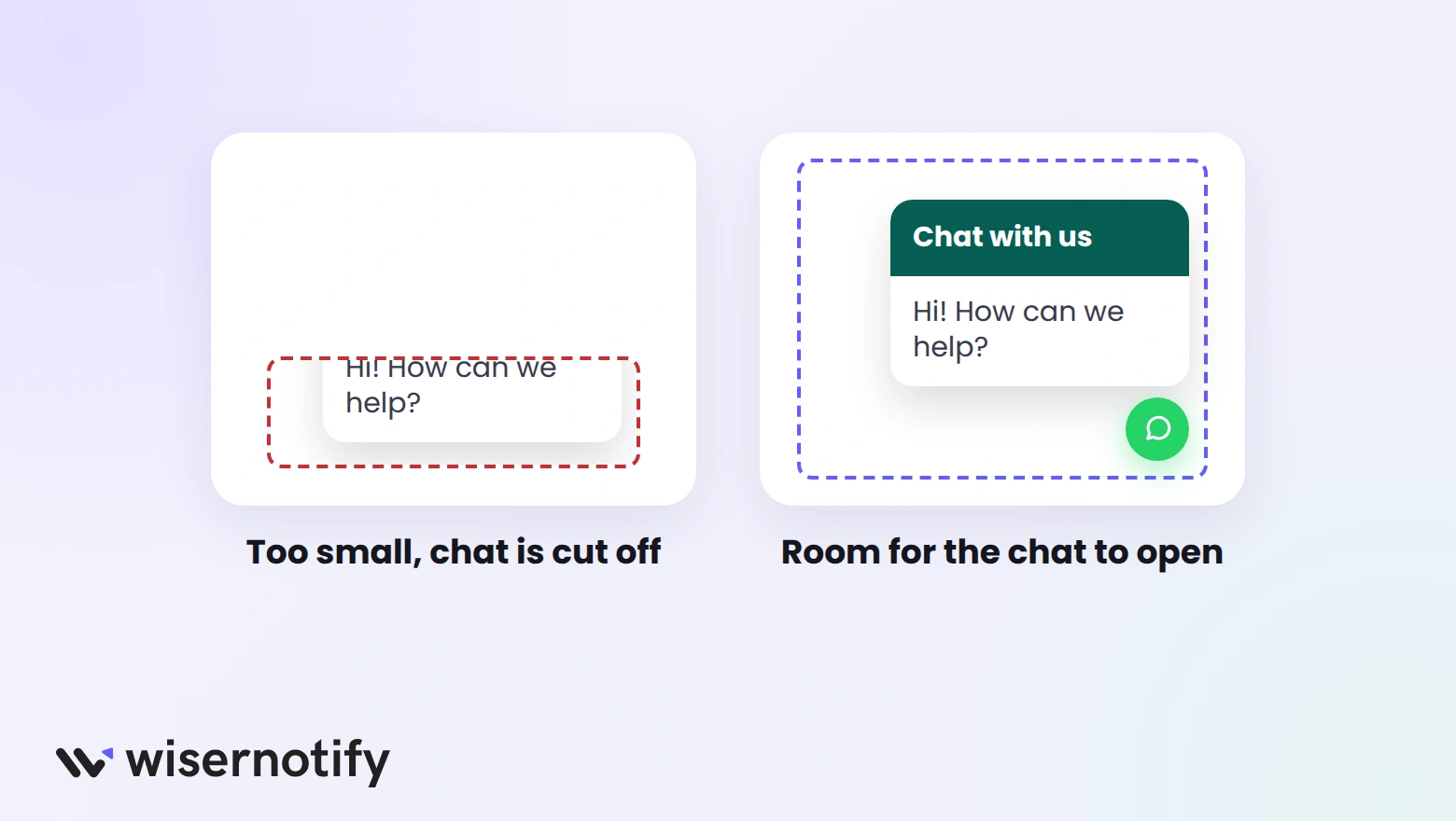
- Drag the block's corners so it's tall and wide enough for the open chat panel, not just the button.
- Click Publish in the top right.
- Visit the published site and refresh once or twice to see the widget.
Does the Floating Widget Work on Google Sites?
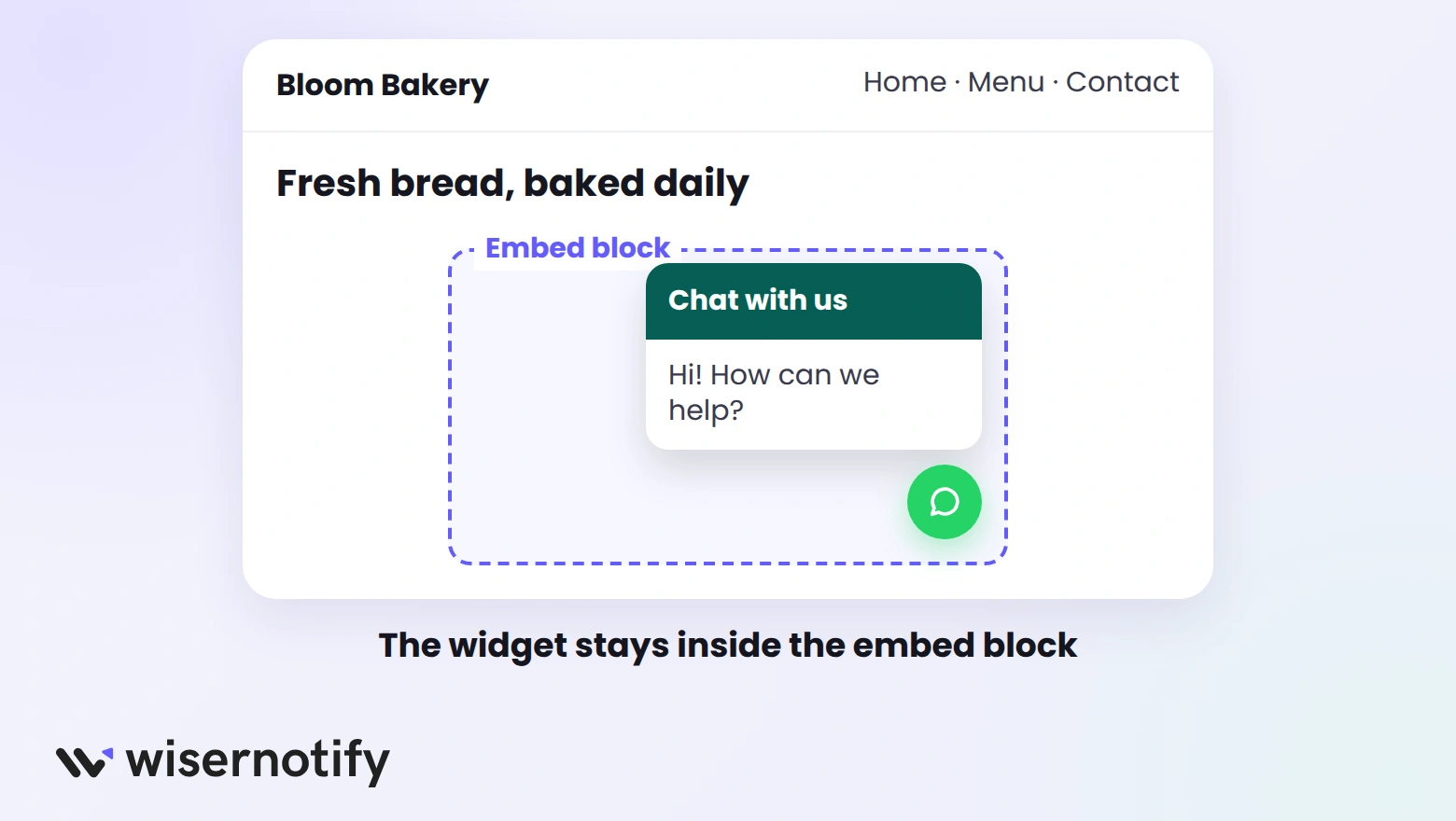
Not across the whole page. Google Sites places embed code in its own sandboxed frame, and a floating widget can only float within that frame.
In practice, the WhatsApp button sits in the corner of your embed block, and the chat panel opens inside the block.
On builders that allow site-wide code, the same widget floats normally, as this guide to adding a WhatsApp chat widget shows.
- Give it room: leave space for the chat list to open, not just the button.
- Pick a clear spot: a contact section or the bottom of key pages works best.
- Add it per page: Google Sites has no site-wide code area, so add the block to each page that needs chat.
- Keep one per page: two blocks on one page show two separate widgets.
WhatsApp Widget Not Showing on Google Sites?
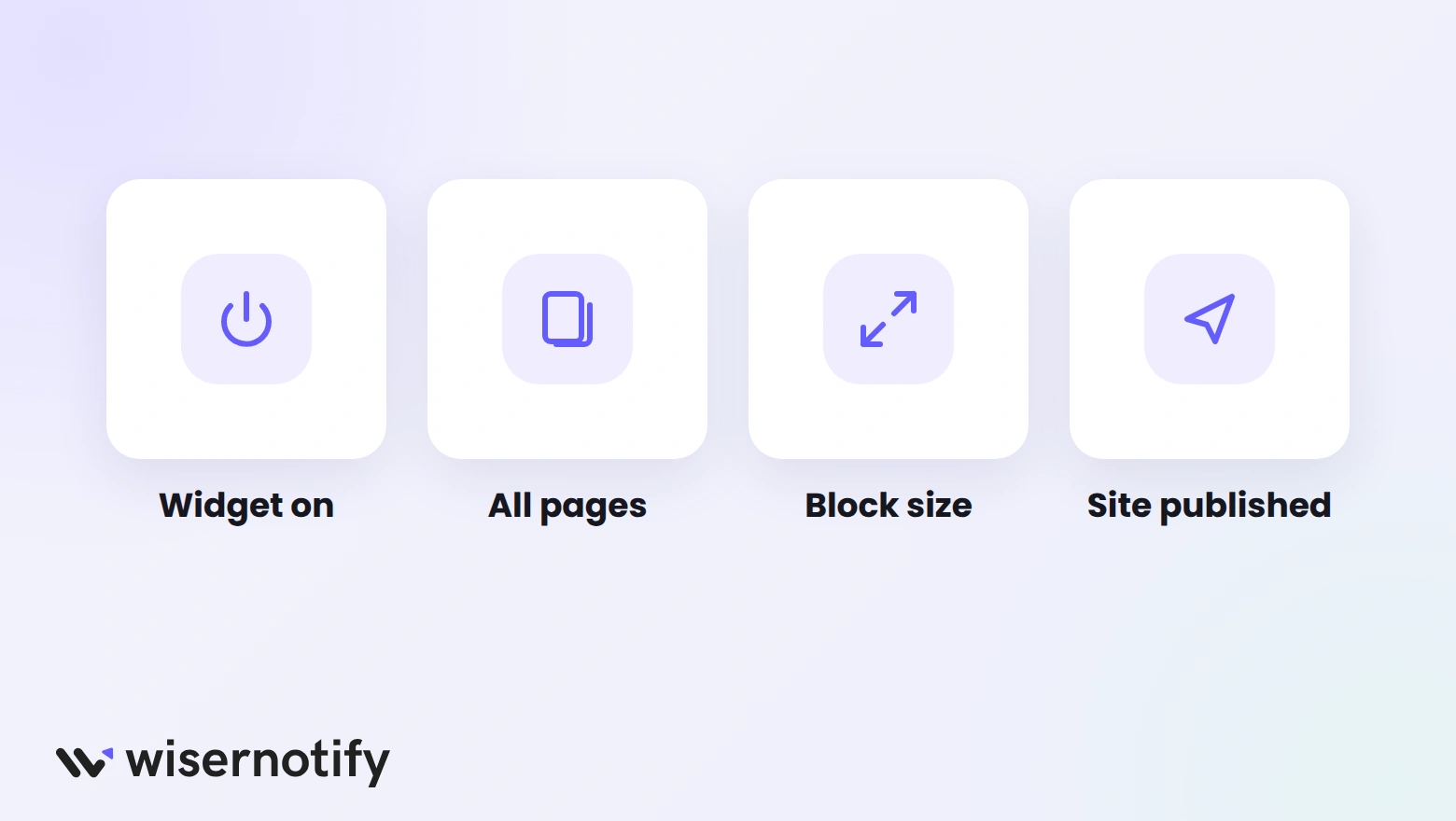
- Not published: check the widget is published and switched on in your widgets list.
- Display rules too narrow: set the display to All pages, since the embed runs on a Google address, not your page URL.
- Block too small: enlarge it so the button and chat panel fit.
- Site not republished: click Publish again after adding the block.
- Cached view: open the live site in a private window.
Still stuck? Use the live chat in your WiserNotify dashboard.
When and Where to Use It

- Contact pages: a chat option next to your email and phone details.
- Service and pricing pages: answer questions before visitors leave to compare.
- Booking and event pages: confirm dates and details in one message.
- School, club, and community sites: give members a quick way to reach organizers.
- Portfolio sites: let clients ask about a project without filling out a form.
Build trust & FOMO
Highlight real-time activities like reviews, sales & sign-ups.
Common Mistakes to Avoid
- Expecting a floating button: on Google Sites the widget stays inside its block, so size and place it on purpose.
- Missing the country code: numbers without it won't open the right chat.
- Using a personal number: a WhatsApp Business number keeps work chats separate and supports quick replies.
- No reply hours: say when you answer so visitors know what to expect.
- Too many blocks: one chat block per page is enough.
How to Measure Impact
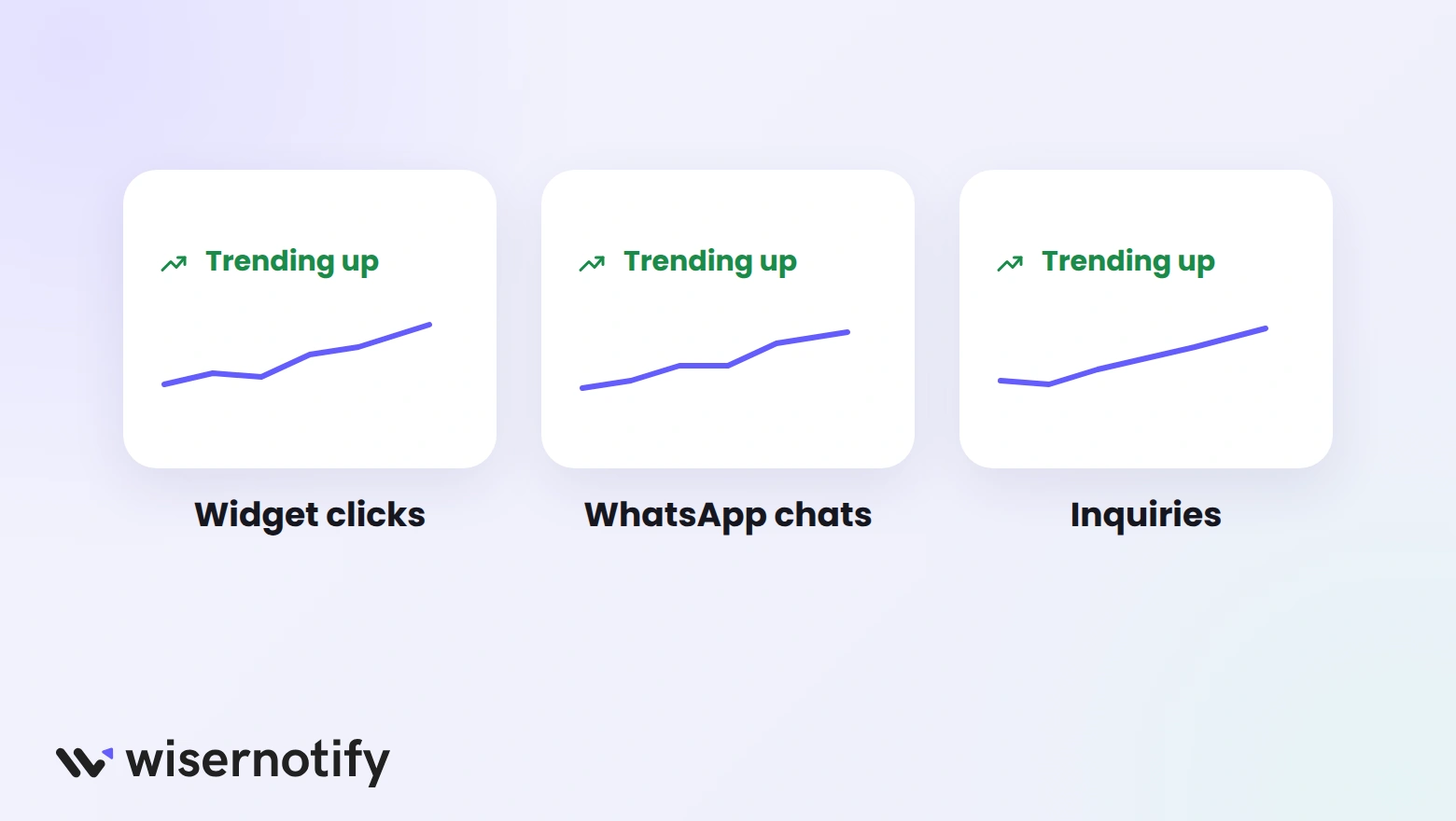
- Clicks: check how often visitors open the widget in WiserNotify analytics.
- Chats: count new WhatsApp conversations that include your page address.
- Leads: compare bookings or inquiries on pages with the block against the weeks before.

Boost Conversion Instantly
Add Social Proof & Urgency to your website
Conclusion
A WhatsApp widget on Google Sites works best as a clear chat box on the pages where people have questions. Set it up once in WiserNotify, then add the block wherever you need it.
Change the message or team members anytime in WiserNotify, and every block updates on its own.
Related guides
Frequently Asked Questions
Can I add a floating WhatsApp button to Google Sites?
Not across the whole page. Google Sites runs embed code in a sandboxed frame, so the button floats only inside its embed block.
Where do I paste the WhatsApp widget code in Google Sites?
Use Insert, then Embed, then the Embed code tab. Paste your WiserNotify code, insert the block, and publish.
Do I need to add the widget to every page?
Yes. Google Sites has no site-wide code area, so add the embed block to each page where you want chat.
Does the WhatsApp widget work on mobile?
Yes. You can set the widget’s position and size separately for mobile and desktop in WiserNotify.
Can I use a personal WhatsApp number?
You can, but a WhatsApp Business number keeps work chats separate and supports quick replies and away messages.

Krunal Vaghasiya is a marketing tech expert who boosts e-commerce conversion rates with automated social proof and FOMO strategies. He loves to keep posting insightful posts on online marketing software, marketing automations, and improving conversion rates.




 Capterra