
How to Add a Sold Counter to OpenCart (No Code)
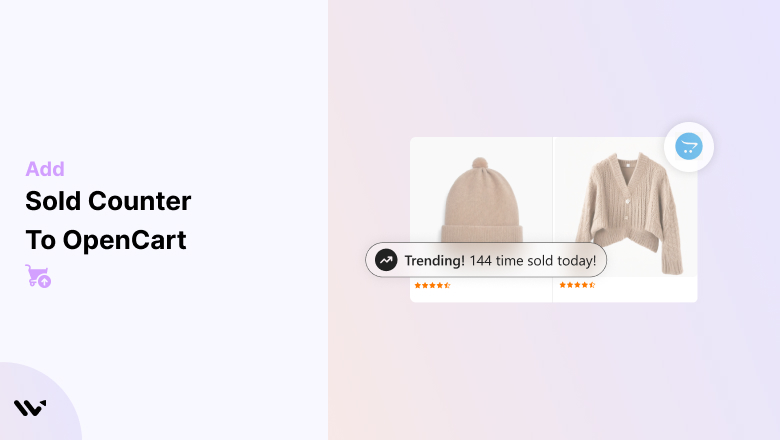
OpenCart doesn’t ship a sold counter for your storefront. The built-in bestsellers module lists popular products, but shoppers never see a number next to anything.
The fastest fix is the WiserNotify OpenCart extension. It feeds your real orders into a live counter like “38 people bought this in the last 7 days” and puts it on any page.
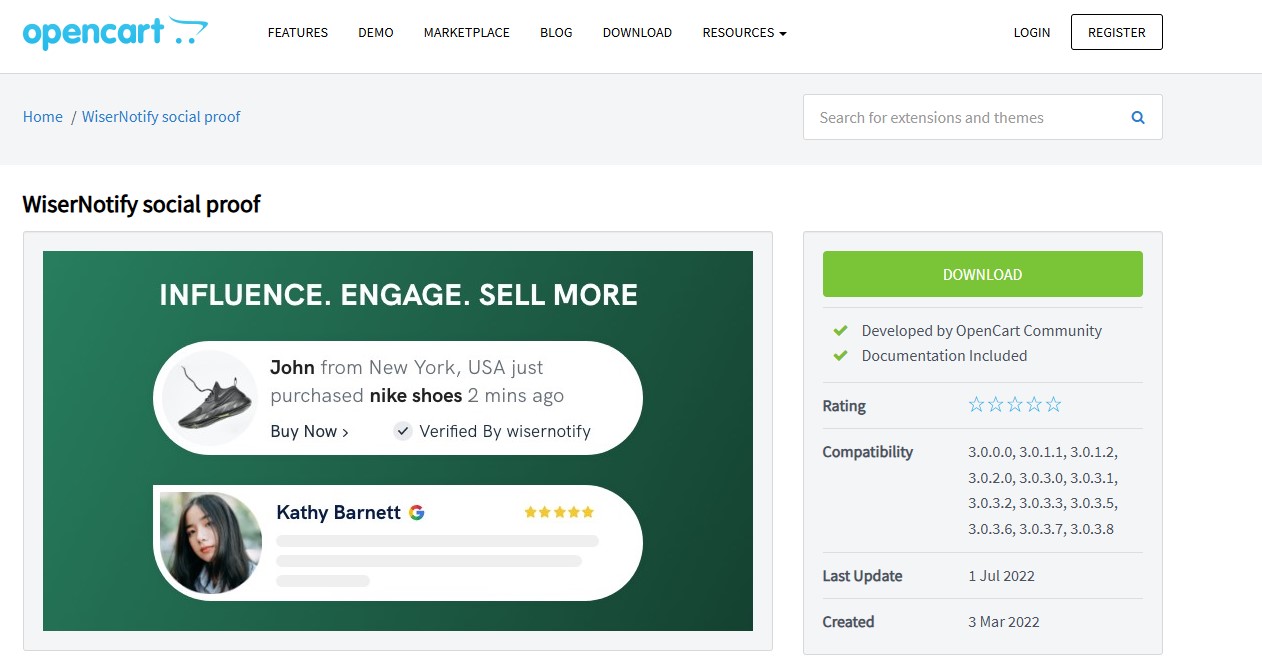
You can show it two ways. A small popup that slides in on its own, or an inline counter built right into your product and category pages. Setup takes about 10 minutes, and your template files stay untouched.
Key takeaways
- OpenCart has no native storefront sold counter, so the number has to come from a module.
- The WiserNotify extension installs from one zip upload and connects with an API key.
- Your real OpenCart orders power the count. Nothing is typed in by hand.
- The same account runs popup counters and inline counters on product and category pages.
Does OpenCart Have a Built-In Sold Counter?
No. OpenCart’s default theme shows bestsellers as a product list, not as sold numbers, and the admin only shows sales data to you.
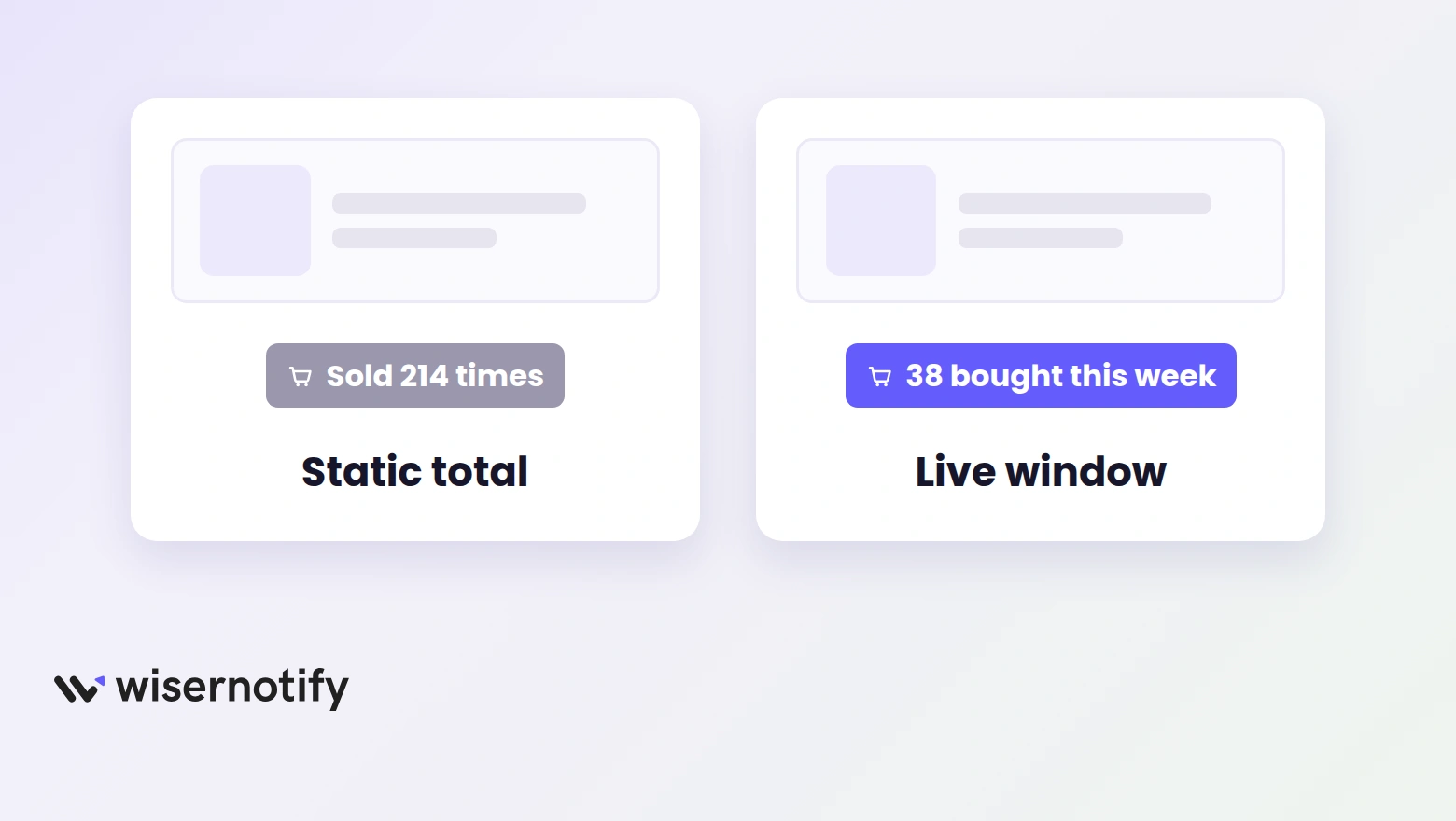
The marketplace has a few sold-counter modules, but most were built for OpenCart 2.x and 3.x, and they print one static lifetime total per product.
A lifetime total ages badly. “Sold 214 times” could mean last week or 2019.
A counter tied to a recent window, like the last 7 days, tells shoppers the store is selling right now. That’s the version this guide sets up.
How to Add a Sold Counter to OpenCart
The counter runs on WiserNotify’s official OpenCart extension. You upload the module once, paste your API key, and every order flows into the dashboard where the counter is built. No theme edits, no cron jobs.
Here’s the full process on video if you’d rather watch it once before you start:
Step 1: Copy Your API Key
- Sign up for WiserNotify and start the 7-day trial.
- Open the pixel page in your dashboard.
- Scroll to “Install via native app & API key.”
- Click Copy API Key.

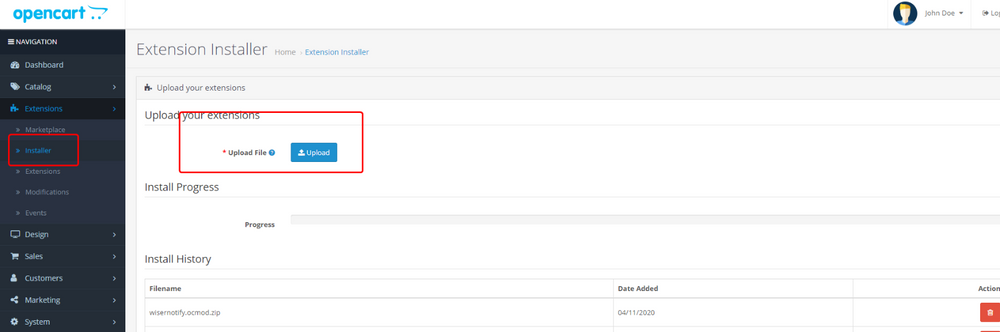
Step 2: Upload the Extension in OpenCart
- Download the WiserNotify module zip from the OpenCart integration guide.
- Log in to your OpenCart admin.
- Go to Extensions, then Installer.
- Click Upload and pick wisernotify.ocmod.zip.
Step 3: Open the Modules List
- Go to Extensions, then Extensions.
- In the “Choose the extension type” dropdown, select Modules.
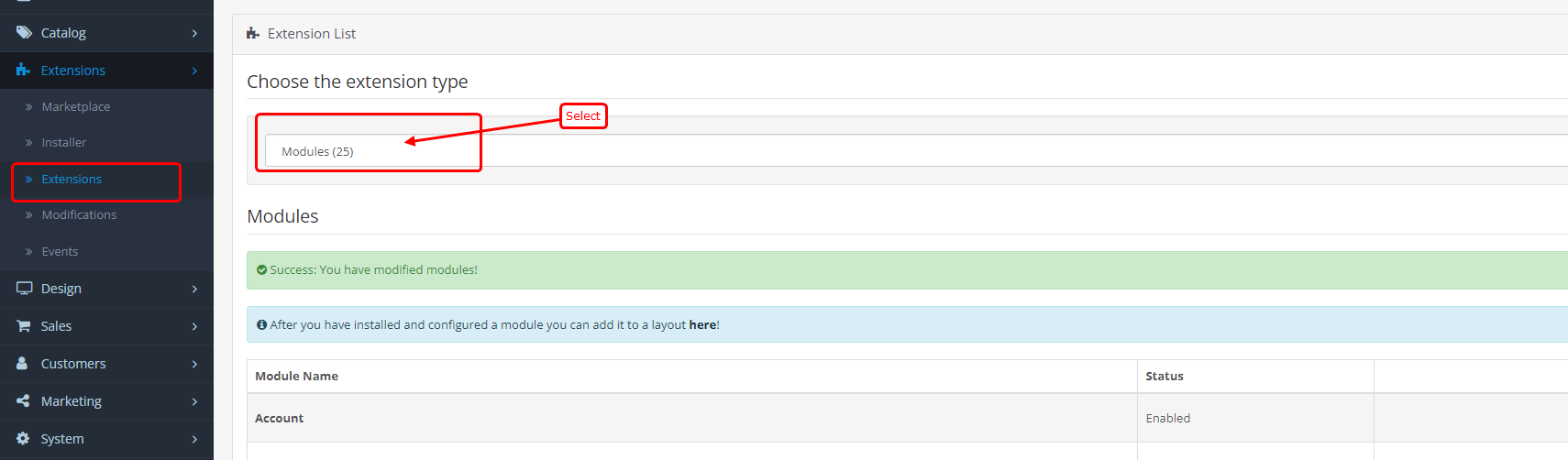
Step 4: Install the WiserNotify Module
- Scroll the modules list to the WiserNotify row.
- Click the green Install button.
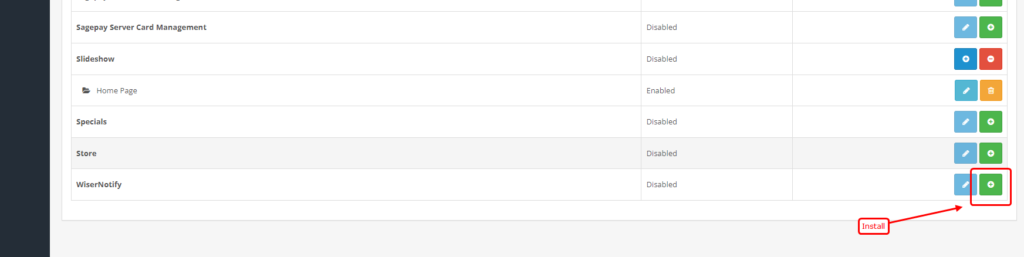
Step 5: Paste the API Key and Save
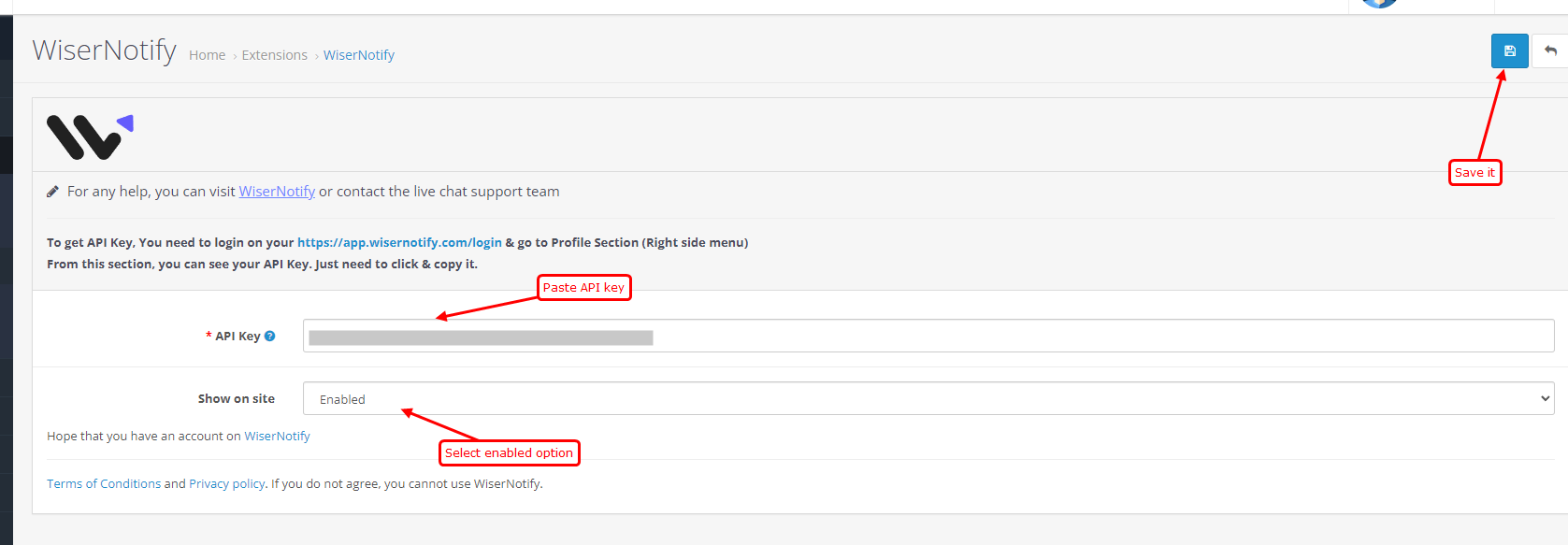
- Click Edit on the WiserNotify module.
- Paste your API key into the API Key field.
- Set “Show on site” to Enabled.
- Click Save.
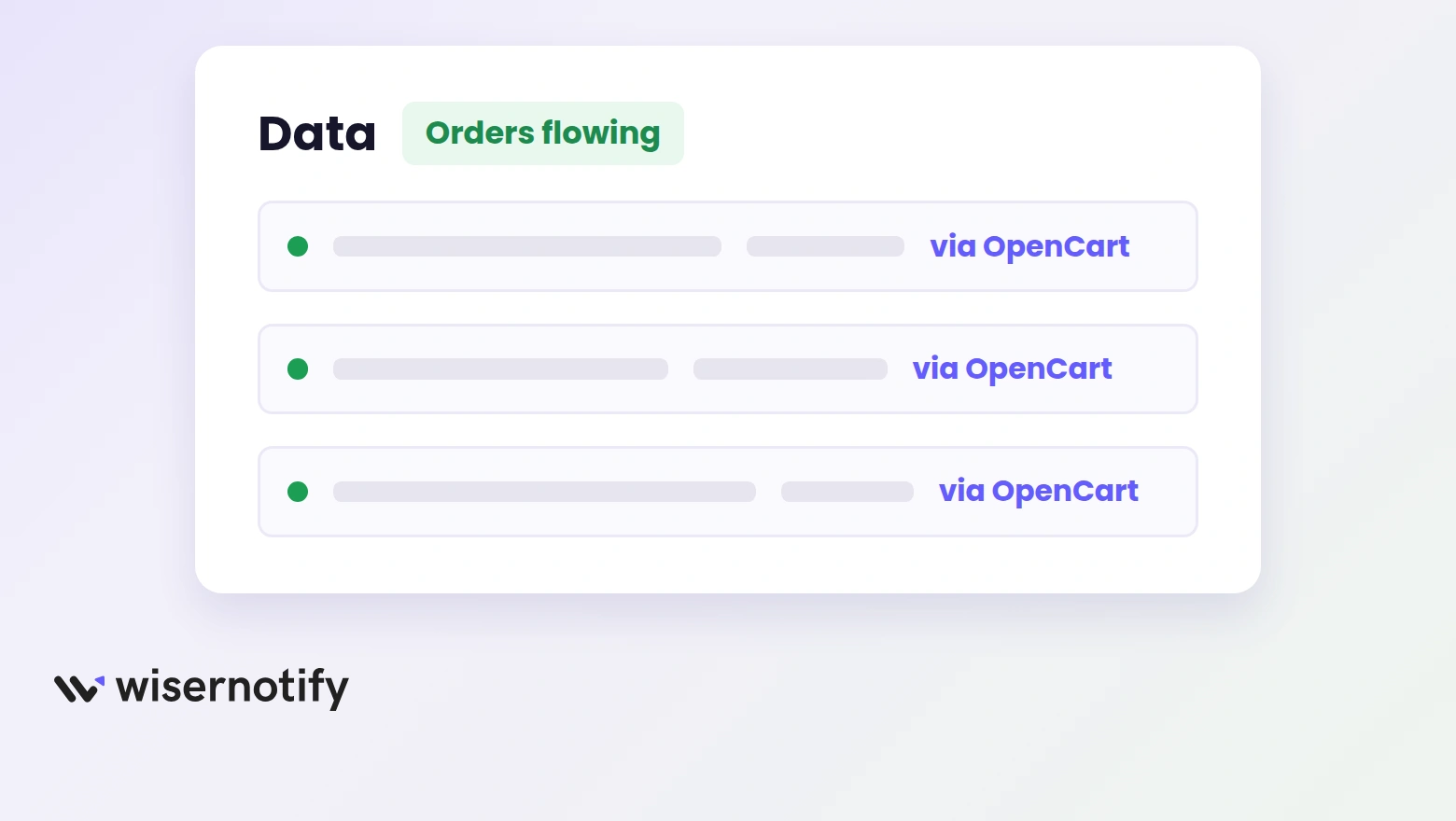
The module backfills your latest orders the moment it connects, roughly 30 of them, so the counter has data before the first new sale lands. You can confirm the feed on the dashboard’s Data page.
Step 6: Pick the Sales Counter Widget
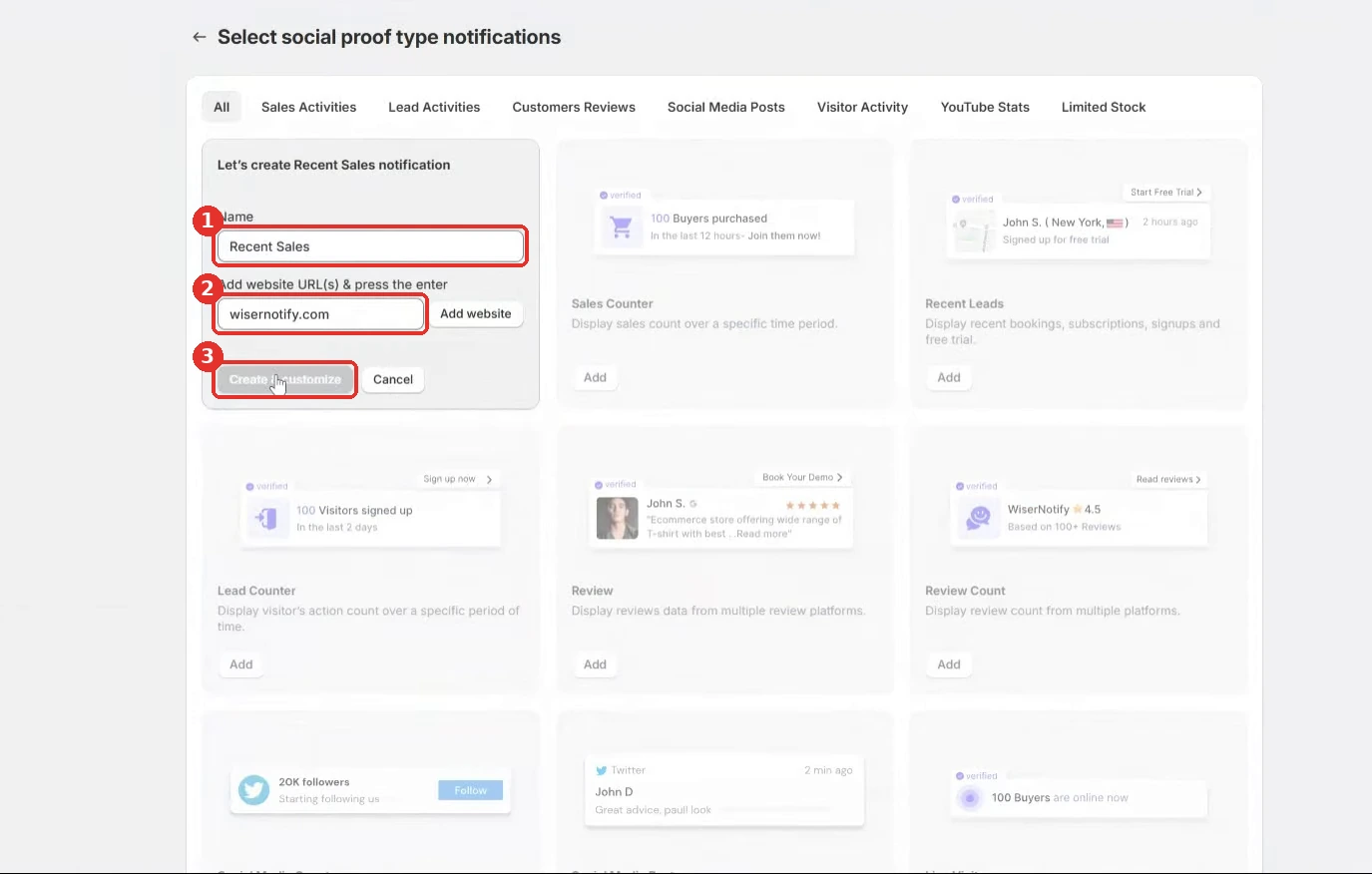
- In WiserNotify, open Notifications, then Widgets.
- Click Add notification.
- Open the Sales Activities tab.
- Click Add on Sales Counter.

Step 7: Name the Widget
- Give it a name you’ll recognize later, like OpenCart sold counter.
- Enter your store URL.
- Click Create.
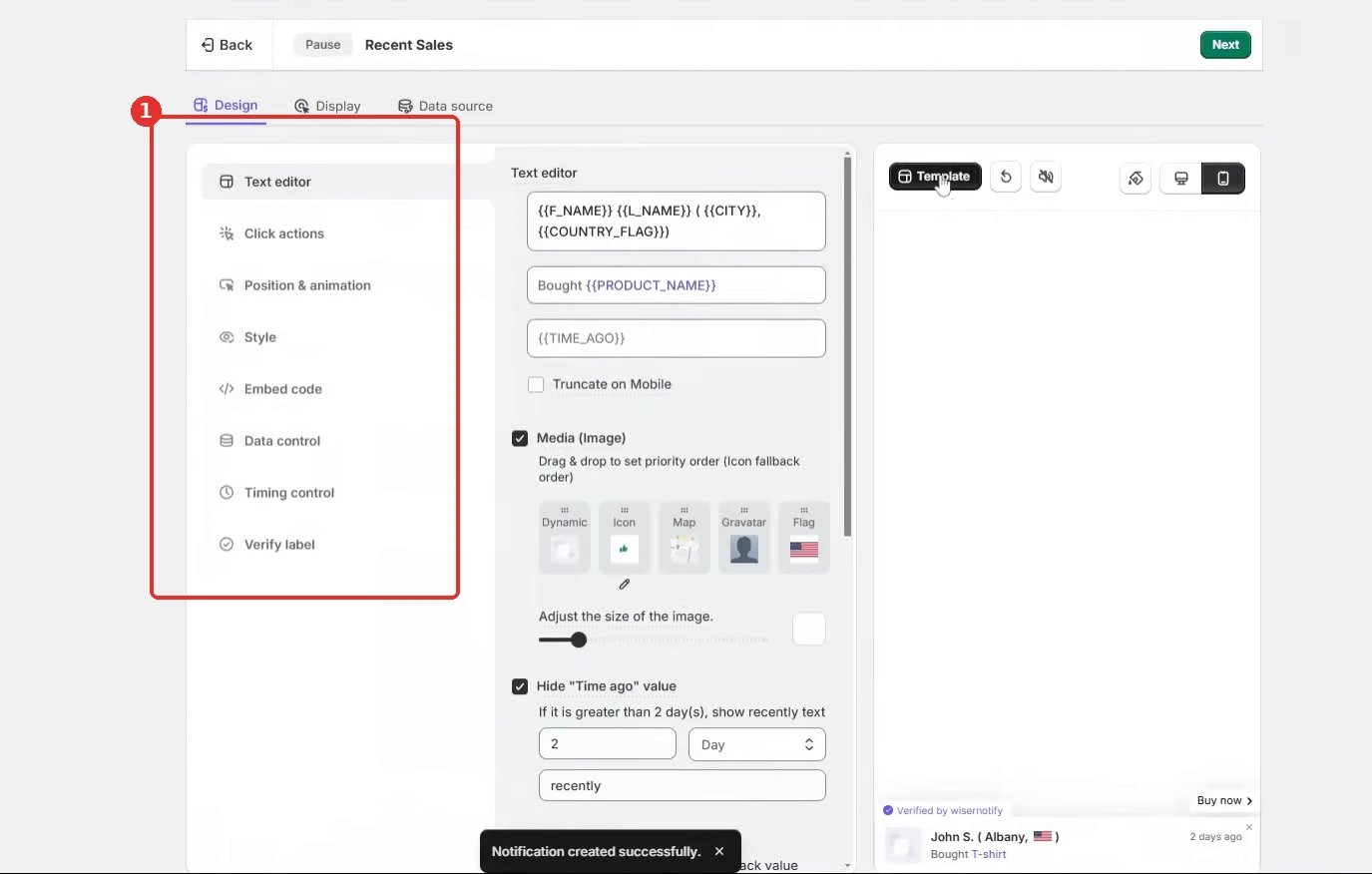
Step 8: Write the Counter Message
- Edit the text, for example “{count} buyers purchased in the last 12 hours.”
- Pick the time window the count covers.
- Match colors and position to your theme.
- Set where a click sends people.
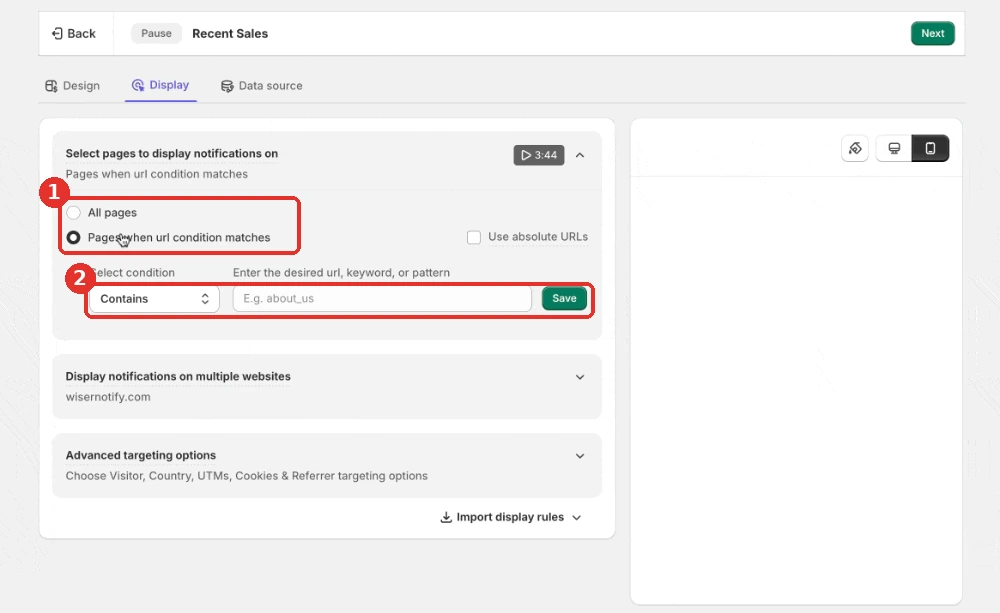
Step 9: Choose the Pages
- Open the Display tab.
- Show the counter everywhere, or add URL rules so it only runs on product or category pages.
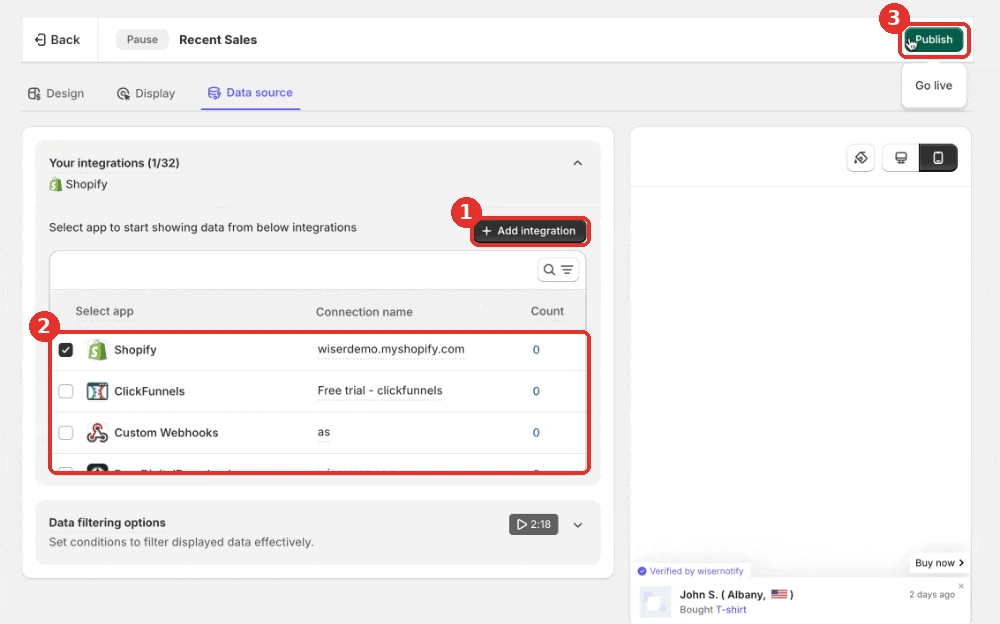
Step 10: Connect the Data and Publish
- In the Data source section, select your OpenCart integration.
- Click Save, then Publish.
- Open your store in a private window and watch the counter appear.
Build trust & FOMO
Highlight real-time activities like reviews, sales & sign-ups.
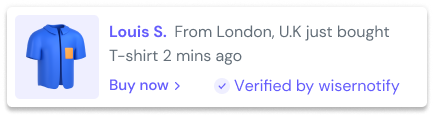

Show the Counter Inside the Product Page
The popup is the quick win. But a counter that sits inside the page, right beside the price or just under the buy button, reads like part of your theme instead of a notification.
WiserNotify calls these inline notifications, and they work on two placements. The product detail page and the category page.
Step A: Open Inline Social Proof
- In the widget picker, switch to the Inline Social Proof section.

Step B: Pick the Placement
- Choose Product detail page, or Collection page for category listings.

Step C: Add the Install Code
- Copy the short placement code WiserNotify shows you.
- Paste it into your product template where the counter should sit.

Step D: Create the Sales Count Widget
- Pick Sales Count from the product detail page options.
- Style the line to match your page, then publish.

This is the one spot where a single line of code touches your theme. Everything else, the message, window, and styling, stays in the dashboard.
Sold Counter Not Showing Up?
Work through these in order. One of them is almost always the cause.
- Check the module is Enabled under Extensions, Modules, and that Save was clicked after pasting the API key.
- Open the Data page in your WiserNotify dashboard. If no orders are listed, the API key is wrong or the module is off.
- Confirm the widget’s Data source points at your OpenCart integration, not a sample feed.
- Re-check your Display URL rules against the live page address, including https and www.
- Load the store in a private window. Cache hides a fresh widget more often than any real bug.
Where to Show a Sold Counter on OpenCart
A sold counter earns its spot where buying doubt is highest:
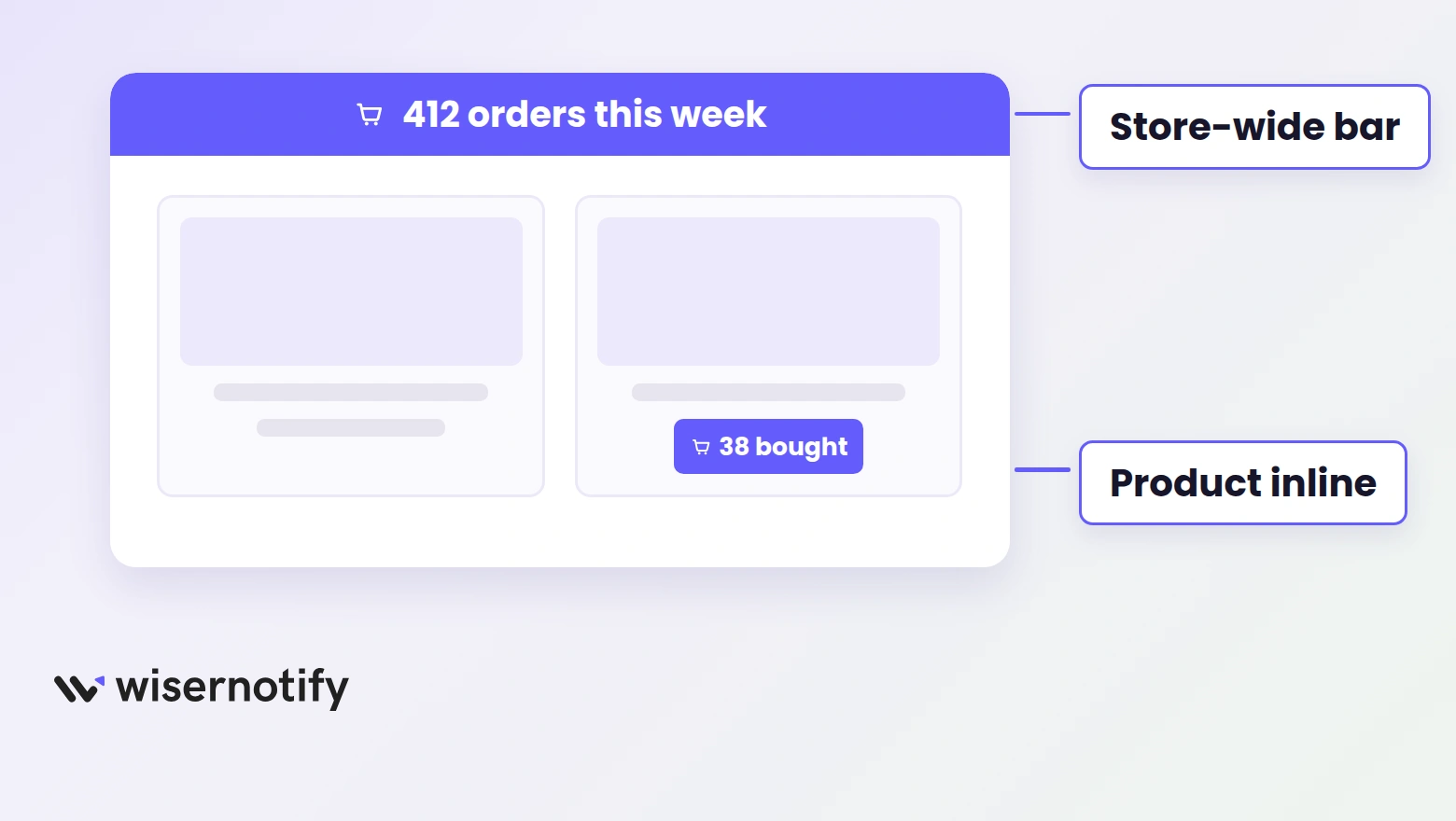
- Product pages. A count near the add-to-cart button answers “is anyone else buying this?” at the exact moment it’s asked.
- Category pages. An inline count under bestsellers steers browsers toward products already moving.
- Homepage during a sale. A store-wide count like “412 orders this week” sets the tone before shoppers click anything.
- Cart page. One last nudge for the hesitant, paired with your returns line.
Counting people on the page right now is a different widget. See the separate walkthrough to add a visitor counter to OpenCart.
Build trust & FOMO
Highlight real-time activities like reviews, sales & sign-ups.
Common Mistakes to Avoid
- Inventing numbers. The count comes from real orders. The moment a shopper senses it’s decorative, every other claim on your page gets doubted too.
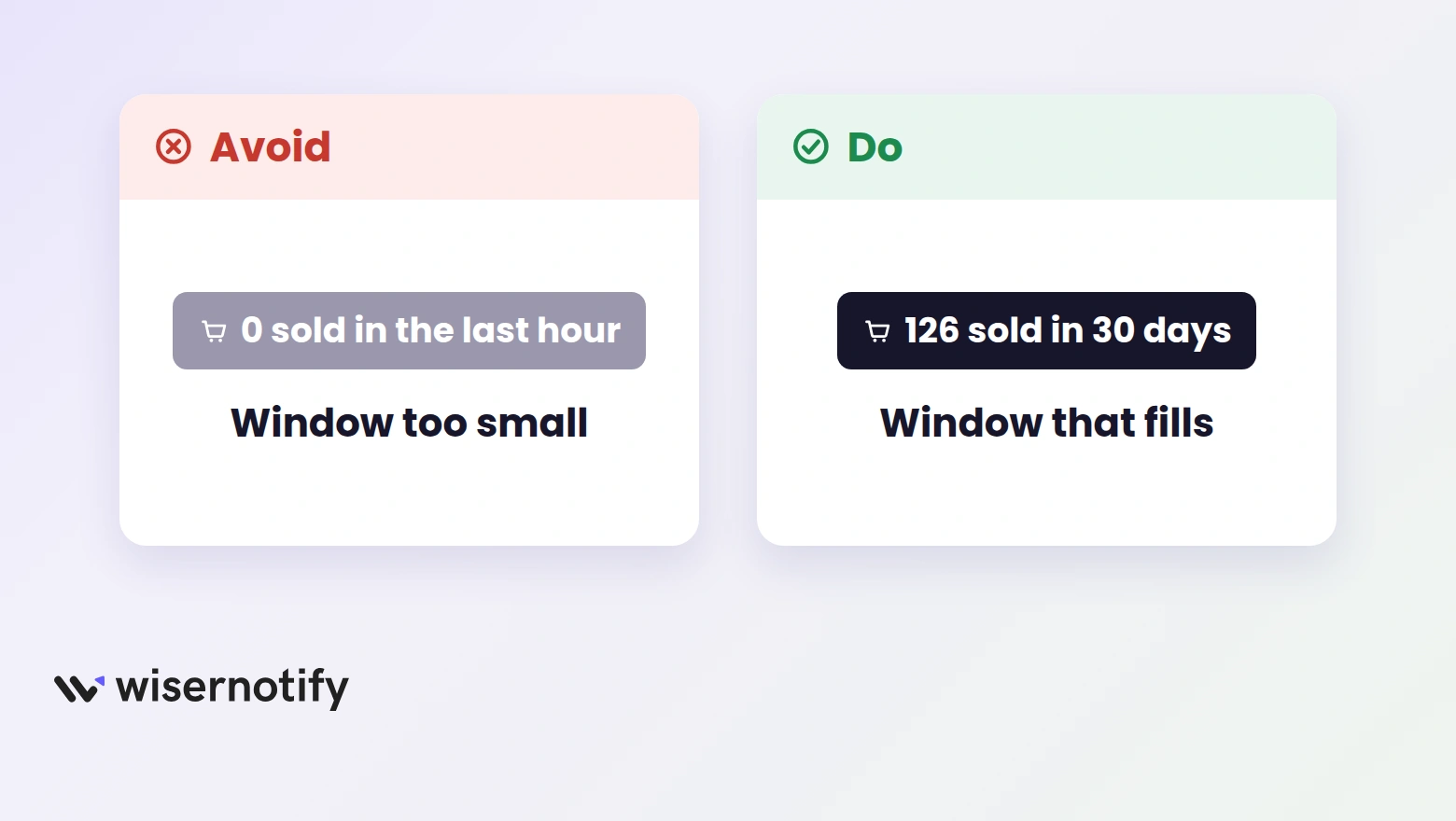
- Tiny time windows on a slow store. “0 sold in the last hour” hurts more than no counter. Pick a window your order volume can fill, like 7 or 30 days.
- Running the counter on every page at once. Pick the pages where it changes a decision and leave the rest clean.
- Skipping the phone check. Most OpenCart themes stack elements differently on mobile, so preview the counter on a small screen before a campaign.
- Letting it go stale. If you pause selling a product, pause its counter too.
How to Measure the Impact
Every widget reports its own views, clicks, and conversions inside WiserNotify, which answers the only question that matters. Did the shoppers who saw the counter buy more?
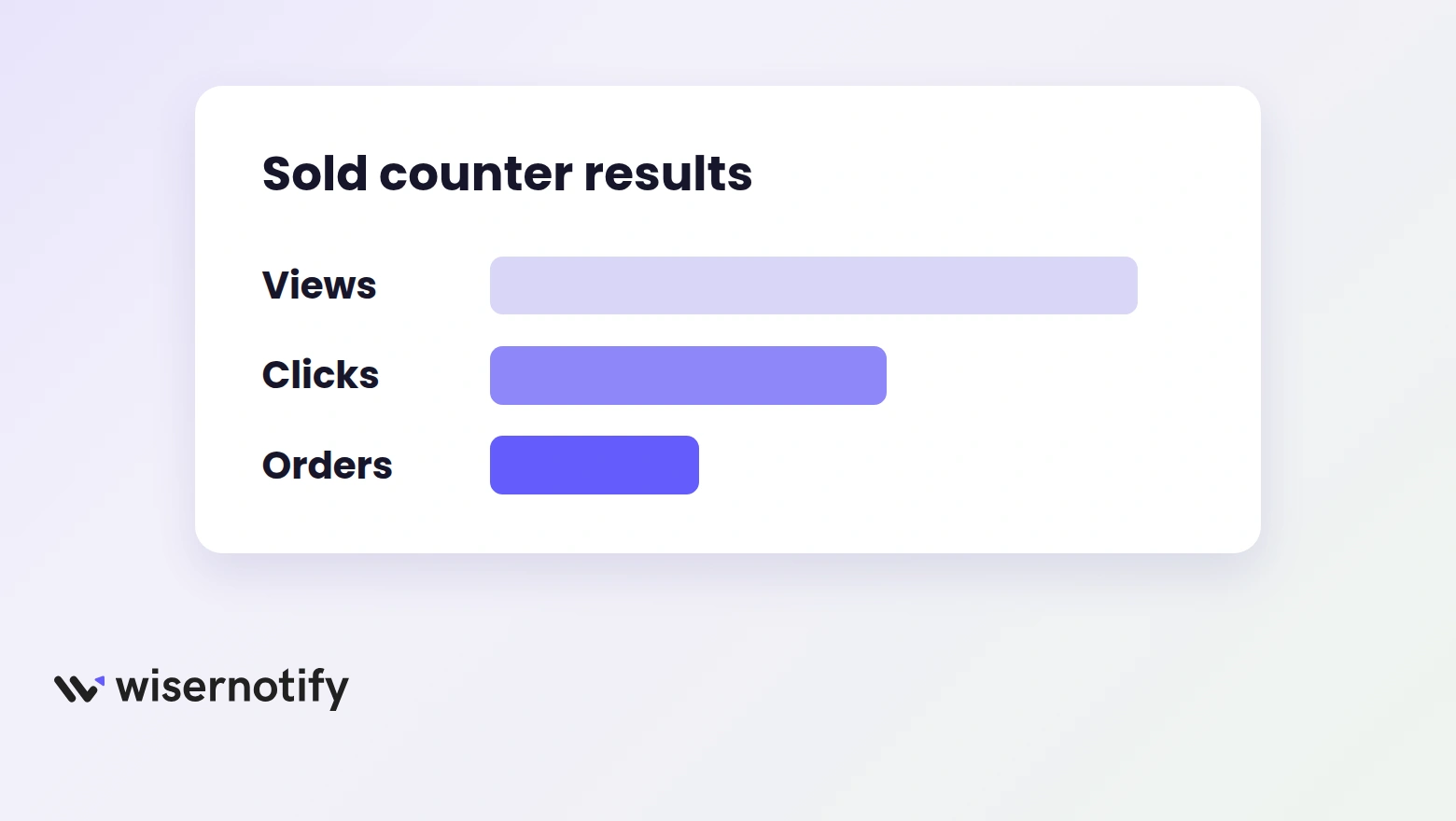
For a cleaner answer, split traffic with the built-in A/B test so only half your visitors see the counter. Your OpenCart admin then shows which half ordered more across the same dates.
If views are high and orders don’t move, the counter is fine and the page is the problem. Price, photos, or shipping cost are the usual suspects. Our guide on creating sales notifications covers message patterns that pull more clicks.
Build trust & FOMO
Highlight real-time activities like reviews, sales & sign-ups.
Conclusion
OpenCart leaves sold counts invisible to shoppers, and that’s money left on the table. One zip upload and an API key fix it for good.
Start with a popup counter on your product pages, then move the number inline once you see it working. And if you want to stack more proof on the same pixel, here’s how stores use social proof notifications on OpenCart.
Related Posts:
Frequently Asked Questions
What is a sold counter on OpenCart?
A small widget that shows how many orders a product or store got in a recent window, like “38 bought this week.” It gives shoppers proof that other people are buying.
Can I add a sold counter to OpenCart without coding?
Yes. The WiserNotify OpenCart extension installs from a zip upload and the counter is built in the dashboard, so your template files stay untouched.
Which OpenCart extension shows a sold counter?
WiserNotify’s official OpenCart module. It feeds your real orders into a Sales Counter widget you can show as a popup or inline on product pages.
Can I customize how the sold counter looks?
Yes. The design tab controls the message, time window, colors, and position, so the counter can match your theme on desktop and mobile.
Will a sold counter slow down my OpenCart store?
No. It loads as one small script after your page renders, so product pages keep their speed.

Krunal Vaghasiya is a marketing tech expert who boosts e-commerce conversion rates with automated social proof and FOMO strategies. He loves to keep posting insightful posts on online marketing software, marketing automations, and improving conversion rates.




 Capterra