
Want More Sales? Add Google Reviews to builderall in 5 Minutes
 Krunal Vaghasiya|Dec 26, 2024
If you’re using Builderall to create stunning websites, landing pages, or funnels, you’re already on the right path to building a robust online presence.
But here’s the deal — in today’s digital age, trust is everything. And what builds trust faster than authentic customer feedback? Google Reviews offer an unparalleled opportunity to showcase your brand’s credibility, improve click-through rates, and boost conversions.
Whether you’re a solopreneur, a small business, or a large-scale enterprise using Builderall, integrating Google Reviews can transform how visitors perceive your online presence. Let’s explore why and how to add them.
Why Add Google Reviews to Builderall?
1. Enhance Credibility
Builderall is known for helping brands design all-in-one digital solutions, but even the most visually appealing website needs trust signals to convert. Google Reviews act as third-party validations, convincing potential customers of your reliability and product quality.
- Real-Life Example: Imagine a visitor lands on your Builderall e-commerce funnel. Seeing five-star reviews prominently displayed can be the tipping point that moves them from browsing to buying.
2. SEO Boost
Google Reviews contribute directly to local SEO. More positive reviews paired with higher ratings improve your search engine rankings, making it easier for customers to find you online.
- Semantic Benefit: Reviews create keyword-rich content that Google crawlers index, boosting relevance for specific searches related to your niche.
3. Increase Conversions
According to studies, 92% of people are more likely to purchase after reading a trusted review. When strategically placed on Builderall pages, Google Reviews act as powerful nudges for hesitant customers.
4. Showcase Social Proof on Landing Pages
Builderall’s drag-and-drop features make it easy to create dynamic pages. Adding a carousel or widget for Google Reviews enhances the visual appeal and integrates seamlessly into your design.
5. Drive Engagement with UGC (User-Generated Content)
Reviews are a form of user-generated content (UGC). Highlighting real experiences not only builds trust but also fosters community engagement and retention.
Build trust & FOMO
Highlight real-time activities like reviews, sales & sign-ups.


How to Add Google Reviews to Builderall




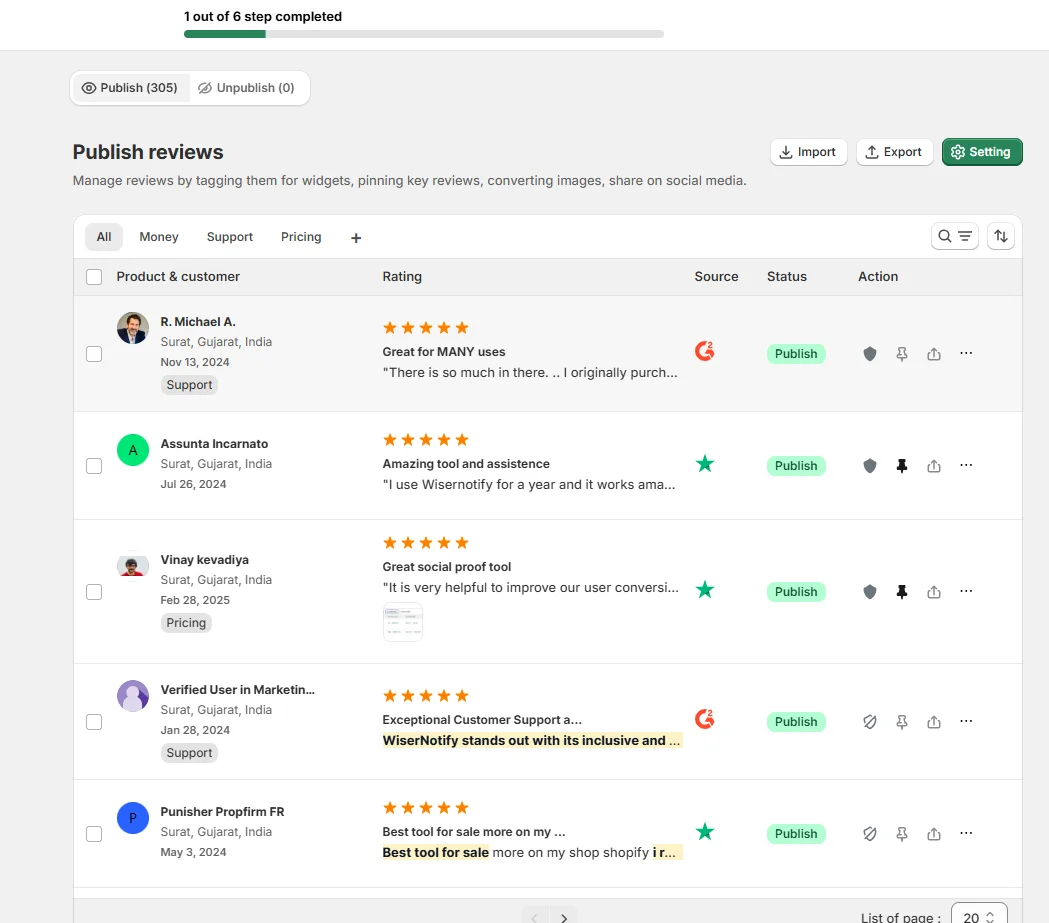

Embed Google Reviews on Builderall
Adding Google Reviews to Builderall is straightforward with JavaScript. Follow these steps:
- Get Your Google Reviews Widget Code:
- Use a third-party widget generator like Elfsight or EmbedSocial to generate a Google Reviews code snippet.
- Access Your Builderall Dashboard:
- Log into Builderall and navigate to the website or page where you want the reviews displayed.
- Insert the Code:
- Select the HTML widget from Builderall’s elements library.
- Drag the HTML widget to your desired location on the page.
- Paste the Google Reviews code snippet into the widget’s settings.
- Save and Publish:
- Click “Save,” preview the changes to ensure proper display, and publish your site.
Pro Tip: Use Builderall’s mobile optimization tools to ensure the reviews display well across all devices.
Best Places to Show Google Reviews on Builderall
1. Homepage
The homepage is often the first impression visitors have of your brand. Displaying Google Reviews here immediately establishes trust and credibility.
Key Tips:
- Place reviews in a slider or carousel format.
- Highlight top-rated reviews with visuals like star ratings.
- Use Builderall’s split-testing feature to determine the most effective placement.
2. Product or Service Pages
For e-commerce or service-oriented businesses, embedding Google Reviews on product pages boosts customer confidence.
Example:
- Add a testimonial widget below the product description to display reviews related to that specific product.
3. Landing Pages
Landing pages are conversion-focused, making them an ideal spot for Google Reviews.
Strategy:
- Integrate reviews that align with the page’s objective (e.g., trust-building reviews on a free trial page).
- Use Builderall’s timer elements to create urgency alongside reviews.
4. Checkout Page
The checkout page is a critical juncture where trust issues can lead to cart abandonment. Placing positive reviews here reassures buyers.
5. Contact Us or About Us Page
These pages are visited by customers seeking additional assurance. Reviews from satisfied customers act as the final nudge.
6. Popup Widgets
Builderall’s popup functionality lets you display reviews dynamically. For instance:
- Trigger a review popup when a visitor spends 30 seconds on the page.
Other Ways to Add Google Reviews to Builderall
1. Use Builderall’s iframe Widget
An iframe widget lets you embed external content directly onto your page.
Steps:
- Generate an iframe code from your Google Reviews widget provider.
- Drag the iframe widget onto your Builderall page.
- Paste the code and adjust the dimensions as needed.
Pros:
- Seamless integration with minimal customization.
Cons:
- Limited design flexibility compared to other methods.
2. Integrate with APIs
If you have coding expertise, Google’s Places API offers a robust way to display reviews.
Pros:
- Fully customizable.
- Dynamic updates for real-time review changes.
Cons:
- Requires technical knowledge and maintenance.
3. Use Third-Party Plugins
Builderall supports third-party apps that provide easy-to-use Google Reviews integrations.
Recommended Tools:
- Elfsight: User-friendly and offers a wide range of customization.
- EmbedSocial: Great for creating visually appealing widgets.
Pros:
- No coding required.
- Plenty of design options.
Cons:
- Subscription fees may apply.
4. Manually Add Screenshots of Reviews
For a quick fix, add screenshots of your best reviews.
Pros:
- Quick and easy.
- No need for third-party tools.
Cons:
- Static content that doesn’t update automatically.
3 Google Review Mistakes on Builderall
1. Overloading the Page
Displaying too many reviews in one area can overwhelm visitors and detract from your site’s aesthetic appeal. Stick to a curated selection of high-impact testimonials.
2. Using Outdated Reviews
Outdated reviews can give the impression of neglect. Regularly update your reviews to reflect recent customer experiences.
3. Ignoring Negative Reviews
Negative reviews, when addressed professionally, can showcase transparency. Always respond to reviews and show that you care about feedback.
Wrap Up
Adding Google Reviews to Builderall is a game-changing way to build trust, enhance SEO, and drive conversions.
Whether you use a widget, API integration, or simple screenshots, the key is to keep reviews authentic, relevant, and strategically placed. Start integrating Google Reviews into your Builderall projects today and watch your engagement soar!
Krunal Vaghasiya is a marketing tech expert who boosts e-commerce conversion rates with automated social proof and FOMO strategies. He loves to keep posting insightful posts on online marketing software, marketing automations, and improving conversion rates.




 Capterra