
How to Add a Sales Notification Popup on PrestaShop
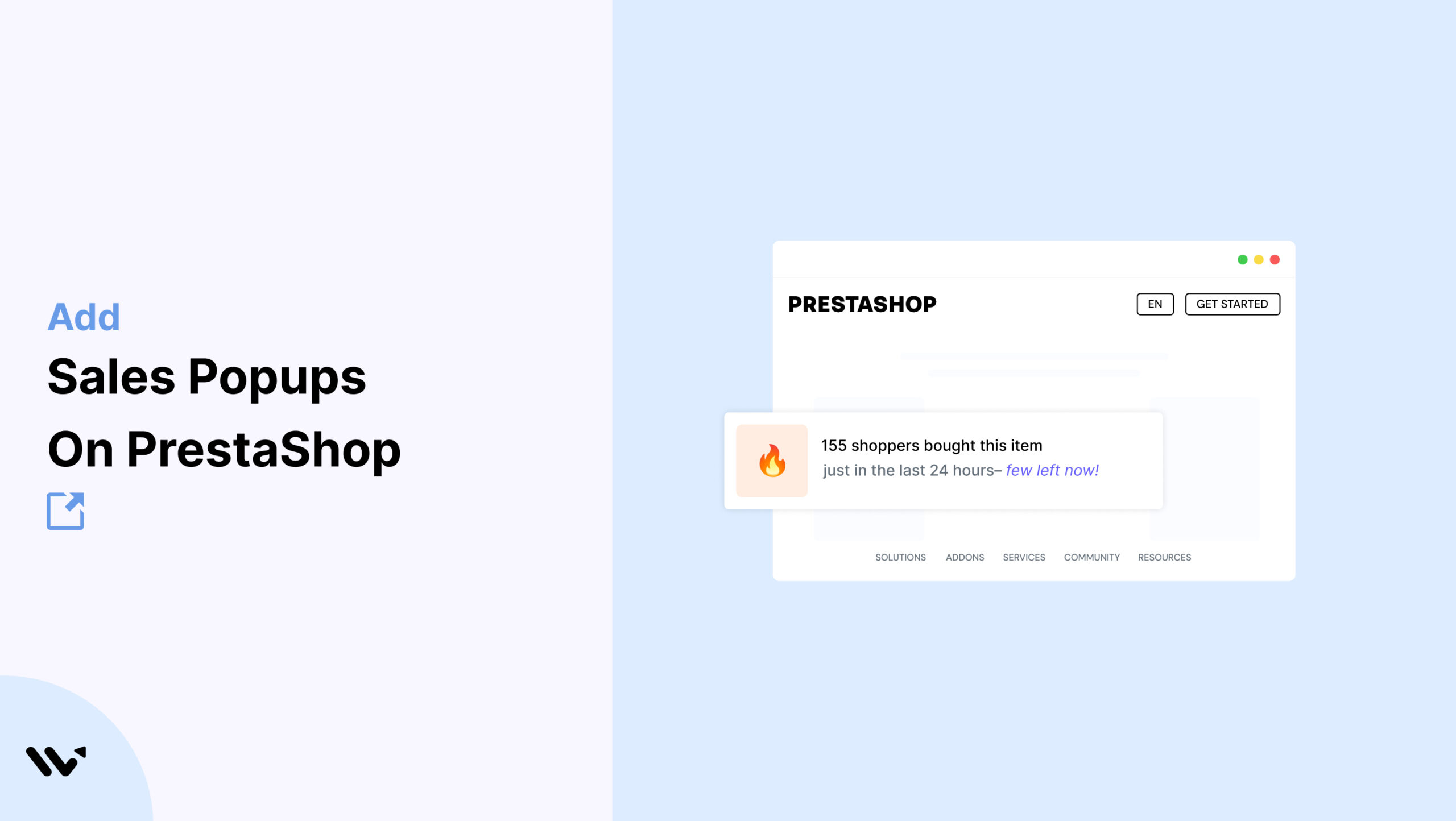
You’ve built a good PrestaShop store, with clear navigation, solid product pages, and a smooth checkout. But your traffic isn’t turning into sales the way you’d hoped.
It usually comes down to trust. A first-time shopper doesn’t know if other people buy from you. A live popup like “Emma from Houston just bought the Eco Hydration Bottle” shows them, on the spot, that they do.
WiserNotify shows those real-time sales popups on your PrestaShop store using social proof. This guide covers why they work, how to set one up step by step, and the tips and mistakes worth knowing.
Do Sales Popups Work on PrestaShop?
Yes, when they’re honest and relevant. Shoppers look to others before they buy, and social proof statistics show around 70% check reviews or proof of other purchases before deciding.
A sales popup puts that proof on the page right when someone is deciding. Seeing “someone just bought this” calms their doubts, gets them to act, and helps cut cart abandonment.
WiserNotify installs on PrestaShop as a module, so once it’s set up, the popups run from your real orders and you don’t have to keep tweaking anything.
How to Add a Sales Popup on PrestaShop
The setup has two parts: install the WiserNotify module and connect it with your API key, then build the popup from the dashboard. The video below walks through creating the notification, and the steps are written out under it.
Step 1: Copy Your API Key
Create a free WiserNotify account or log in, open the Install Pixel page, and scroll to Install via native app & API key. Click Copy API Key.

Step 2: Upload the WiserNotify Module
In your PrestaShop admin, go to Modules > Module Manager and click Upload a module. (This works on PrestaShop 1.7 and above.)

Drop in the WiserNotify module file, or click select file to upload it. PrestaShop installs it right away.

Step 3: Configure and Add Your API Key
Once the module installs, click Configure.

Paste your API Key into the box, set Status to Yes, and click Save. That connects your store and starts pulling in your recent orders.

For the full detail on this step, see the PrestaShop integration guide.
Step 4: Create a Sales Notification
In the WiserNotify dashboard, click Add Notification and open the Sales Activities tab. You get two options:
- Recent Sales: shows each buyer’s name, location, product, and time.
- Sales Count: shows the total number of sales over a period.
Pick Recent Sales, choose a design, then name it and enter your store URL.

Step 5: Design the Notification
In the Design section, set the popup to match your store:
- Style: adjust the icon, position, animation, borders, and colors.
- Text editor: edit the wording and change the language if you need to.
- Click action: turn on a CTA button if you want the popup to link to a product or page.
- Data and timing: set a display delay and how long the popup stays on screen.
Save your changes when the design looks right.

Step 6: Set Display and Data Source, Then Publish
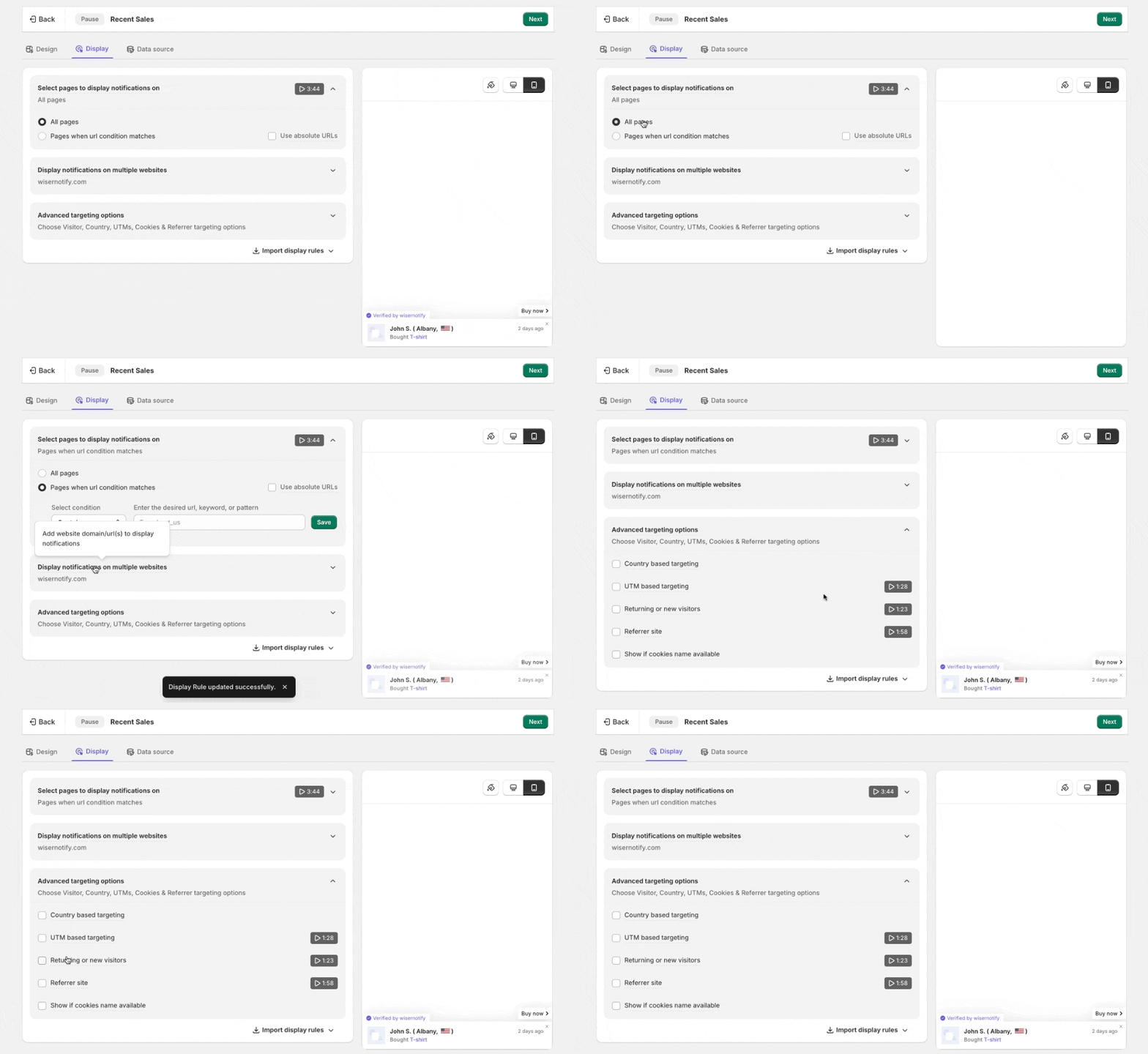
In the Display section, choose where the popup shows, all pages or specific ones like product and checkout pages. In Data Source, select your PrestaShop integration so it pulls from real orders.
Then click Finish, turn the notification on, and open your store in a private window to see it live.
Popup Not Showing Up on PrestaShop?
If the sales popup isn’t showing on your live store, check these first:
- Status not set to Yes: in the module’s Configure screen, make sure Status is Yes and the API key is saved.
- Wrong PrestaShop version: the native module works on PrestaShop 1.7 and above.
- Wrong data source: in the notification’s Data Source, confirm the PrestaShop integration is selected.
- No order data yet: place a test order, then check the WiserNotify data page to confirm records are coming through.
- Cache: open the store in a private window so you’re not seeing an old version.
Still stuck? WiserNotify’s dashboard has a built-in check that shows what’s wrong, and live chat can help.
Is the PrestaShop Sales Popup Free?
The WiserNotify PrestaShop module is free to install, and WiserNotify offers a 7-day free trial, so you can set up a sales popup and see how it performs before you pay anything.
After the trial, you pick a paid plan based on your monthly visitor traffic. Plans scale up as your store grows, and higher tiers add more widgets and features.
For most PrestaShop stores, the trial is enough time to run a live recent-sales popup and see whether it lifts conversions before committing.
Where to Show Sales Popups on Your PrestaShop Store
A popup works best where a shopper is close to deciding. These are the spots that tend to pay off:
- Product pages: the main event. A “just bought this” popup here backs up the exact item someone is weighing.
- Category pages: as people browse a range, popups nudge them toward what’s selling.
- Cart and checkout: a bit of proof at the last step helps a hesitant shopper follow through.
- Homepage: for a first-time visitor, one popup shows the store is active and people are buying.
You don’t need popups everywhere. Pick the pages where a decision is happening and leave the rest clean.
Sales Popup Tips for PrestaShop
- Show real products: feature the item a shopper is looking at, so “Liam from Chicago just bought the Bamboo Face Cleanser” feels relevant right away.
- Personalize the message: real names and cities make it believable, as the best social proof examples show. It works far better than a vague “someone bought this.”
- Match your theme: use your store’s fonts, colors, and layout so the popup looks like part of the site.
- Trigger after engagement: show the popup once a shopper scrolls or lingers on a product, so it feels relevant, not intrusive.
- Time it near Add to Cart: a popup around the Add to Cart button is one of the easiest wins in product page optimization.
Sales Popup Mistakes to Avoid on PrestaShop
- Too many popups: showing them constantly tires shoppers out, and they stop noticing them. Space them out and cap how many show per session.
- No context: “someone bought an item” is too vague to matter. Include the product, the buyer’s city, and the time so it feels real.
- Poor placement: a popup that covers the Add to Cart or Checkout button frustrates shoppers. Keep it in a corner and test every screen size.
- Styling that clashes: fonts and colors that don’t match your theme make the popup look off. Keep it in line with your store’s design.
- Skipping the data: setting a popup and forgetting it means guessing. Watch impressions, clicks, and conversions, then adjust from what the numbers show.
Wrap-Up
A PrestaShop store that looks busy sells more. Sales popups add the trust that helps people buy.
With light, customizable popups tied to real orders, you give shoppers more confidence and help them decide faster, without redesigning your store or touching checkout.
Set up your WiserNotify sales popup on PrestaShop and give every product page the proof it needs to sell.
Related guides
Setting up a sales notification popup on a different platform? These walk through it:
Frequently Asked Questions
Does PrestaShop have a built-in sales notification popup?
No, PrestaShop has no native sales popup. You add one with the free WiserNotify module (PrestaShop 1.7 and above), then build and manage the popup from the dashboard.
How do I install WiserNotify on PrestaShop?
Download the WiserNotify module, then in your PrestaShop admin go to Modules > Module Manager, click Upload a module, install it, click Configure, paste your API key, and set Status to Yes.
What data can the sales popup show?
Recent Sales shows each buyer’s name, location, product, and time. Sales Count shows the total number of sales over a period you choose.
Where does the sales data come from?
After you save the API key with Status set to Yes, WiserNotify pulls your recent PrestaShop orders and keeps syncing new ones, so popups run from real sales data.
Is there a free trial for the PrestaShop sales popup?
WiserNotify offers a free 7-day trial and the PrestaShop module is free to install, so you can set up and test a sales popup before choosing a paid plan.

Krunal Vaghasiya is a marketing tech expert who boosts e-commerce conversion rates with automated social proof and FOMO strategies. He loves to keep posting insightful posts on online marketing software, marketing automations, and improving conversion rates.




 Capterra