

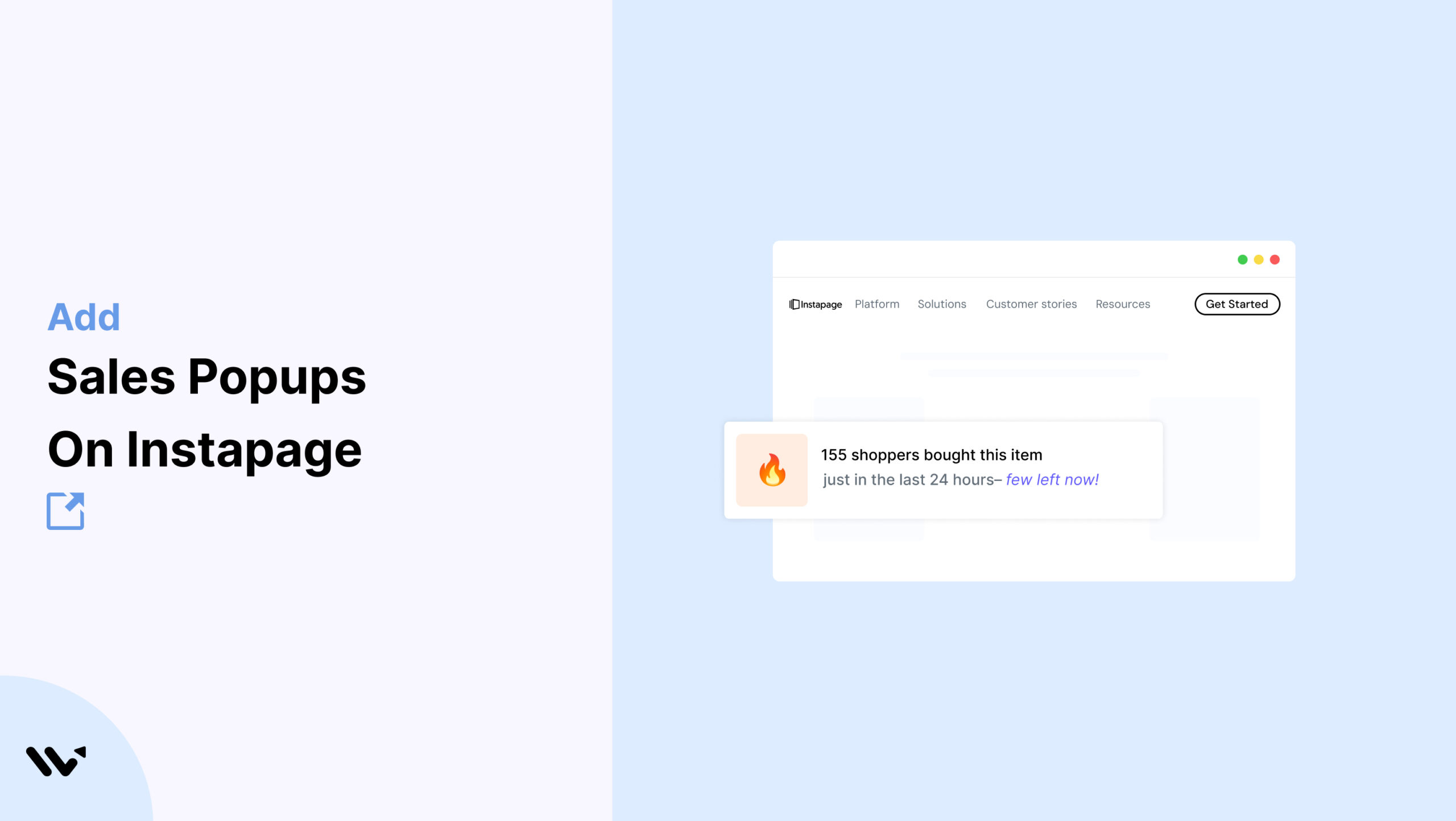
You’ve built an Instapage landing page that’s pixel-perfect and performance-optimized.
The visuals align with your brand, the CTA is front and center, and the copy is persuasive. But visitors are still bouncing.
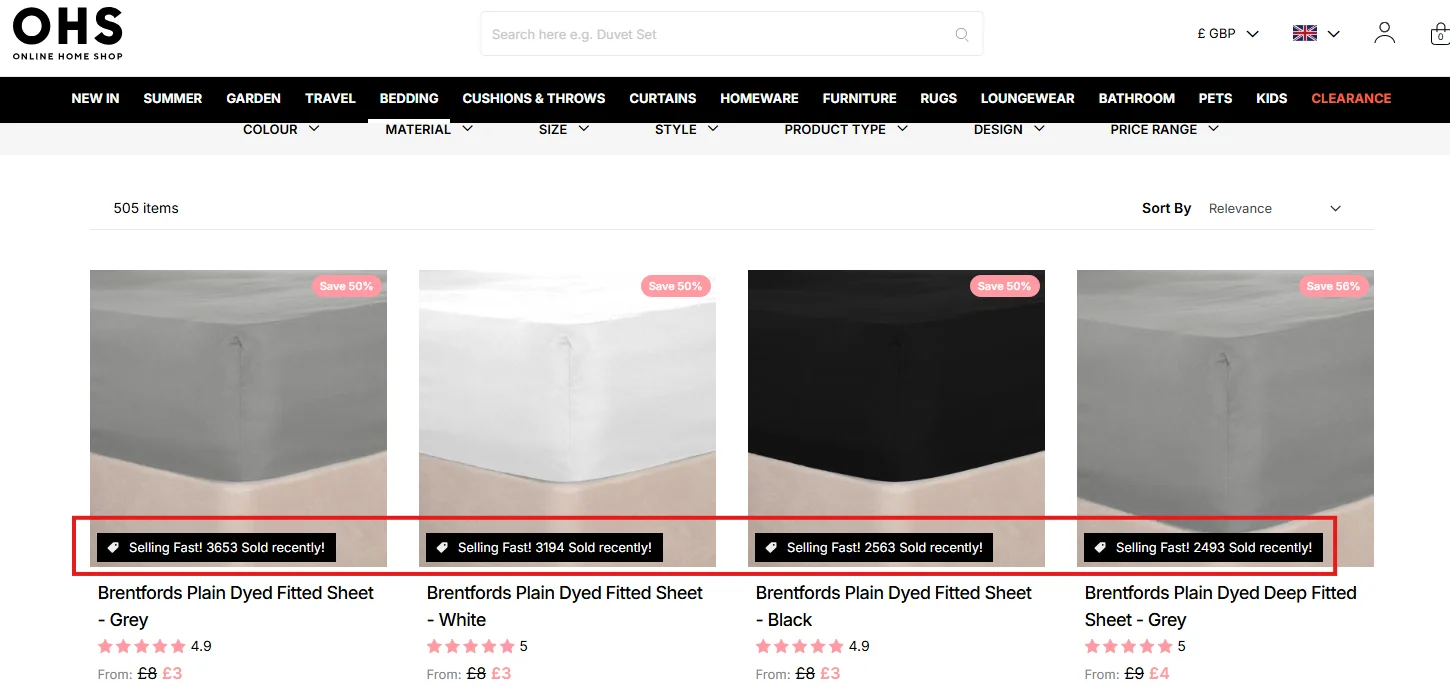
Why? Because they’re unsure if they can trust you. A quick popup like “Alex from San Diego just signed up for the SEO Starter Pack” builds instant confidence.
That’s the power of Wisernotify.
With it, you can show real-time user actions like signups, downloads, or purchases—building social proof that increases engagement and drives conversions on Instapage.
Why Add a Sales Notification Pop-up on Instapage?
Instapage makes landing page creation fast and simple—but users still need assurance. While you can design a high-performing landing page, visitors often hesitate without external signals of reliability.
Establish instant trust: Displaying recent signups or downloads communicates activity and popularity. It helps visitors see your brand as trustworthy and relevant.
Create urgency: When visitors notice real-time activity, they’re more likely to act fast. It reinforces that the opportunity is time-sensitive.
Improve funnel performance: Sales and lead-gen pages equipped with real-time popups often see better conversions due to reduced friction in decision-making.
Easy to install: Wisernotify works via a script or Google Tag Manager. It’s quick to implement without altering your Instapage design or structure.
Custom design: Popups can be styled to match your brand colors, fonts, and animations—ensuring visual consistency and brand professionalism.
Use Case Example: A SaaS company added Wisernotify to its Instapage demo request page. By displaying real-time signups such as “Jamie from Austin just booked a demo,” they introduced instant trust to first-time visitors. Within 14 days, signup rates jumped 38%, largely due to increased user confidence and urgency.
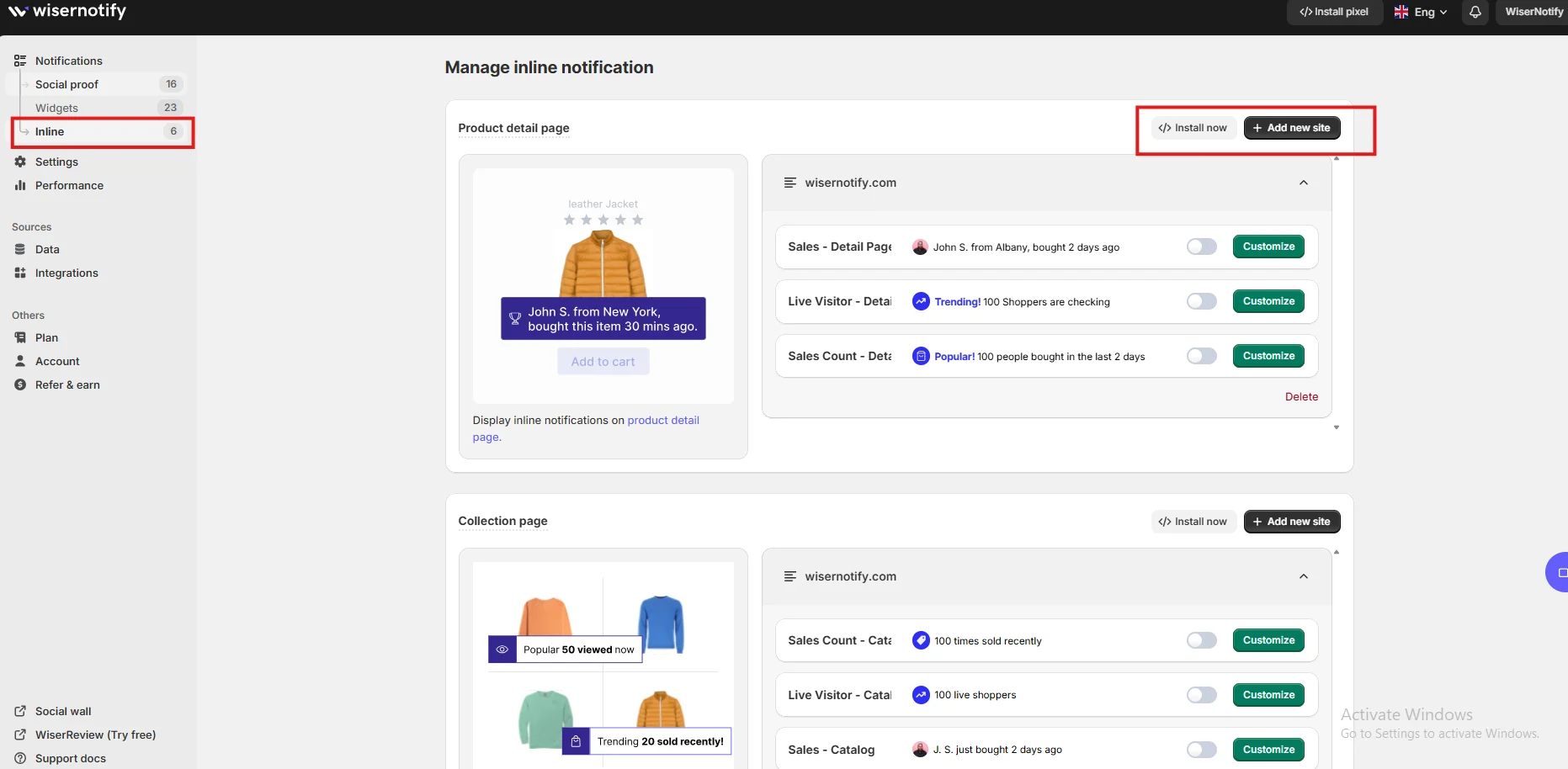
How to Add Sales Pop-up on Instapage

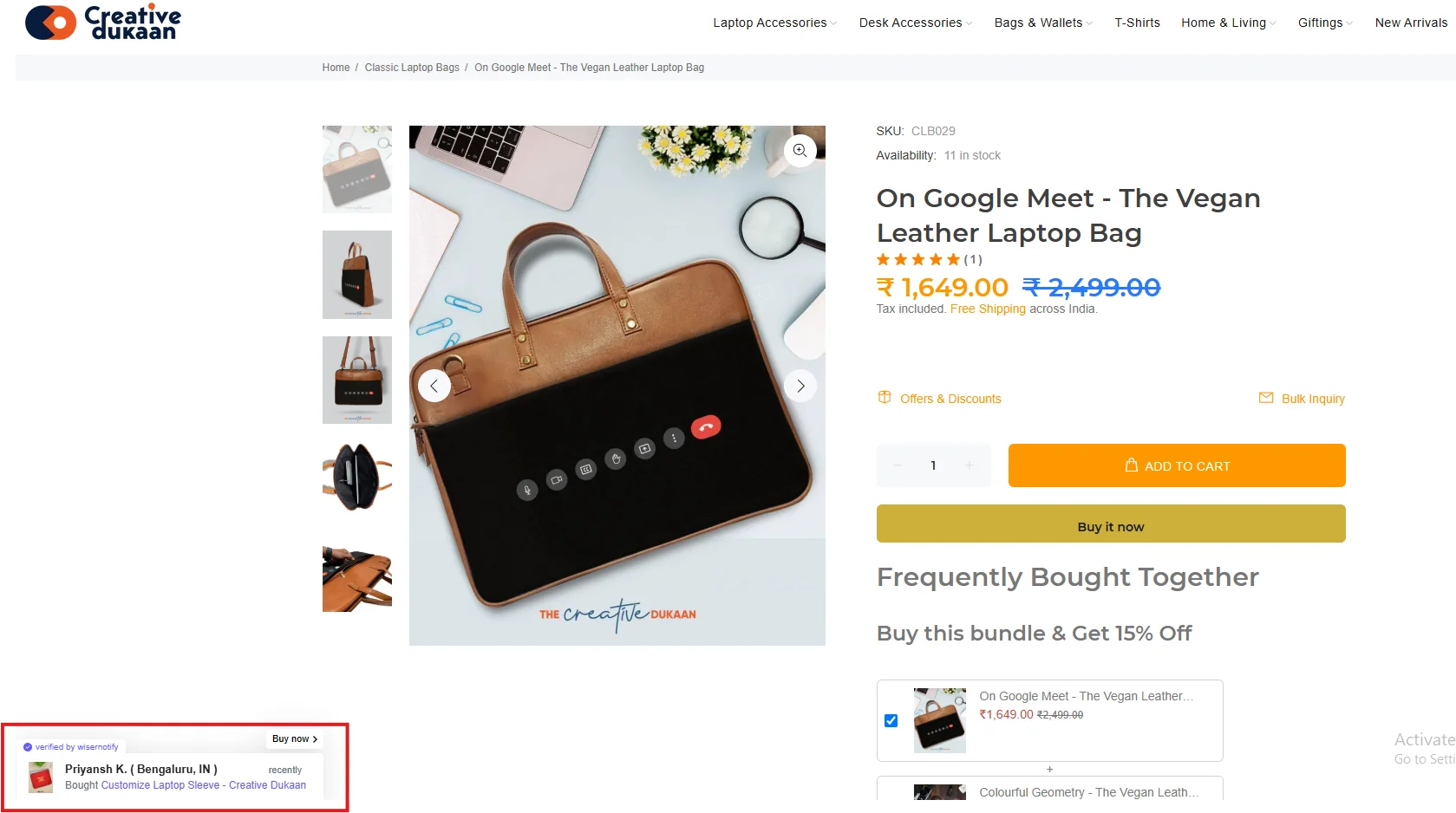
3 Best Sales Pop-up Examples

Sales Pop-up Tips for Instapage
Here are the main tips for sales pop-ups on Instapage:
1. Match your layout
Your popup design should reflect the visual style of your Instapage layout.
This includes using matching fonts, colors, and button styles to create a seamless look.
Popups that blend into the overall design reinforce your brand’s professionalism and reduce visual friction, making them more effective.
2. Time-based triggers
Avoid showing popups immediately.
Set a time delay of 10 to 20 seconds to ensure the user is engaged before presenting social proof.
This makes the notification feel natural and relevant rather than intrusive or pushy, increasing its effectiveness.
3. Geo and name personalization
Including the user’s first name and location, such as “Ava from Dallas just downloaded the checklist,” makes your popup feel authentic.
This personalization builds trust by showing that real people are interacting with your offer, not bots or fabricated data.
4. Highlight product value
Use popups to reinforce the benefits of your offer.
For instance, “Michael just got the free CRM Toolkit—boost your customer tracking today.”
This approach adds more than just proof—it adds context, making your offer’s value clearer.
5. Avoid blocking CTAs
Always place popups where they won’t obstruct CTAs or essential page elements.
Bottom left or right corners are optimal zones that offer visibility without interruption.
Test your placement on mobile and desktop to ensure a frictionless experience.
6. Use urgency cues
Messages like “Only 3 slots left for today” or “Offer expires in 2 hours” drive urgency.
When paired with social proof, these cues create emotional momentum that moves visitors from indecision to action faster.
7. Style with purpose
Choose transitions like fade-ins or slide-ins that are smooth and brand-consistent.
Avoid jarring animations or mismatched colors.
Your popup should enhance the experience—not distract from it—by aligning with your Instapage design.
8. Optimize for mobile
Mobile-first design is crucial.
Wisernotify lets you customize how popups appear on smaller screens, ensuring that they’re legible, well-placed, and never block core content or CTAs on smartphones and tablets.
9. Test and refine
Use analytics to track performance, then experiment with design variations, copy tone, and timing.
A/B testing different popup formats helps you discover what converts best and continually improve your approach.
Sales Popup Mistakes to Avoid on Instapage
Here are some common mistakes to avoid:
1. Too frequent notifications
Displaying a popup every few seconds can overwhelm users and hurt engagement.
Limit frequency by showing no more than 2–3 popups per session, spaced 30–60 seconds apart.
Quality over quantity is key.
2. Generic wording
Vague messages like “Someone took action” fail to inspire trust.
Use detailed copy with first names, locations, and specific actions like “Liam from Denver downloaded the Guide to Lead Generation.”
Specificity builds authenticity and connection.
3. Design mismatch
Popups that don’t align with your page’s style disrupt the user experience.
Use Wisernotify’s design tools to match your site’s font, colors, and theme.
Consistent visuals help popups feel like a native part of your landing page.
4. Popup overlap
If your popup covers important elements like CTA buttons or form fields, it will frustrate users and decrease conversions.
Always preview on multiple devices and screen sizes to ensure clear visibility of all essential content.
5. Ignoring data
Wisernotify includes powerful analytics that show which messages perform best.
If you’re not monitoring performance, you’re missing out on optimization opportunities.
Use the data to adjust timing, messaging, and design for maximum impact.
Wrap-Up
Instapage empowers you to build smart, fast-loading, high-converting landing pages.
But for many users, that final trust element is missing. Wisernotify bridges that gap by providing live social proof that reassures and nudges hesitant visitors toward action.
With just a few lines of code or a quick GTM setup, you can start showcasing real-time signups, purchases, or downloads.
These subtle notifications make your offer feel more credible and urgent, dramatically improving engagement and conversions.
Add Wisernotify to your Instapage campaign today and turn traffic into trust—and clicks into customers.


