
Add FOMO-Powered Sales Popups on HubSpot
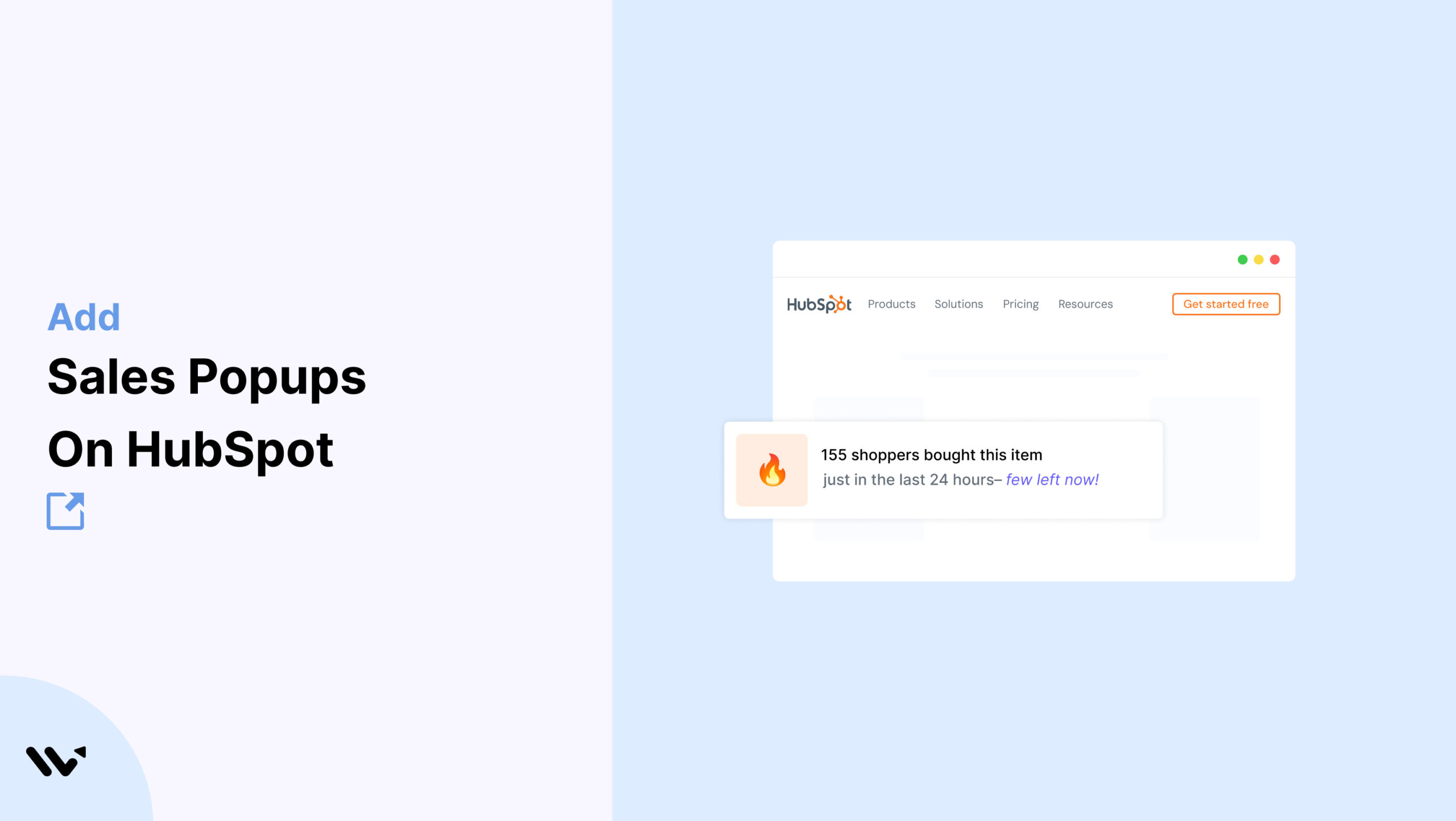
Your HubSpot CMS website is optimized with smart content, strategic CTAs, and streamlined workflows—but what if visitors still hesitate to take action? The missing piece is often trust.
When someone sees a real-time popup like “Emily from Chicago just booked a demo”, they gain confidence in your business.
Wisernotify enables real-time social proof popups that showcase recent signups, purchases, or other activity on your HubSpot CMS pages.
These notifications add authenticity and urgency, helping you convert more visitors.
Why Add a Sales Notification Pop-up on HubSpot CMS?
HubSpot CMS provides you with robust tools to attract, convert, and engage customers through content and automation. But visitors often make decisions based on emotional triggers as much as logical content. That’s where Wisernotify comes in.
Build credibility fast: Seeing others take action on your site builds trust. Popups showing real names, actions, and locations demonstrate that your brand is active and trusted.
Boost engagement: Real-time notifications break the static experience. Visitors are more likely to explore and engage when they know others are doing the same.
Enhance lead gen efforts: Popups shown next to forms or CTA buttons reinforce urgency and make your offer feel more compelling.
Compatible with any HubSpot theme: Wisernotify works across all HubSpot CMS templates. Whether you’re using custom modules or starter themes, it fits in seamlessly.
Fully customizable design: Align every aspect of the popup—including fonts, animation, color palette, and placement—to match your HubSpot site’s branding.
Use Case Example: A B2B SaaS company implemented Wisernotify popups on its HubSpot CMS pricing and demo request pages. These real-time notifications showcased recent demo bookings and resource downloads. Within three weeks, they saw a 29% increase in conversion rates and a noticeable drop in form abandonment. Visitors reported feeling more confident and encouraged to act thanks to the social proof.
How to Add Sales Pop-up on HubSpot CMS


3 Best Sales Pop-up Examples


Sales Pop-up Tips for HubSpot CMS
Here are the main tips for sales pop-ups on Hubspot CMS:
1. Match your HubSpot theme
Your popup should reflect the visual tone and branding of your HubSpot pages.
Use the same font family, color scheme, and layout padding to make it feel native.
This alignment enhances trust and avoids visual inconsistency that might confuse or deter users.
2. Trigger after user scroll
Users need to be engaged before receiving additional cues.
Set your popup to trigger only after the visitor scrolls 50–60% down the page or spends at least 10 seconds on the site.
This ensures they’re genuinely interested before being prompted by a social signal.
3. Use personalization
Incorporating the visitor’s name or geographical location in the popup boosts authenticity.
Statements like “Megan from Boston just downloaded the free case study” make the popup relatable and enhance its persuasive power.
4. Highlight trending activity
Show that your offer is in demand by using language such as “This guide has been downloaded 300 times this week.”
Popularity indicators act as validation and increase perceived value.
5. Avoid pop-up overload
Avoid displaying too many popups in a short time.
Limit to 2–3 per session and space them at least 30 seconds apart.
Overloading users may cause them to ignore or dismiss important notifications, reducing their effectiveness.
6. CTA-focused timing
Place popups strategically near moments of decision.
For instance, display a popup when a user is hovering over a CTA button or when they pause near the form section.
This subtle nudge can help push hesitant users over the edge.
7. Mobile-ready design
Ensure your popups are fully optimized for mobile users.
Use Wisernotify’s mobile view settings to adjust popup size, font readability, and placement so they never block essential content on smaller screens.
8. Show product/service relevance
Tailor your popup messages to reflect the context of the page.
For example, if you’re promoting a consultation, display messages like “Ethan just booked a marketing strategy call.”
This boosts message clarity and relevance.
9. Use analytics to optimize
Track performance data for each popup. Monitor views, clicks, and conversions.
Use this insight to test different designs, copy formats, and display timings for continuous improvement.
Sales Popup Mistakes to Avoid on HubSpot CMS
Here are some common mistakes to avoid:
1. Too many notifications
Displaying too many notifications in one session overwhelms users.
Aim to show a popup only when it’s most relevant.
Limit to a few per session, and ensure they’re spaced out to maintain their effectiveness and prevent notification fatigue.
2. Lack of specifics
Vague messages like “Someone signed up” feel generic and unbelievable.
Instead, include the user’s first name, location, and specific action.
This builds credibility and shows that your audience is actively engaging with your content.
3. Design inconsistency
Using popup styles that conflict with your site’s visual identity can damage your brand image.
Ensure that popups mirror your HubSpot CMS design with aligned colors, fonts, and shapes. A consistent look enhances trust.
4. In poor positions
Placing popups where they block CTAs, forms, or navigation disrupts the user journey.
Choose areas like the bottom-left or bottom-right of the screen, and always test across screen sizes to ensure smooth navigation.
5. No performance tracking
Failing to track popup effectiveness means missing opportunities to improve.
Wisernotify provides analytics—use it to test different messages and designs.
A/B testing your popups will help you understand what drives the most conversions.
Wrap-Up
HubSpot CMS helps you craft high-converting digital experiences, but even the most optimized content can fall flat without social validation.
Wisernotify brings that validation in real time, showing your visitors that others are actively engaging, buying, downloading, or subscribing.
By integrating Wisernotify into your HubSpot CMS site, you can transform passive traffic into trust-fueled conversions.
It’s fast to implement, simple to manage, and proven to boost results across various industries.
Add Wisernotify to your HubSpot CMS today and take your engagement, credibility, and conversion rates to the next level.
Related guides
Setting up a sales notification popup on a different platform? These related guides walk through it:
Frequently Asked Questions
Can I add sales popups to HubSpot CMS without coding?
Yes, you can add sales popups without any coding using third-party tools like WiserNotify. These tools usually offer drag-and-drop builders and embed code that you can place inside HubSpot’s custom HTML module or site header/footer.
Where should I place sales popups on my HubSpot CMS site for the best results?
The best placements are on product pages, exit intent triggers, scroll-triggered popups, or delay-timed popups on landing pages. This helps grab user attention without being disruptive.
How do I install a sales popup script on my HubSpot CMS website?
Go to your HubSpot account > Settings > Website > Pages > Header/Footer Code. Paste the popup script (usually JavaScript) in the header or footer section of your website, then publish.
Will sales popups slow down my HubSpot site?
Most modern popup tools are optimized to load asynchronously, so they don’t affect your page speed much. Still, always check your site’s performance using tools like Google PageSpeed Insights after adding popups.
Can I target specific users or pages with popups on HubSpot CMS?
Yes, many popup tools let you control where and when the popup shows. You can target specific URLs, user behaviors (like exit intent or scroll depth), devices, or time delays based on your campaign goal.

Krunal Vaghasiya is a marketing tech expert who boosts e-commerce conversion rates with automated social proof and FOMO strategies. He loves to keep posting insightful posts on online marketing software, marketing automations, and improving conversion rates.




 Capterra