
On-Site Notifications vs Push Notifications: Which to Use in 2026
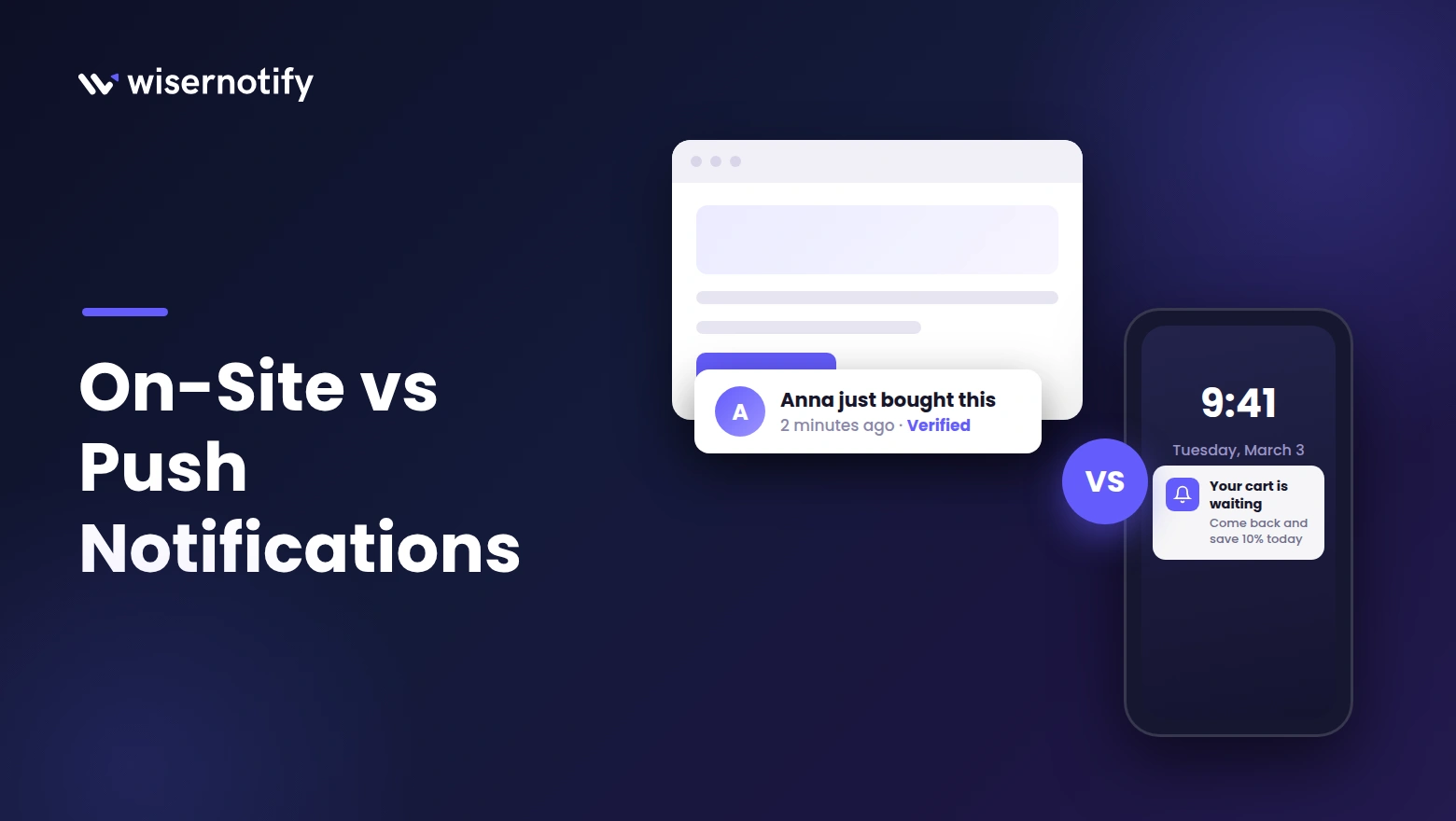
On-site notifications are messages visitors see inside your website while they browse. Push notifications are alerts sent to a browser or phone after they leave. On-site messages reach every visitor with no permission step. Push needs an opt-in but keeps working once the visitor is gone. Most stores get the best results by running both.
This guide breaks down how each one works, where each wins, and what the latest numbers say about their performance.
You will also see a simple way to run them together so one picks up where the other stops.
Key takeaways
- On-site notifications show in real time to every visitor, with no opt-in needed.
- Push notifications need permission first, but they reach people after they leave your site.
- On-site works best for trust, urgency, and guiding visitors mid-session. Push works best for bringing people back.
- Automated push messages convert far better than one-off blasts, so triggers beat broadcasts.
- The two cover different halves of the journey, so pairing them beats picking one.
On-Site vs Push Notifications at a Glance
Here is how the two stack up side by side.
| Factor | On-site notifications | Push notifications |
|---|---|---|
| Reach | Every visitor on the page | Only subscribers who opted in |
| Opt-in needed | No | Yes, browser or app permission |
| When it shows | During the visit, triggered by behavior | Any time, even after the visitor leaves |
| Timing control | Page rules, delays, scroll and exit triggers | Scheduled sends or automated triggers |
| Best use | Social proof, urgency, offers, guidance | Cart recovery, order updates, win-back |
| Main risk | Clutter that distracts from checkout | Opt-outs after too many sends |
| Example tools | WiserNotify | OneSignal, PushEngage |
What Are On-Site Notifications?
On-site notifications are small messages that appear on your website while someone is browsing. They react to what the visitor does in the moment, like viewing a product, lingering on pricing, or moving to close the tab.
Because they live inside the page, they need no permission. Every visitor can see them from their first second on your site.
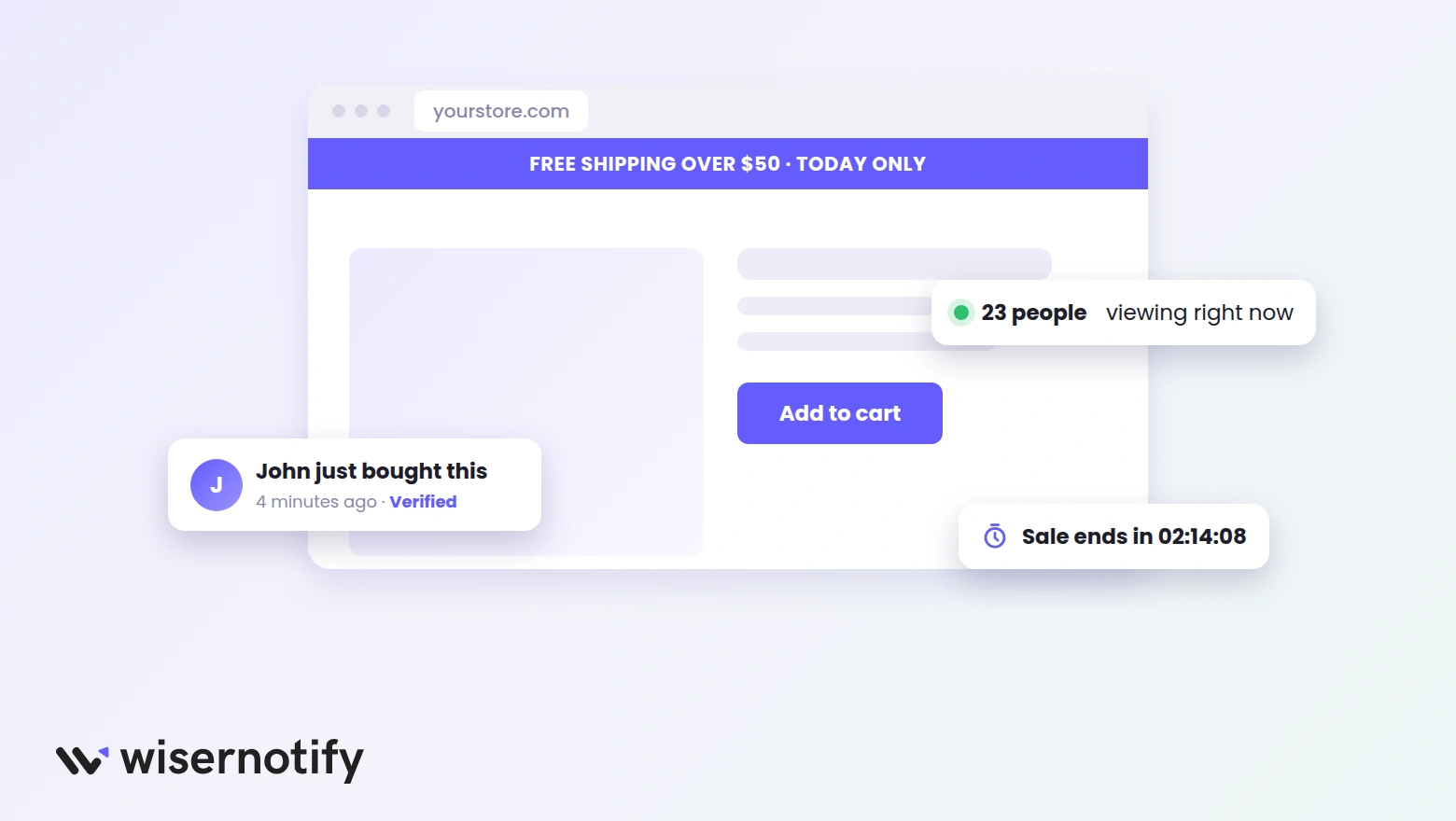
Common types of on-site notifications
- Social proof popups. Recent purchases, sign-ups, or review counts, like “Anna from New York just bought this.” See more in these social proof examples.
- Live activity counters. “23 people are viewing this right now” or sold counters on product pages.
- Promotional banners. A discount code or free shipping threshold pinned to the top of the page.
- Countdown timers. A sale deadline that creates a reason to act now instead of later.
- Exit-intent popups. A last offer shown when the cursor heads for the close button. These exit-intent popup examples show the format in action.
- Chat and callback prompts. A nudge to ask a question on product or checkout pages.
Strengths and limits
What on-site notifications do well
- Reach every visitor with no opt-in step.
- Fire at the exact moment of hesitation, like exit or long idle time.
- Build trust fast with proof of other buyers.
- Feel native to the page instead of interrupting another app.
Where they stop
- They end when the session ends. Once the visitor leaves, the message is gone.
- Too many at once bury the page and hurt checkout focus.
What Are Push Notifications?
Push notifications are alerts delivered to a device through the browser or a mobile app. The visitor grants permission once, then your messages can reach their screen even when they are nowhere near your site.
That permission step is the trade-off. You lose most of your audience at the prompt, but the people who stay said yes to hearing from you.
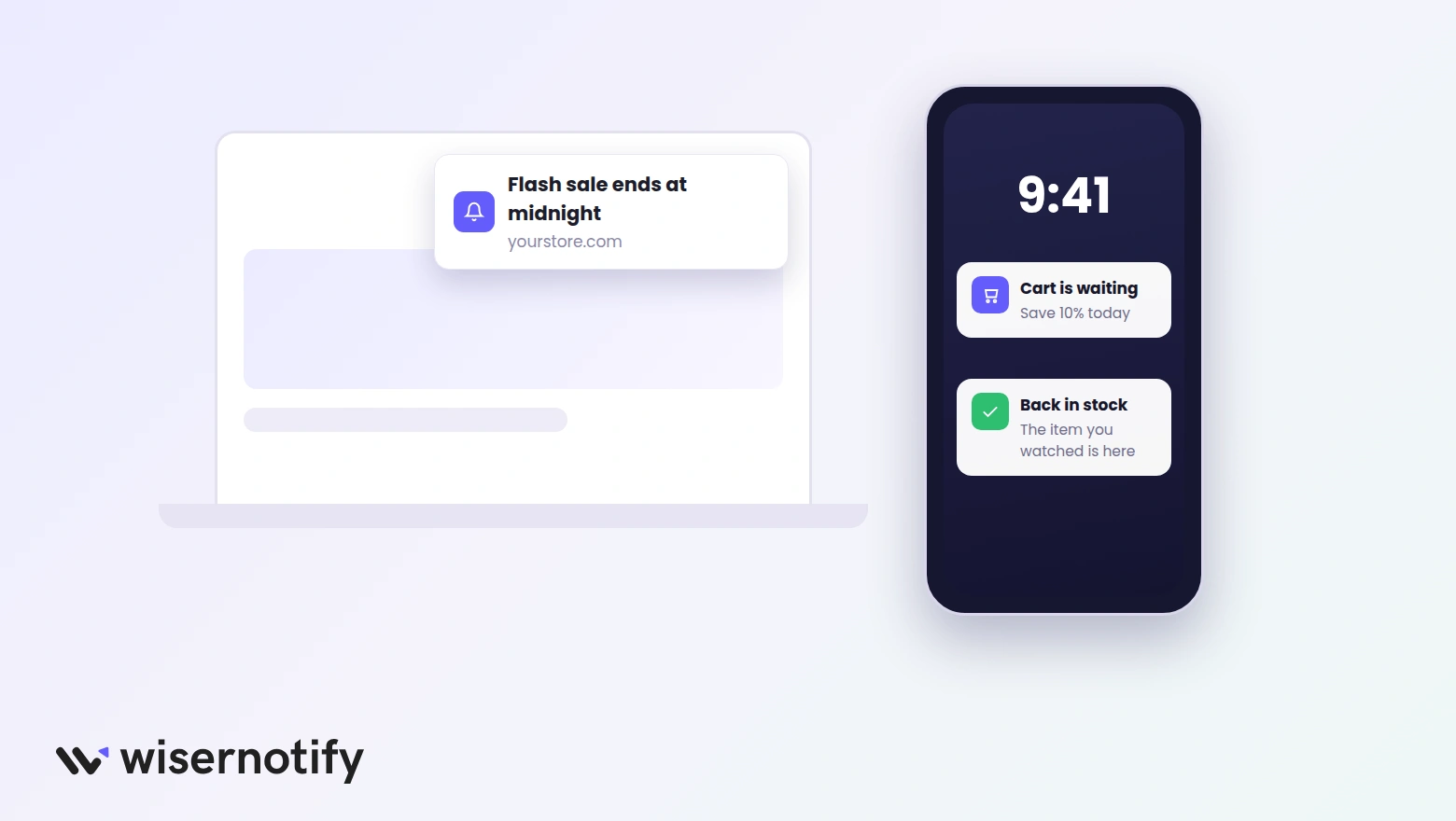
Common types of push notifications
- Browser push. Works on desktop and Android without an app. On iPhone it works once the visitor adds your site to their Home Screen.
- Mobile app push. Order updates, shipping alerts, and offers sent through your app.
- Cart reminders. “Still thinking it over? Your cart is waiting” sent hours after the visitor left.
- Time-sensitive alerts. Flash sale endings, price drops, and back-in-stock notices.
- Personalized picks. Suggestions based on what the subscriber viewed before.
Strengths and limits
What push notifications do well
- Reach people after they leave, which no on-site message can do.
- Deliver to the device in seconds, with no inbox to compete against.
- Automate around behavior, like carts left behind or items back in stock.
Where they stop
- The opt-in prompt filters out most visitors before you send anything.
- A few off-target sends and subscribers mute or block you for good.
When On-Site Notifications Win
Reach for on-site notifications when the job is converting the visitor who is already there.
- New traffic you have not earned trust with. First-time visitors see proof of other buyers before they see a single claim from you. It is one of the simplest nudge marketing plays.
- Short decision windows. A countdown or low-stock note pushes a browsing visitor to decide during the session.
- Exit moments. An exit popup with an offer catches people on the way out, while a push message would never reach them.
- Guiding visitors mid-journey. Point people to a sale page, a webinar, or help right when they look stuck.
- FOMO campaigns. Live sales and visitor counts make demand visible. These FOMO marketing examples show how brands do it.
When Push Notifications Win
Reach for push when the job is bringing someone back.
- Abandoned carts. Most carts get left behind, and a push reminder lands hours later with the items still saved. The cart abandonment stats show how big that pool is.
- Order and shipping updates. Subscribers want these, which keeps your permission healthy for marketing sends.
- Back-in-stock and price-drop alerts. High intent plus perfect timing, since the subscriber asked for the signal.
- Win-back campaigns. A quiet subscriber gets a reason to return without you paying for an ad.
What the Numbers Say
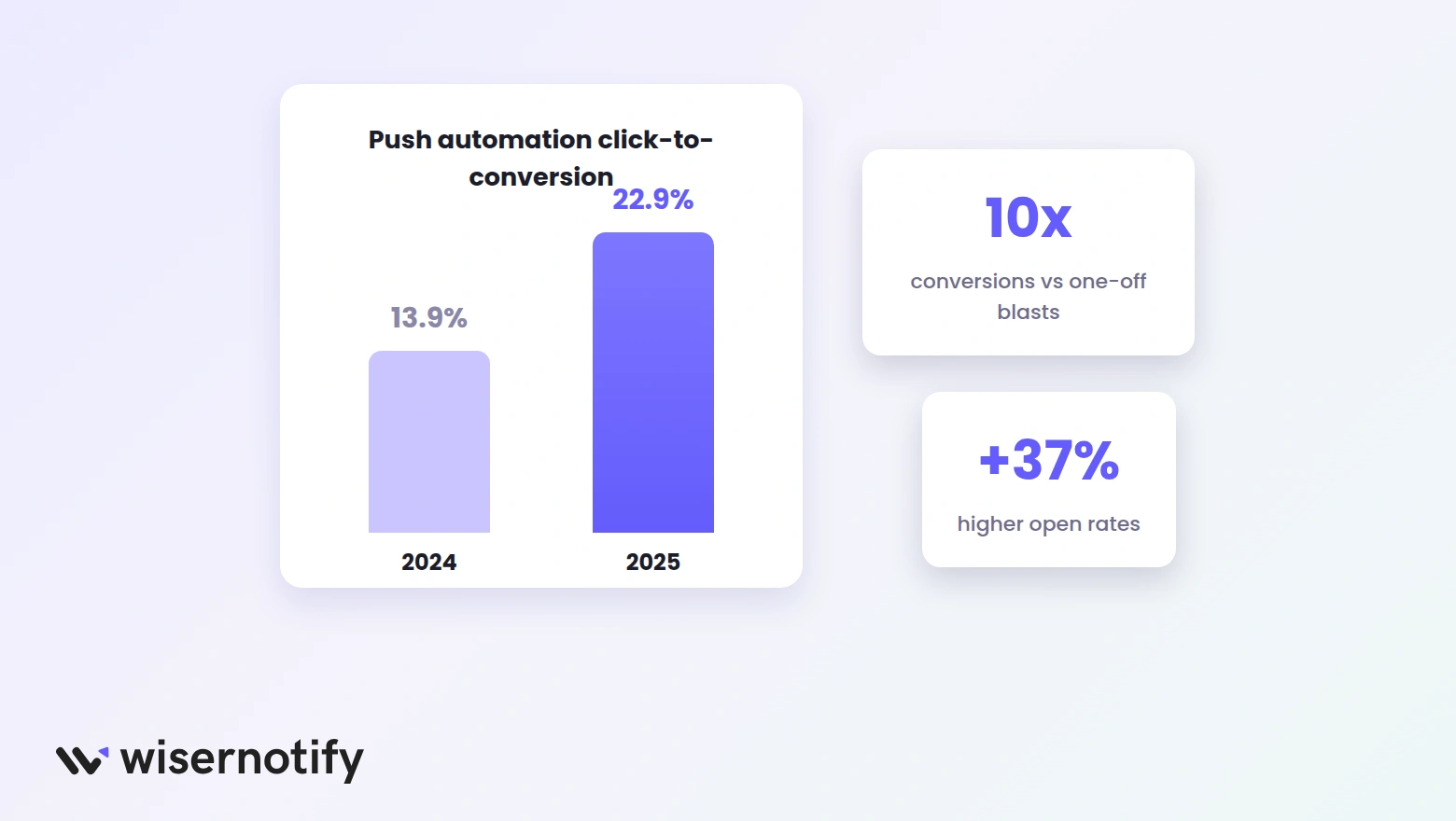
Push performance splits sharply between blasts and triggers. Omnisend’s 2026 ecommerce report, built on 458 million push messages, found automated push notifications converted about 10 times better than one-off campaigns, with 37% higher open rates.
The same report shows push automation click-to-conversion climbed from 13.9% in 2024 to 22.9% in 2025. People who click a triggered push are increasingly ready to buy.
On the on-site side, there is no single industry benchmark, because results swing with widget type, placement, and traffic. Baymard Institute’s running research puts average cart abandonment at 70.22%, which is the leak both notification types exist to plug.
So the honest read is simple. Measure your own widgets. Any good notification tool shows clicks and conversions per campaign, so two weeks of data beats any benchmark.
Build trust & FOMO
Highlight real-time activities like reviews, sales & sign-ups.


How to Run Both Together
The two channels cover different halves of the same journey. On-site converts the visit. Push recovers the exit. A simple sequence looks like this.
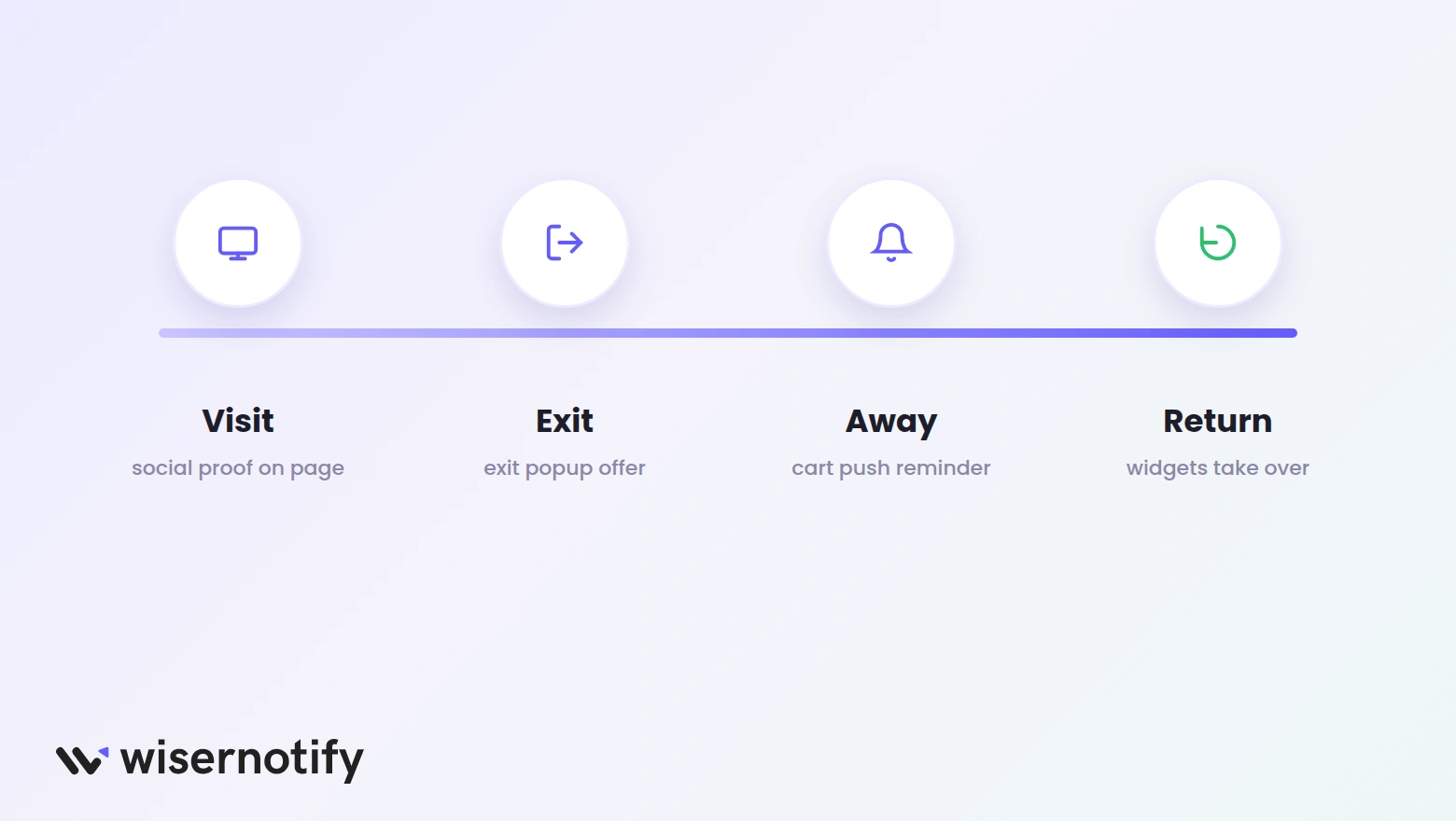
- During the visit. Show social proof and a limited-time offer banner while the visitor browses.
- At exit. Fire an exit-intent popup with the offer and a soft ask to enable alerts for price drops.
- After they leave. Send a push reminder a few hours later if the cart still has items in it.
- Days later. A back-in-stock or new-arrival push pulls them into a fresh session, where your on-site widgets take over again.
Keep frequency caps on both. One or two on-site messages per page and a few push sends per week is plenty for most stores.
Setting Up On-Site Notifications with WiserNotify
WiserNotify handles the on-site half. It shows live sales, sign-ups, reviews, visitor counts, countdown timers, and exit popups on your site, and it connects with 250+ platforms and tools.
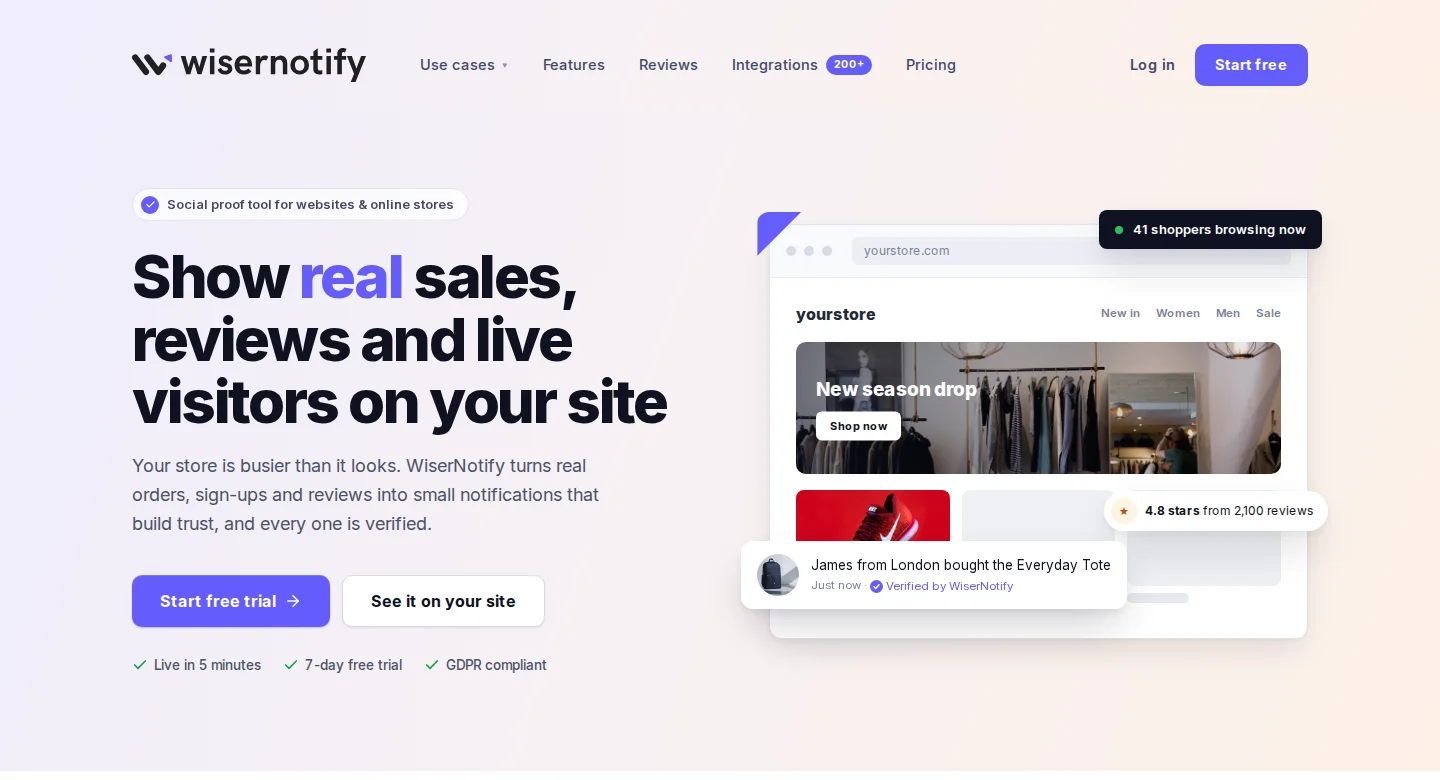
Here is the no-code setup, using a recent sales notification as the example.
Step 1. Copy your pixel code
Sign up for WiserNotify and open the Install pixel page. Click Copy code to grab the snippet.

Step 2. Add the pixel and verify it
Paste the code into the head section of your site. One-click plugins and apps cover WordPress, Shopify, and most builders. Then click Verify pixel installation until the status turns green.

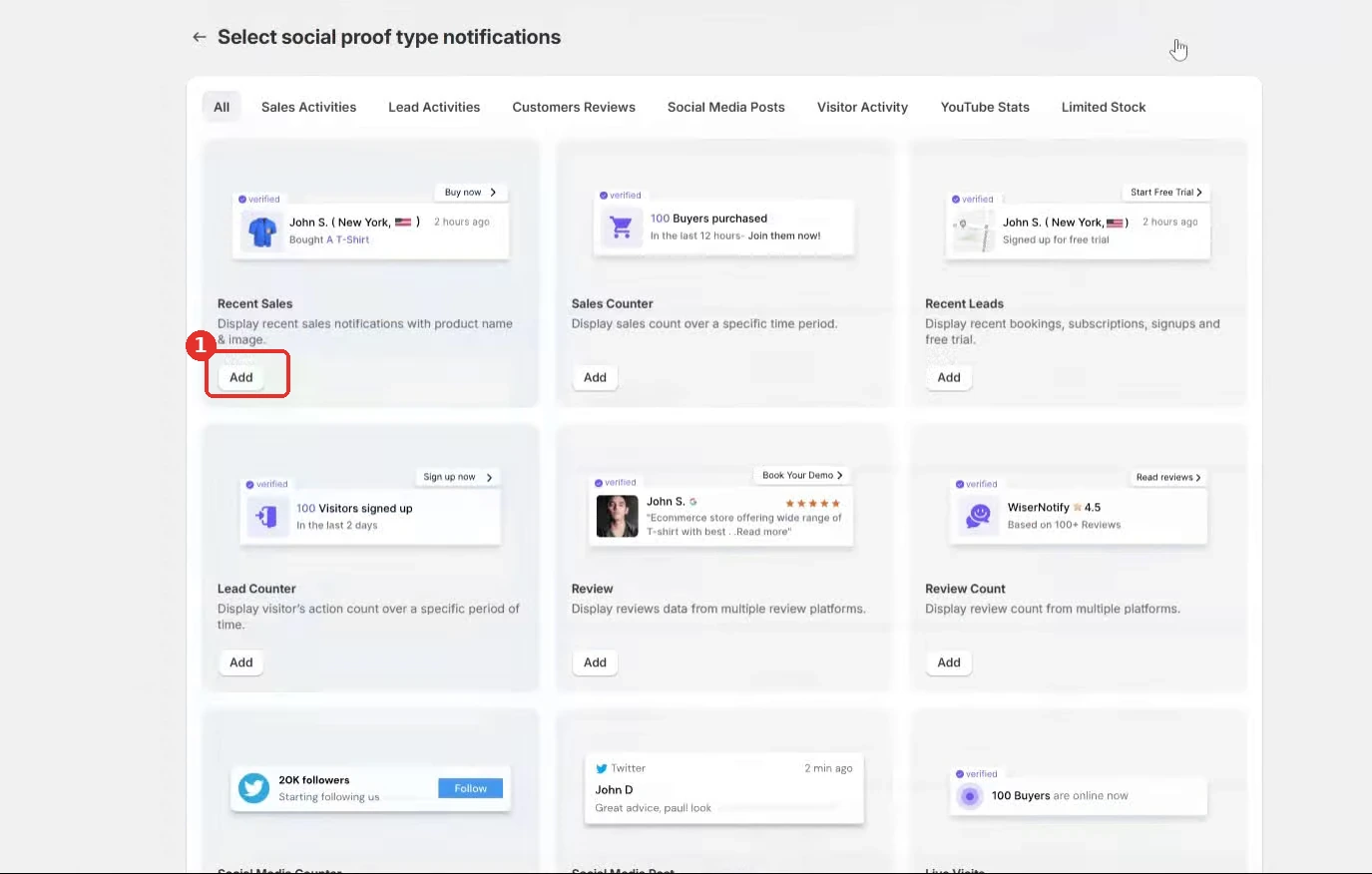
Step 3. Pick a notification type
Click Create notification and choose a widget from the gallery. Recent Sales, Sales Counter, Review, and Live Visits all run on the same flow. Click Add on the one you want.
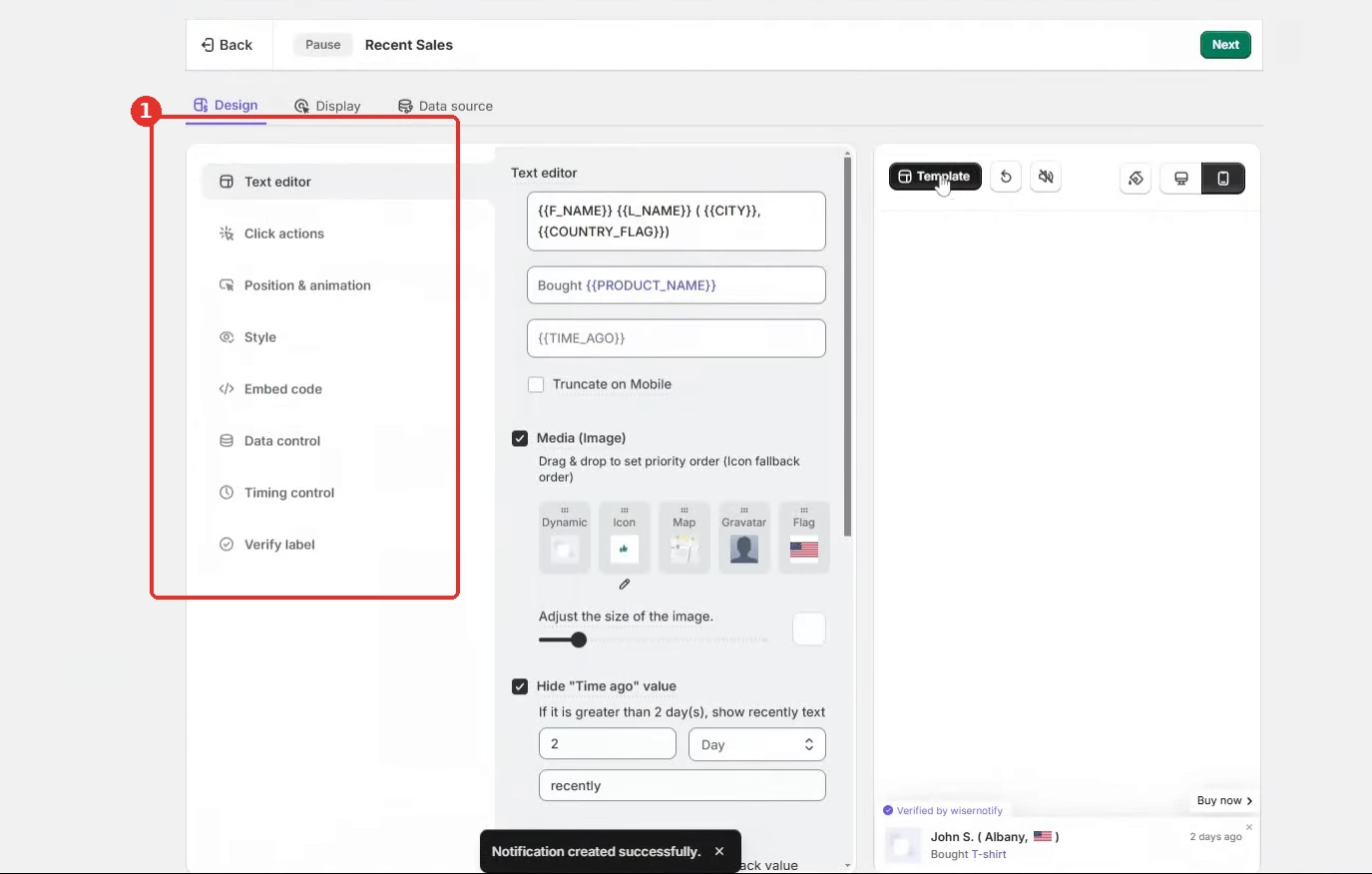
Step 4. Design the notification
The Design tab controls the message text, image, click action, position, and style. The live preview on the right shows desktop and mobile versions as you edit.
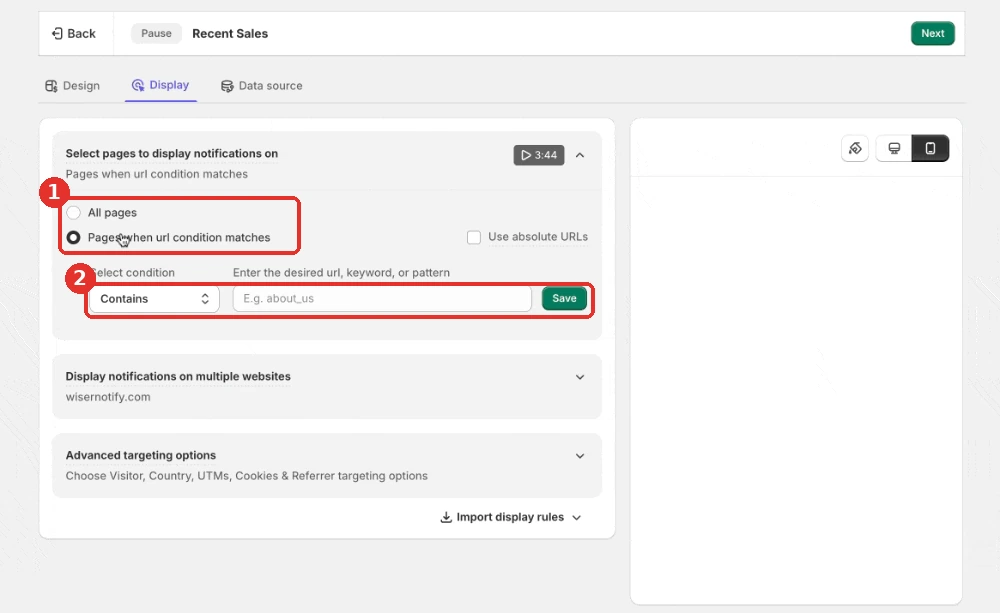
Step 5. Set display rules
The Display tab decides where the widget shows. Run it on all pages or match specific URLs, and set country, device, or UTM targeting if you need it.
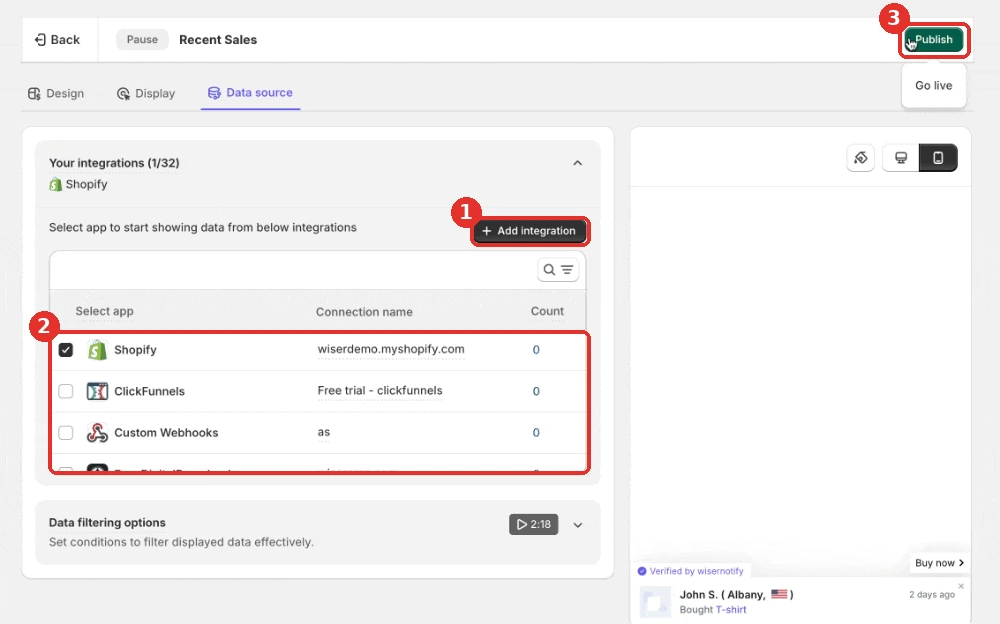
Step 6. Connect data and publish
On the Data source tab, pick where the activity comes from, like your store orders, a form tool, or webhooks. Then click Publish and the notification goes live on your site.
From there the dashboard tracks views, clicks, and conversions per notification, so you can see which widgets earn their spot. Every plan starts with a 7-day free trial.
Mistakes That Make Visitors Ignore Notifications
- Asking for push permission on page load. Nobody grants it before seeing value. Tie the prompt to an action, like a price-drop watch.
- Stacking on-site widgets. A popup, a banner, and a chat prompt at once bury the buy button. Run one or two per page.
- Showing stale proof. A purchase popup from three weeks ago reads worse than none. Keep data sources live.
- Blasting every push subscriber the same message. Triggered sends tied to carts, stock, and browsing beat broadcasts by a wide margin.
- Skipping the numbers. Check click and conversion reports weekly and cut what nobody clicks. The popup stats post shows which formats tend to earn attention.
- No frequency caps. Over-messaging drives opt-outs on push and banner blindness on-site.
Which One Should You Pick?
If you can only run one, start on-site. It works on all of your traffic from day one, with no permission step and no list to build.
Add push once you have steady traffic and a reason to bring people back, like carts, restocks, or new drops.
If you sell online and visitors leave without buying, you have a use for both.
Build trust & FOMO
Highlight real-time activities like reviews, sales & sign-ups.

Wrap Up
On-site notifications convert the visitor in front of you. Push notifications bring back the one who left. They are not rivals, they are two halves of the same follow-through.
Start with on-site proof and urgency, layer push on top for recovery, and let your own campaign reports decide what stays.
Frequently Asked Questions
What is the difference between on-site and push notifications?
On-site notifications appear inside your website while someone browses it. Push notifications are sent to the visitor’s browser or phone after they leave.
Do on-site notifications need an opt-in?
No. They display to every visitor on the page. Push notifications need browser or app permission before you can send anything.
Do push notifications work when the browser is closed?
On desktop and Android they deliver in the background. On iPhone, web push works once the visitor adds your site to their Home Screen.
Can I use on-site and push notifications together?
Yes, and most stores should. Use on-site messages to convert active visitors and push messages to bring back the ones who left.
Which one is better for a small store?
Start with on-site notifications since they reach every visitor with no permission step. Add push once you have steady traffic worth bringing back.

Krunal Vaghasiya is a marketing tech expert who boosts e-commerce conversion rates with automated social proof and FOMO strategies. He loves to keep posting insightful posts on online marketing software, marketing automations, and improving conversion rates.




 Capterra