Table of Contents

Get Summary On :

callback widget on Weebly

Callback widget on Weebly to get more leads

Weebly is a beginner-friendly website builder perfect for small businesses, portfolios, and local service providers. But one area where Weebly sites often fall short is in offering real-time engagement. Without a direct communication option, visitors may leave without asking important questions.

That’s where a Callback widget can help. With Wisernotify, you can easily embed a Callback widget on your Weebly site to let users request a phone call, boosting engagement, trust, and conversions.

Why Add a Callback Widget on Weebly?

Here’s how a Callback widget benefits your Weebly website:

Boost Conversions: Wisernotify users see up to 25% more conversions with real-time communication.

Instant Support: Let visitors request a call and get immediate help.

Lead Capture: Collect phone numbers for follow-ups.

Build Trust: Personal interaction increases credibility.

Easy Integration: Use Weebly’s Embed Code element for quick setup.

Perfect for:

  • Local service providers
  • Freelancers and coaches
  • Small ecommerce shops

How to Add Callback Widget on Weebly

Let’s walk through how to add a callback widget. It’s simple and easy with WiserNotify.

Step 1: Sign Up

First, sign up for WiserNotify. You’ll get a 7-day free trial and a 14-day money-back guarantee.

We’re confident in our tool because it helps drive more conversions and leads, which directly impact your revenue.

Step 2: Install the Pixel

After signing up, you’ll need to install the WiserNotify pixel on your platform.

This is required to display the callback widget and other widgets or notifications.

Step 3: Add the Callback Widget

Once the pixel is installed:

  • Go to the “Notification” section
  • Click on “Widget
  • Browse the list of widgets and select “Callback Widget
  • Click “Add” to activate it

 Here’s a video that shows the full setup process:

And that’s just the beginning. WiserNotify is built to help you increase conversions and revenue.

With over 10,000 active users worldwide, our FOMO widgets and social proof notifications bring in more leads and sales.

Watch the full video on how WiserNotify helps grow your leads and revenue:

3 Best Callback Widget Examples

Here are three real-life examples of callback widgets to help you understand how they work.

1. Exit-Intent Callback Prompt 

Sath uses a smart exit-intent callback popup that triggers when a user is about to leave the page. Its simple and clear design, with a bold heading “Before you go!”, gets attention.

The popup offers a direct value: a 10-minute call to evaluate the visitor’s identity security.

Why it works:

  • Targets users who are about to bounce
  • Provides value (security evaluation)
  • Time-based hook (10 minutes)
  • Not pushy

2. Sticky Side Button with Slide-In Form

This widget is sticky on the left side of the screen as a “Contact” button. On click, it slides in a form to request a callback. Subtle but always available.

Why it works:

  • Non-intrusive design
  • Always visible while browsing
  • Smooth animation
  • Good for service or SaaS websites

3. WhatsApp Call Widget

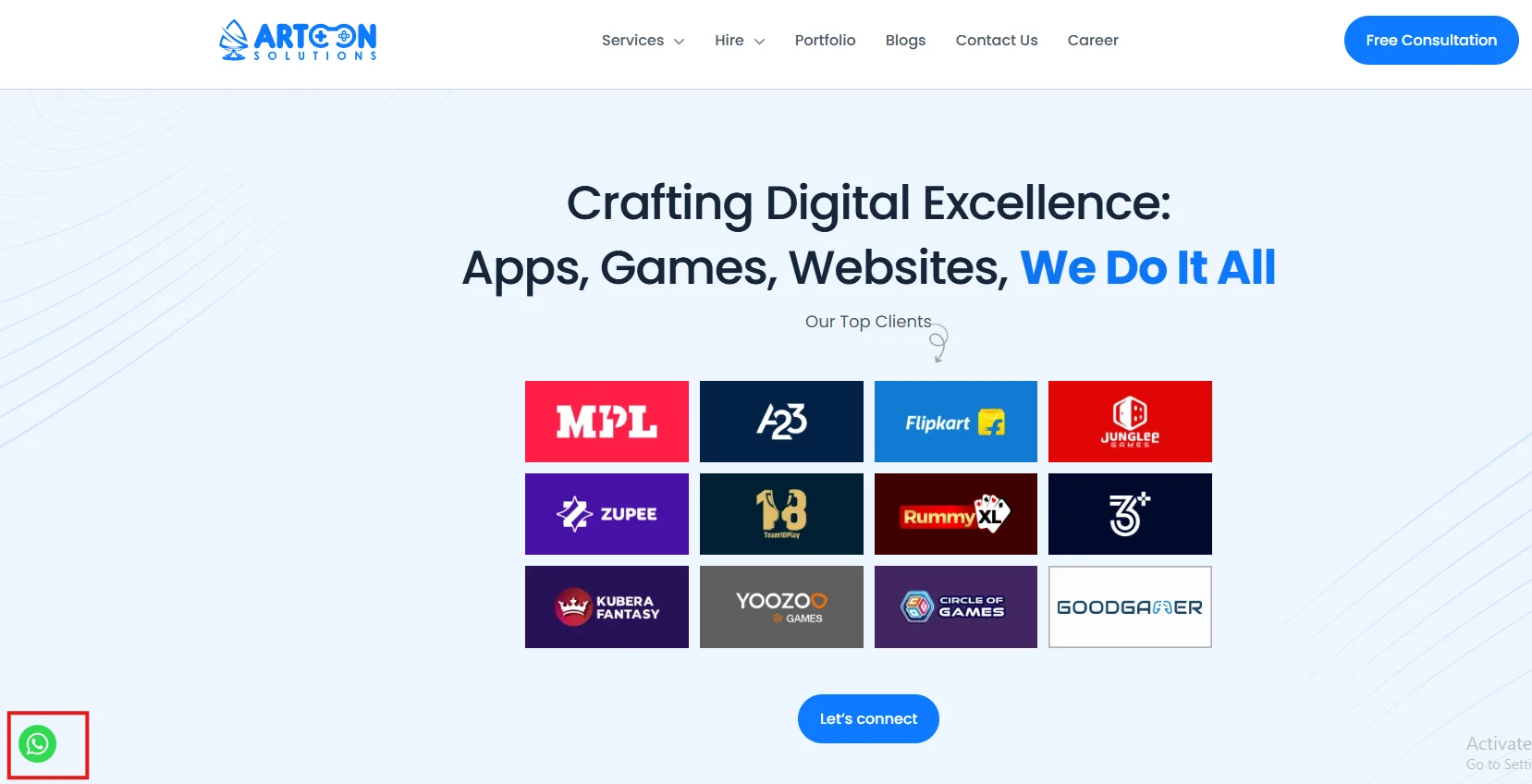
Instead of a callback form, Artoon uses a floating WhatsApp icon in the bottom left.

Clicking it opens a WhatsApp chat to request a call or continue the conversation.

Why it works:

  • Taps into a familiar platform
  • Instant connection through mobile
  • Good for agencies and service providers
  • Reduces friction for visitors who prefer messaging

These examples show how callback widgets can look and work differently depending on your goals and audience.

Whether you want to reduce drop-offs, make it easy to get in touch, or add a WhatsApp touchpoint, there’s a style for every use case.

Callback Widget Tips for Weebly

Use these tips to make your Callback widget effective on Weebly:

Placement: Add to home, contact, and product pages.

Design Match: Customize colors and fonts to match your site.

Responsive Display: Ensure it works smoothly on all devices.

Behavioral Triggers: Use scroll, exit intent, or time delays.

Clear CTAs: Try “Want to Talk?” or “Need Help with a Purchase?”

Automate Follow-Up: Connect with CRM or email workflows.

Callback Widget Mistakes to Avoid on Weebly

Avoid these pitfalls for best results:

Poor Placement: Don’t block navigation or CTAs.

Inconsistent Design: Make sure widget aligns visually with your brand.

No Mobile Testing: Always preview on phones and tablets.

Slow Response Times: Be ready to respond promptly to calls.

Ignoring Data: Use Wisernotify analytics to refine timing and targeting.

Wrap-Up

Adding a Callback widget to your Weebly site with Wisernotify gives visitors an easy way to reach out, improving trust and conversions.

Try Wisernotify today and make your Weebly site more interactive and support-ready.

FAQ's

You can embed the Wisernotify Callback widget by dragging an Embed Code element onto your Weebly page and pasting the widget code provided by Wisernotify.

Yes, Wisernotify’s widget is compatible with all Weebly themes and integrates seamlessly into any page layout.

Absolutely. You can adjust the widget’s color, text, and position to match your website’s branding and style.

Yes, the widget is fully responsive and functions properly across smartphones, tablets, and desktops.

Yes, Wisernotify includes analytics tools to help you monitor callback requests, user engagement, and conversion performance.

Picture of Krunal Vaghasiya
Krunal Vaghasiya
Krunal Vaghasiya is a marketing tech expert who boosts e-commerce conversion rates with automated social proof and FOMO strategies. He loves to keep posting insightful posts on online marketing software, marketing automations, and improving conversion rates.
Wisernotify
Struggling with low conversions?
Use Social Proof & FOMO
Social Media icon