
How to set up a callback widget on Webflow without code
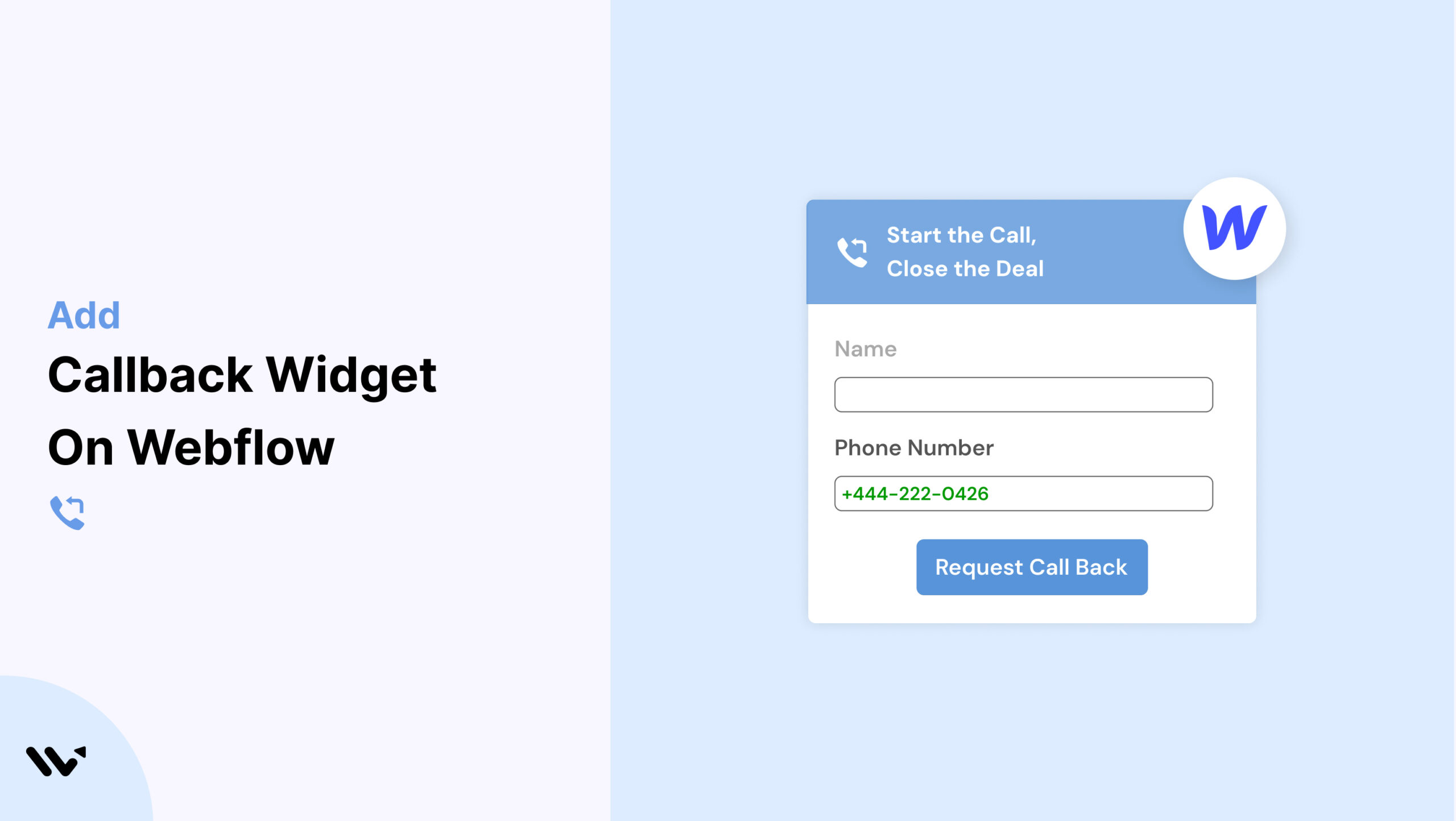
Webflow empowers creators to build high-performing websites with visual design tools and clean code. Yet even the most visually stunning Webflow sites can fall short in user interaction. Without a direct way for visitors to connect, potential leads may go unanswered.
A Callback widget solves that. Wisernotify allows you to easily embed a Callback widget on Webflow, giving visitors a fast way to request a call and enabling you to engage more leads in real-time.
Why Add a Callback Widget on Webflow?
Here’s how a Callback widget helps your Webflow site stand out:
Increase Conversions: Wisernotify users have seen up to 25% higher conversions.
Instant Support: Let visitors request a call directly from the page.
Lead Generation: Capture valuable contact details for future outreach.
Build Credibility: Real-time interaction boosts trust.
Seamless Integration: Easily embed using Webflow’s custom code block.
Ideal for:
- Creative agencies
- Freelancers and consultants
- Service-based business websites
How to Add a Callback Widget on Webflow

3 Best Callback Widget Examples


Callback Widget Tips for Webflow
Here’s how to get the most from your Callback widget on Webflow:
Add to Key Sections: Place it on landing, contact, and pricing pages.
Visual Match: Use Webflow’s style guide to ensure widget consistency.
Responsive Design: Confirm it displays well across all screen sizes.
Behavioral Triggers: Activate the widget based on time, scroll, or exit intent.
Effective CTAs: Try “Let’s Talk” or “Book a Quick Call.”
Lead Management: Connect with CRMs or email tools for follow-up.
Callback Widget Mistakes to Avoid on Webflow
Watch out for these Webflow-specific mistakes:
Poor Placement: Avoid obstructing important content or calls-to-action.
Neglecting Mobile Layouts: Test across mobile breakpoints.
Generic Messaging: Customize for your audience.
Lack of Follow-Up: Have systems in place to respond to requests.
Not Using Data: Track engagement with Wisernotify’s built-in analytics.
Wrap-Up
Adding a Callback widget to your Webflow site with Wisernotify is a fast, impactful way to connect with visitors, improve user experience, and grow conversions.
Get started with Wisernotify today and bring real-time communication to your Webflow site.
Related guides
Setting up a callback widget on another platform? Here are the related guides:
Frequently Asked Questions
How do I add a Callback widget to my Webflow site?
You can embed the Wisernotify Callback widget by adding a custom code block to your Webflow project and pasting the widget script into the footer section or desired page.
Will the Callback widget affect my Webflow site’s design or speed?
No, Wisernotify’s widget is lightweight and designed to integrate smoothly without impacting page performance or design integrity.
Can I match the widget’s design with my Webflow theme?
Absolutely. You can fully customize colors, text, button style, and placement to align with your Webflow site’s branding.
Is the widget mobile-responsive on Webflow?
Yes, the Callback widget is optimized for all screen sizes, ensuring it works perfectly on mobile phones, tablets, and desktops.
Does the widget integrate with my CRM or marketing tools?
Yes, Wisernotify supports integrations with popular CRMs and email marketing platforms for seamless lead follow-up.

Krunal Vaghasiya is a marketing tech expert who boosts e-commerce conversion rates with automated social proof and FOMO strategies. He loves to keep posting insightful posts on online marketing software, marketing automations, and improving conversion rates.




 Capterra