
Add Amazon Reviews to Framer in 5 Minutes
 Krunal Vaghasiya|May 1, 2025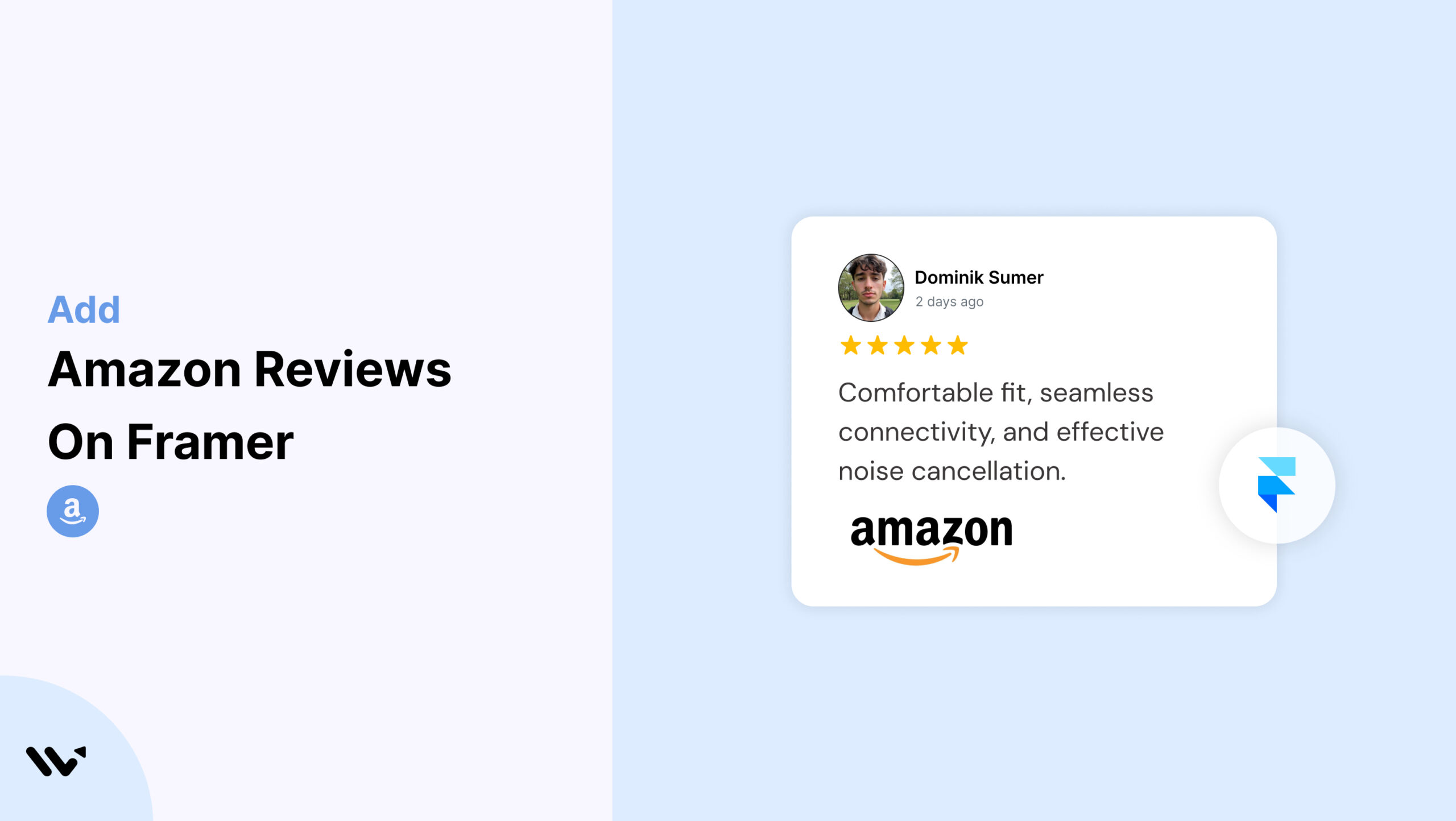
Framer offers unmatched design freedom and seamless animations—but great design alone doesn’t close sales. If visitors aren’t taking action on your Framer site, it may be due to a lack of trust.
Amazon reviews provide instant social proof. They’re widely recognized, credible, and incredibly effective for driving conversions. With Wisernotify, you can embed Amazon reviews into your Framer site quickly, with no coding required.
Why Add Amazon Reviews on Framer?
Framer is ideal for startups, product launches, portfolios, and landing pages. But without strong social proof, visitors may hesitate. Amazon reviews help remove that friction.
Reinforce Trust Without Distracting From Design: Amazon reviews are familiar and powerful. Wisernotify widgets can be customized to blend seamlessly into your Framer layout without disrupting your aesthetic.
Improve Scroll Depth and Time on Page: Visitors are more likely to continue scrolling and exploring your site when they encounter compelling, third-party feedback from Amazon.
Increase Conversions for Products, Books, and Services: If you’re promoting anything sold on Amazon—books, supplements, gadgets—embedding reviews makes your offer more credible.
Example Use Case
A solopreneur promoting a marketing ebook on a Framer site can embed top Amazon reviews to boost lead magnet downloads or course sign-ups.
How to Add Amazon Reviews on Framer


How to Embed Amazon Reviews on Framer
After creating your Wisernotify widget, follow these Framer-specific steps:
1. Log in to Framer and open your site in the canvas.
2. Navigate to the page where you want to add reviews.
3. Click Insert > Embed from the top toolbar.
4. Drag the Embed block to your desired section.
5. Paste the Wisernotify embed code into the code field.
6. Resize and position the widget.
7. Click Preview or Publish to make it live.
Best Practices for Showcasing Amazon Reviews on Framer
To effectively display Amazon reviews within your Framer layout, apply these platform-specific best practices:
Use Layout Zones That Align With Conversion Flow
Framer offers pixel-level design flexibility. Take advantage of this by positioning reviews in zones that correspond with user decision points:
- Directly below the hero section to build trust early
- In feature sections to reinforce key product or service benefits
- Just above or beside CTA buttons (“Buy Now,” “Subscribe,” “Start Free Trial”)
Design With Visual Harmony in Mind
Use Wisernotify’s customization tools to:
- Match your Framer typography (font families, sizes, and weights)
- Align background and star rating colors with your palette
- Mirror border radii and shadow effects used elsewhere on the site
Optimize the Widget for Scroll-Based Navigation
- Framer sites are often scroll-driven. A full-width or grid-aligned widget that transitions well between sections helps retain user flow.
Label Clearly With Contextual Headers
Introduce the section with a compelling headline such as:
- “See Why Readers Love Us on Amazon”
- “5-Star Amazon Reviews”
- “Trusted by Thousands of Amazon Buyers”
This orients the user and invites them to pause and read.
Keep It Lean and Interactive
Framer pages are fast and sleek. Use Wisernotify’s carousel option or a minimalist list layout to:
- Prevent information overload
- Highlight only 3–5 impactful reviews
- Keep content dynamic without adding load bloat
Include Amazon Branding Subtly
- Consider adding a small “Verified Amazon Review” icon or line to increase authenticity, while staying brand-consistent.
Common Mistakes to Avoid When Adding Amazon Reviews to Framer
Overdesigning the Widget Area
Framer enables creative freedom, but applying excessive animations, gradients, or effects to the review section can make it feel less trustworthy. Stick to clean, static designs.
Failing to Match Typography and Layout
Using default widget fonts or sizes that don’t match your Framer styles can break visual consistency. Adjust Wisernotify widget styling to align with your site’s typography scale and spacing.
Neglecting Responsiveness
Not previewing your reviews on tablet and mobile can lead to broken layouts. Always use Framer’s preview tools to:
- Adjust embed box widths
- Apply proper padding or margin tweaks
- Ensure legibility and layout flow
Adding Reviews Without Introductory Text
Dropping in reviews without a section heading or intro paragraph makes the section feel disjointed. A brief heading ensures clarity and user engagement.
Using Reviews Irrelevant to the Page Content
Avoid pulling in Amazon reviews from unrelated products or books. Every review should:
- Mention your product or expertise directly
- Reinforce the promise made on the page
- Reflect the interests and expectations of your target visitor
Embedding Without Performance Considerations
While Wisernotify widgets are lightweight, placing multiple embeds on one page can slow down site speed. Limit to one widget per page and rotate reviews periodically for freshness.
Wrap-Up
Framer gives you creative control—Amazon reviews give you trust. Combine both with Wisernotify to turn a beautiful website into a high-converting one.
Adding Amazon reviews to your Framer site reinforces your credibility, aligns with user expectations, and nudges visitors toward action.
Krunal Vaghasiya is a marketing tech expert who boosts e-commerce conversion rates with automated social proof and FOMO strategies. He loves to keep posting insightful posts on online marketing software, marketing automations, and improving conversion rates.




 Capterra