
How to Add Amazon Reviews to BigCommerce (2026)

To show Amazon reviews on BigCommerce, add the WiserNotify script in Script Manager, paste an Amazon product’s reviews link into the Amazon integration, and publish a review notification.
WiserNotify reads that product’s reviews, and its Chrome extension syncs newer ones when you click sync.
This guide is about showing Amazon reviews on your store. If you want to sell your products on Amazon instead, that is a different setup in BigCommerce.
Check Amazon’s Rules First
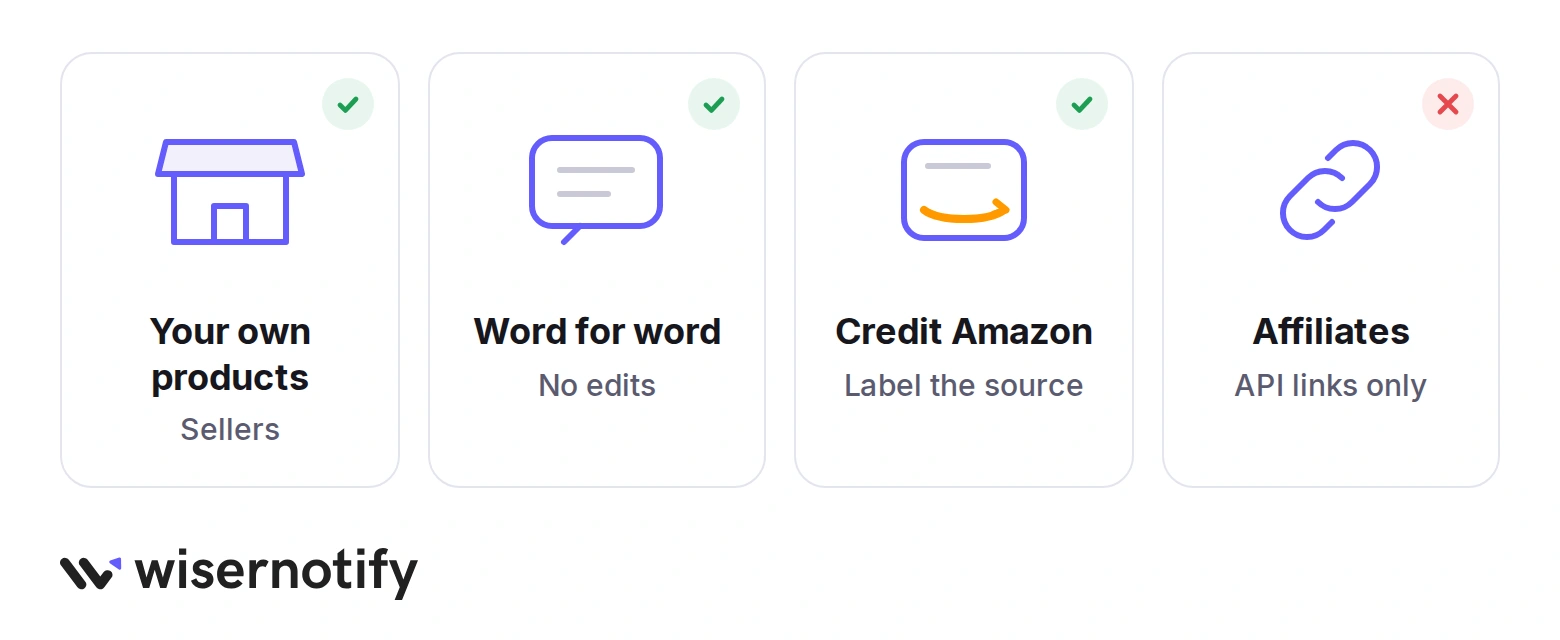
Whether you can show Amazon reviews depends on whether you sell the product or promote it.
- Sellers: if you sell the same product on Amazon and on your store, show that product’s reviews only. Keep the wording exactly as written and say they came from Amazon.
- Affiliates: Amazon’s Associates policy bars you from showing its customer reviews or star ratings unless the link came through its Creators API or PA API.
- Google stars: Google’s review snippet rules say not to mark up reviews taken from other sites, so these reviews will not earn search stars.
This is not legal advice. Read the Amazon Associates Program Policies and Amazon’s Conditions of Use before you publish.
How to Add Amazon Reviews to BigCommerce
The video shows how the review notification is built. The steps after it cover the BigCommerce and Amazon parts.
Step 1: Copy Your Pixel Code
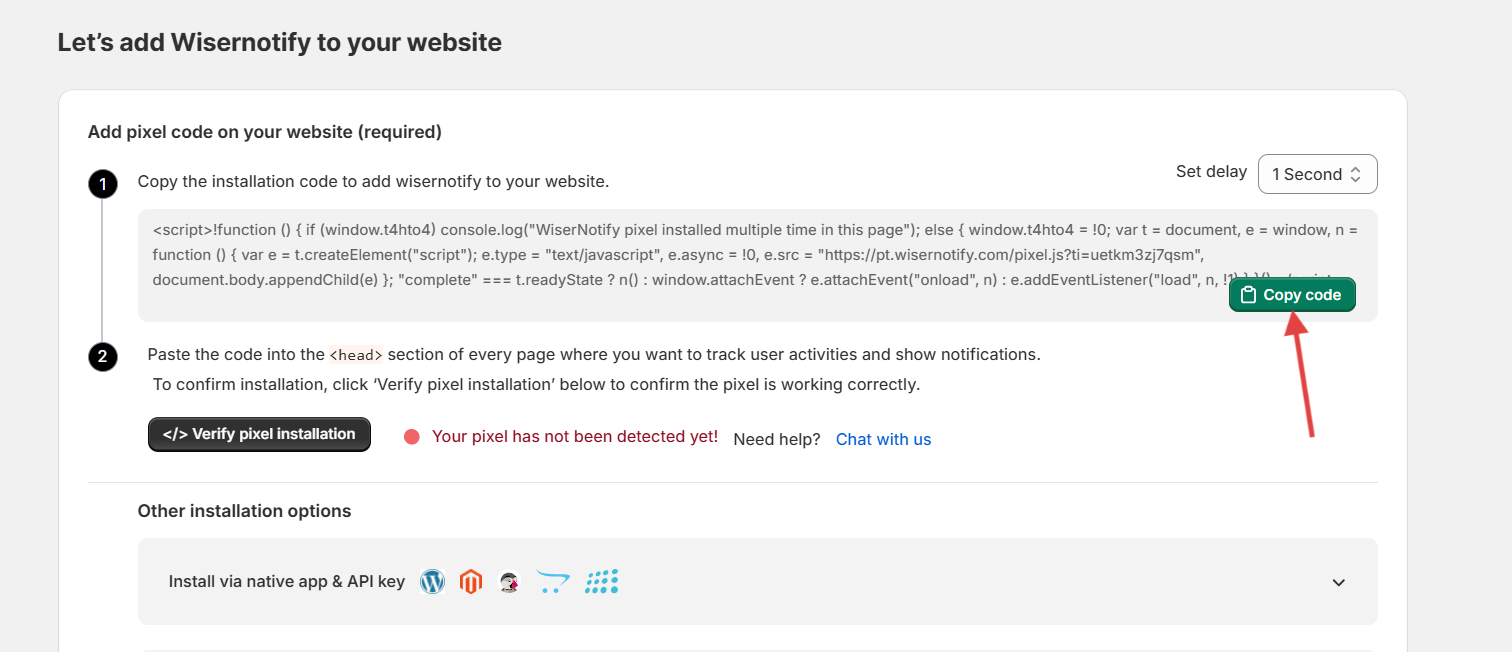
- Sign up for WiserNotify and start the 7-day free trial, or log in if you already have an account.
- Open the Install Pixel page.
- Click Copy code.
Step 2: Add It in Script Manager
- Log in to your BigCommerce control panel.
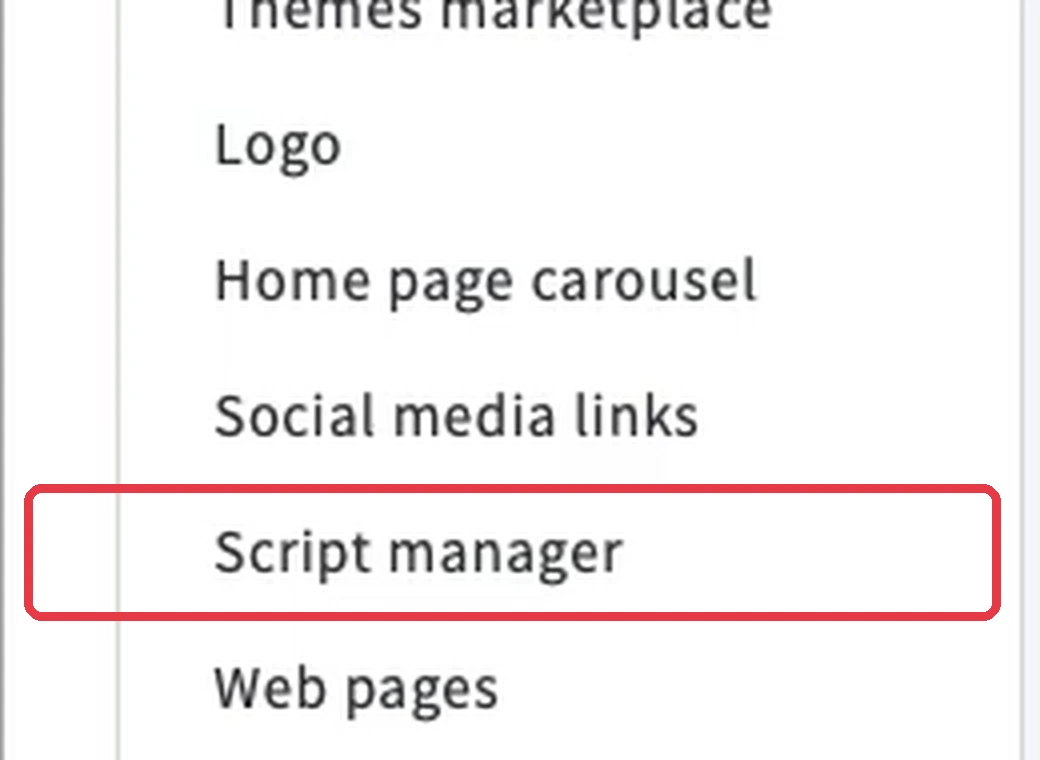
- Go to Storefront, then Script Manager.
- Click Create a Script and name it WiserNotify.
- Set Location on page to Footer and the pages to All pages.
- Pick a script category that matches your cookie banner, and set Script type to Script.
- Paste the pixel into Script contents and click Save.
If you cannot find Script Manager under Storefront, open Channel Manager and click Scripts. Script Manager works with Stencil themes.
Step 3: Verify the Pixel

- Wait about a minute, since BigCommerce caches new scripts for a short time.
- Open your store once, so the pixel loads.
- Go back to the Install Pixel page in WiserNotify.
- Click Verify pixel installation.
Step 4: Open the Product’s Ratings
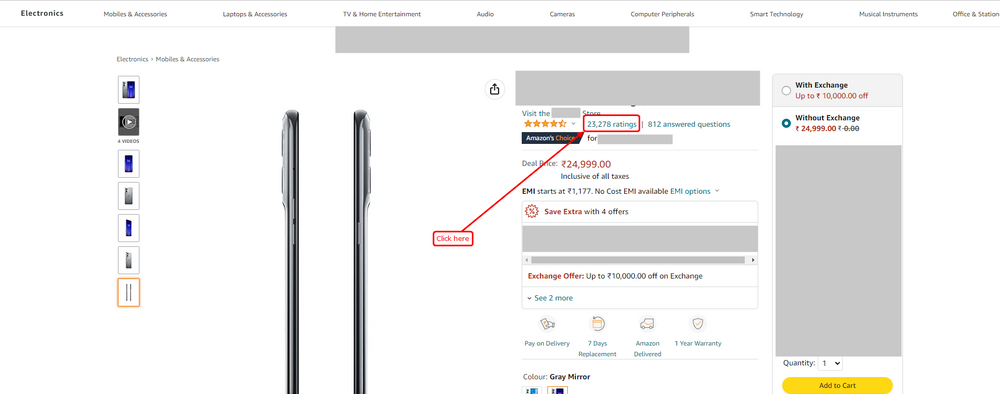
- On Amazon, open the product you sell.
- Click its star rating.
Step 5: Click See All Reviews
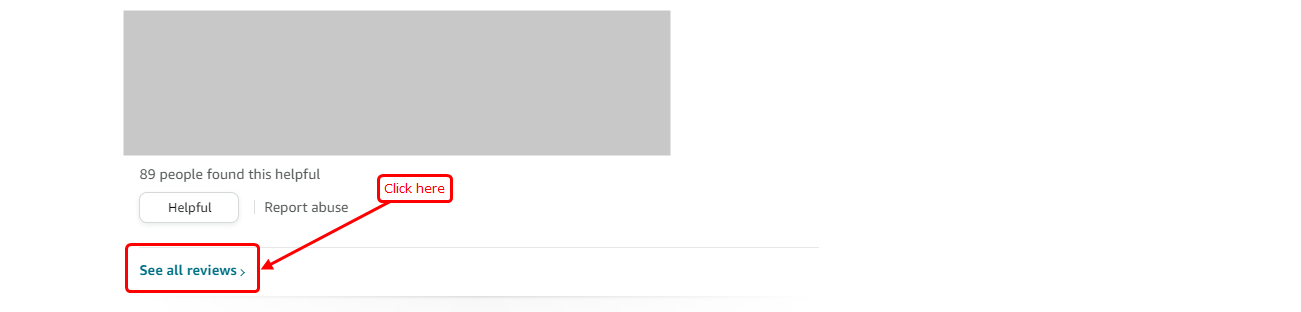
- Scroll to the bottom of the reviews.
- Click See all reviews.
Step 6: Copy the Reviews Page URL

- Click the address bar of the all-reviews page.
- Copy the full URL.
Step 7: Connect Amazon to WiserNotify
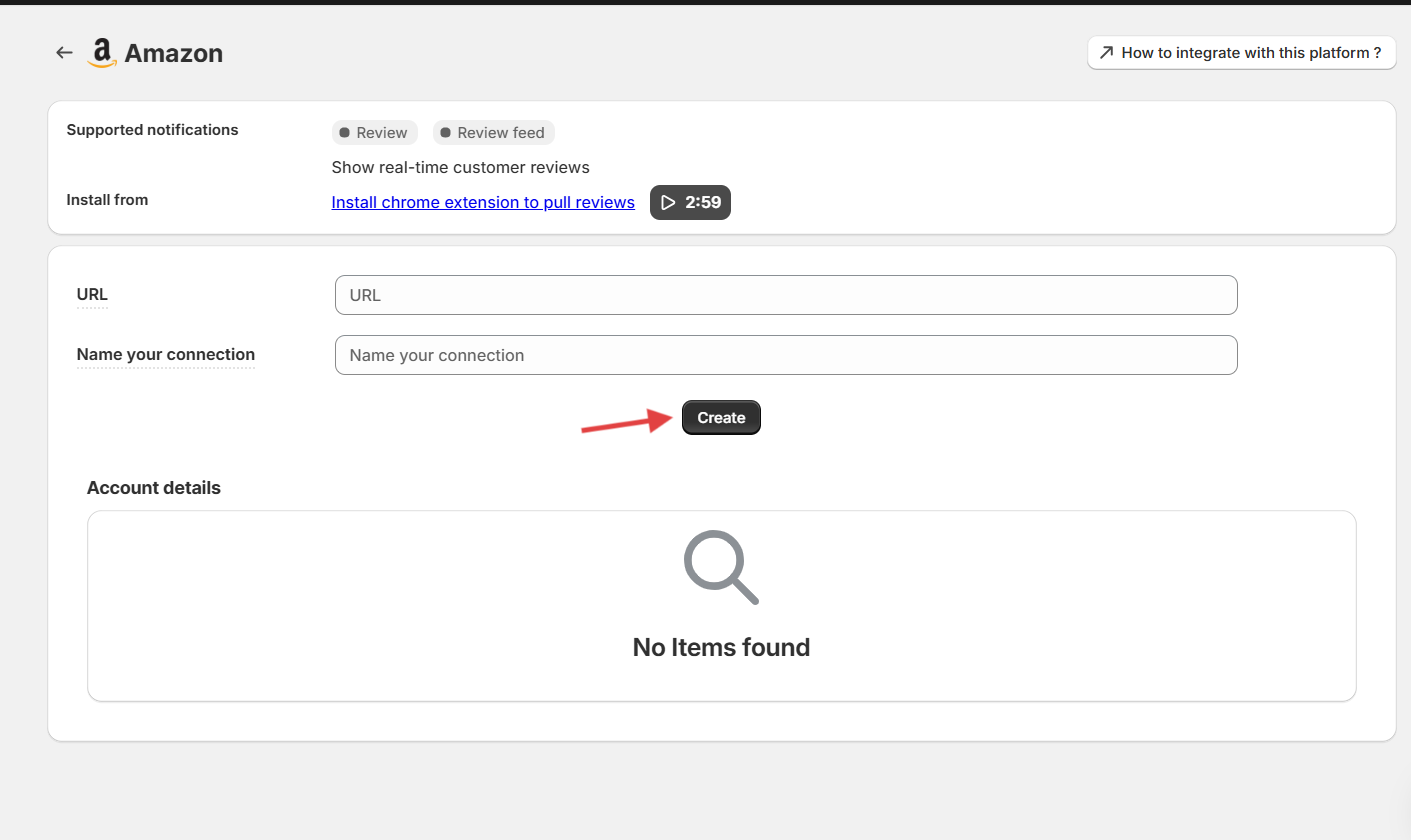
- In WiserNotify, go to Integrations and open Amazon.
- Click Integrate.
- Paste the URL and name your connection.
- Click Create.
WiserNotify starts fetching the product’s reviews. You can see them on the Data page of your dashboard.
Step 8: Create the Review Notification
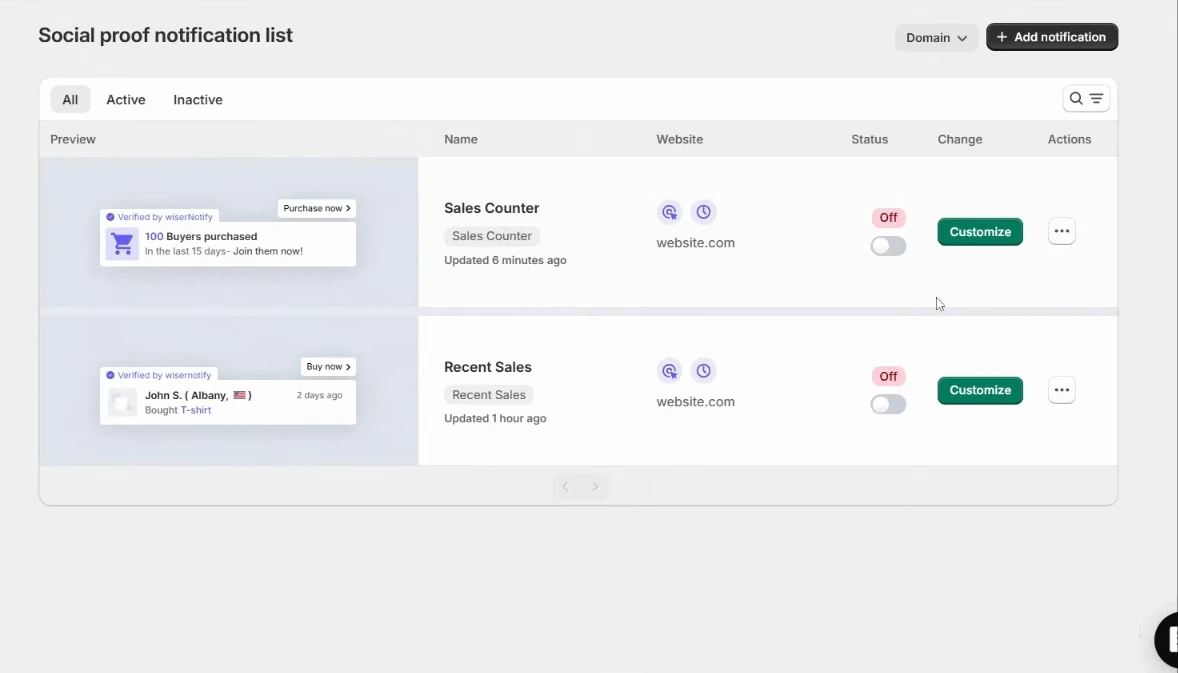
- Open Social Proof, click Add notification and pick Review.
- Enter a name and your BigCommerce store address, then click Create and Customize.
- In the Design tab, set the text, position and style.
- In the Data source tab, select your Amazon connection.
Our guide to creating review notifications covers the design options in more detail.
Step 9: Set Display and Publish
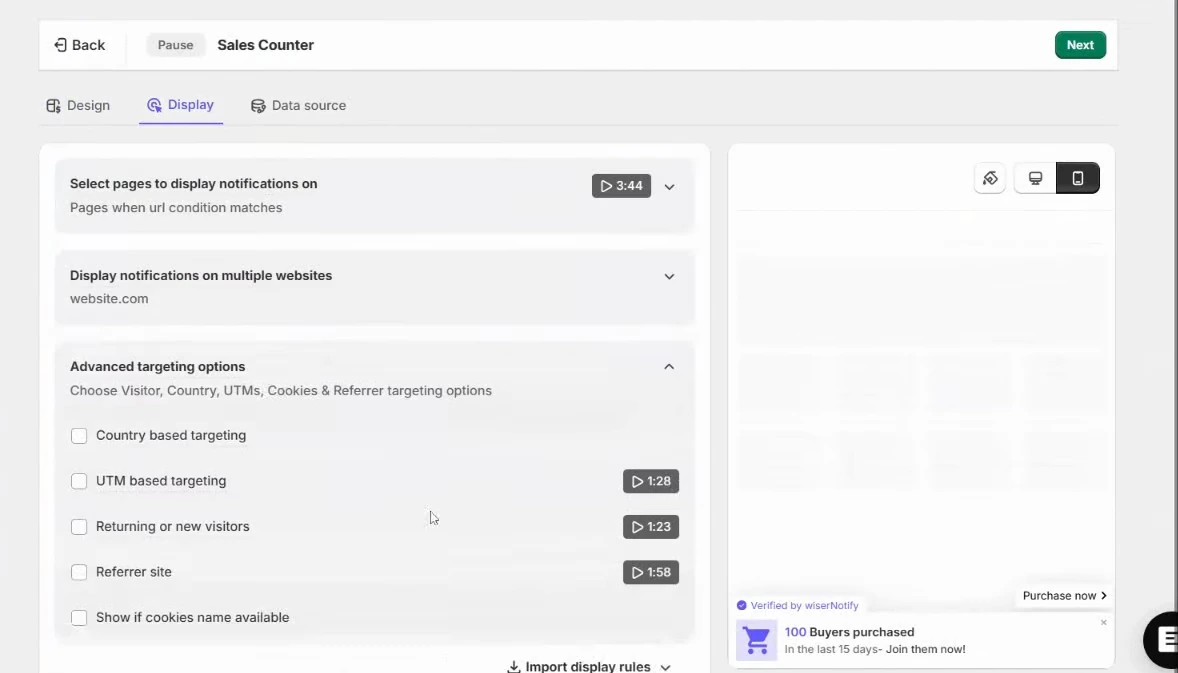
- In the Display tab, keep all pages, or set a URL rule so the notification shows only on the matching product page.
- Open Advanced targeting options if you want to target by country, UTM, new or returning visitors or referrer.
- Set how long the notification waits before it appears.
- Click Save, then Publish.
Step 10: Check It Live
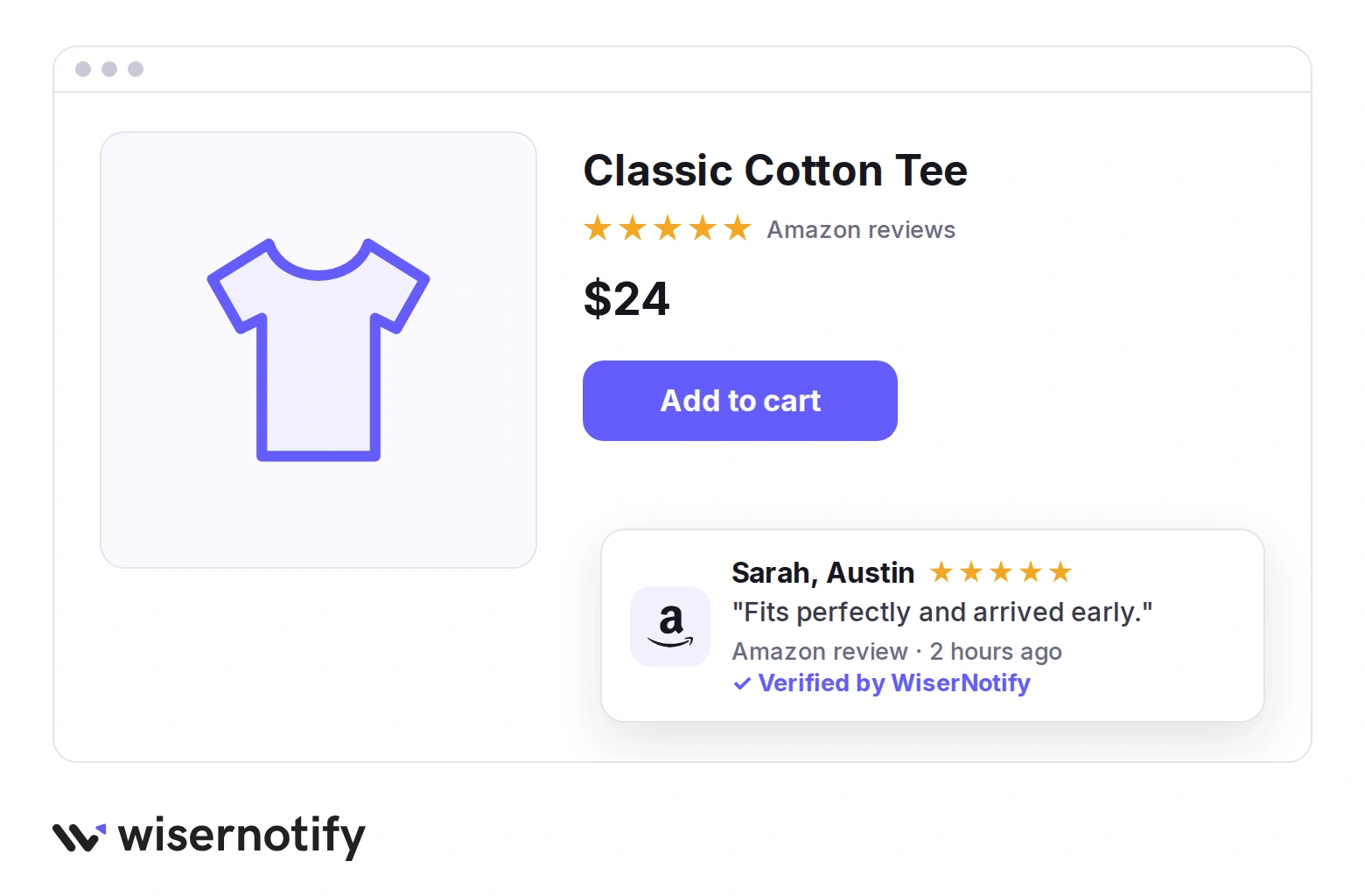
- Open your BigCommerce store in a private window.
- Wait a few seconds for the Amazon review to appear.
Build trust & FOMO
Highlight real-time activities like reviews, sales & sign-ups.


Pull New Amazon Reviews on Demand
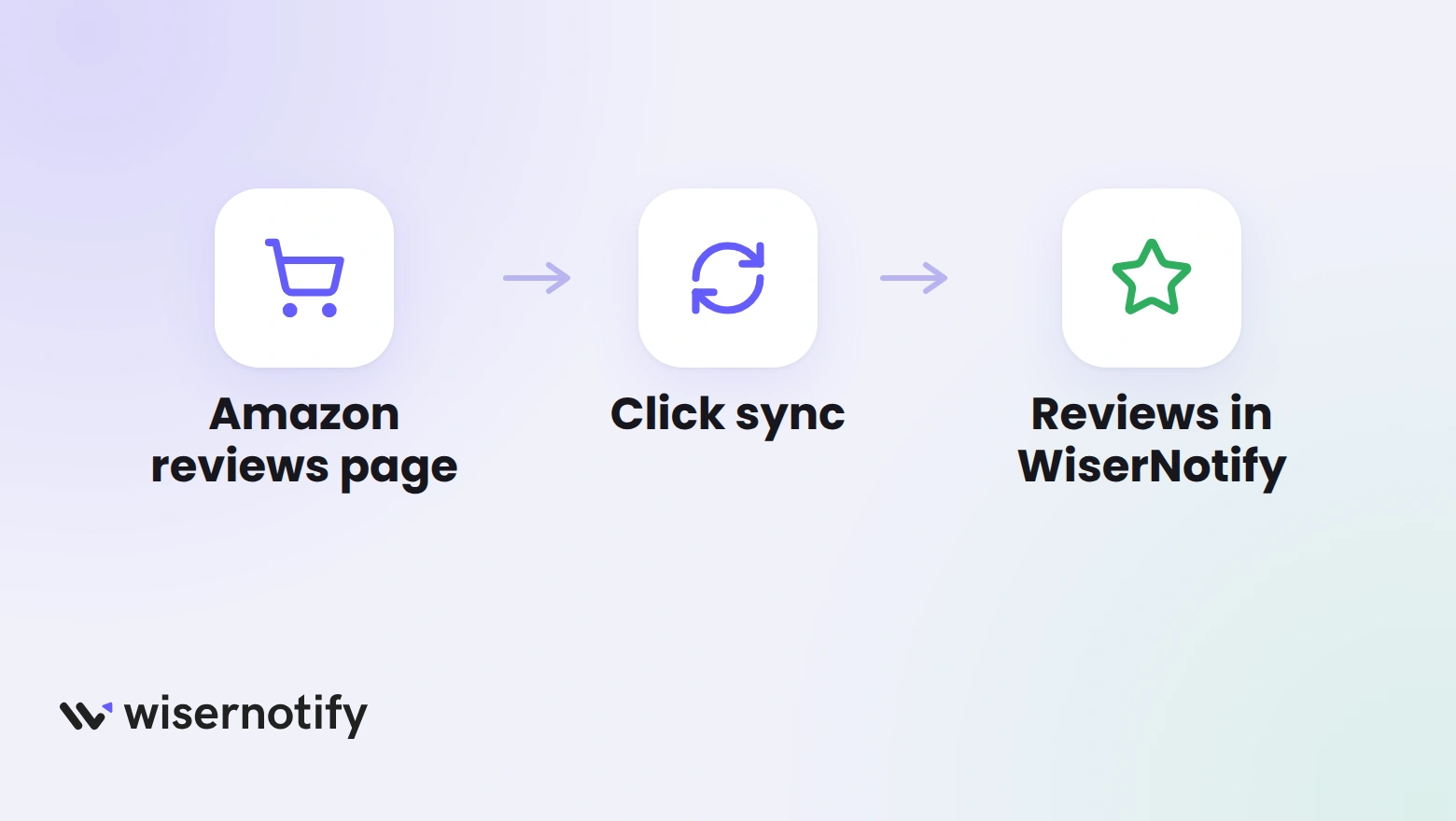
To get the newest Amazon reviews into WiserNotify, sync them with the WiserNotify Chrome extension. It pulls the latest ones when you ask.
- In WiserNotify, open your profile and copy the API key.
- Install the WiserNotify extension in Chrome, open it and enter the API key.
- Open your product’s all-reviews page on Amazon.
- Click sync in the extension.
The new reviews then sync into your WiserNotify account. The Amazon integration screen links to the same extension.
Where to Show Amazon Reviews on BigCommerce
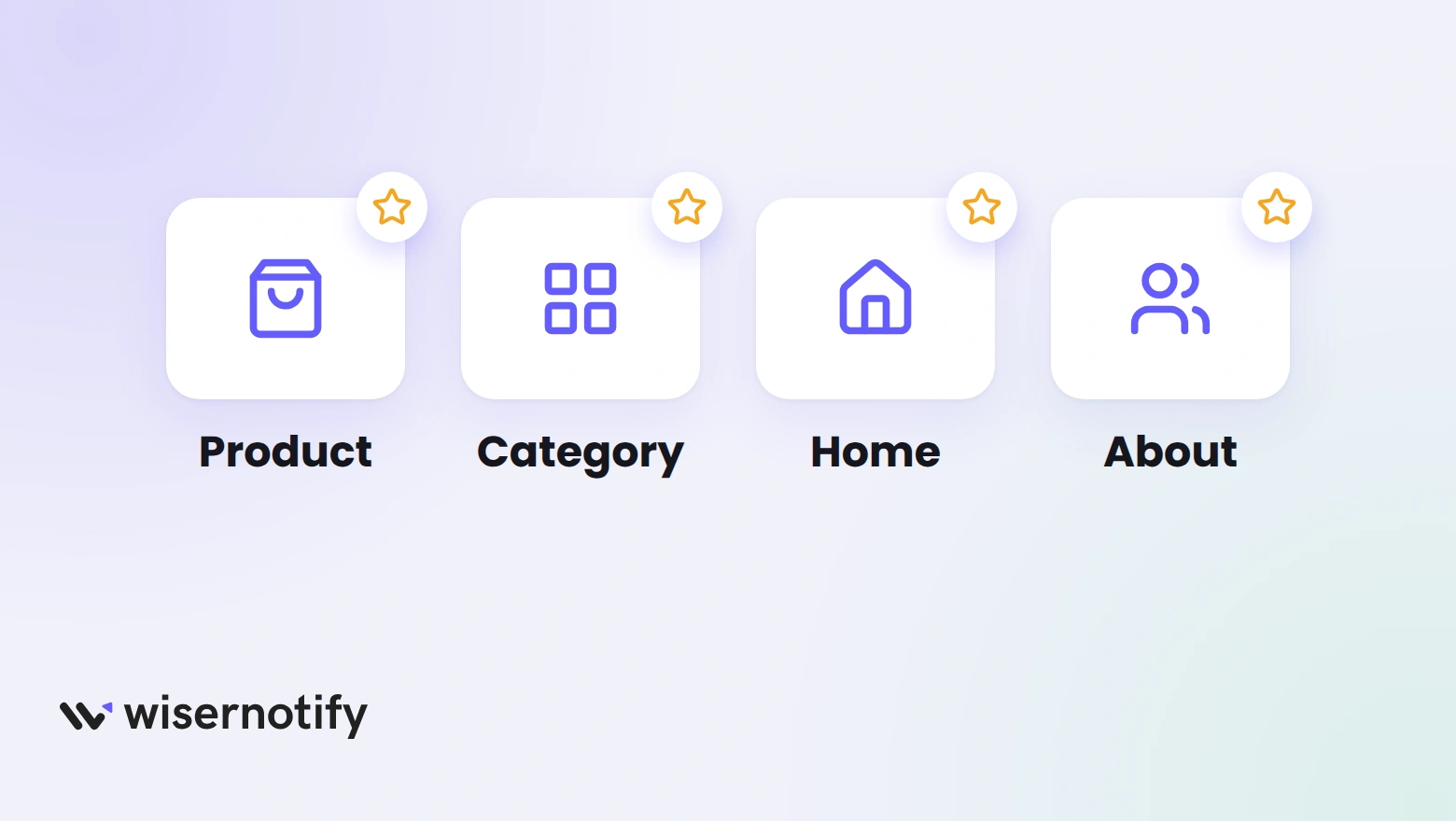
- Product pages: show the reviews for that exact product, near the Add to Cart button.
- Category pages: a review for a best seller helps shoppers pick where to click.
- Homepage: proof from a popular product builds trust before shoppers browse.
- About page: reviews from real buyers back up your story.
To collect reviews from your own customers too, see how to add reviews to BigCommerce. For other ways to show Amazon reviews, read the guide to adding Amazon reviews to a website.
Amazon Reviews Not Showing on BigCommerce?
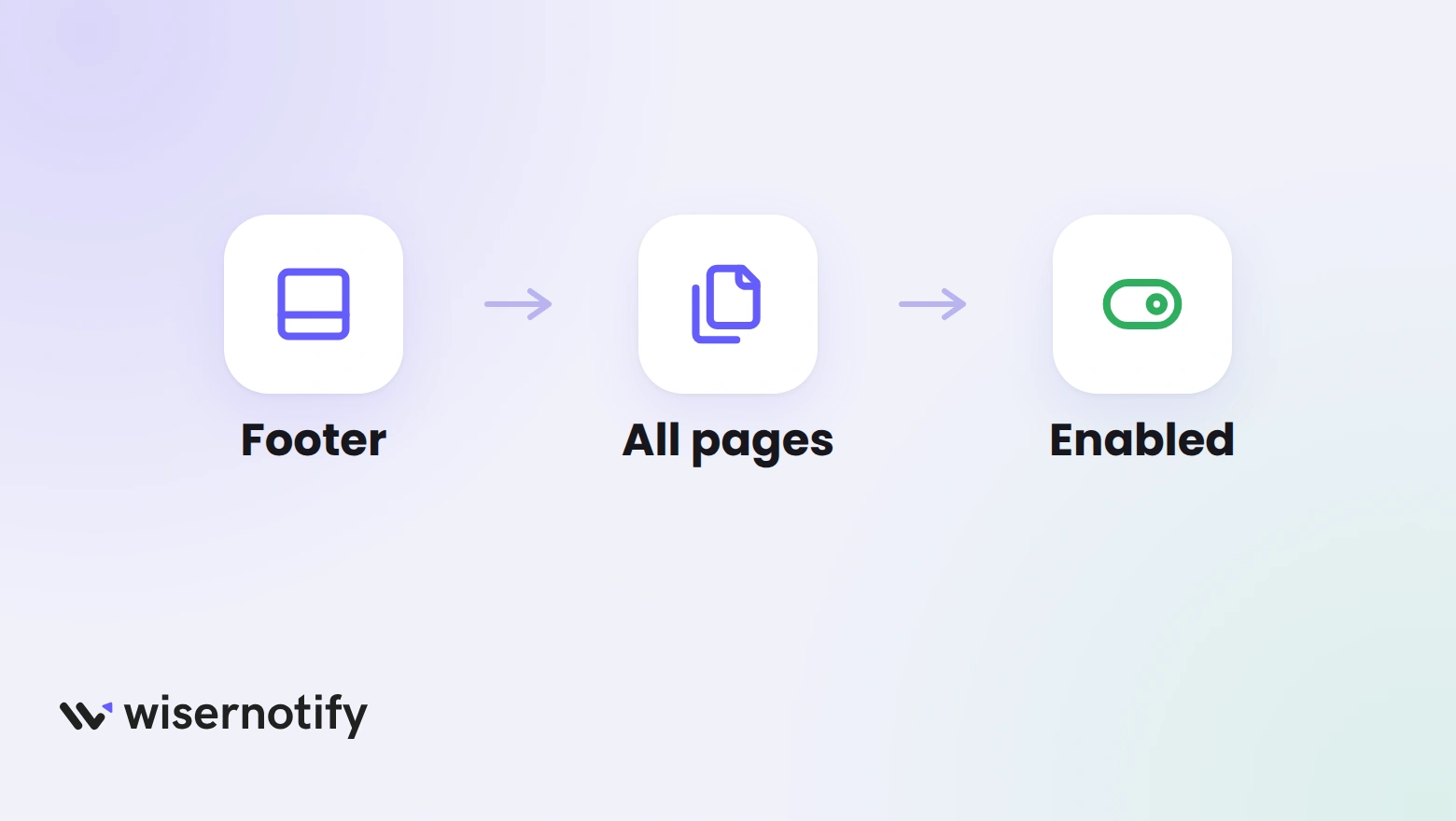
- Script settings: in Script Manager, check that the location is Footer, the pages are All pages and the script is enabled.
- Cookie banner: a script in a category visitors decline stays hidden. Pick a category that matches your cookie settings.
- Theme type: Script Manager works only with Stencil themes.
- New script: BigCommerce caches new scripts for a short time, so wait a minute and check again.
- Pixel not detected: open your store once, then click Verify pixel installation again.
- Wrong link: paste the full URL of the all-reviews page, not the product page.
- No data source: in the notification’s Data source tab, select your Amazon connection.
- Old reviews only: sync again from the Chrome extension, then check in a private window.
Need a hand? The Amazon connection guide covers the integration, and live chat can look at your setup.
Common Mistakes to Avoid
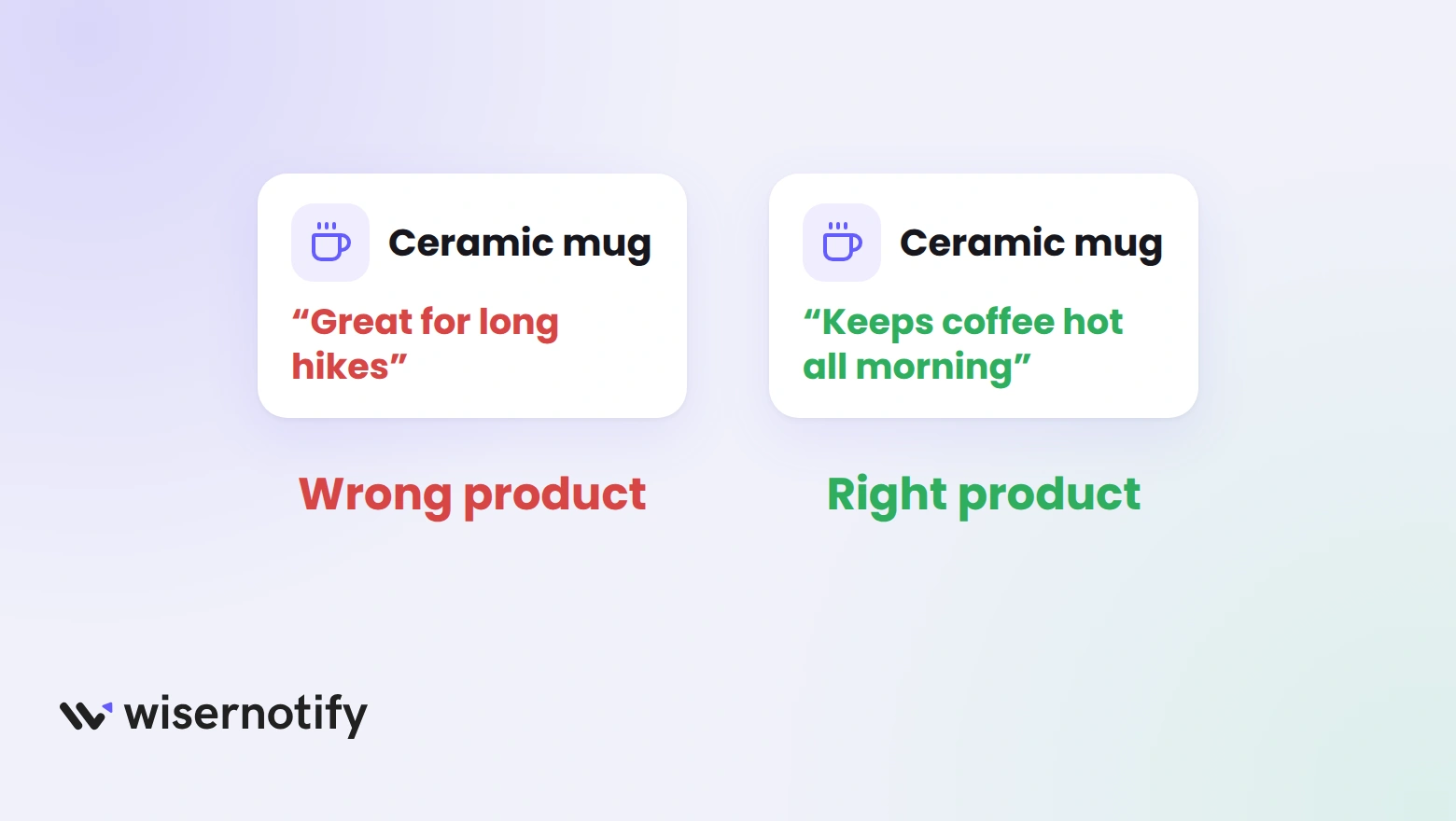
- Matching the wrong product: a review of a different item on your page confuses shoppers. Check the link before you create the connection.
- Editing the text: trimming or fixing a review breaks shopper trust and Amazon’s terms. Show reviews as written.
- Showing only 5-star reviews: a row of only perfect scores looks hand-picked. A few fair 4-star reviews read as more believable.
- Skipping the Amazon label: say the reviews came from Amazon.
- Adding review markup: leave Amazon reviews out of your review schema.
- Copying reviews as an affiliate: without Creators API or PA API links, copied reviews break Amazon’s Associates policy.
Build trust & FOMO
Highlight real-time activities like reviews, sales & sign-ups.
Wrap Up
Amazon reviews work on your BigCommerce store when they are for products you sell, shown word for word, and labeled as Amazon reviews.
Start with your best seller. Add the script in Script Manager, connect that one product, and check the notification in a private window.
Related Posts
Frequently Asked Questions
Can I show Amazon reviews on my BigCommerce store?
Yes, if you sell the product yourself. Show that product’s reviews only, word for word, and label them as Amazon reviews.
Does Amazon allow its reviews on other websites?
Amazon’s Associates Program Policies bar showing its reviews unless the link came through its Creators API or PA API. Its Conditions of Use also apply, so read both before you publish.
Where do I paste the WiserNotify script in BigCommerce?
Go to Storefront, then Script Manager, and create a script. Set the location to Footer and the pages to All pages.
How do I get the newest Amazon reviews into WiserNotify?
Use the WiserNotify Chrome extension. Open your product’s all-reviews page on Amazon and click sync.
Will this slow down my BigCommerce store?
WiserNotify loads through one small script, so it adds little to page load. Check your store speed after you publish.
Can I choose which Amazon reviews show?
Yes. Review filters in the notification’s settings let you narrow reviews by details such as star rating.

Krunal Vaghasiya is a marketing tech expert who boosts e-commerce conversion rates with automated social proof and FOMO strategies. He loves to keep posting insightful posts on online marketing software, marketing automations, and improving conversion rates.




 Capterra