
Easily Add WhatsApp Chat Widget to ThriveCart Website
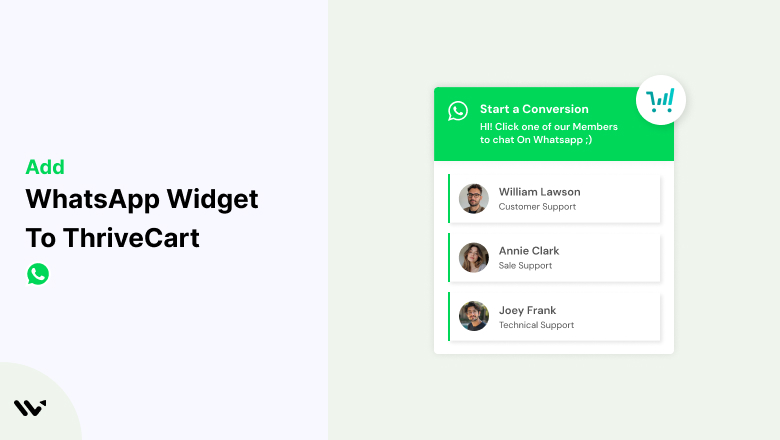
Adding a WhatsApp chat widget to your ThriveCart checkout pages is one of the simplest ways to enhance customer engagement and build trust. WhatsApp, a widely used messaging platform, allows your customers to reach you instantly for queries, support, or even purchase decisions.
Integrating a WhatsApp chat widget lets you provide real-time assistance, answer questions quickly, and create a more personalized shopping experience. Best of all, the process is simple and requires no coding skills.
In this guide, we’ll show you how to seamlessly add a WhatsApp chat widget to your ThriveCart checkout pages and share tips to maximize its impact on your sales and customer satisfaction. Let’s get started!
Benefits of Using WhatsApp Chat Widget on ThriveCart
A WhatsApp Chat Widget on your ThriveCart checkout pages is a powerful tool for customer engagement, sales conversion, and real-time support. With over 2 billion active users, WhatsApp is the most popular messaging app, making it an ideal business communication channel. Below, see the key benefits of it.
Instant Communication
- Customers expect quick responses when shopping online. A WhatsApp chat widget allows for real-time communication, enabling businesses to instantly answer product inquiries, order status, and support requests.
Better Customer Engagement
- WhatsApp enables businesses to interact with customers in a more personalized way. It allows for two-way communication, making interactions more meaningful and engaging.
Higher Trust & Transparency
- Transparency is crucial for building customer trust in an online store. WhatsApp provides a direct and secure communication channel between businesses and customers.
Global Reach
- WhatsApp is used in over 180+ countries, making it an ideal platform for businesses looking to expand internationally. It removes communication barriers and helps businesses connect with customers worldwide.
Cost-Effective & Easy to Integrate
- WhatsApp is affordable and easier to set up than other customer support solutions. Businesses can integrate a WhatsApp Chat Widget on ThriveCart without extra development costs.
Add WhatsApp Chat Widget to ThriveCart
ThriveCart users can integrate a WhatsApp chat widget effortlessly. You can add the widget using ThriveCart’s “Tracking & Scripts” feature by pasting the WhatsApp chat button script into your checkout page’s footer, sidebar, or any custom script section. This allows customers to reach you instantly, improving engagement and conversions.


Best Practices for Adding a WhatsApp Chat Widget on ThriveCart
To make the most of your WhatsApp chat widget, keep these best practices in mind:
- Make It Easy to Find: Place the widget in a visible spot, like the bottom corner of your checkout pages, so customers don’t miss it.
- Use a Warm Welcome Message: Add a friendly message like, “Hi! Need help? We’re here to assist you!” to encourage customers to reach out.
- Keep the Design On-Brand: Match the widget’s colors and style with your checkout page’s theme for a seamless look.
- Set Realistic Expectations: Mention your availability hours so customers know when to expect a response.
- Automate Common Responses: Use WhatsApp quick replies or automated messages to answer FAQs like shipping details or refund policies.
- Monitor Engagement: Regularly check your analytics to see how often customers are using the chat widget and refine your responses as needed.
Common Mistakes to Avoid
Avoid these pitfalls to ensure your WhatsApp chat widget works smoothly:
- Always use a WhatsApp Business account for professionalism and better features.
- Skipping the testing step can result in a broken or invisible widget, frustrating your customers.
- Placing too many widgets or pop-ups on your page can overwhelm visitors. Keep the design clean and simple.
- Failing to set up automated responses can lead to slower response times and unhappy customers.
Conclusion
Adding a WhatsApp chat widget to your ThriveCart checkout pages is a simple step that can make a big difference. It helps you provide better service, connect with customers on a personal level, and boost your sales.
Follow these steps, and you’ll be ready to engage with your audience on a platform they already know and love!
Related Post
Frequently Asked Questions
Is it free to add a WhatsApp chat widget to ThriveCart?
Yes, you can add a WhatsApp chat widget for free using various plugins and apps. However, some premium features may require a subscription.
Can I use my personal WhatsApp number for the chat widget?
It’s recommended to use a WhatsApp Business account to access better features like automated responses and business profiles.
Does the WhatsApp widget work on mobile devices?
Yes, WhatsApp chat widgets are mobile-friendly and work seamlessly across all devices.
How can I track customer interactions on WhatsApp?
You can use WhatsApp Business analytics tools or integrate third-party tracking solutions to monitor engagement and response times.
Can I automate responses in the WhatsApp chat widget?
Yes, WhatsApp Business allows you to set up automated responses, quick replies, and away messages to enhance customer support.

Krunal Vaghasiya is a marketing tech expert who boosts e-commerce conversion rates with automated social proof and FOMO strategies. He loves to keep posting insightful posts on online marketing software, marketing automations, and improving conversion rates.




 Capterra