
Need Higher Conversion? Add Testimonial to Duda
Duda, a leading web design platform for agencies and businesses, is known for its user-friendly interface and robust features for building responsive websites.
However, even the most visually appealing websites require trust signals to convert visitors into customers.
Testimonials—authentic reviews and endorsements—are a powerful tool for building credibility, engaging visitors, and driving conversions.
This guide explores how to effectively integrate testimonials into your Duda websites and optimize them for maximum impact.
Why Add Testimonials to Duda?
Build Trust and Credibility: Testimonials provide social proof, reassuring potential customers of your credibility and the quality of your offerings. Research shows that 88% of consumers trust testimonials as much as personal recommendations.
Increase Conversion Rates: Strategically placed testimonials reduce buyer hesitation and encourage visitors to take action. By addressing doubts through customer success stories, testimonials can significantly boost conversion rates on your Duda site.
Highlight Unique Selling Points (USPs): Let your customers emphasize what makes your brand or product unique. For example, a review stating, “Their website builder saved us 50% in development time” highlights efficiency and value.
Improve Engagement: Engaging testimonials—especially those that include visuals or videos—capture attention and keep visitors on your site longer, increasing the likelihood of conversion.
Boost SEO: Incorporating keyword-rich testimonials adds user-generated content to your site, enhancing SEO rankings and driving organic traffic.
Build trust & FOMO
Highlight real-time activities like reviews, sales & sign-ups.


How to Add Testimonials to Duda


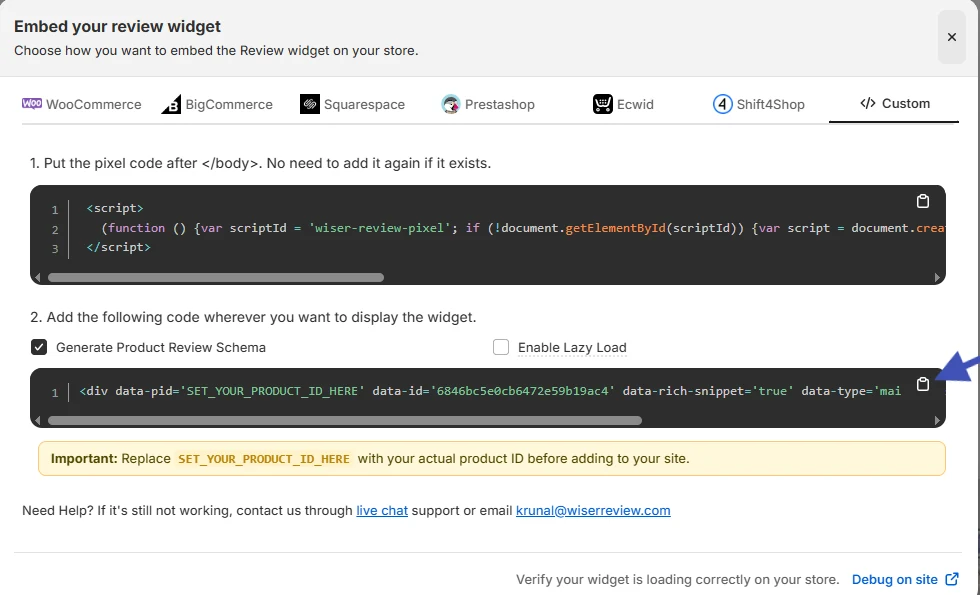


Step-by-Step Guide
1. Collect Testimonials
- Reach out to satisfied clients and customers for feedback.
- Request specific details about how your product or service helped them.
2. Access the Duda Editor
- Log in to your Duda account and open the site editor for the page you want to update.
3. Add a Testimonial Section
- Use Duda’s pre-designed Testimonial widget or drag and drop a custom section to create your own.
- Include dynamic content widgets to pull testimonials from your database if needed.
4. Input Testimonial Content
- Add the customer’s name, photo, and their review.
- Include their profession or business name for added authenticity.
5. Customize the Design
- Match the testimonial section’s style with your website’s branding by adjusting fonts, colors, and layouts.
- Use animations or transitions to make the section visually appealing.
6. Preview and Publish
- Test the testimonial section’s appearance and functionality across devices. Once satisfied, publish the updates.
3 Testimonial Optimization Tips
Use Visual Elements: Include customer photos, logos, or even video testimonials to increase authenticity and engagement. Video content is particularly impactful.
Focus on Specific Results: Highlight measurable outcomes, such as “Our site traffic increased by 40% within a month of launching with Duda” to make testimonials more compelling.
Rotate Fresh Testimonials: Regularly update your testimonials to feature recent feedback and keep the content relevant.
Best Places to Show Testimonials on Duda
Homepage
- Feature a compelling testimonial above the fold to immediately establish trust. For example, “This platform transformed our online presence” can leave a strong first impression.
Service or Product Pages
- Place testimonials that address specific features or benefits near detailed descriptions of your services or products. For instance, a quote about user-friendly templates works well next to a section about design features.
Pricing Pages
- Include testimonials near pricing details to justify your costs and highlight ROI. Statements like, “The value we received was worth every penny” can reassure hesitant buyers.
About Page
- Integrate testimonials into your About page to humanize your brand and demonstrate customer satisfaction.
Footer Section
- Embed a scrolling testimonial carousel in your footer for consistent visibility across all pages of your website.
Other Ways to Add Testimonials to Duda
Pop-Ups and Notifications
- Leverage pop-ups to display dynamic testimonials. For instance, show a customer review when a visitor spends significant time on a specific page.
Social Media Integration
- Embed social media posts with positive reviews directly onto your Duda site to enhance credibility.
Email Campaigns
- Include testimonials in email newsletters or promotional campaigns to nurture leads and encourage conversions.
Video Testimonials
- Host customer video testimonials on platforms like YouTube and embed them into your Duda website for a highly engaging experience.
Case Studies
- Transform detailed testimonials into full case studies. Publish these as blog posts or downloadable PDFs and link them to your main pages.
3 Testimonial Mistakes on Duda
Using Generic Feedback
- Avoid vague reviews like “Great service!”. Focus on testimonials that highlight specific benefits or results.
Overcrowding Pages
- Too many testimonials in one place can overwhelm visitors. Select the most impactful reviews and distribute them strategically across your site.
Ignoring Mobile Optimization
- Ensure testimonial sections are responsive. Poorly formatted content on mobile devices can harm user experience and lower engagement.
Wrap Up
Testimonials are a powerful way to establish trust, improve engagement, and drive conversions on your Duda website. By strategically placing authentic and impactful testimonials and keeping them updated, you can create a compelling user experience that builds credibility and inspires action.
Ready to elevate your Duda site? Start collecting and showcasing testimonials today to turn visitors into loyal customers.
Related Posts:
Frequently Asked Questions
How can I add testimonials to my Duda website?
You can add testimonials to your Duda website by using Duda’s built-in widget for testimonials, embedding a third-party tool like WiserNotify, or manually creating a section with text and images.
Can I customize the design of testimonials on Duda?
Yes, Duda allows you to customize the design of testimonials using the design settings. You can adjust fonts, colors, layouts, and styles to match your website’s theme.
Is there a way to automate testimonials on Duda?
Yes, you can automate testimonials by integrating third-party tools like WiserNotify, Trustpilot, or Google Reviews. These tools pull real-time testimonials or reviews and display them dynamically on your site.
Can I add video testimonials to my Duda website?
Absolutely! You can add video testimonials by embedding YouTube or Vimeo links, or by uploading videos directly to the media section of your Duda website.
How do testimonials improve conversion rates on my Duda site?
Testimonials build trust and credibility by showcasing customer experiences. They create social proof, which helps potential customers feel more confident in choosing your product or service, ultimately improving conversion rates.

Krunal Vaghasiya is a marketing tech expert who boosts e-commerce conversion rates with automated social proof and FOMO strategies. He loves to keep posting insightful posts on online marketing software, marketing automations, and improving conversion rates.




 Capterra