
Weebly Countdown Timer: How to Add One (2026)
Weebly doesn’t have a countdown timer element, so you add one with WiserNotify. You paste its pixel into Weebly’s Header Code once, then build and run the timer from your WiserNotify dashboard.
The timer can float as a top bar or popup on any page. It can also sit inside a section of a page, placed with Weebly’s Embed Code element. The steps below cover both.
The setup works the same way on other builders, so it mirrors adding a countdown timer on Wix.
How to Add a Countdown Timer to Weebly
You need three things before you start.
- Access to the Weebly editor for your site.
- The date your offer ends, or how long each visitor should get.
- A WiserNotify login. New accounts start on a 7-day free trial.
Watch the widget build first, then follow the Weebly install steps under the video.
Step 1: Copy the Pixel Code

- Sign in to WiserNotify and open the Install Pixel page.
- Click Copy code.
Step 2: Open Your Site in Weebly
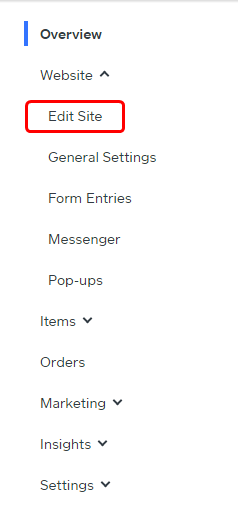
- Log in to Weebly.
- Click Edit Site on the site you want the timer on.
Step 3: Paste the Pixel in Header Code
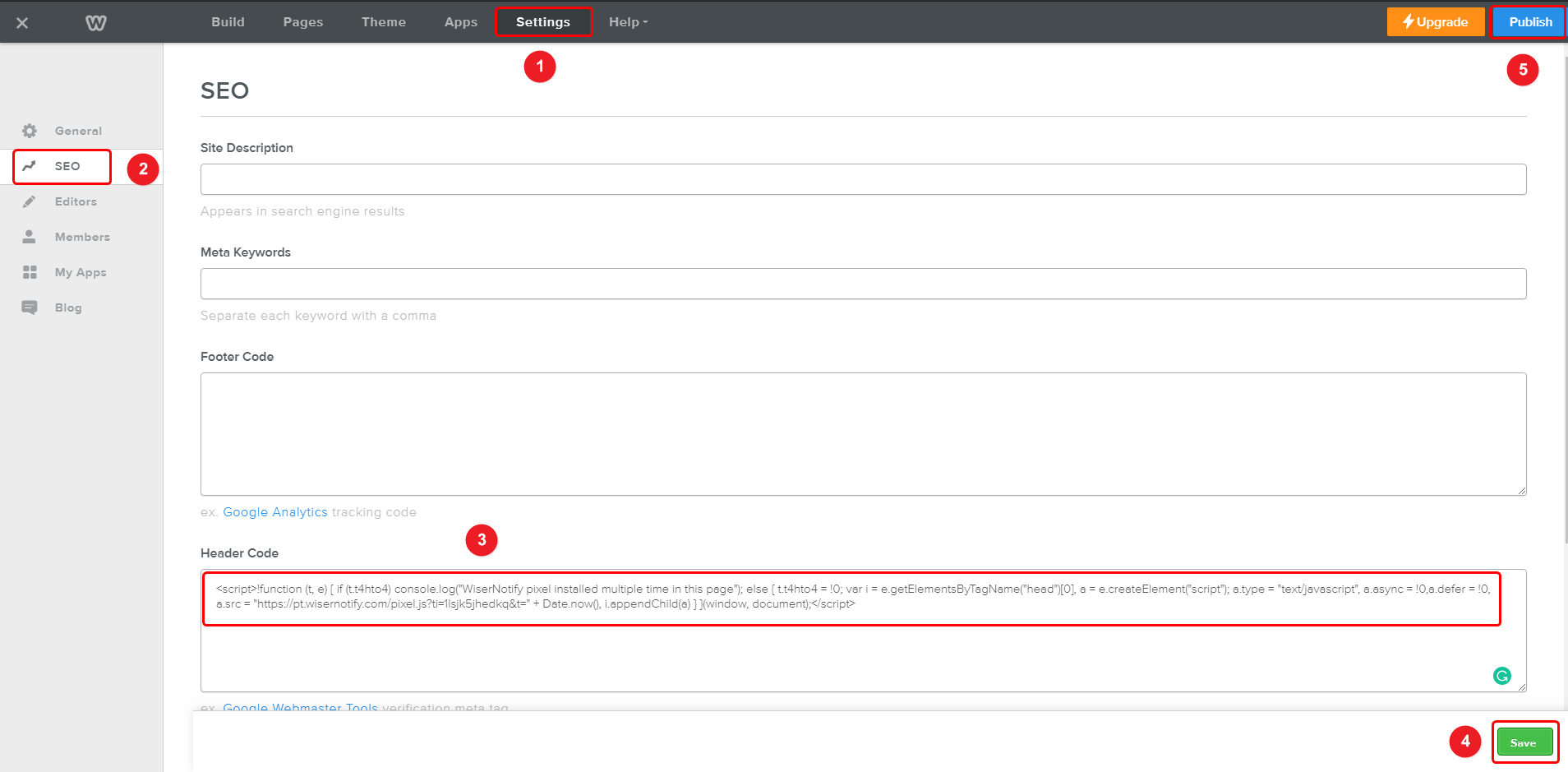
- Open the Settings tab and click SEO.
- Paste the pixel into the Header Code box, not Footer Code.
- Click Save, then Publish in the top right.
The full Weebly integration guide has the same steps with notes.
Step 4: Verify the Install

- Visit your published Weebly site once.
- Back on the WiserNotify pixel page, click Verify pixel installation.
- Wait for the detected message before you build the timer.
Step 5: Build the Countdown Timer
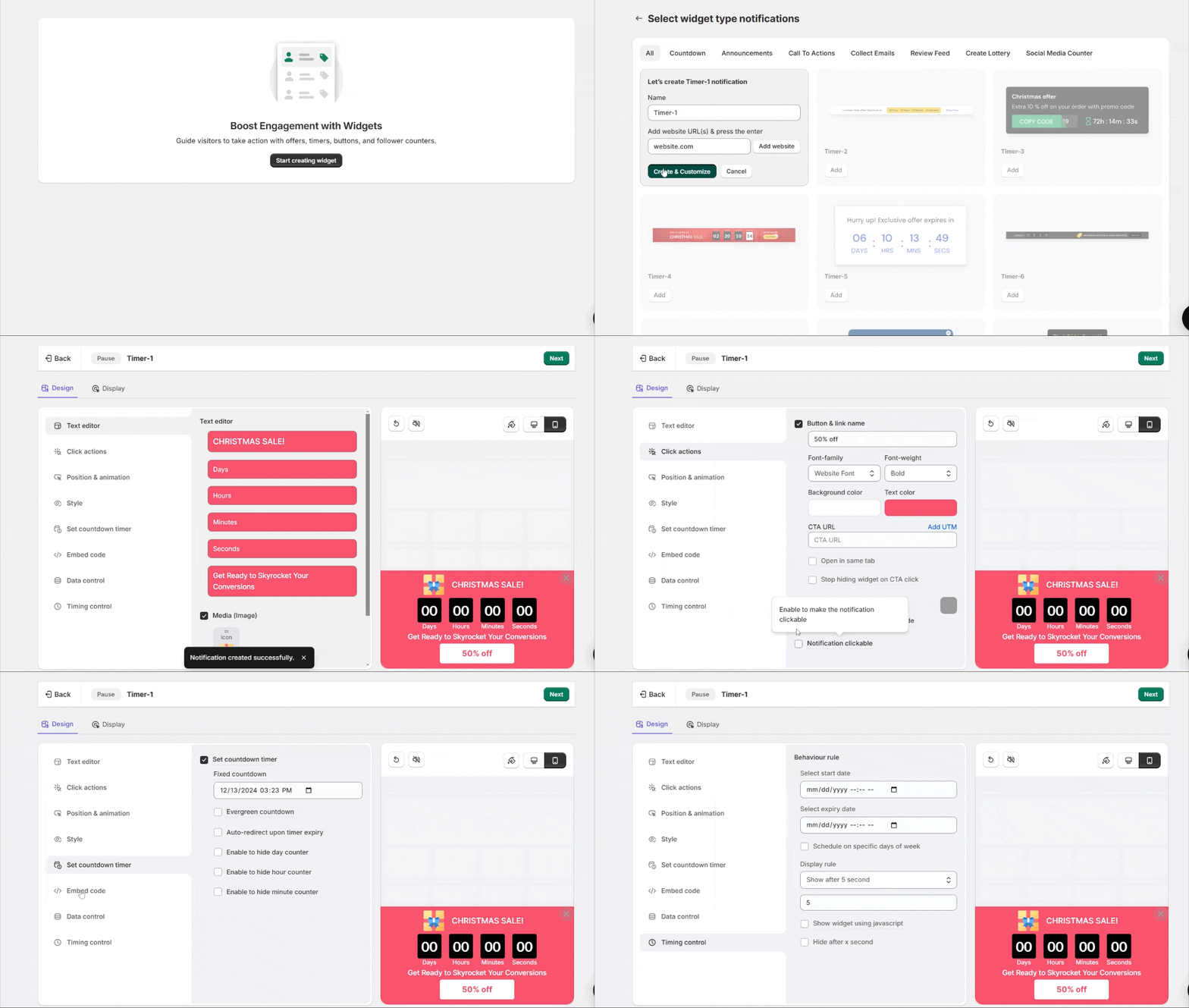
- Open Widgets, select Add notification, then the Countdown tab.
- Pick a template, click Add, enter a name and your site URL, then click Create & Customize.
- In Text editor, write the offer, such as “Sale ends Sunday.”
- Under Click actions, turn on a button pointing to the sale page.
- Position & animation sets top or bottom. Tick Push the page down so a top bar doesn’t cover your Weebly header.
- In Set countdown timer, choose Fixed countdown for one end date or Evergreen countdown for a timer that restarts for each new visitor.
- For a same-day sale, hide the day counter. Auto-redirect can send visitors to another page when the timer ends.
- In Timing control, set start and expiry dates and pick a trigger, such as a delay or exit intent.
Step 6: Embed It in a Page Section
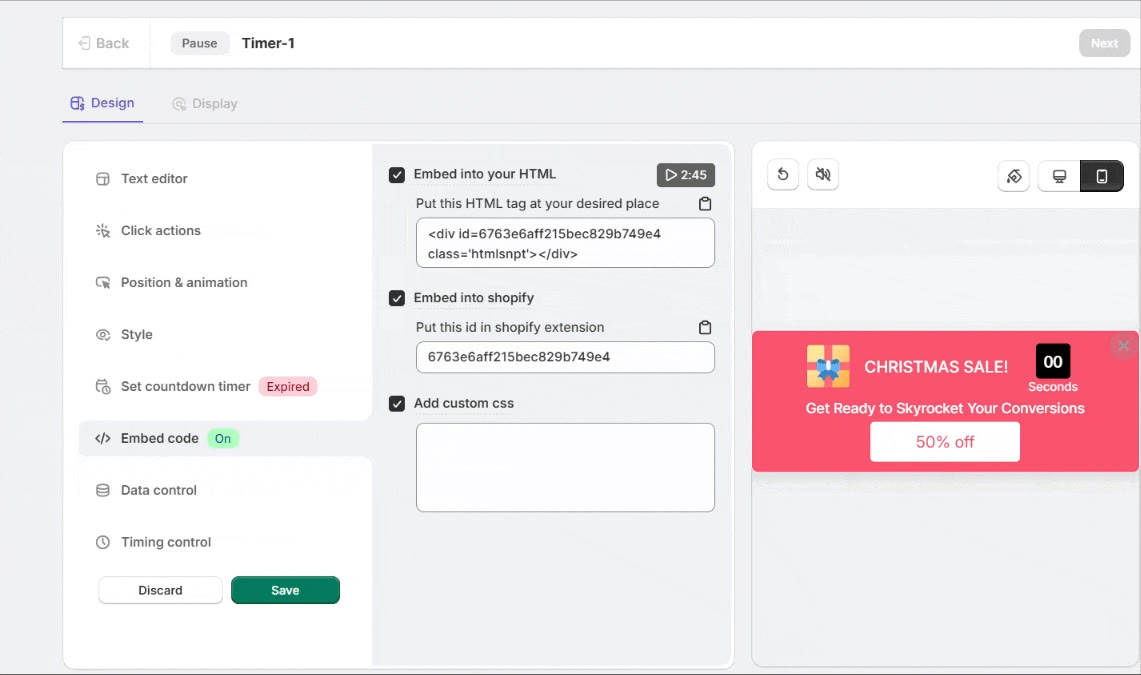
Skip this step if you want the timer to float. Use it when the timer should sit in one spot on a page, such as above a product.
- In the timer’s Design tab, open Embed code.
- Tick Embed into your HTML and copy the div tag.
- In the Weebly editor, drag an Embed Code element from the Build tab to where the timer should appear.
- Click the element, choose Edit Custom HTML, and paste the tag.
- Publish your Weebly site.
The div only marks the spot. The pixel from Step 3 still has to be in Header Code for the timer to load.
Step 7: Choose Pages and Publish
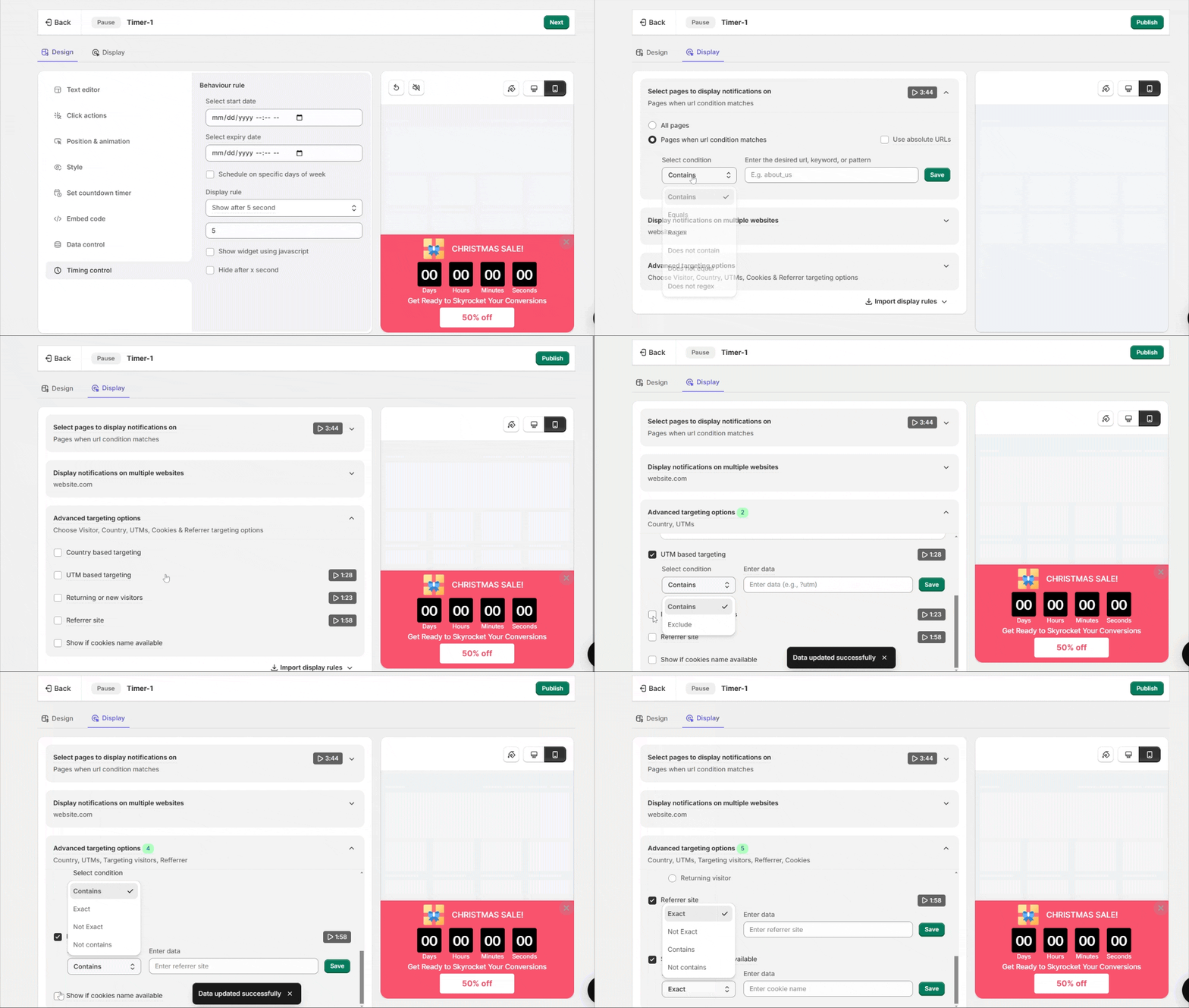
- Click Save, then Next.
- Show it on every page, or limit it to sale and product pages with URL conditions.
- Use advanced targeting for new or returning visitors, UTM sources or referrers.
- Click Publish and reload your live site to see the timer.
For every option, see the countdown timer widget guide.
Troubleshooting: Timer Not Showing Up?
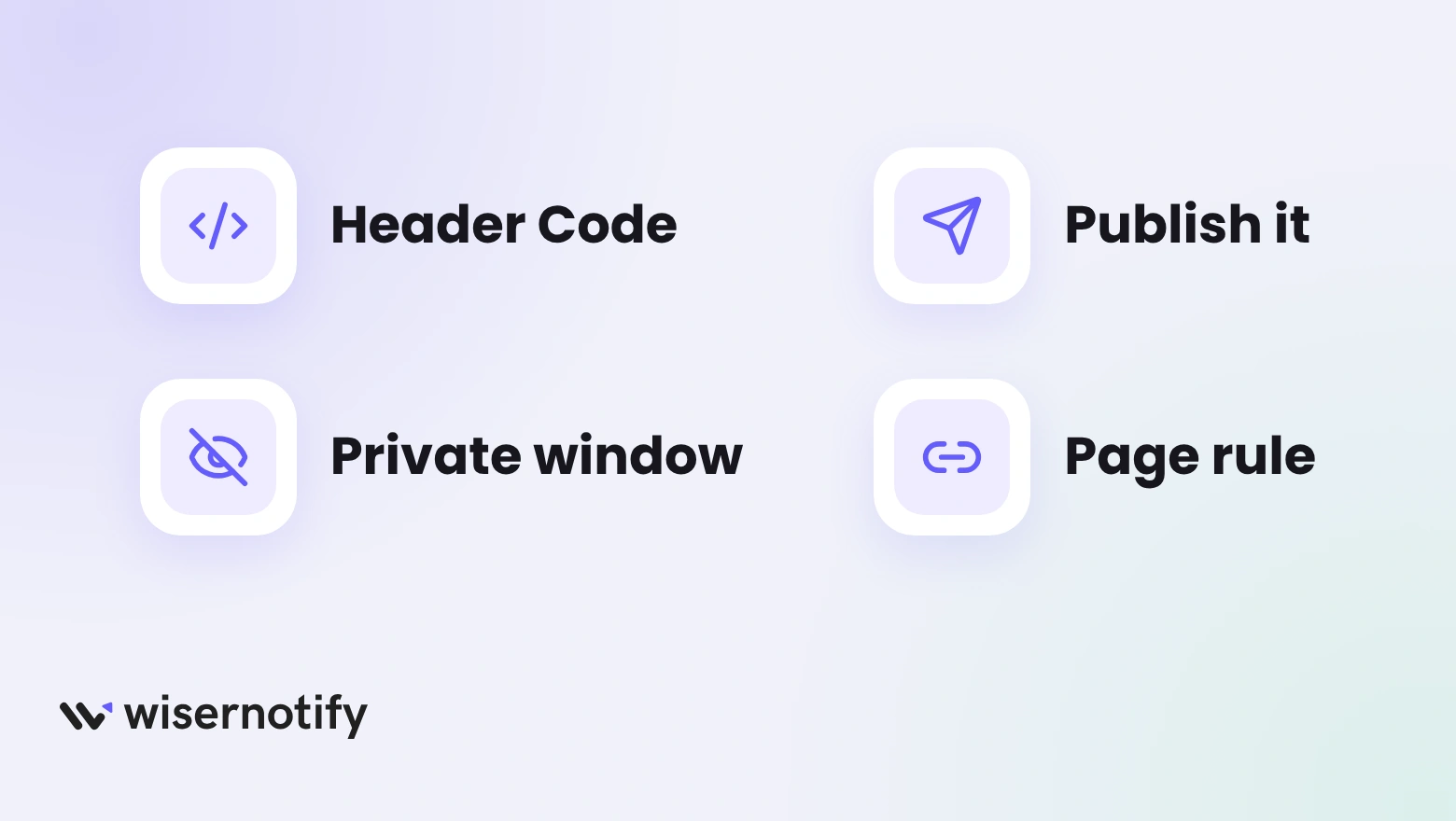
- Pixel in the wrong box: the SEO page shows Header Code and Footer Code next to each other. The pixel has to sit in Header Code, so double-check it didn’t land in the Footer field.
- Changes saved but not published: Weebly keeps a draft until you hit Publish. If you only clicked Save, the timer won’t be on your live site yet.
- Embedded timer looks blank in the editor: the Weebly editor may not preview it. Check the published site instead.
- Embed code but no pixel: the div tag can’t load the timer on its own. Confirm the pixel is still in Header Code.
- You’re seeing a cached page: open the site in an incognito window to rule out an old version loading from cache.
- Targeting excludes the page: in Display, make sure the page you’re checking is in the timer’s target rules.
Still stuck? Open your WiserNotify widget list, run the built-in Troubleshoot check, or message live chat support.
When and Where to Use a Countdown Timer
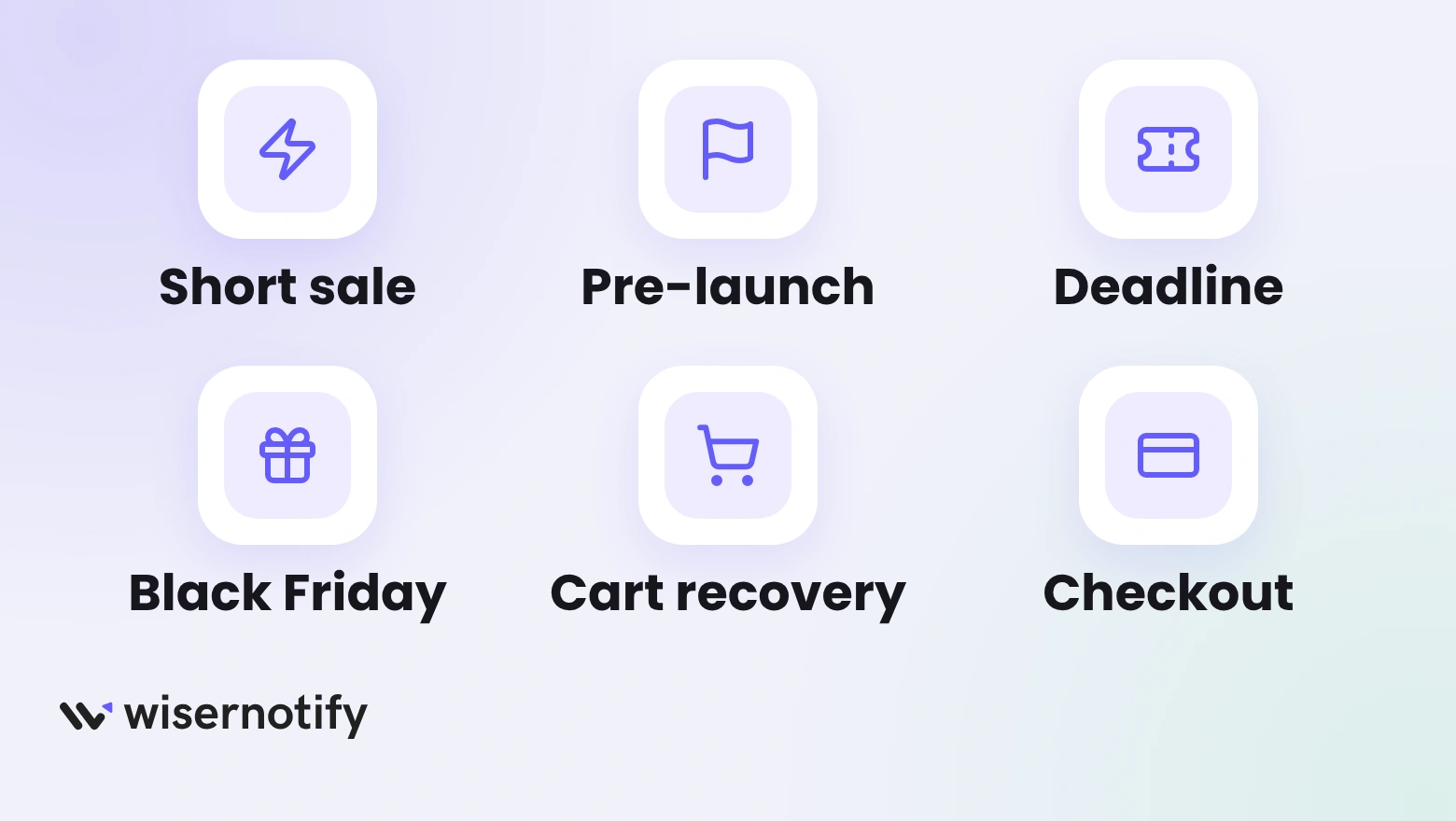
- Short discounts: a timer on the product or homepage makes a one- or two-day cutoff hard to ignore. Pair it with testimonials on Weebly to add trust to the urgency.
- Pre-launch buildup: counting down to a drop date turns a quiet landing page into something people want to come back to.
- Registration deadlines: for a webinar or class, a timer to the closing date nudges anyone who has been putting off signing up.
- Big sale seasons: during Black Friday or other holiday sales, a timer keeps the end date visible while shoppers compare their options.
- Recovering carts: tie a timer to an expiring discount or free-shipping window so an abandoned cart has a reason to get finished.
- At checkout: a short deadline beside the pay button helps someone commit instead of stalling on the final step.
For layouts and wording to borrow, see these countdown timer examples.
Build trust & FOMO
Highlight real-time activities like reviews, sales & sign-ups.


Common Mistakes to Avoid
- Counting down to nothing: a timer needs a sale, launch or deadline behind it, or visitors just get confused.
- Letting it run past zero: a dead countdown that expired last week tells people you don’t keep the site current. Switch it off or reset it the moment the offer closes.
- Stacking timers: competing countdowns on one page cancel each other out. One timer in the right spot does more. A sold counter on Weebly is a better second nudge than another clock.
- Skipping the phone check: a timer that looks sharp on a laptop can crowd the screen on mobile, where most of your visitors are.
- A clock with no ask: the countdown needs a matching action next to it, like “Grab the Deal” or “Save My Spot,” or it just decorates the page.
Measuring the Real Impact on Conversions

Getting the timer live is step one. Whether it’s moving sales is a separate question, and these three checks answer it.
- Views and clicks: the WiserNotify dashboard counts who saw each timer and who clicked it, so you know whether the offer copy works.
- Conversion lift on those pages: put a timer page next to a similar page without one and watch how the two convert over the same stretch.
- Movement as the clock runs down: healthy urgency shows up as sales or sign-ups climbing toward the deadline, not a flat line.
Conclusion
A countdown timer gives your Weebly visitors a reason to decide today rather than “someday.” Connect WiserNotify once, then run every timer from the dashboard, floating or embedded, without touching code again.
Keep each timer tied to a set deadline, give it a clear action, and check the numbers as campaigns run.
Related Post
Frequently Asked Questions
Does Weebly have a built-in countdown timer?
No, Weebly has no native countdown timer. You can add one with WiserNotify in a few minutes without any code.
Do I need to know how to code to add a countdown timer to Weebly?
No. You paste one pixel code into Weebly’s Settings, then build and manage the timer from your WiserNotify dashboard.
Can I customize the countdown timer design?
Yes. You can change the text, colors, shape, position, and animation so the timer matches your branding.
Where should I place a countdown timer on my Weebly site?
Put it where people decide, like a sale page, product page, or checkout, near your main call to action.
How can I track how my countdown timer is performing?
Your WiserNotify dashboard shows views and clicks for each timer, so you can see whether the offer gets attention.
Can the timer sit inside a page section instead of floating?
Yes. Copy the timer’s embed code and paste it into a Weebly Embed Code element where you want it.
Does the countdown reset for each visitor?
It can. Evergreen countdown restarts for every new visitor, while Fixed countdown ends on one date for everyone.

Krunal Vaghasiya is a marketing tech expert who boosts e-commerce conversion rates with automated social proof and FOMO strategies. He loves to keep posting insightful posts on online marketing software, marketing automations, and improving conversion rates.




 Capterra