Table of Contents

Get Summary On :

Google Reviews to Carrd 

Want More Sales? Add Google Reviews to Carrd in 5 Minutes

Carrd is a minimalist website builder that excels at creating simple, one-page sites for personal projects, portfolios, and businesses.

While its simplicity is its strength, adding elements like Google Reviews can significantly enhance credibility and conversions.

Whether you’re using Carrd to showcase your services, promote a product, or collect leads, integrating Google Reviews provides social proof that builds trust and encourages action.

This guide will walk you through adding Google Reviews to your Carrd site and optimizing them for maximum impact.

Why Add Google Reviews to Carrd?

1. Build Instant Credibility

Visitors are more likely to trust your offerings when they see positive feedback from real customers. Google Reviews provide authentic social proof.

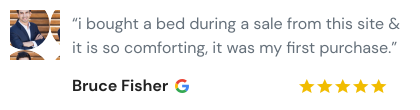
  • Example: A review like, “Excellent service and fast delivery,” can reassure visitors about your reliability.

2. Boost Conversions

Adding Google Reviews can nudge hesitant visitors to take action, whether it’s making a purchase, booking a service, or signing up.

3. Enhance SEO Performance

Google Reviews contribute to user-generated content that supports local SEO efforts and increases your site’s discoverability.

4. Leverage User-Generated Content (UGC)

Featuring Google Reviews is a simple way to integrate UGC, which helps humanize your brand and foster connections with your audience.

5. Complement Carrd’s Simplicity

Google Reviews integrate seamlessly into Carrd’s clean designs, adding value without overwhelming the aesthetic.

Icon

All your Google reviews in one place

Collect Google reviews, manage every response, and display them where they matter most.

How to Add Google Reviews to Carrd

Now, let’s see how to add Google reviews to your website or store.

First, sign up for WiserReview. There is a free plan if you are just starting, but there are also upgrades available for medium and enterprise businesses.

Once you sign up for your account, you can see the WiserReview dashboard.

This dashboard is your control center, where you can manage all aspects of your review management. It provides a clear overview of your review collection, moderation, and display processes.

Don’t be overwhelmed. WiserReview is a comprehensive Google review management software that not only helps you add Google reviews but also collects and moderates them.

And the best part? It’s designed to be user-friendly, so you’ll find it easy to navigate and use.

From the dashboard:

Go to → Manage review section and click on the “Import” button.

From there, you have many options to import reviews from, select “Google review” or “Import Reviews via CSV

Once done, you have a review showing in the manage review section.

Now let’s go to the “Widget” section.

Here, you have a wide range of widgets to choose from. Simply click on “configure” for any widget you need.

Each one is designed to build trust, credibility, and drive more conversions and sales through immediate consumer decision-making.

For example, we chose the “Review wall” widget for our second product.

This widget displays a dynamic wall of your Google reviews, creating a visually appealing and trustworthy display for your potential customers. And yes, we use Wiserreview’s Google review widget for this purpose.

Once you click on configure, you can see the widget customization dashboard. In it, click on “Filter”.

In it, select the “Review source” as Google review or CSV.

Now your review appears on the widget, and you can easily customize the widget to match your brand’s style.

It’s a straightforward process, and we’re confident you’ll find it intuitive and user-friendly.

Now, once it’s done, click on “Install” and choose from any of the three options.


  • Javascript – Insert this script where you want the review widget to appear on your website.
  • Iframe – Use this iframe code to embed the review widget in a specific section of your site.
  • URL – Share this URL to display the review widget on a separate page.

Now the widget is live and ready to build trust and drive conversions.

We are also using this on our site, WiserReview and Wisernotify.

Here is an example of it:

And wait, that’s just the tip of the iceberg of what Wiserreview can do for Google review management.

WiserReview can:

1. Automated Review Collection

Create a smart Google review form with the following setup:

  • Set up your Google review link.
  • Add buttons for easy interaction.
  • Display a star rating on the first screen to assess intent. If the rating is low, prompt for feedback. If the rating is high, direct the user to post their review on Google.

WiserReview simplifies the process of requesting Google reviews, automating personalized requests via email, SMS, or other messaging channels, making it easier for businesses to collect reviews.

Integrate the review form link with your existing POS, email, and SMS systems.

You can also post new sales data to the WiserNotify webhook API to automate the process. This streamlines review requests and enhances customer engagement through your existing channels.

2. Centralized Review Management

  • Review Aggregation: WiserReview aggregates reviews from various platforms (Google Reviews, Yelp, Facebook, etc.), bringing them into one central dashboard. This helps businesses track their reviews and see insights in real-time.
  • Review Monitoring: The platform notifies businesses whenever a new review is posted, allowing them to stay up-to-date with feedback.
  • AI reply: WiserReview helps businesses respond to customer reviews automatically with AI.

3. AI-powered review display and sharing

  • Automatically select positive sentiment reviews.
  • Publish them live on your site.
  • Convert these reviews into graphics and post them on your social media channels.

This enhances customer trust and promotes positive feedback across platforms.

Embed Google Reviews on Carrd

Carrd allows you to embed custom code, making it possible to display Google Reviews using widgets or manual HTML. Here’s how:

  1. Generate Your Google Reviews Widget Code
    • Use tools like Elfsight, EmbedSocial, or Trustpilot to create a Google Reviews widget.
  2. Log into Carrd
    • Open your Carrd dashboard and select the site you want to edit.
  3. Add an Embed Element
    • Drag and drop an Embed element onto your page.
    • Paste the Google Reviews widget code into the embed field.
  4. Adjust Placement
    • Position the reviews where they’ll have the most impact (e.g., near your call-to-action or product descriptions).
  5. Test Responsiveness
    • Preview your site to ensure the reviews display correctly on both desktop and mobile devices.
  6. Publish Your Site
    • Save and publish the changes to make your Google Reviews live.

Pro Tip: Use Carrd’s design tools to adjust spacing and alignment for a cohesive look.

Best Places to Show Google Reviews on Carrd

1. Homepage

The homepage is often the first impression visitors have of your site. Adding Google Reviews here immediately establishes trust.

Placement Tips:

  • Highlight your average star rating and a few top reviews.
  • Use a slider or compact layout to keep the design clean.

2. Service or Product Sections

If your Carrd site features specific services or products, place relevant reviews near their descriptions.

Example:

  • For a photography service, include a review like, “The photos were stunning and delivered on time!”

3. Near Call-to-Action (CTA) Buttons

Positioning reviews near CTAs like “Sign Up,” “Get Started,” or “Buy Now” reinforces trust and encourages clicks.

Strategy:

  • Select reviews that address common concerns or praise your service quality.

4. Contact Section

If your Carrd site has a contact form, placing Google Reviews nearby reassures visitors about reaching out.

5. Footer

Adding a summary of Google Reviews in the footer ensures visibility across the entire site.

Benefits:

  • Non-intrusive yet effective.

6. Dedicated Testimonials Section

Create a dedicated section for customer reviews to spotlight positive feedback.

Tips:

  • Use a grid or list format to organize multiple reviews.
  • Add customer photos (if available) to increase authenticity.

Other Ways to Add Google Reviews to Carrd

1. Manually Add Screenshots of Reviews

For a quick solution, take screenshots of your best Google Reviews and upload them as images to your Carrd site.

Steps:

  • Capture high-quality screenshots.
  • Use Carrd’s image element to display the reviews.

Pros:

  • Simple and fast.

Cons:

  • Static and won’t update automatically.

2. Use Text Blocks for Testimonials

Manually type excerpts from Google Reviews into text blocks on your Carrd site.

Example:

  • Quote a review like, “This service transformed my business in just one month!”

Pros:

  • Fully customizable.

Cons:

  • Requires regular manual updates.

3. Embed Dynamic Widgets

Third-party tools like Elfsight or EmbedSocial offer dynamic widgets that update automatically as new reviews are added.

Steps:

  • Generate a widget code.
  • Paste it into an Embed element on Carrd.

Pros:

  • Updates in real time.
  • Highly customizable.

Cons:

  • May require a subscription.

4. Link to Your Google My Business Profile

Encourage visitors to explore all your reviews by linking to your Google My Business page.

Example:

  • Add a button with the text “See All Reviews” that redirects to your Google profile.

Pros:

  • Drives traffic to your profile.

Cons:

  • Takes visitors away from your site.

5. Include Star Rating Graphics

Visual elements like star ratings are a quick and effective way to convey trust.

Steps:

  • Create star rating graphics using tools like Canva.
  • Add them to your Carrd site near CTAs or product descriptions.

Pros:

  • Eye-catching and simple.

Cons:

  • Doesn’t include full review content.
Icon

All your Google reviews in one place

Collect Google reviews, manage every response, and display them where they matter most.

 Google Review Mistakes on Carrd

1. Overloading the Page with Reviews

Adding too many reviews can clutter your design and overwhelm visitors. Focus on a curated selection of impactful testimonials.

2. Using Outdated Reviews

Old or irrelevant reviews can harm credibility. Regularly update your featured reviews to keep them fresh.

3. Poor Design Integration

Misaligned or poorly styled reviews can disrupt the clean look of your Carrd site. Ensure reviews are formatted to match your site’s design.

Wrap Up

Integrating Google Reviews into your Carrd site is a simple yet effective way to build trust, enhance credibility, and drive conversions.

Whether you use widgets, text blocks, or images, the key is to keep reviews authentic and strategically placed. Start showcasing Google Reviews today to elevate your Carrd site and win over your audience!

FAQ's

Adding Google Reviews to your Carrd website builds trust, enhances credibility, and improves conversion rates by showcasing positive customer experiences.


You can integrate Google Reviews using third-party tools like WiserNotify, custom HTML widgets, or plugins that embed review snippets directly into your Carrd website.


Yes, tools like WiserNotify allow you to customize the style, layout, and appearance of review widgets to match your Carrd website’s branding.


No, most tools and integrations provide simple drag-and-drop or copy-paste methods to embed reviews, making it easy for non-coders to implement.


Using optimized tools ensures that your Carrd site remains fast and responsive even after embedding Google Reviews.


Picture of Krunal Vaghasiya
Krunal Vaghasiya
Krunal Vaghasiya is a marketing tech expert who boosts e-commerce conversion rates with automated social proof and FOMO strategies. He loves to keep posting insightful posts on online marketing software, marketing automations, and improving conversion rates.
Wisernotify
Struggling with low conversions?
Use Social Proof & FOMO
Social Media icon